
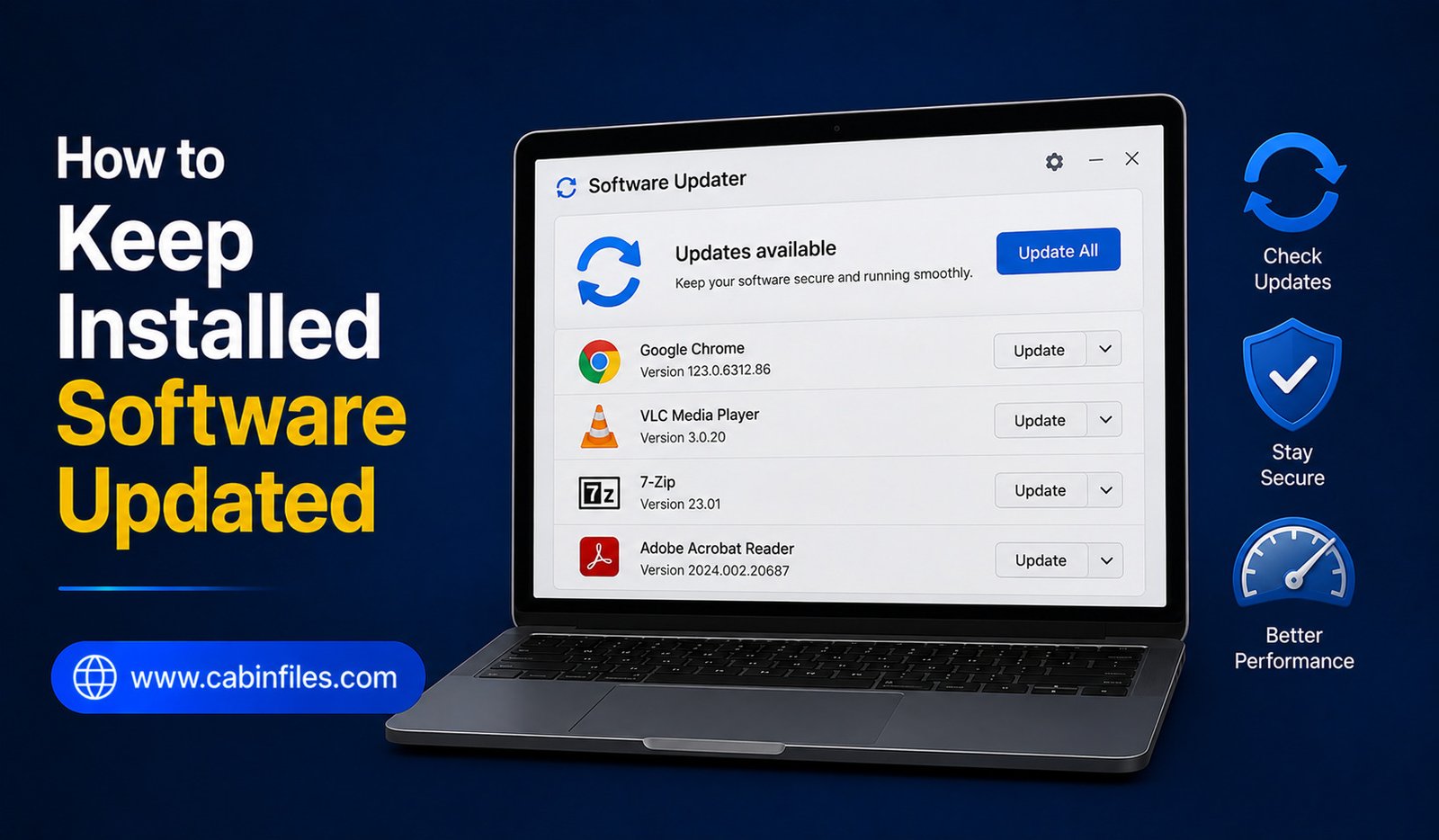
How to Keep Installed Software Updated: A Complete Windows Guide
Keeping installed software updated is an important part of maintaining a secure, stable, and efficient Windows PC. Developers regularly release updates to fix bugs, patch security vulnerabilities, improve performance, add features, and maintain compatibility with newer versions of Windows.
However, managing updates can become difficult when you have dozens of applications installed. Some programs update automatically, while others require you to check manually.
In this guide, we will explain how to keep installed software updated on Windows, how to identify outdated applications, and what habits can make software maintenance easier.
Why Should You Keep Software Updated?
Software updates are not only about getting new features. Many updates fix security vulnerabilities that could potentially be exploited by malicious software.
Updates can also resolve crashes, installation problems, compatibility issues, and performance bugs.
For example, an application that worked correctly several months ago might begin experiencing problems after a Windows update. Installing the latest version may include the compatibility fixes needed to restore normal operation.
Keeping software updated can therefore improve both security and reliability.
1. Use Automatic Updates When Available
The easiest way to keep software current is to enable automatic updates.
Many modern applications include an automatic update feature that periodically checks for new versions and installs them.
Look through the application’s settings for options such as:
Automatic updates
Check for updates automatically
or
Keep application updated
If the software comes from a trusted developer, automatic updates are generally convenient because you do not need to remember to check manually.
However, automatic updates do not mean every application on your computer will always be current. Some older programs still require manual updates.
2. Check Microsoft Store Apps
Applications installed through the Microsoft Store can often be updated through the Store itself.
Open the Microsoft Store and look for its application update section. Depending on your Windows version, you may find an option to check for available updates.
Keeping Store applications updated ensures that you receive the latest fixes and improvements provided by their developers.
If you regularly install software through the Store, check its update settings to determine whether automatic updates are enabled.
3. Update Traditional Desktop Programs
Not every Windows application is distributed through the Microsoft Store.
Traditional desktop applications may have their own update systems.
Open the application and look under menus such as:
Help > Check for Updates
Settings > Updates
or
About > Check for Updates
The exact location varies between applications.
If the program does not provide an update feature, visit the developer’s official website and check whether a newer version is available.
Always download updates from trusted sources whenever possible.
4. Keep Your Web Browser Updated
Web browsers are among the most important applications to keep current.
Browsers frequently receive security updates because they interact directly with websites, downloads, online accounts, and web-based applications.
Most popular browsers include automatic updating, but you can still manually check their version and update status through the browser’s settings or About page.
Do not ignore browser update notifications for long periods.
An outdated browser can expose your computer to security problems and may also cause websites to stop working correctly.
5. Update Graphics and Other Hardware Software
Some software depends heavily on hardware drivers.
Graphics drivers are particularly important for games, video editing, 3D applications, and other demanding programs.
If you experience crashes, display problems, or poor performance, check whether a newer driver is available for your hardware.
Obtain drivers from the hardware manufacturer’s official website or a trusted update mechanism.
Do not install random driver packages from unknown websites simply because they promise to update everything automatically.
6. Check for Updates Before Troubleshooting Problems
If an application suddenly starts crashing or displaying errors, check for an update before spending hours changing system settings.
Developers may already have released a patch for the problem.
This is especially useful after a major Windows update. A new Windows version can expose compatibility issues in older applications, and software developers may release updates specifically to address them.
Updating the application first can sometimes solve the problem immediately.
7. Review Your Installed Programs Regularly
It is difficult to keep software updated if you do not know what is installed.
Open:
Settings > Apps > Installed apps
Review the applications listed on your computer.
Remove programs you no longer use, but research unfamiliar applications before uninstalling them. Some may be required components for other software or hardware.
Keeping your installed-program list under control also reduces the number of applications you need to maintain.
8. Use a Trusted Software Update Tool Carefully
Some users prefer software-update utilities that scan a computer and identify outdated applications.
These tools can be convenient, particularly if you have many programs installed.
However, be selective.
Avoid utilities that aggressively advertise themselves, install additional programs, change browser settings, or encourage you to purchase unnecessary services.
If you use an update manager, choose a reputable solution and review what it wants to install before accepting changes.
For important or sensitive applications, checking the developer’s official update channel is often the safest approach.
9. Back Up Important Data Before Major Updates
Most software updates are routine and safe, but major version upgrades can sometimes change settings, file formats, or application behavior.
Before updating important professional software, make sure critical documents and projects are backed up.
This is particularly important for applications used for accounting, business operations, creative projects, databases, or other valuable work.
A backup gives you a recovery option if an update causes unexpected problems.
10. Don’t Install Every Update Blindly
Keeping software updated does not mean accepting every update without reading anything.
When an update is available, check what it contains when release notes are provided.
For normal security and bug-fix updates, installing promptly is usually sensible.
For major upgrades, you may want to confirm that your existing files, plugins, extensions, and hardware are supported.
This is particularly important for professional applications where compatibility with third-party tools matters.
11. Be Careful With Fake Update Notifications
One major risk is fake software-update messages.
A website may display a warning claiming that your browser, media player, PDF reader, or another application is outdated. Clicking the message may download unwanted or malicious software.
Legitimate updates should generally come through the application’s built-in update system, Microsoft Store, Windows Update, or the developer’s official website.
If a random website suddenly tells you to install an update, close the message and verify the update through the application’s normal update process.
12. Keep Windows Updated Too
Your applications are only one part of the software environment.
Windows itself should also be maintained through Windows Update.
Open Settings > Windows Update and check for available updates.
Windows updates can provide security fixes, hardware compatibility improvements, stability enhancements, and other system changes that applications depend on.
Keeping both Windows and your applications current can reduce compatibility problems.
13. Create a Simple Update Routine
You do not need to spend hours every week checking every application manually.
A simple routine can work well.
For example, periodically review Windows Update, Microsoft Store updates, browser updates, and the update notifications provided by applications you use regularly.
For less frequently used software, check for updates when you launch it or before starting an important project.
The goal is consistency rather than constantly monitoring your computer.
What If an Update Breaks the Software?
Occasionally, an update can introduce a new bug or compatibility problem.
If an application stops working immediately after an update, check the developer’s support page or release notes to see whether the issue is known.
Avoid immediately downloading an unofficial older version from an unknown website.
If the developer officially provides an earlier version or rollback option, follow its instructions.
For important applications, keeping backups of your data and configurations can make recovery much easier.
Best Practices for Software Updates
A few simple habits can make software maintenance safer:
- Keep automatic updates enabled for trusted applications when practical.
- Download updates from official sources.
- Keep Windows and web browsers updated.
- Review major updates before installing them.
- Back up important data before major software upgrades.
- Remove applications you no longer use.
- Avoid suspicious “update required” pop-ups.
- Restart your PC when an update requires it.
- Check application compatibility after major Windows updates.
- Keep track of critical software used for work or important projects.
Final Thoughts
Learning how to keep installed software updated does not require complicated maintenance. Automatic updates, Microsoft Store updates, application-specific update tools, and official developer websites can cover most of your software.
The most important rule is to update from trustworthy sources. Avoid random download sites and suspicious pop-ups that claim your software is outdated.
Regular updates can improve security, fix bugs, enhance performance, and prevent compatibility problems. Combined with good backups and occasional cleanup of unused applications, a simple update routine can help keep your Windows PC safer and more reliable over time.
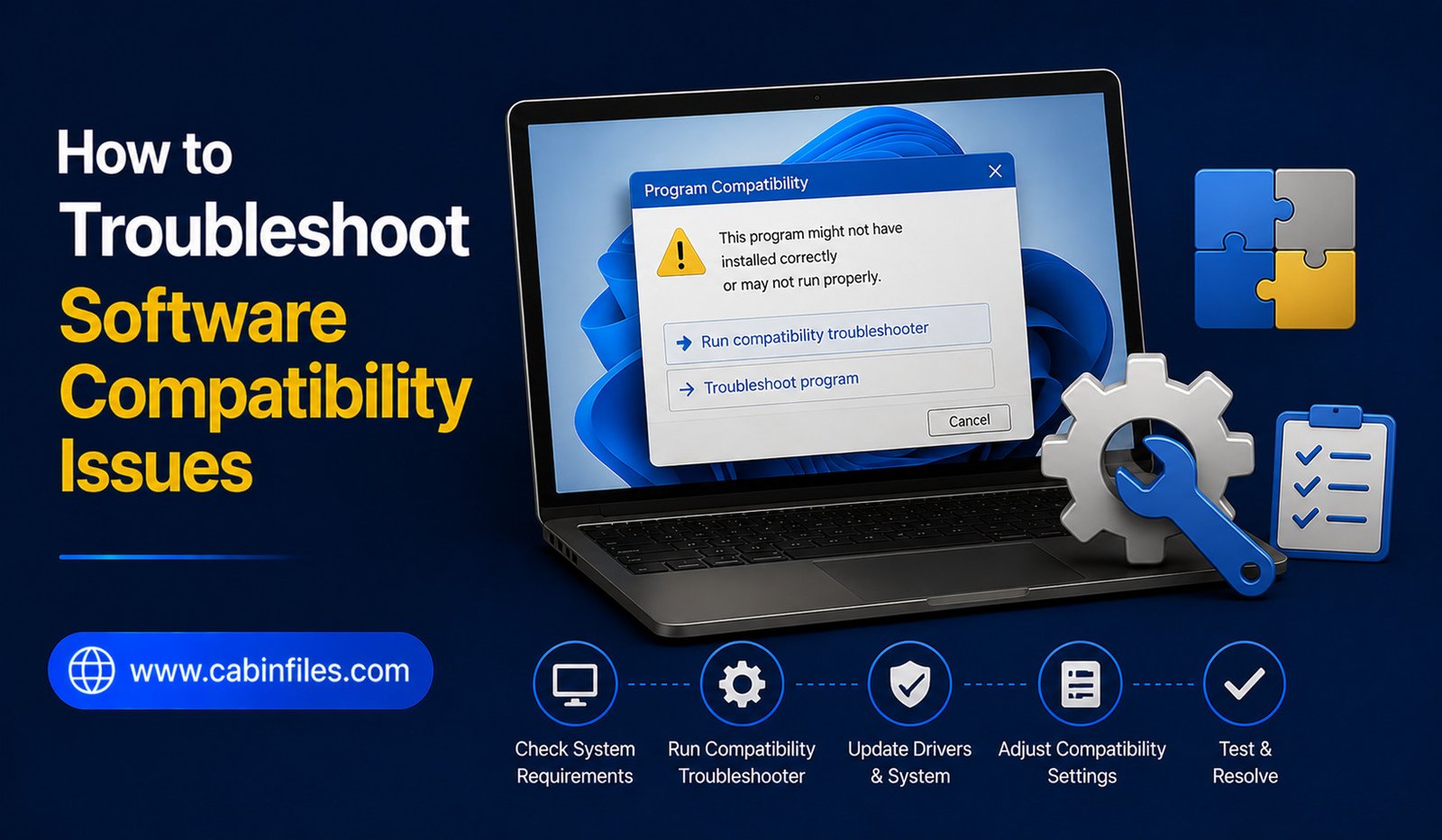
How to Troubleshoot Software Compatibility Issues on Windows
Software compatibility problems can be frustrating. An application may refuse to install, crash when opened, display strange errors, or work correctly on one computer but fail on another. These issues can happen after a Windows update, when using older software, or when an application requires hardware or system components that your PC does not have.
Fortunately, many software compatibility issues on Windows can be diagnosed and fixed without replacing your computer or reinstalling the entire operating system.
This guide explains practical ways to identify compatibility problems and get troublesome programs working again.
What Is a Software Compatibility Issue?
A compatibility issue occurs when software cannot work properly with your current operating system, hardware, drivers, settings, or other installed applications.
For example, an older application designed for an earlier Windows version may not function correctly on a newer release. A program may also require a specific version of .NET, Visual C++ runtime, graphics driver, processor architecture, or other system component.
Compatibility problems can produce different symptoms, including:
- The application will not install.
- The program crashes immediately.
- Features do not work correctly.
- The software displays an error message.
- The application runs extremely slowly.
- Graphics or interface elements appear incorrectly.
- Windows reports that the program cannot run on your PC.
Identifying the exact cause is the first step toward fixing the problem.
1. Restart Windows First
Before changing compatibility settings, restart your computer.
A temporary Windows process, memory issue, or software conflict can sometimes prevent an application from starting correctly.
After restarting, open the program again. If the problem disappears, you may have been dealing with a temporary issue rather than a serious compatibility problem.
If the error returns, continue with the following troubleshooting steps.
2. Check the Software’s System Requirements
Start by checking whether your computer meets the application’s requirements.
Look at the software developer’s official documentation for information about supported Windows versions, processor architecture, memory, storage, graphics hardware, and required system components.
Pay particular attention to whether the program supports your current version of Windows.
Older applications may have been designed for previous Windows releases and may not officially support newer versions.
If your computer does not meet a minimum requirement, changing compatibility settings may not solve the problem.
3. Update the Application
An outdated application can experience compatibility problems with newer versions of Windows.
Check whether the developer has released a newer version.
Updates may include fixes for Windows compatibility, security problems, graphics issues, and hardware changes.
If the application has an automatic updater, use it when possible. Otherwise, download the current version from the developer’s official website.
Avoid downloading unofficial modified versions simply because they claim to solve compatibility problems.
4. Run the Program as Administrator
Some applications require permissions to access particular folders, system settings, or resources.
If an application previously worked but now displays an access-related error, try running it as an administrator.
Right-click the application’s shortcut or executable file and select Run as administrator.
If the program works correctly this way, permissions may be contributing to the problem.
However, do not automatically configure every application to run as administrator. Elevated permissions should be used only when necessary.
5. Use Windows Compatibility Troubleshooter
Windows includes compatibility troubleshooting features designed to help older applications work on newer versions of the operating system.
Right-click the application’s executable or shortcut and look for Properties. Depending on your Windows version and configuration, you may find compatibility settings under the Compatibility tab.
Windows may also provide a compatibility troubleshooter that can recommend settings based on the application’s behavior.
Follow the suggested options and test the application after each change.
6. Try Compatibility Mode for Older Programs
If an older application was designed for an earlier Windows release, Compatibility Mode may help.
Open the application’s Properties and go to the Compatibility tab.
You may see an option to run the program in compatibility mode for an earlier version of Windows.
Select an appropriate version and apply the change.
Then launch the program again.
Compatibility Mode does not guarantee that old software will work. Programs that depend on obsolete drivers, hardware, security systems, or discontinued components may still fail.
7. Update Your Windows Drivers
Hardware drivers can also cause software compatibility problems.
Graphics-intensive applications, games, video editors, and professional software are particularly sensitive to driver issues.
Check whether your graphics, chipset, audio, and other relevant drivers are up to date.
For graphics drivers, it is generally best to obtain the latest compatible version directly from the hardware manufacturer’s official source.
If the problem started immediately after a driver update, the new driver itself could be responsible. In that situation, checking for a newer update or using an appropriate rollback option may help.
8. Install Required Runtime Components
Some Windows programs depend on additional software components.
Common examples include certain versions of:
- Microsoft .NET
- Microsoft Visual C++ Redistributable
- DirectX components
- Other application-specific runtimes
If an application reports that a DLL or runtime component is missing, do not download individual DLL files from random websites.
Instead, identify which official runtime package the application requires and obtain it from a trusted source.
Installing the correct dependency is safer and more reliable than manually replacing system files.
9. Check Whether Security Software Is Blocking the Program
Security software can sometimes interfere with applications, particularly programs that access protected folders, networks, or system resources.
If Windows Security or another trusted security application reports that it has blocked or quarantined something, review the warning carefully.
Do not disable security protection simply to make an unknown application run.
If you downloaded the software from an official and trustworthy source and believe it was incorrectly blocked, investigate the detection before making an exception.
Adding exclusions for suspicious programs can expose your computer to unnecessary risk.
10. Look for Conflicting Applications
Two programs may sometimes interfere with each other.
This can happen with applications that use the same hardware resources, background services, overlays, virtualization features, or system-level components.
If the compatibility problem began after installing another program, consider whether the new software could be involved.
Temporarily closing unnecessary background applications can also help determine whether there is a conflict.
Task Manager can help you identify programs and processes currently running.
11. Repair or Reinstall the Application
If compatibility problems continue, the application’s installation may be damaged.
If Windows provides a Repair option for the application, try it first.
If Repair does not work, uninstall the software and install a fresh version.
Before uninstalling, check whether the application stores important projects, saved games, configuration files, licenses, or other personal data locally.
A clean installation can replace damaged files and restore missing components.
12. Check for Windows Updates
Windows updates can fix compatibility problems by improving system components, drivers, and security features.
Open Settings > Windows Update and check for available updates.
Install appropriate updates and restart the computer when required.
However, if the problem appeared immediately after a particular Windows update, investigate whether the software developer has released a compatibility patch or whether Microsoft has acknowledged the issue.
Avoid randomly removing system updates without understanding the consequences.
13. Test the Software After Every Change
One of the most important troubleshooting habits is to make one major change at a time.
For example, do not simultaneously change compatibility mode, install several drivers, modify security settings, and reinstall the program.
If you change everything at once, it becomes difficult to determine what actually fixed the problem.
Instead, change one setting, restart if necessary, and test the application.
Once you identify the solution, you will also know what to do if the problem returns later.
When Older Software Cannot Be Made Compatible
Some applications are simply too old to work reliably on modern Windows.
A program may depend on discontinued technologies, obsolete drivers, outdated copy-protection systems, or hardware that modern computers no longer support.
In such cases, forcing compatibility settings may not be enough.
Depending on the software’s importance, you might consider a newer version, an officially supported alternative, or an appropriate virtualized environment.
For business-critical software, check the developer’s support documentation before making major system changes.
Final Thoughts
Troubleshooting software compatibility issues is usually a process of identifying where the conflict occurs. Start by checking system requirements, updating the application and Windows, and verifying that required drivers and runtime components are installed.
For older programs, Compatibility Mode may help. If the problem involves permissions, try running the application as an administrator, but only when necessary. You should also investigate security software and possible conflicts with other applications.
If none of these solutions work, repairing or reinstalling the program may be the best option. When software is extremely old, however, replacing it with a supported version may be safer and more reliable than trying to force it to run.
With a systematic approach, many Windows compatibility problems can be resolved without resorting to drastic measures.
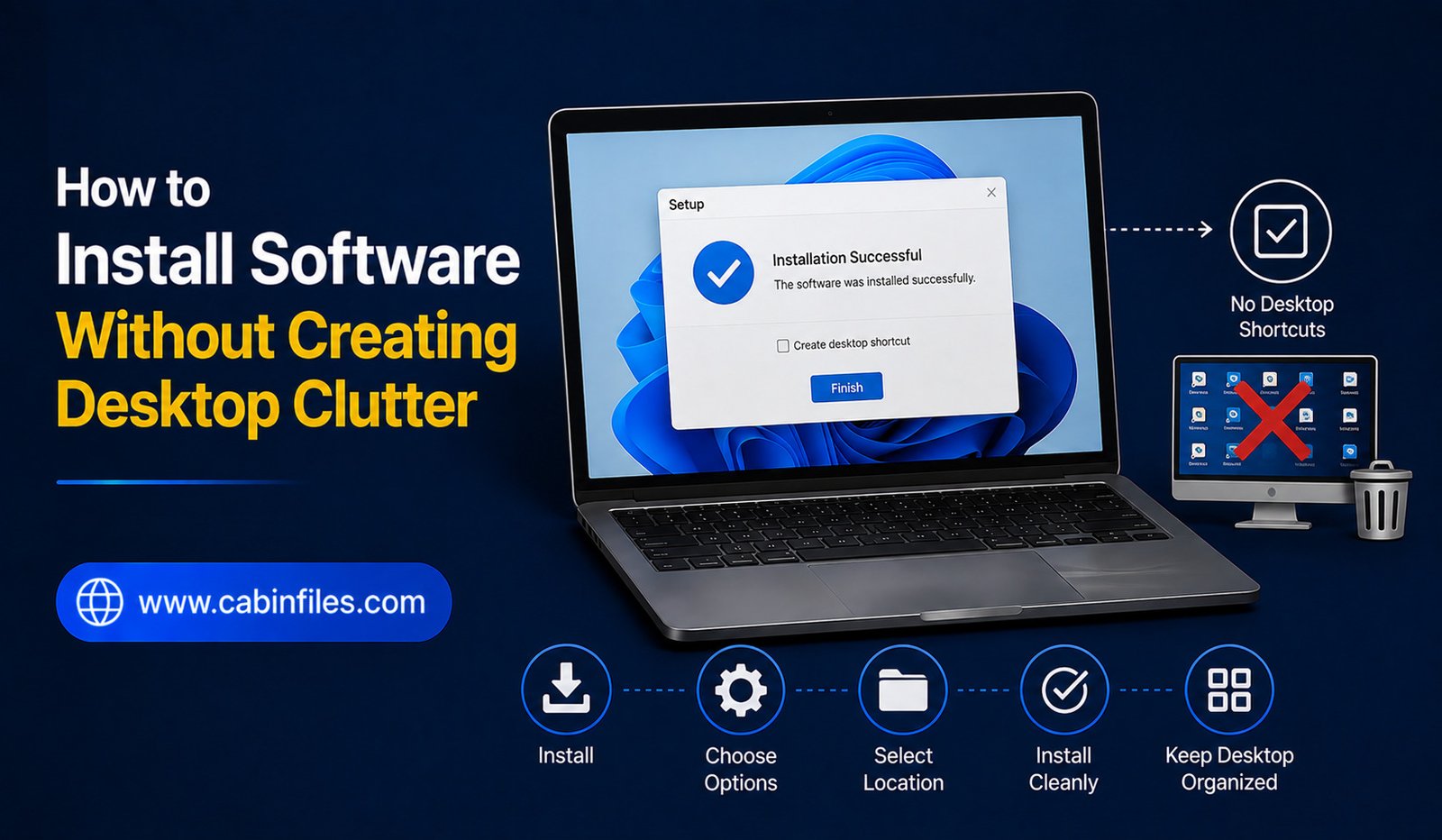
How to Install Software Without Creating Desktop Clutter
Installing new software should make your computer more useful, not turn your desktop into a crowded collection of icons and shortcuts. Many applications automatically create desktop shortcuts, add entries to the Start menu, enable background processes, or place extra files in commonly used folders.
Over time, these shortcuts and unnecessary files can make your Windows desktop difficult to navigate. The good news is that you can install software without creating desktop clutter by paying attention to installation options and organizing applications properly.
This guide explains practical ways to keep your Windows PC clean while still installing the programs you need.
Why Does Software Create Desktop Clutter?
Many Windows applications create a desktop shortcut during installation so users can launch them quickly. While this can be convenient, installing dozens of programs can quickly fill the desktop.
Some software may also add shortcuts to the Start menu, taskbar, system tray, or startup list. Others create folders containing installers, temporary files, logs, or downloaded content.
Not all of these files are harmful or unnecessary, but you do not need every shortcut visible on your desktop.
A clean installation starts with understanding what the installer is actually offering.
1. Choose Custom Installation When Available
When installing desktop software, look carefully for installation options such as Custom, Advanced, or Customize.
The default installation may automatically enable several options, including:
- Create a desktop shortcut
- Add a Start menu shortcut
- Launch the application when Windows starts
- Install additional components
- Set the program as a default application
You do not necessarily need to accept every option.
Choosing a custom installation gives you more control over what gets installed and which shortcuts are created.
2. Uncheck the Desktop Shortcut Option
One of the simplest ways to prevent desktop clutter is to disable the shortcut option during installation.
Look for wording such as:
Create a desktop shortcut
or
Add shortcut to desktop
If you already know where you will launch the application from, you can leave this option unchecked.
The program will still be installed normally. You can launch it through the Start menu, Windows Search, or another shortcut you choose later.
Be careful, however, not to uncheck essential installation components simply because they look unfamiliar. Focus on optional shortcuts and promotional additions.
3. Use the Start Menu Instead
You do not need a desktop shortcut for every application.
Press the Windows key and search for the software by name. Windows Search can usually locate installed applications quickly.
You can also browse the Start menu to find your installed programs.
This approach keeps your desktop free while still giving you convenient access to your applications.
For software you use frequently, you can consider pinning it to Start or the taskbar instead of creating another desktop icon.
4. Pin Only Your Most-Used Apps
If you regularly use a particular application, consider pinning it rather than creating multiple shortcuts.
Right-click an application and use the available Pin to Start or Pin to taskbar option.
This gives you quick access without filling the desktop with icons.
Try to reserve your taskbar for applications you use frequently. Keeping it organized can make Windows easier to navigate.
5. Create a Dedicated Folder for Desktop Shortcuts
Sometimes you may actually need shortcuts for several applications.
Instead of placing all of them directly on the desktop, create a folder such as:
My Apps
or
Software Shortcuts
You can then move less frequently used shortcuts into that folder.
Your desktop will contain only one folder instead of many individual icons.
You can create additional folders based on your needs, such as Work, Editing, Utilities, or Games.
Avoid creating too many categories, though. The purpose is to make applications easier to find, not create another complicated filing system.
6. Remove Unwanted Shortcuts After Installation
If you accidentally installed software with a desktop shortcut, you do not have to uninstall the application.
Simply delete the shortcut from the desktop.
In most cases, deleting a desktop shortcut does not remove the actual application. It only removes the convenient link used to launch it.
Before deleting anything, make sure you are removing a shortcut rather than an important program file or folder.
You can usually identify shortcuts by their icon and shortcut characteristics.
7. Be Careful With Additional Software
Some installers offer optional applications, browser extensions, utilities, or promotional software.
Read each installation screen carefully.
If an installer offers software you did not intend to install, look for an option to decline it.
This is one of the most important ways to avoid unnecessary clutter. Installing unwanted programs can create additional shortcuts, background processes, notifications, and startup entries.
Whenever possible, download applications from their official websites or trusted software stores.
8. Avoid Saving Installers on the Desktop
Another common source of clutter is downloaded installation files.
For example, you may download files such as:
setup.exe
installer.exe
application-installer.msi
After successfully installing the program, the installer usually does not need to remain on the desktop.
Instead, use the Downloads folder for installation files. After confirming that the application works correctly, you can delete installers you no longer need.
Do not delete files if you are unsure whether they are required by the installed application.
9. Organize Your Downloads Folder
Desktop clutter often happens because users save everything to the desktop for convenience.
Instead, create a simple structure inside your personal folders.
For example, you might use:
Downloads > Software Installers
for installation packages you want to keep temporarily.
You can also create folders for documents, images, projects, and other types of files.
This makes it easier to locate files without relying on the desktop as a storage area.
10. Consider Portable Applications
Some applications are available in portable versions. A portable application can often run from a folder without going through a traditional installation process.
This can be useful when you want to keep a particular utility separate from your main Windows installation.
However, portable software is not automatically better. Some applications require proper installation because they depend on Windows services, drivers, system integrations, or file associations.
Only use a portable version when it comes from a trustworthy source and is officially supported.
11. Review Startup Options During Installation
Desktop clutter is not the only issue caused by careless software installation.
Some applications automatically configure themselves to start whenever Windows starts.
If you do not need a program running in the background, look for an option such as:
Launch at startup
or
Start with Windows
You can usually disable unnecessary startup behavior during installation or manage it later through Windows Settings or Task Manager.
Reducing unnecessary startup applications can also help keep your system organized and responsive.
12. Uninstall Software You No Longer Use
A clean desktop is useful, but your computer can also become cluttered internally with applications you no longer use.
Periodically review your installed programs through Settings > Apps > Installed apps.
If you have not used an application for a long time and no longer need it, consider uninstalling it.
Do not remove programs simply because their names look unfamiliar. Some applications are components required by other software or hardware.
If you are unsure about a program, research its purpose before uninstalling it.
Best Practices for a Clean Software Installation
A few simple habits can make a significant difference:
- Download software from trusted sources.
- Choose Custom or Advanced installation when available.
- Decline optional software you do not need.
- Uncheck unnecessary desktop shortcut options.
- Use the Start menu or taskbar for frequently used applications.
- Store installation files in Downloads instead of the desktop.
- Delete unnecessary installers after confirming the software works.
- Review startup permissions for newly installed applications.
- Organize shortcuts into folders when necessary.
- Uninstall programs you genuinely no longer need.
Final Thoughts
You do not need a desktop full of icons to have a well-equipped Windows PC. By paying attention during installation, choosing only the options you need, and using the Start menu or taskbar for quick access, you can install software without creating desktop clutter.
The most important habit is to avoid treating the desktop as a permanent storage location. Use it as a workspace for the things you need immediately, while keeping applications, installers, and personal files organized elsewhere.
A few extra seconds during each software installation can save you a lot of cleanup later and keep your Windows desktop simple, organized, and easier to use.
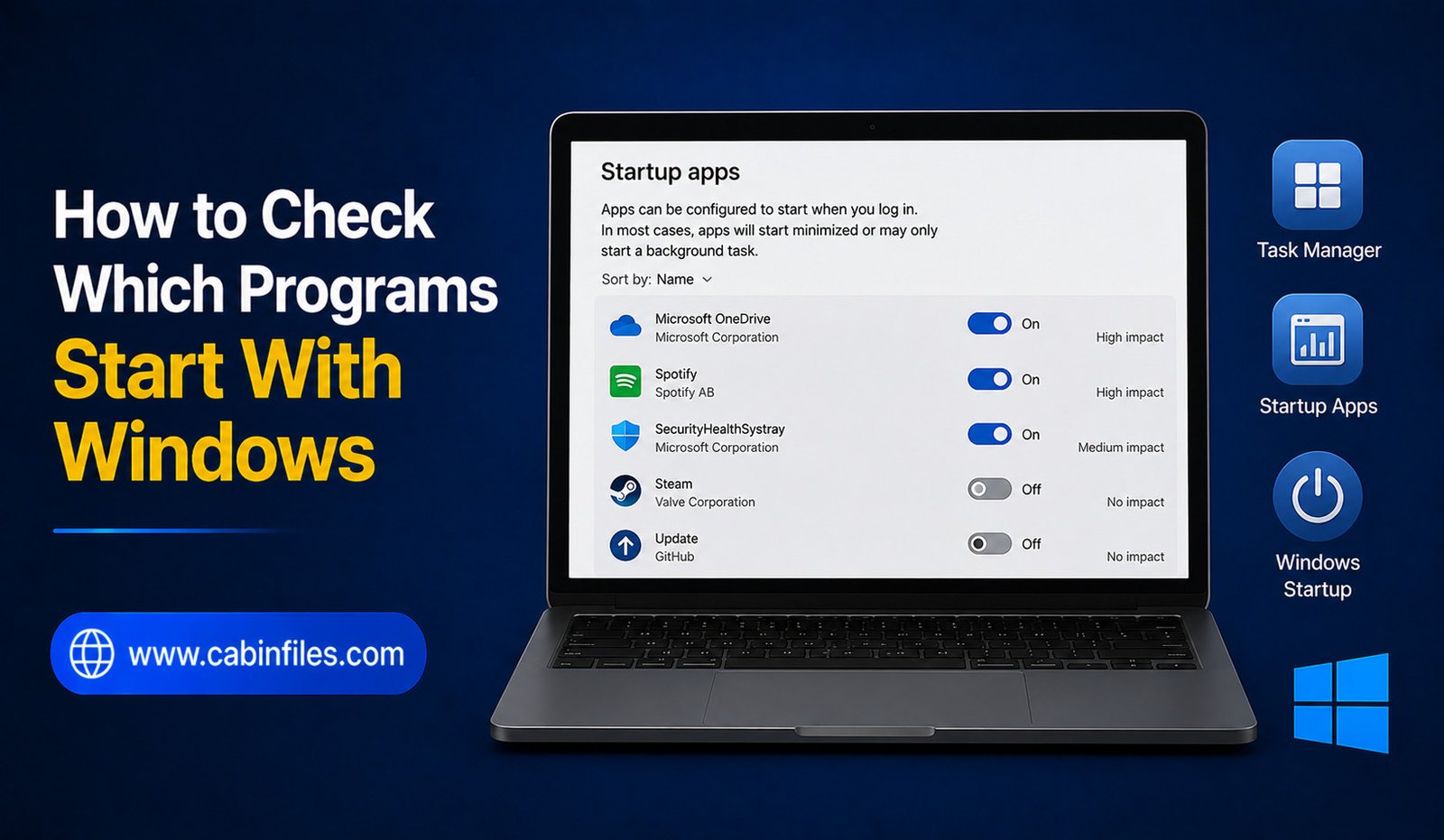
How to Check Which Programs Start With Windows
When you turn on your Windows PC, you may notice that some applications open automatically in the background. While a few startup programs are useful, having too many can slow down the boot process, consume memory, and make your computer feel sluggish.
Fortunately, Windows provides several built-in ways to check which programs start with Windows. You can view startup applications, check their impact on system performance, and disable unnecessary programs without uninstalling them.
This guide explains the easiest ways to see and manage Windows startup programs safely.
What Are Startup Programs?
Startup programs are applications or background services that Windows launches automatically when you sign in to your computer.
Some startup programs are useful. For example, security software, cloud storage applications, or hardware utilities may need to start with Windows.
Other programs may not need to launch immediately. Messaging apps, game launchers, media applications, and software update tools can sometimes run automatically even when you do not need them.
Having too many startup applications can increase boot time and use system resources.
1. Check Startup Programs in Task Manager
The easiest way to check startup applications is through Task Manager.
Press Ctrl + Shift + Esc on your keyboard to open Task Manager. If you see the simplified interface, select More details.
Then select the Startup apps section.
Here you will see applications that are configured to launch when you sign in to Windows. The list can include the application name, publisher, status, and startup impact.
The Status column shows whether an application is enabled or disabled.
The Startup impact column can help you identify applications that may have a noticeable effect on startup performance.
If you want to stop an unnecessary application from launching automatically, right-click it and select Disable.
Disabling a startup application does not uninstall the program. It simply prevents Windows from automatically launching it during startup.
2. Use Windows Settings
Windows also provides startup controls through the Settings application.
Open Settings and select:
Apps > Startup
You will see a list of applications that can start automatically when you sign in.
Each application has an on/off control. Turn off applications that you do not need to launch automatically.
This method is particularly convenient if you want a quick overview without opening Task Manager.
However, Task Manager generally provides more information about startup performance, so it is useful when you are trying to identify applications that are slowing down your PC.
3. Check the Startup Folder
Some applications can be configured through the Windows Startup folder.
Press Windows + R to open the Run dialog.
Enter:
shell:startup
and press Enter.
Windows will open the Startup folder associated with your user account.
You may find shortcuts to applications that Windows launches automatically after you sign in.
There is also a startup folder that can apply to all users. You can access it with:
shell:common startup
Be careful when deleting items from these folders. If you do not recognize a shortcut, investigate the associated program before removing it.
4. Check Startup Apps in Task Manager More Carefully
If your computer takes a long time to start, Task Manager can help you determine which applications deserve attention.
Look at the Startup impact column and identify applications marked with a higher impact.
However, do not automatically disable every application with high startup impact.
Some programs may be important for security, hardware functionality, cloud synchronization, or other services you rely on.
Instead, consider whether you actually need the application to launch immediately after signing in.
For example, a program that you use only occasionally may not need to run every time Windows starts.
5. Check Which Programs Are Running After Startup
Startup programs are not the only applications consuming resources after Windows loads.
Open Task Manager and select the Processes tab.
You can view applications and background processes currently running on your computer. Task Manager also shows resource usage such as CPU, memory, disk, and network activity.
This can help you distinguish between applications that start automatically and programs that are simply running later because another application or Windows service launched them.
If you find an unfamiliar process, do not immediately terminate or uninstall it. Search for its publisher and file location first.
6. Use System Configuration for Older Startup Entries
Windows includes the System Configuration utility, commonly known as MSConfig.
Press Windows + R, type:
msconfig
and press Enter.
The System Configuration window provides options related to Windows startup and services.
On modern versions of Windows, startup application management is generally handled through Task Manager rather than directly through MSConfig.
However, MSConfig can still be useful for troubleshooting certain startup and service-related problems.
Avoid changing services randomly. Disabling essential Windows services can cause unexpected problems.
7. Check for Suspicious Startup Programs
If you notice an unfamiliar application starting with Windows, investigate it before disabling or deleting anything.
Right-click the application in Task Manager and look for options such as opening its file location or searching for information about the process.
Pay attention to the publisher and installation location.
A legitimate program usually has recognizable information, while an unknown executable stored in an unusual location deserves additional investigation.
You can also run a security scan using Windows Security if you suspect that an unfamiliar startup item could be malicious.
8. Should You Disable Startup Programs?
Disabling unnecessary startup applications can improve the time it takes to reach a usable desktop and may reduce background resource usage.
However, the goal should not be to disable everything.
Consider keeping applications enabled when they provide services you need immediately after signing in. Examples can include security tools, essential hardware utilities, or synchronization software that you depend on.
For applications you rarely use, disabling automatic startup may make more sense.
You can still open the application manually whenever you need it.
9. What Happens When You Disable a Startup App?
When you disable a startup application, Windows generally stops launching it automatically when you sign in.
The application remains installed on your computer.
For example, if you disable a music application from startup, you can still open it from the Start menu whenever you want.
If you notice that a required feature stops working after disabling an application, you can return to the Startup settings or Task Manager and enable it again.
This makes startup management relatively safe as long as you avoid disabling essential system components without understanding their purpose.
10. Keep Your Startup List Under Control
Your startup list can grow over time as you install more applications.
Instead of waiting until your PC becomes slow, review startup applications occasionally.
When installing new software, pay attention to options related to automatically starting the program with Windows. Some installers may enable this feature by default.
Removing unnecessary startup applications can help keep your Windows environment cleaner and more responsive.
Final Thoughts
Knowing how to check which programs start with Windows can help you troubleshoot slow boot times and reduce unnecessary background activity.
For most users, Task Manager > Startup apps is the easiest place to begin. Windows Settings provides another simple way to enable or disable startup applications, while the Startup folder and MSConfig can help with more specific situations.
Remember that disabling a startup program is different from uninstalling it. If you are unsure about an unfamiliar application, investigate it before making changes.
A carefully managed startup list can help your PC start more efficiently without removing software you may still need.
How to Repair Corrupted Program Files: A Complete Windows Guide
Program files can become corrupted for many reasons, including sudden power failures, interrupted software updates, malware, faulty storage devices, or improper shutdowns. When this happens, an application may refuse to open, crash unexpectedly, display missing-file errors, or behave differently from normal.
The good news is that corrupted program files can often be repaired without reinstalling Windows. Depending on the cause, you may be able to fix the problem using Windows repair tools, application repair options, system file checks, or a clean reinstallation.
In this guide, we will explain how to identify corrupted program files and the safest ways to repair them.
What Are Corrupted Program Files?
Program files are the files an application needs to operate correctly. They may include executable files, DLL files, configuration files, libraries, and other supporting components.
A file becomes corrupted when its data is damaged, incomplete, or changed in a way that prevents the software from reading it correctly.
For example, you might see messages such as:
- “The application was unable to start correctly.”
- “A required file is missing.”
- “The program cannot start because a DLL file is missing.”
- “Windows cannot access the specified device, path, or file.”
- An application opens and immediately crashes.
Not every software problem is caused by corruption, but damaged files are a common reason for programs suddenly stopping working.
Common Causes of Corrupted Program Files
Understanding the cause can help you choose the right repair method.
One common cause is an interrupted installation or update. If your computer shuts down while an application is being updated, some files may remain incomplete.
Malware can also modify or damage software files. Similarly, antivirus programs may quarantine files that they identify as suspicious, sometimes causing an application to stop functioning.
Storage problems are another possibility. Bad sectors, failing SSDs or hard drives, and file-system errors can damage data stored on your computer.
Other causes include sudden power outages, forced shutdowns, software conflicts, incorrect file modifications, and unsuccessful system updates.
1. Restart Your Computer
Before trying advanced repairs, restart Windows.
A temporary software or memory problem can sometimes make an application appear to be corrupted when the underlying files are actually fine. Restarting also closes background processes that may be interfering with the program.
After restarting, try opening the application again.
If the problem continues, move on to the next steps.
2. Use Windows’ Built-In Repair Option
Many modern Windows applications can be repaired without being completely removed.
Open Settings, go to Apps, and select Installed apps. Find the application that is experiencing problems and open its available options.
Depending on the application, you may see Repair or Reset.
The Repair option is generally the better first choice because it attempts to fix the application while preserving your data and settings where supported.
Resetting an application is more aggressive and can remove application data or restore its settings to their defaults, so use it carefully.
3. Repair Microsoft Store Apps
If the corrupted application was installed through the Microsoft Store, Windows provides additional repair options.
Go to Settings > Apps > Installed apps, locate the application, and open its advanced options.
If available, select Repair first. Launch the program after the process finishes.
If Repair does not solve the issue, you can consider Reset. Keep in mind that resetting an application may remove locally stored settings or other application data.
4. Run System File Checker
If the damaged files belong to Windows itself rather than a third-party application, the System File Checker (SFC) tool can help.
Open Command Prompt as Administrator and run:
sfc /scannow
Windows will scan protected system files and attempt to replace damaged versions with healthy copies.
Allow the process to finish before closing the Command Prompt window. The scan can take some time, especially on systems with storage or performance problems.
If SFC reports that it repaired corrupted files, restart your computer and test the affected application again.
5. Use DISM to Repair Windows Components
Sometimes SFC cannot repair corrupted files because the Windows component store itself has a problem. In that situation, the Deployment Image Servicing and Management (DISM) tool can be useful.
Open Command Prompt as an administrator and run:
DISM /Online /Cleanup-Image /RestoreHealth
Wait for the operation to complete. Depending on your computer and the condition of the Windows installation, the process may take several minutes.
After DISM finishes, run SFC again:
sfc /scannow
Restart Windows afterward and check whether the program works correctly.
6. Check the Drive for Errors
If corrupted files keep appearing, the problem may not be the application itself. Your storage device could have file-system errors.
Windows includes the CHKDSK utility for checking and repairing certain disk-related problems.
Open Command Prompt as administrator and run:
chkdsk C: /scan
This performs a scan of the C: drive for file-system issues.
If Windows reports storage problems, follow its recommended repair procedure. Before performing significant disk repairs, make sure important personal files are backed up.
Repeated corruption, unusually slow performance, disappearing files, or frequent disk errors can be warning signs of a failing storage device.
7. Update the Problematic Program
Sometimes the program is not actually corrupted. An outdated version may simply be incompatible with your current Windows configuration.
Visit the software developer’s official website or use the application’s built-in update mechanism to install the latest supported version.
Avoid downloading replacement DLL files or program components from random websites. A file that appears to solve the error could contain malware or be incompatible with your version of the application.
8. Reinstall the Program
If repair tools cannot restore the application, reinstalling it is often the simplest solution.
First, check whether the application contains important files or settings that need to be backed up.
Then uninstall the affected program through Settings > Apps > Installed apps.
Restart your computer if necessary, download the latest version from the software developer’s official source, and install it again.
A clean installation replaces damaged program components with fresh copies.
9. Scan Your Computer for Malware
Malware can modify, delete, or replace legitimate program files.
If several applications begin behaving strangely at the same time, run a security scan using Windows Security or another trusted security solution.
Do not ignore repeated file corruption, particularly when it is accompanied by unusual pop-ups, unknown programs, browser changes, or unexplained system activity.
Removing malware first is important because repairing applications without addressing the underlying infection may not solve the problem.
10. Restore Windows to an Earlier State
If a program worked correctly before a recent software installation, driver update, or system change, System Restore may help.
System Restore can return certain system files, drivers, and configuration settings to an earlier restore point without functioning as a full personal-file backup.
Use this option when you have a suitable restore point and the problem clearly started after a recent system change.
How to Prevent Program File Corruption
Prevention is easier than repeatedly repairing damaged software.
Keep Windows and important applications updated, but avoid interrupting installations or updates. Shut down your computer normally instead of frequently forcing it to turn off.
Maintain regular backups of important personal data. If your storage device begins showing errors, replace it rather than continuing to rely on it.
It is also important to download software only from reputable sources. Avoid unofficial installers, modified applications, and suspicious “missing DLL” websites.
Keeping sufficient free storage space and using reliable security software can further reduce the risk of software-related problems.
Final Thoughts
Repairing corrupted program files in Windows does not always require a complete system reset. Start with simple solutions such as restarting the computer and using the application’s built-in Repair option. For Windows-related corruption, SFC and DISM can help restore damaged system components.
If the problem continues, check your storage drive, scan for malware, update the application, or reinstall the affected software. When multiple programs repeatedly become corrupted, investigate the underlying cause rather than fixing each application individually.
With regular backups, reliable software sources, and proper system maintenance, you can reduce the chances of corrupted program files causing serious problems in the future.
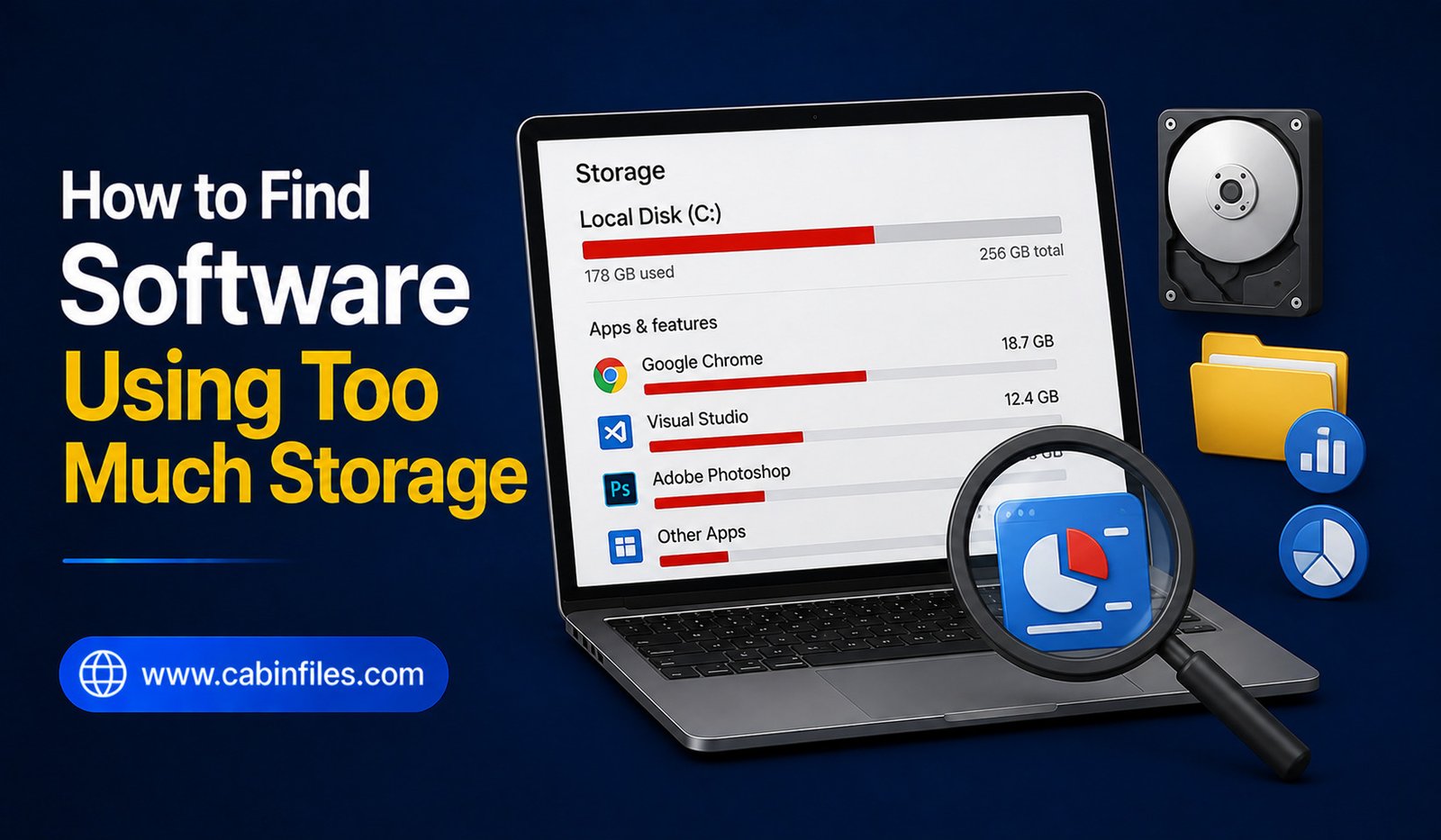
How to Find Software Using Too Much Storage
Running out of storage space on your Windows PC can be frustrating, especially when you are not sure what is consuming your drive. Large videos and photos are obvious culprits, but installed software, game files, old installers, caches, updates, and application data can also take up a surprising amount of space.
If your computer is showing a low-storage warning, you do not necessarily need to delete random files. A better approach is to find which software and related files are using the most storage and then decide what can safely be removed.
This guide explains how to find software using too much storage on Windows, how to check application sizes, identify hidden storage usage, and free up space without accidentally deleting important files.
Why Software Can Use So Much Storage
A program’s listed installation size does not always represent everything it uses.
An application may create additional files after installation, including caches, temporary data, downloaded content, logs, updates, plugins, and user-generated files.
Games are a common example. A basic launcher may be relatively small, while installed games can occupy tens or hundreds of gigabytes.
Creative applications can also generate large media caches and preview files. Development tools may download SDKs, libraries, virtual environments, and build files.
Therefore, checking only the original installer size may not give you a complete picture.
Check Storage Usage in Windows Settings
The easiest place to start is Windows’ built-in storage settings.
Open Settings and go to System > Storage. Windows provides an overview of how your storage is being used.
Depending on your Windows version and configuration, you may see categories such as installed apps, temporary files, documents, pictures, videos, and other data.
Select the category related to installed applications to examine software using significant amounts of storage.
This is a useful first step because it gives you information without requiring third-party software.
Sort Installed Apps by Size
Windows allows you to view installed applications and, where size information is available, sort them by size.
This can quickly reveal large programs you may have forgotten about.
You might discover an old game, editing application, development environment, or utility that occupies considerably more space than expected.
Do not uninstall something simply because it is large. Check whether you still use it first.
A 50 GB application that you use every day may be more valuable than a 2 GB application that you have not opened in years.
Check Games Separately
Games can consume enormous amounts of storage.
Modern games can require large installations, and additional downloadable content, texture packs, updates, and cached files can increase their footprint.
If you use platforms such as Steam, Epic Games Store, or other game launchers, check their built-in storage or library-management features.
These tools can often show which games are installed and how much space they occupy.
Uninstalling games you no longer play can be one of the quickest ways to recover significant storage.
Look at Application Data
Installed applications can store additional files outside their main installation directory.
Windows applications may use locations such as the user’s AppData folders for settings, caches, logs, temporary files, and other data.
However, do not delete folders from AppData randomly.
Some folders contain important application settings or data. Others may be shared by multiple components.
If you discover a large application-data folder, identify which application created it before deciding whether anything can be removed.
Whenever possible, use the application’s own cache-cleaning or storage-management option.
Check the Downloads Folder
Your software may not be the only source of storage consumption.
The Downloads folder can contain old installers, ZIP archives, ISO files, updates, and duplicate software packages.
For example, you may have downloaded several versions of the same application over time.
Sort the Downloads folder by size and review the largest files.
If an installer is no longer needed and the software can easily be downloaded again from its official source, you may be able to remove it.
If an older installer is difficult to replace, consider moving it to an external storage device instead.
Find Large Software Archives
Software collections can become surprisingly large when they contain ZIP, RAR, 7Z, ISO, or other archive files.
These archives may contain applications, drivers, development tools, or older versions of programs.
Use File Explorer’s search and sorting options to locate large archives.
Before deleting them, determine whether you still need their contents.
An archive may be the only copy of an older application or project, so avoid treating every large compressed file as unnecessary.
Use Disk Analysis Tools
Windows’ built-in storage information is useful, but specialized disk-analysis applications can provide a more detailed picture.
Tools such as WinDirStat can scan a drive and display how storage is distributed across folders and files.
Visual storage maps can make unusually large directories easier to identify.
For example, you might discover that a software cache, old installation folder, virtual machine, or game directory is consuming much more space than expected.
These tools are particularly helpful when Windows’ normal storage categories do not explain where your missing space has gone.
Check Temporary Files
Windows and applications create temporary files during normal operation.
Some are automatically removed, while others can remain for longer periods.
Windows provides storage-cleanup options for removing certain temporary files.
Before deleting anything, review the categories carefully.
Do not assume every temporary-looking folder can be safely deleted manually. Some applications may currently be using files that appear temporary.
Using Windows’ built-in cleanup options is generally safer than manually removing unknown files from system directories.
Look for Multiple Versions of Software
Keeping several versions of the same application can consume additional storage.
This is sometimes intentional. Developers, designers, and other professionals may need multiple versions for compatibility.
However, ordinary users may have old versions installed without realizing it.
Check your installed applications list and look for duplicate or older versions.
If you no longer need them, uninstall the unnecessary versions using Windows’ normal uninstall process.
Do not manually delete old program folders unless you know exactly what they contain.
Check Development Tools
Development environments can consume significant storage.
Software development tools may install SDKs, package caches, build artifacts, emulators, virtual environments, container images, and dependencies.
If you use development software, check its own storage-management settings.
Removing an unused SDK or package cache can sometimes recover substantial space.
However, make sure you understand what a development component is used for before deleting it. Removing a required SDK or dependency can cause projects to stop building correctly.
Check Virtual Machines
Virtual machines can consume large amounts of storage because an entire virtual operating system may be stored inside one or more virtual disk files.
If you have experimented with different operating systems, check whether you still have unused virtual machines.
A virtual machine that is no longer needed can sometimes occupy many gigabytes.
Before deleting one, make sure it does not contain important files or projects.
If you are unsure, back it up or export it before removing it.
Check Cloud-Synced Files
Cloud-storage applications can also use local disk space.
Depending on your synchronization settings, files stored in services such as OneDrive or other cloud platforms may also be downloaded to your computer.
If a cloud folder is consuming significant storage, check whether the service provides an option to keep selected files online-only.
This can reduce local storage usage without permanently deleting the files from your cloud account.
Be careful when deleting synchronized files because changes can potentially affect other synced devices.
Don’t Delete Program Files Manually
One of the most important rules of storage cleanup is to avoid manually deleting application folders simply because they are large.
A program may have dependencies, services, shared components, or configuration information stored elsewhere.
If you no longer need the application, uninstall it properly through Windows.
After uninstalling, you can check whether obvious leftover data remains.
This is safer than deleting the application’s folder first.
Decide What Can Safely Be Removed
Finding large software files is only half the job. You still need to determine whether removing them is appropriate.
Ask yourself whether you use the application, whether the files can be downloaded again, whether they contain personal data, and whether another program depends on them.
Large does not automatically mean unnecessary.
A better cleanup strategy is to remove software and files based on usefulness rather than size alone.
Keep Some Free Storage Available
A nearly full drive can create additional problems.
Windows and applications need available space for temporary files, updates, caches, and normal operations.
Instead of waiting until the drive reaches almost zero free space, try to maintain a reasonable amount of available storage.
Regularly reviewing large applications and unused software can prevent emergency cleanup sessions later.
Create a Software Storage Routine
Once you have cleaned your PC, keeping it organized becomes easier.
Review installed applications periodically. Remove programs you no longer use, clear unnecessary caches through supported application settings, and clean your Downloads folder.
Keep important installers in a dedicated archive if you genuinely need them.
For very large collections, consider using a secondary drive for games, archives, virtual machines, or other data that does not need to occupy your primary system drive.
Final Thoughts
Learning how to find software using too much storage starts with Windows’ built-in storage tools. Check installed applications, sort them by size, investigate large games and software-related data, and review your Downloads folder for old installers and archives.
If Windows does not clearly explain where the storage is going, a disk-analysis tool can help identify unusually large folders and files.
Most importantly, avoid deleting large files simply because they look unfamiliar. Uninstall applications through the proper process, use software-specific cleanup options when available, and investigate unknown files before removing them.
With occasional storage checks and a simple organization system, you can keep your Windows PC from becoming overloaded with unused software and unnecessary files.
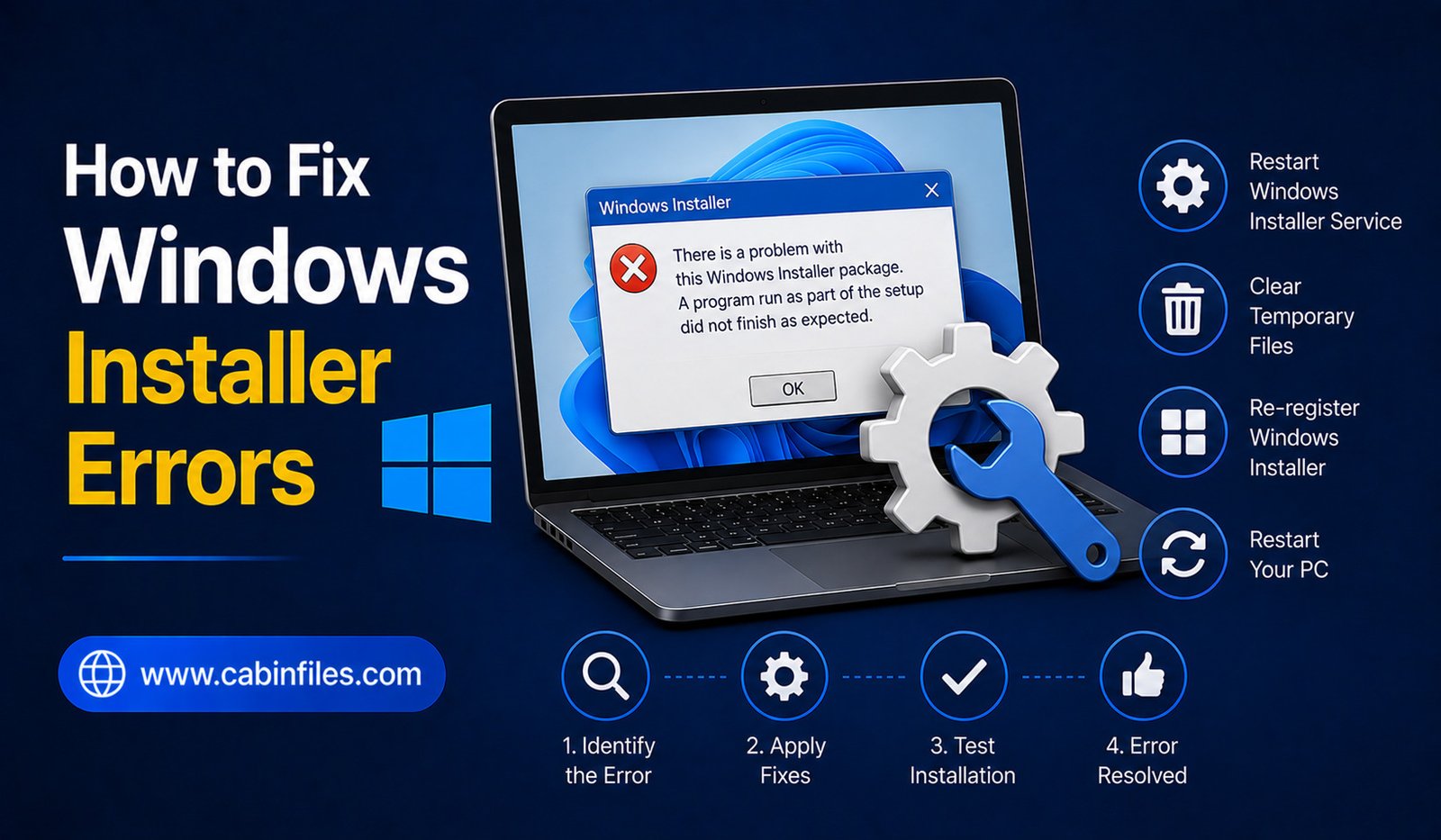
How to Fix Windows Installer Errors: A Complete Troubleshooting Guide
Windows Installer errors can appear when you are trying to install, update, repair, or sometimes remove a software application. Instead of completing the installation, Windows may display an error code, stop unexpectedly, or show a message saying that the installation could not be completed.
These problems can be caused by many things, including corrupted installation files, insufficient permissions, another installation running in the background, damaged Windows Installer components, security software, insufficient storage, or compatibility problems.
The good news is that many Windows Installer errors can be resolved without reinstalling Windows. The key is to identify the likely cause and work through troubleshooting steps from the simplest to the more advanced.
What Is Windows Installer?
Windows Installer is a Windows component used by many desktop applications to install, modify, repair, and remove software.
Installers commonly use the .msi file format, although many applications use an .exe setup program that may rely on Windows Installer behind the scenes.
When something goes wrong during the installation process, Windows may display an error code or a general message indicating that the installation failed.
Understanding the difference between the installer file and Windows Installer itself is useful because the problem may come from either side.
Restart Windows First
Before changing system settings, restart your computer.
A previous installation may still be running in the background, or Windows may have pending changes that require a restart.
After restarting, try the installation again.
If the problem disappears, it may have been caused by a temporary process or incomplete system operation.
If the same error returns, continue with the following steps.
Check the Installer File
A damaged installer is one of the simplest explanations for a failed installation.
If you downloaded an .exe or .msi file from the internet, the download may have been interrupted or corrupted.
Delete the problematic installer and download a fresh copy from the software developer’s official website or another trusted source.
Avoid downloading installers from unknown file-sharing websites. Modified installation packages can introduce security risks as well as installation problems.
If the developer provides a checksum or file-verification method, you can use it to confirm that the downloaded file matches the expected version.
Make Sure You Have Enough Storage
Software installations often require more free space than the final application size suggests.
The installer may need temporary storage while extracting files, copying components, or creating backups.
Check the available space on the drive where Windows and the application are being installed.
If storage is nearly full, remove unnecessary files or move appropriate personal data to another storage location.
Do not delete random files from Windows system folders simply to create space.
Run the Installer With Appropriate Permissions
Some applications require administrator privileges during installation.
If the installer supports it, right-click the setup file and choose Run as administrator.
Windows may display a User Account Control prompt. Confirm it only if you trust the software and downloaded it from a legitimate source.
Administrator privileges can resolve permission-related installation problems, but they will not fix a damaged installer or incompatible application.
Avoid running unknown installers with elevated privileges.
Close Other Installations
Windows may have trouble when another software installation or update is already running.
Close any other setup programs and wait for Windows Update or other software updates to finish.
Then restart the computer and try the installation again.
If an installation appears stuck, do not immediately terminate random Windows processes. Give the system time to complete its operation unless you have clear evidence that it has become unresponsive.
Check Windows Update
An outdated or partially updated Windows installation can sometimes cause software compatibility problems.
Open Windows Update and check whether updates are available.
Install appropriate updates and restart the computer if Windows requests it.
If the installation problem began immediately after a Windows update, check the software developer’s support information for compatibility issues.
Check Windows Installer Service
The Windows Installer service plays an important role in many MSI-based installations.
If the service is disabled or not functioning correctly, software installations may fail.
You can open the Windows Services management tool and locate Windows Installer.
Check its current status and configuration.
Do not randomly change the startup settings of Windows services. If the service is already functioning normally, changing it may not solve the problem.
For persistent service-related issues, use Microsoft’s official troubleshooting guidance rather than changing multiple services at once.
Check the Error Code
If Windows displays an error code, write it down.
Specific codes can provide much more useful information than a general message such as “Installation failed.”
Search for the exact code together with the software name on the developer’s official support website.
For example, an installer error may indicate a permissions issue, a missing component, a previous installation, or a problem accessing a particular file.
Avoid applying a fix designed for a different error simply because the symptoms appear similar.
Remove a Failed Previous Installation Carefully
Sometimes an application partially installs and then fails. When you try again, the installer may detect the previous installation and refuse to continue.
First, check Windows’ installed-apps list to see whether the program appears there.
If it does, use the normal uninstall process.
If the software’s installation is damaged and cannot be removed normally, check the developer’s support documentation for an official cleanup or removal tool.
Avoid manually deleting registry entries unless the developer specifically instructs you to do so.
Check File and Folder Permissions
Installers need permission to access certain folders and create files.
If you are installing software into a custom directory, make sure you have appropriate access to that location.
Some applications may also fail when installed on external drives, network locations, or unusual folder paths.
For troubleshooting, using the application’s recommended installation location can help eliminate unnecessary variables.
Temporarily Investigate Security Software
Antivirus and security software can sometimes interfere with installation programs when they detect suspicious behavior.
If an installer is blocked, check your security software’s notifications or protection history to understand why.
Do not immediately disable security protection.
First confirm that the installer came from a legitimate source. If the software is trustworthy and the detection appears incorrect, consult the security software’s documentation for a safe way to handle false positives.
Creating permanent security exclusions for unknown software is not recommended.
Check Software Compatibility
Not every application supports every Windows version.
Older software may depend on components that modern Windows no longer includes by default. Newer applications may require a particular Windows version or hardware configuration.
Check the developer’s system requirements before troubleshooting the installer itself.
If the software is incompatible with your current Windows version, repeatedly running the installer may not solve the problem.
Try the Application’s Repair Option
Some applications provide repair functionality through Windows or their own installer.
A repair process can replace missing or corrupted components without requiring a complete reinstall.
If Windows shows a repair option for the application, consider trying it before removing the program.
For applications with important settings or projects, back up your data before performing major repair or reinstall operations.
Avoid Random Registry Fixes
The Windows Registry is often mentioned in guides for solving installer problems.
However, manually deleting registry entries can create additional problems if you remove the wrong information.
A registry change should only be made when you understand exactly what it does and have a reliable recovery option.
For ordinary Windows Installer problems, built-in Windows tools and official developer instructions should be your first choices.
Use Microsoft’s Troubleshooting Resources
If a Windows Installer problem continues, Microsoft’s support documentation can provide guidance for Windows components and installation-related issues.
This is particularly useful when the problem affects multiple applications rather than one specific program.
If only one application refuses to install, the software developer’s support resources may be more relevant because the issue could be specific to that application’s installer.
What If Every Program Fails to Install?
If multiple unrelated applications suddenly fail to install, the problem may be related to Windows rather than a particular installer.
Possible causes include damaged system components, permission problems, security software, storage issues, or changes to Windows configuration.
At this point, avoid repeatedly downloading different installers.
Instead, focus on diagnosing the Windows environment. Check system updates, available storage, security notifications, and Windows system health.
If essential Windows functions are also failing, consider using Windows recovery or professional technical support.
When Should You Use System Recovery?
System recovery should not be the first response to a single failed software installation.
However, if installer errors appeared after a major system change and multiple Windows functions are affected, recovery options may become appropriate.
Before using a major recovery feature, back up important personal files and understand what the recovery process will change.
Do not use system reset or recovery simply because one application has an installation problem.
Final Thoughts
Learning how to fix Windows Installer errors starts with simple troubleshooting. Restart Windows, verify the installer, check available storage, confirm compatibility, and make sure you are using a legitimate installation package.
If the problem continues, examine the exact error code, check Windows Installer-related services, investigate security software alerts, and look for official support information from Microsoft or the software developer.
Avoid risky shortcuts such as downloading random DLL files, disabling security protection permanently, or deleting registry entries without understanding their purpose.
Most Windows Installer problems can be narrowed down by identifying whether the issue comes from the installer file, Windows itself, permissions, compatibility, or another application already running. Once the cause is clear, the appropriate fix is usually much easier to find.
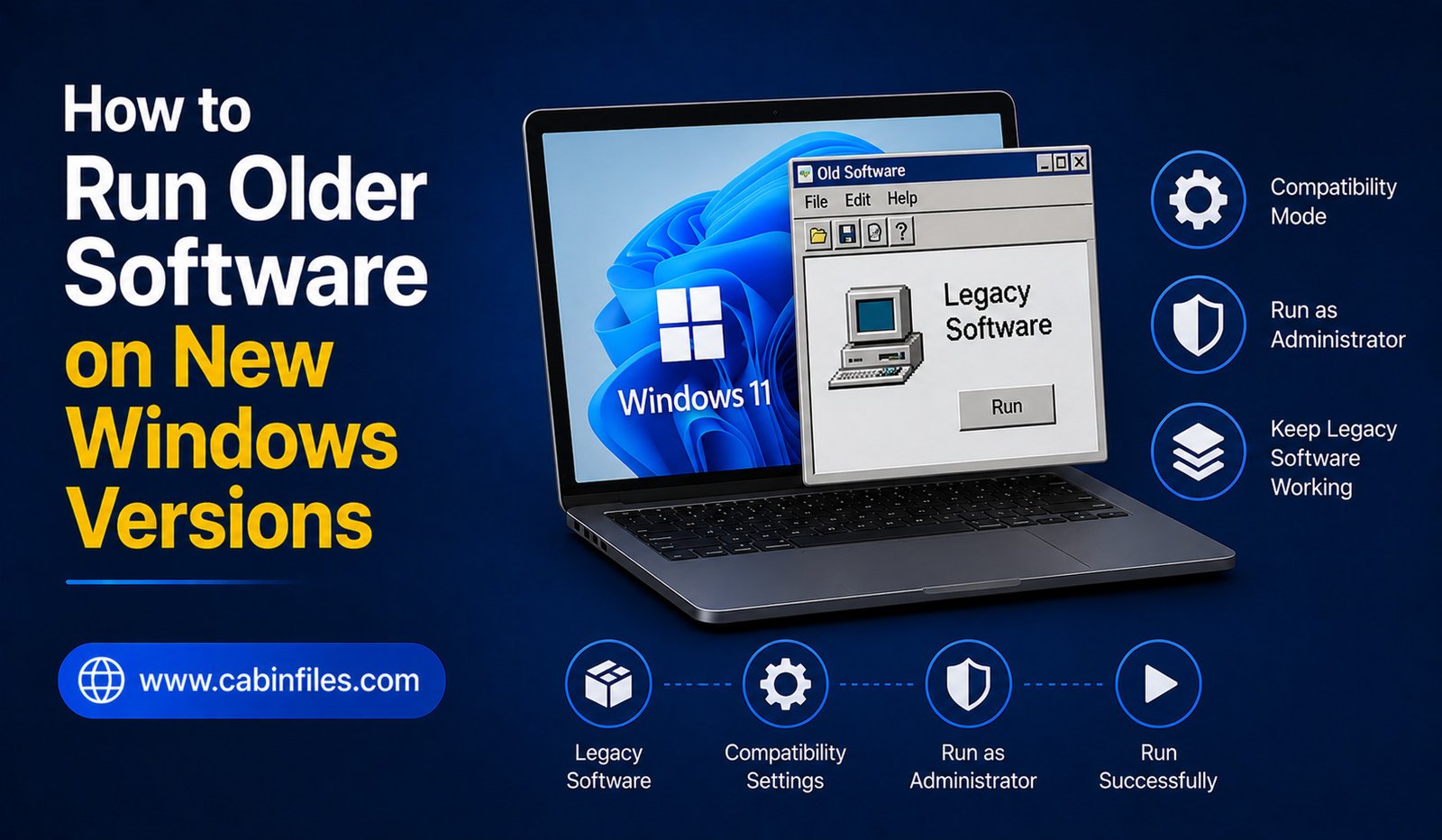
How to Run Older Software on New Windows Versions
Older software can still be useful even after you upgrade to a newer version of Windows. You may have an old application containing important projects, a classic utility you prefer, or specialized software that has not received updates for years.
The problem is that older programs were often designed for previous versions of Windows. Changes to security features, system libraries, drivers, permissions, and hardware compatibility can prevent an old application from launching or working correctly.
Fortunately, there are several ways to run older software on new Windows versions. The safest approach is to begin with simple compatibility options and move toward more advanced solutions only when necessary.
This guide explains how to troubleshoot compatibility problems, use Windows compatibility features, work with older installers, and consider virtual machines when traditional methods are not enough.
Why Older Software May Not Work on New Windows
Windows has changed considerably over the years.
An application designed for an older Windows release may depend on components, system behavior, file locations, or security settings that no longer work the same way.
Some older programs were also designed for outdated hardware or display technologies.
A program may therefore fail to launch, display incorrectly, crash immediately, or install successfully but refuse to operate.
The problem is not necessarily that the software is damaged. It may simply be incompatible with the modern Windows environment.
Check the Software’s System Requirements
Before changing Windows settings, find out which operating system the software originally supported.
Look for the application’s documentation, installation guide, or official support page.
If the developer lists supported Windows versions, compare those requirements with your current system.
This can help determine whether the application is likely to work natively or whether you should consider a compatibility layer or virtual machine.
If the software is extremely old and the developer no longer supports it, you may need to experiment carefully rather than expecting full compatibility.
Try Windows Compatibility Settings
Windows includes compatibility features designed to help some older desktop applications work on newer versions of the operating system.
Right-click the application’s executable or shortcut, open its properties, and look for the Compatibility settings.
Windows may allow you to run the program using compatibility settings associated with an older Windows environment.
You can also use the compatibility troubleshooter where available.
These options can sometimes resolve problems involving older application behavior without requiring major system changes.
However, compatibility mode cannot recreate an entire older operating system. If the software depends on components that no longer exist, additional steps may be required.
Run the Program as Administrator
Older applications sometimes expect permissions that modern Windows does not automatically provide.
If an application launches only when elevated, you can test it by right-clicking the executable and selecting Run as administrator.
If this solves the problem, the software may be attempting to write files to protected locations or perform actions that require elevated permissions.
Do not automatically run every old application as administrator permanently.
Running software with elevated privileges gives it greater access to your system. Use this option only when necessary and when you trust the software.
Look for an Updated Version
Before spending time trying to make an old program work, check whether the developer offers a newer version.
The updated release may support your current Windows version and provide better security, performance, and compatibility.
This is particularly important for software that connects to the internet or handles sensitive information.
If the developer has discontinued the application, look for official migration information or recommended replacement software.
Reinstall the Older Application Correctly
Sometimes the problem is not Windows compatibility but a damaged or incomplete installation.
If you already have the original installer, consider reinstalling the application.
Before doing so, back up important projects, settings, templates, and other personal data.
Use the application’s normal uninstall process if it is already installed. Then restart Windows if necessary and install the software again.
Avoid downloading an old installer from an unknown file-sharing website. Old software packages can be modified, repackaged, or bundled with unwanted programs.
Check for Required Older Components
Some older applications depend on additional runtime components or frameworks.
If the application displays an error about a missing component, check the developer’s documentation to determine what is required.
Obtain dependencies from official or trustworthy sources whenever possible.
Do not download individual DLL files from random websites just because an error message mentions them. A mismatched or malicious DLL can cause additional problems.
If the application requires a specific legacy component that is no longer available on modern Windows, a virtualized older environment may be a better solution.
Be Careful With Old Drivers
Older software can sometimes depend on hardware drivers that modern Windows no longer supports.
This can be particularly common with old scanners, printers, audio equipment, specialized controllers, and other peripherals.
Even if the application itself launches, it may not be able to communicate with the hardware.
Check whether the hardware manufacturer provides a current driver.
If no compatible driver exists, the software may not work correctly on the modern operating system even if compatibility mode allows the application to start.
Check Display and Graphics Problems
Older programs may have trouble with modern high-resolution displays, scaling settings, or graphics hardware.
You may notice tiny text, incorrectly sized windows, distorted graphics, or unusual colors.
Windows compatibility settings can sometimes help with display scaling behavior.
For older games and graphics applications, compatibility may be more complicated because they can depend on outdated graphics technologies.
In such cases, check the software developer’s documentation or community-supported compatibility information before changing graphics settings randomly.
Use a Virtual Machine
When compatibility mode is not enough, a virtual machine can provide a more complete solution.
A virtual machine allows you to run another operating system inside your current computer using virtualization software.
For example, an older application that was designed for an earlier Windows release may work better inside a virtual machine configured with a compatible operating system.
This approach is useful because the software sees an environment closer to the one for which it was originally designed.
However, setting up a virtual machine requires more technical knowledge and may require a legitimate license for the older Windows version.
Use an Older Computer When Necessary
For extremely old software, an older physical computer may sometimes be more practical than trying to force compatibility on a modern PC.
This can be particularly relevant for specialized industrial, scientific, or legacy equipment that depends on old drivers or hardware interfaces.
If you use an old computer for legacy software, consider keeping it isolated from the internet when possible.
Older operating systems may no longer receive security updates, making them unsuitable for ordinary online activities.
Keep Old Software Offline When Appropriate
Security is one of the biggest concerns when running outdated software.
An application that has not been updated for years may contain known vulnerabilities. The same applies to old operating systems and drivers.
If you only need an old application for opening an old project or performing an offline task, consider keeping the environment disconnected from the internet when practical.
Do not use unsupported software for sensitive online activities simply because it still launches.
Do Not Disable Windows Security Without a Good Reason
You may find guides recommending that you disable security features to make an old application work.
This should be approached with extreme caution.
Modern Windows security features exist to protect your computer from malicious software and unsafe behavior.
Instead of disabling protection broadly, first determine exactly which compatibility issue is causing the problem.
If the software is genuinely incompatible with a security feature, consider whether the application can be replaced or isolated in a virtual machine rather than weakening your primary Windows installation.
Back Up Important Data Before Experimenting
Before installing old software or changing compatibility settings, back up important files.
Older applications may modify system components, create unusual configuration files, or interact with hardware in unexpected ways.
At minimum, keep copies of important documents and software projects in a separate location.
If you are creating a virtual machine for legacy software, backing up the virtual machine and its associated data can also make recovery easier.
Test the Software Before Depending on It
Getting an old application to open is only the first step.
Test the functions you actually need.
A program may launch successfully but fail when opening an old project, printing a document, connecting to a device, or exporting a file.
Spend some time testing the workflow before relying on the application for important work.
This can reveal compatibility problems before they become urgent.
When Should You Replace Old Software?
Sometimes the best solution is not to keep an old application running.
If a modern alternative provides the same functionality, supports your current Windows version, and receives security updates, switching may be safer and easier.
However, replacement is not always possible. Specialized applications may contain years of data or use formats that newer programs cannot reproduce accurately.
In those situations, maintaining an isolated legacy environment can be a reasonable compromise.
Final Thoughts
Learning how to run older software on new Windows versions starts with understanding why the application is failing.
Check its system requirements, try Windows compatibility settings, test administrator permissions when appropriate, and look for an updated version. If the software depends on outdated components or an older operating system, consider using a virtual machine or a dedicated older computer.
Security should always be part of the decision. Unsupported software and operating systems can expose your computer to vulnerabilities, so avoid disabling Windows security features simply to make an old program work.
For occasional offline tasks, an isolated legacy environment can be a practical solution. For everyday use, however, updated and supported software is usually the safer choice.
The goal is not simply to make old software launch. It is to create a stable, secure, and practical environment where you can still access the functionality or files you need.
How to Fix Software That Won’t Launch
Few computer problems are more frustrating than clicking an application and watching nothing happen. You may see a loading icon for a moment, an error message, or absolutely no response. Sometimes software stops launching after a Windows update, while other times the problem comes from missing files, corrupted installations, incompatible settings, or insufficient system resources.
The good news is that a program that won’t launch on Windows does not necessarily mean the software is permanently broken. In many cases, a few basic troubleshooting steps can identify and fix the problem.
This guide explains how to fix software that won’t launch, starting with simple solutions and moving toward more advanced troubleshooting methods.
Check Whether the Software Is Already Running
Before making changes, check whether the application is already running in the background.
Sometimes a program starts but its window fails to appear. Other times it may become unresponsive while Windows still considers it active.
Open Task Manager by pressing Ctrl + Shift + Esc and look for the application’s name in the running processes.
If you find it, select the application and choose the option to end the task. Then try launching the software again.
Be careful not to end unrelated Windows processes. If you are unsure about a process, leave it alone.
Restart Your Computer
A simple restart can solve surprisingly many software-launch problems.
Background processes, temporary system errors, locked files, or incomplete updates can sometimes prevent an application from starting correctly.
Restart Windows normally and try launching the program again before making more complicated changes.
If several applications are failing to launch, the problem may be related to Windows rather than one particular application.
Check for an Error Message
If the application displays an error message, read it carefully before trying random fixes.
Messages about missing DLL files, incompatible versions, permissions, corrupted files, or missing components can provide useful clues.
Search for the exact error message in the software developer’s official documentation or support resources.
Avoid downloading random DLL files from unfamiliar websites simply because an error mentions a missing DLL. Such downloads can introduce security risks or incompatible files.
Run the Software as Administrator
Some applications require additional permissions to perform certain operations.
Right-click the application’s shortcut or executable and select the option to run it with administrator privileges.
If the program launches successfully this way, the problem may involve permissions or access to specific folders.
However, do not permanently run every application as administrator unless there is a genuine need. Elevated permissions give programs greater access to the system and should be used carefully.
Check Whether the Software Is Compatible With Your Windows Version
Older software may not work correctly with newer versions of Windows.
Compatibility problems can occur when an application depends on older Windows components, outdated drivers, or system behavior that has changed over time.
Check the software developer’s website for supported Windows versions and system requirements.
If the application is old, Windows may provide compatibility options that can sometimes help older programs run.
Do not assume that every old application can be made compatible. Some software may simply require an updated version.
Update the Application
An outdated version of an application may stop working because of changes in Windows, online services, drivers, or other dependencies.
Check whether the developer has released a newer version.
When updating, download the software from its official website or the trusted distribution platform associated with the application.
Avoid downloading modified versions from unofficial sources simply to fix a launch problem.
If the application recently updated and then stopped working, check whether the developer has acknowledged the issue. In some cases, a temporary compatibility problem may require a later update.
Check Windows Updates
The problem may not be the application itself.
Windows updates can include security fixes, compatibility improvements, driver changes, and other system components that affect software.
Open Windows Update and check whether your system has pending updates.
If an update was installed immediately before the application stopped launching, search the developer’s support resources for known compatibility issues.
Keeping Windows updated is generally recommended, but specific software problems may require troubleshooting after major system changes.
Repair or Reset the Application
Some Windows applications provide repair or reset options through the system’s installed-app settings.
A repair operation may attempt to fix damaged application components without removing your personal settings.
A reset is more aggressive and may remove application data or preferences.
If Windows provides both options, try repair first when appropriate.
The exact options available depend on how the application was installed and whether it supports Windows’ built-in application management features.
Reinstall the Software
If the installation is damaged, reinstalling the application can often solve launch problems.
Before uninstalling, check whether the software contains important projects, saved settings, templates, or other user data.
Some applications store user data separately from the main installation folder, while others may remove certain settings during uninstallation.
Back up important information first.
Then uninstall the application through Windows’ normal uninstall process, restart if necessary, download the latest version from the official source, and install it again.
Check Available Storage
A nearly full system drive can cause unexpected software problems.
Applications may need free space for temporary files, caches, updates, or other operations during startup.
Open Windows storage settings and check how much free space remains.
If the drive is nearly full, remove unnecessary files or move appropriate personal data to another storage location.
Do not manually delete unknown files from Windows system directories simply to create free space.
Check Your Antivirus or Security Software
Security software can sometimes prevent an application from launching if it detects suspicious behavior.
If the application suddenly stopped working after an update, check your security software’s notifications or protection history.
Do not automatically disable your antivirus program.
Instead, determine why the file was blocked. If you downloaded the application from an official source and believe the detection may be incorrect, check the developer’s documentation and your security software’s support resources.
Never create an exception for software simply because it refuses to launch.
Check for Missing Dependencies
Some applications require additional software components to run.
Depending on the program, these could include particular runtime libraries, frameworks, graphics components, or other dependencies.
If an error message identifies a missing component, obtain it from the official developer or the trusted vendor responsible for that component.
Avoid downloading individual system files from random file-sharing websites.
A missing dependency can sometimes indicate that the application was installed incorrectly or that a required component was removed.
Update Graphics Drivers for Visual Applications
Games, video editors, 3D applications, and other graphics-intensive programs may fail to launch because of graphics-driver problems.
If the software worked previously and stopped after a driver change, check whether the developer recommends a particular driver version.
Obtain graphics drivers from the official hardware manufacturer’s website or the appropriate Windows-supported source.
Do not install drivers from unknown websites simply because they promise a quick fix.
Check the Software’s System Requirements
Some applications require specific hardware capabilities.
A newer program may require a particular processor architecture, amount of memory, graphics capability, operating system version, or available storage.
Compare your PC with the application’s published requirements.
If your computer does not meet the minimum requirements, troubleshooting may not solve the problem. You may need an updated application, different software, or upgraded hardware.
Try a Clean Configuration
Sometimes an application fails because its configuration files have become corrupted.
If the developer provides instructions for resetting application preferences or starting the program with default settings, consider following those instructions.
Do not randomly delete folders from AppData or other system locations.
Configuration files may contain important preferences, templates, saved projects, or other user information.
Always check the application’s official documentation before removing or resetting configuration data.
Check Event Viewer for More Information
For persistent Windows application problems, Event Viewer can sometimes provide additional information.
Windows may record application crashes and system errors that do not appear on screen.
You can search Event Viewer for errors occurring at the same time you attempted to launch the application.
This information is more useful for advanced troubleshooting because the logs can be technical. If you do not understand an entry, avoid changing system settings based solely on it.
Use the error details as clues when searching the software developer’s support documentation.
What If Only One Program Won’t Launch?
If every other application works normally and only one program refuses to start, the problem is more likely to be specific to that application.
Focus on its installation, settings, dependencies, permissions, compatibility, and recent updates.
Reinstalling the application may eventually be necessary, but check for important user data before doing so.
What If Several Programs Won’t Launch?
If multiple unrelated applications suddenly stop working, the cause may be broader.
Possible issues can include Windows system problems, corrupted components, storage problems, malware, driver issues, or a recent system change.
In this situation, focus on Windows health and recent changes rather than reinstalling every application individually.
If essential Windows programs also fail, consider using Microsoft’s built-in system repair and recovery options or seeking professional technical support.
Avoid Random “Fix” Tools
When searching for solutions online, you may encounter programs claiming to automatically repair missing DLLs, clean the Registry, fix every Windows error, or dramatically improve system performance.
Be cautious with these tools.
Some are legitimate utilities, but others may create additional problems or install unwanted software.
Whenever possible, use Windows’ built-in troubleshooting features and documentation from the software developer or Microsoft.
A simple, evidence-based troubleshooting process is usually safer than running multiple automated repair programs.
Final Thoughts
When software won’t launch, start with the simplest explanations. Check whether the program is already running, restart Windows, read any error message, and verify compatibility and system requirements.
If the problem continues, check for updates, repair the application when available, review security notifications, verify dependencies, and consider reinstalling the program after protecting your important data.
For persistent problems, developer documentation and Windows diagnostic information can provide more specific clues.
Most importantly, avoid random downloads and aggressive system changes. The safest way to fix software that won’t launch is to identify the actual cause before changing anything important. This approach can solve the problem while reducing the risk of creating new ones.
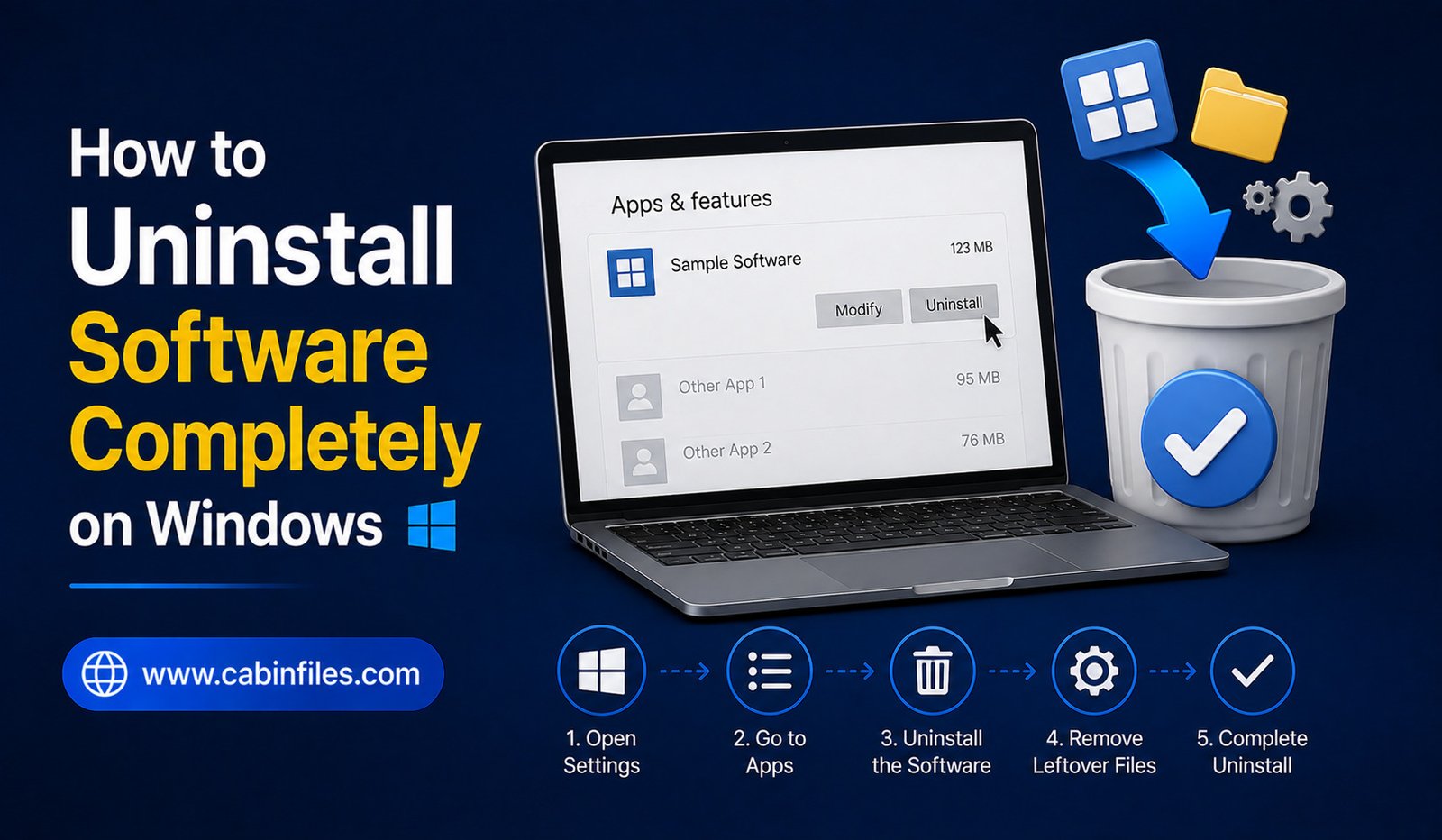
How to Uninstall Software Completely on Windows
Installing software on Windows is usually straightforward, but removing it completely can sometimes be less obvious. Simply deleting a program’s shortcut or removing its main folder does not necessarily uninstall everything associated with the application.
Software can create files in different locations, store settings, add startup entries, create services, or leave behind personal data and temporary files after removal. Fortunately, Windows provides several safe ways to uninstall applications properly.
If you want to learn how to uninstall software completely on Windows, the safest approach is to start with the application’s official uninstall process and only look for leftover files afterward. This guide explains the process step by step while helping you avoid common mistakes that can damage your system.
What Does Completely Uninstalling Software Mean?
A normal software uninstall removes the main application and the components registered with Windows.
However, some applications may leave behind user settings, cached data, logs, temporary files, or folders created after installation.
Completely cleaning up software therefore involves two stages: properly uninstalling the application and checking for unnecessary leftovers.
This does not mean deleting every file that mentions the application’s name. Some leftover files may contain personal settings or data that you may want to preserve.
The goal should be to remove unnecessary software components without accidentally deleting important system or personal files.
Why You Should Not Just Delete the Program Folder
One of the most common mistakes is opening the installation folder and deleting it manually.
This may remove some application files, but Windows may still consider the program installed. It can also leave behind services, uninstall information, configuration files, and other components.
Some applications also make changes outside their main installation directory.
For these reasons, use the application’s normal uninstall process whenever possible.
Uninstall Software Through Windows Settings
Modern versions of Windows provide an easy way to remove applications through Settings.
Open Settings and go to the section for installed apps. You can search for the application you want to remove and select its uninstall option.
Windows may then launch the application’s own uninstaller.
Follow the instructions displayed on screen and allow the process to finish.
Afterward, restart the computer if the software specifically requests it.
This is generally the best starting point because Windows can use the application’s registered uninstall information rather than simply deleting files.
Uninstall Programs Through Control Panel
Some traditional desktop applications are easier to manage through the classic Control Panel.
Open Control Panel and navigate to the section for installed programs. Locate the application you want to remove and select the uninstall option.
This method is particularly useful for older Windows applications that may not appear in exactly the same way as newer apps.
Follow the application’s uninstall wizard carefully.
If the program asks whether you want to keep settings or personal data, make the choice based on whether you may need those files later.
Use the Software’s Built-In Uninstaller
Some applications provide their own uninstall utility.
This may be available through the Start menu, the application’s installation folder, or the application’s settings.
A dedicated uninstaller may know exactly which components were installed and which services or supporting files need to be removed.
When available, this can be preferable to manually deleting the application directory.
For security software, development tools, hardware utilities, and other complex applications, the developer may provide specific removal instructions. Follow those instructions rather than experimenting with system files.
What Happens After Uninstallation?
After the uninstaller finishes, the main application should normally be removed.
However, you may still find folders containing settings, logs, cached files, saved profiles, or other user data.
Common locations can include your Documents folder, AppData directories, or folders created specifically by the application.
Whether you should delete these files depends on your situation.
If you plan to reinstall the application later, keeping the settings may be useful. If you are removing the program permanently and do not need its personal data, you can consider removing unnecessary leftovers after verifying what they contain.
Check the AppData Folder Carefully
Windows applications often store user-specific data under the AppData directories.
These locations can contain configuration files, caches, logs, saved preferences, and other application data.
However, AppData is not a place where you should randomly delete folders.
Some applications share components or store information that other programs may use. Deleting the wrong folder can cause unexpected problems.
If you are checking AppData after an uninstall, search for the exact application or developer name and confirm that the folder belongs to the program you removed.
When uncertain, leave the file alone rather than deleting it.
Remove Leftover Shortcuts
After uninstalling a program, check your Desktop and Start menu for shortcuts that may no longer work.
A shortcut is not the same thing as the application. Removing a shortcut does not uninstall software, and uninstalling software can sometimes leave a shortcut behind.
If the application is already removed and the shortcut no longer points to a useful program, you can delete the shortcut.
Do not assume that a shortcut’s presence means the program is still installed.
Check the Downloads Folder
If you downloaded the application’s installer yourself, the installer may still be sitting in your Downloads folder.
For example, you might have:
Application_Setup.exe
or
Application.zip
These files are not necessarily part of the installed application.
If you have already uninstalled the software and do not plan to reinstall it, you can decide whether the installer is still worth keeping.
If the software is difficult to download again or you may need the same version later, storing the installer in an organized archive can be useful.
Be Careful With the Windows Registry
You may find online guides recommending that users manually delete registry entries after uninstalling software.
This should be approached with caution.
The Windows Registry contains important system and application configuration information. Removing the wrong entry can create problems that are much more serious than a few leftover files.
For ordinary software removal, manually editing the registry is usually unnecessary.
If an application has a specific official cleanup utility, use that instead. For difficult removal problems, follow documentation from the software developer or use a reputable uninstaller designed for that purpose.
What About Services and Startup Entries?
Some applications install background services or startup components.
These may remain if an uninstaller fails or if the application was removed incorrectly.
Do not disable or delete unfamiliar Windows services simply because their names look related to old software.
First determine exactly what the service does and whether it belongs to the application you removed.
Complex software, including security tools and hardware utilities, may have several background components. The developer’s official removal instructions are usually the safest reference.
Restart Windows After Uninstalling
Restarting Windows is not always required, but it can be useful after removing software that uses background processes or system components.
A restart allows Windows to close processes that may still be running and complete certain pending changes.
If the uninstaller specifically asks you to restart, follow the instruction.
After restarting, check whether the application still appears among installed programs and whether any expected components remain.
What If a Program Will Not Uninstall?
Sometimes an application refuses to uninstall.
This can happen because the uninstaller is missing, files are corrupted, another process is using the application, or the installation has become damaged.
First, restart Windows and try again.
If that does not work, check the software developer’s support documentation for an official removal tool or repair procedure.
Avoid downloading random “forced uninstall” utilities from unknown websites. Some can introduce unwanted software or make aggressive changes to your system.
Use Third-Party Uninstallers Carefully
Third-party uninstall utilities can sometimes help identify leftover application files and registry entries.
However, more aggressive cleanup is not always better.
If you use such a tool, choose a reputable application and review what it proposes to remove before confirming the operation.
Do not automatically delete every item suggested by a cleanup program. Some files or registry entries may be shared or unrelated.
For everyday software removal, Windows’ built-in uninstall features are usually the safest starting point.
How to Know If Software Is Really Gone
After uninstalling an application, check the installed-apps list to confirm that it no longer appears.
Then look for obvious leftovers such as the application’s main folder, unused shortcuts, and its installer in Downloads.
If you find remaining files, determine what they are before deleting them.
Remember that a few configuration or cache files do not necessarily mean the uninstall failed. Some applications intentionally leave user data behind so that settings can be restored if the program is installed again.
Keep Your PC Organized After Uninstallation
Regularly reviewing installed applications can prevent unnecessary software from accumulating.
Remove applications you no longer use, but avoid uninstalling programs simply because you do not recognize their names. Some components may belong to drivers, hardware, development tools, or other applications.
Before uninstalling unfamiliar software, identify what it does and whether another program depends on it.
A clean computer is useful, but unnecessary system changes can create more problems than they solve.
Final Thoughts
Learning how to uninstall software completely on Windows starts with using the proper uninstall process rather than manually deleting application folders.
Windows Settings, Control Panel, or the software’s own uninstaller should normally be your first choice. After removal, you can carefully check for leftover personal data, shortcuts, installers, or application folders.
Avoid randomly deleting Registry entries, system folders, or unfamiliar services. If an application is difficult to remove, use the developer’s official cleanup instructions whenever possible.
The safest approach is simple: uninstall first, investigate leftovers second, and delete only what you can confidently identify. This keeps your Windows installation cleaner without creating unnecessary system problems.