
How to Check Whether a Software File Is Corrupted: A Complete Guide
Software files can become corrupted for many reasons. A download may have been interrupted, a storage drive may have developed problems, an update may have failed, or an application may have modified one of its files incorrectly. When this happens, software may refuse to open, crash unexpectedly, display missing-file errors, or behave differently from normal.
But how can you tell whether a software file is actually corrupted?
Fortunately, Windows provides several ways to investigate suspicious files. You can compare file sizes, check digital signatures, verify checksums, use built-in repair tools, examine error messages, and reinstall software from a trusted source.
In this guide, we explain how to check whether a software file is corrupted, what signs to look for, and what to do if you confirm that a file is damaged.
What Does a Corrupted Software File Mean?
A corrupted software file is a file whose data has been damaged, changed unexpectedly, or stored incompletely.
Software consists of many different files, including executable programs, libraries, configuration files, images, databases, and other components. If one or more important files become corrupted, the entire application may stop working correctly.
For example, you might see messages such as:
- “The application cannot start.”
- “The file is corrupted.”
- “Invalid image.”
- “Unable to read file.”
- “Unexpected error.”
- “The system cannot find the file specified.”
However, these messages do not always prove that corruption is the cause. A missing dependency, incorrect permission, incompatible version, or malware infection can produce similar symptoms.
Common Signs of a Corrupted Software File
Before running diagnostic tools, look for unusual behavior.
A potentially corrupted software file may cause an application to:
- Crash during startup
- Freeze unexpectedly
- Display strange error messages
- Refuse to open
- Close without warning
- Fail during installation or updates
- Produce errors when accessing specific features
If only one application is affected while everything else works normally, the problem may be limited to that application’s files.
If many unrelated programs are failing, investigate broader Windows or hardware problems instead.
1. Check the File Size
One of the simplest checks is to compare the file’s size with a known-good copy.
This is particularly useful for downloaded installers.
If a software developer states that an installer should be approximately 500 MB but your copy is only 100 MB, the download may be incomplete.
File size is not definitive proof of corruption, though. Different versions can have different sizes, and some installers intentionally download additional components later.
Use file size as an initial clue rather than a final diagnosis.
2. Check the File Extension
Make sure the file has the correct extension.
For example, an installer might use .exe or .msi, while a compressed software package might use .zip or another archive format.
An incorrect extension does not necessarily mean the file is corrupted. Someone may have renamed the file, or Windows may be hiding known file extensions.
You can enable File name extensions in File Explorer’s View settings to see the complete filename.
Do not simply change an extension and expect that to repair a damaged file.
3. Try Opening or Running the File
If the file is an installer or application, try launching it normally.
Pay attention to the exact error message.
If Windows immediately reports that the file is invalid or damaged, the file may be corrupted.
However, do not repeatedly run an unfamiliar executable simply for testing. If you obtained the file from an unknown source, scan it and verify its origin before opening it.
4. Compare the File’s Checksum
A checksum is one of the most reliable ways to verify whether a downloaded file matches the original published file.
Software developers sometimes provide a SHA-256 checksum alongside their downloads.
You can calculate the SHA-256 value of your local file using Windows tools and compare the result with the official value.
If the values match exactly, the file’s contents match the published version.
If the values are different, the file is not identical to the expected version. It could be corrupted, incomplete, modified, or simply a different release.
A checksum mismatch should therefore be investigated before using the file.
5. Check the Digital Signature
Windows applications and installers may have a digital signature from their publisher.
Right-click an executable file, select Properties, and look for a Digital Signatures tab if one is available.
A valid digital signature can provide useful information about who signed the file and whether its signed contents have been altered.
If a file that normally should be signed has an invalid or missing signature, investigate further.
Keep in mind that not every legitimate software file is digitally signed, so the absence of a signature does not automatically mean that the file is corrupted or malicious.
6. Use Windows Security to Scan the File
A file that behaves strangely may not be corrupted at all. It could be malicious.
Use Windows Security or another reputable security solution to scan suspicious software files.
This is particularly important for executable files downloaded from the internet.
Malware can modify files, replace legitimate components, or disguise itself as a legitimate program.
A security scan helps distinguish potential security problems from ordinary file corruption.
7. Check Whether Other Files in the Program Are Working
If one software component appears suspicious, test the application as a whole.
Does the program start but crash when you use a specific feature? Does it fail immediately? Does another user account experience the same problem?
These clues can help determine whether the issue is isolated to one file or caused by something broader.
For example, if an application launches successfully but crashes whenever it loads a particular project, the problem could involve the project file rather than the application installation.
8. Use the Software’s Repair Feature
Some Windows applications provide a built-in Repair option.
Repairing the application can replace damaged components or restore configuration files without requiring a complete uninstall.
Check the application’s options in Windows’ installed-app settings.
If a repair option is available, it is often worth trying before manually replacing individual files.
9. Reinstall the Software
If you have strong reason to believe that application files are corrupted, reinstalling the software is often the safest solution.
First, back up important user data, projects, settings, or saved files.
Then uninstall the affected application and obtain a fresh installer from the developer’s official source.
A clean installation replaces damaged files with known-good versions.
Avoid downloading individual DLLs, EXE files, or other application components from random websites. The replacement may be incompatible or unsafe.
10. Check Windows System Files
If the suspected corrupted file belongs to Windows rather than a third-party application, use Windows’ built-in system repair tools.
Windows includes tools designed to check and repair certain system files and components.
If several Windows applications are behaving strangely, system-file corruption may be worth investigating.
Avoid manually replacing system files unless you fully understand the process and have a reliable source for the correct version.
11. Check Your Storage Drive
Repeated file corruption can sometimes point to a problem with the storage device.
If files become damaged regularly, investigate the health of your HDD or SSD.
Other warning signs may include:
- Files unexpectedly disappearing
- Frequent read/write errors
- Windows freezing during file operations
- Unusual hard-drive noises
- Repeated application crashes
- Problems copying large files
If you suspect a failing drive, back up important data immediately.
Do not wait for the drive to fail completely before creating a backup.
12. Compare With a Known-Good Copy
If you have another copy of the same software file, compare the two versions.
For example, you may have:
- A backup copy
- An original installer
- A copy on another computer
- A file from official installation media
Comparing file size, checksum, and digital signature can help determine whether the local copy has changed.
A known-good copy is especially useful when troubleshooting a file that has been modified or damaged.
Is a Corrupted File Always Dangerous?
Not necessarily.
File corruption can simply make a program unusable without creating a security threat.
However, unexpected file changes can sometimes indicate malware, unauthorized modification, or storage problems.
This is why it is useful to consider both integrity and security when a software file behaves unexpectedly.
Do not assume that every corrupted file contains a virus, but do not ignore unusual behavior either.
What If the File Is Corrupted After Downloading?
If a newly downloaded installer appears corrupted, start with a fresh download from the official software website.
If the developer publishes a SHA-256 checksum, verify it after downloading.
If the checksum does not match, delete the damaged copy and download it again.
If repeated downloads produce different or incorrect checksums, investigate your internet connection, browser, security software, storage device, and the publisher’s download server.
How to Prevent Software File Corruption
You can reduce the risk of corrupted software files by downloading applications from trusted sources and keeping enough free storage space available.
Avoid interrupting large downloads, maintain reliable backups, and keep Windows and your applications updated.
For important installers, save a verified copy and record its checksum if one is provided by the publisher.
Regular backups are especially important for software projects and configuration files that are difficult to recreate.
Final Thoughts
Knowing how to check whether a software file is corrupted can help you troubleshoot application problems without immediately reinstalling Windows or replacing your computer.
Start with simple checks such as the file size, extension, error message, and application behavior. For downloaded files, checksum verification provides a much stronger integrity check. Digital signatures and security scans can provide additional information about the file’s authenticity and safety.
If the file is confirmed to be damaged, repair or reinstall the affected software using a trusted source. If corruption keeps happening across multiple files, investigate your storage device, Windows system files, or other underlying causes.
Most importantly, avoid downloading replacement software components from random websites. A verified, official copy is usually the safest way to restore a corrupted application.
How to Recover Accidentally Deleted Software Files: A Complete Guide
Accidentally deleting a software file can be stressful, especially when an application suddenly stops working or displays a missing-file error. You may have removed a file while cleaning a folder, emptied the Recycle Bin, or deleted something without realizing that a program depended on it.
The good news is that accidentally deleted software files are sometimes recoverable. The best recovery method depends on where the file was stored, whether the Recycle Bin was emptied, whether you have a backup, and whether Windows has already overwritten the deleted data.
In this guide, we will explain how to recover accidentally deleted software files on Windows, what you should do immediately after deletion, and how to avoid making the situation worse.
What Happens When You Delete a Software File?
When you delete a file in Windows, it is not always immediately erased from the storage device.
For files sent to the Recycle Bin, Windows keeps them available for restoration until the Recycle Bin is emptied or the files are permanently removed.
When a file is permanently deleted, the operating system generally marks the storage space as available for future use. The original data may remain on the drive for some time, but new files can eventually overwrite it.
This is why acting quickly is important if the deleted file is genuinely important.
1. Stop Making Unnecessary Changes
If you have just permanently deleted an important file, avoid downloading large programs, copying large files, or installing unnecessary software onto the same drive.
New data can potentially overwrite the space previously occupied by the deleted file.
This is especially important if you are attempting to recover a file from an HDD or another storage device where deleted data may still be recoverable.
If the deleted file is part of a critical application, first determine whether the application can simply be repaired or reinstalled. You may not need to recover the individual file at all.
2. Check the Recycle Bin
The first place to look is the Windows Recycle Bin.
Open the Recycle Bin and search for the deleted file.
If you find it, right-click the file and select Restore.
Windows should return the file to its original location.
This is the safest and easiest recovery method because it does not require specialized recovery software.
Remember that files deleted using certain methods, such as some command-line operations or deletion from removable storage, may not appear in the Recycle Bin.
3. Search for Another Copy of the File
Before using recovery software, check whether another copy already exists.
The file may be present in:
- Another application folder
- A backup directory
- An external drive
- Cloud storage
- An installation package
- A previous project folder
You can use Windows Search or File Explorer to search for the filename.
If the missing file is a standard component of an application, reinstalling or repairing the application may be much safer than copying an unknown replacement file.
4. Use Windows Backup Features
If you previously enabled a Windows backup feature, you may be able to restore the missing file or folder.
Depending on your Windows configuration, available options may include File History, Windows backup features, or another backup solution.
Check whether the deleted file’s original folder has an earlier version available.
Backup-based recovery is generally preferable to third-party file recovery because it restores a known-good copy.
5. Check Cloud Storage Recycle Bins
If the software file was stored inside a synchronized cloud folder, check the cloud service’s online recycle bin or deleted-files section.
Some cloud storage services retain deleted files for a limited period.
This can be particularly useful if the deleted item was part of a project or personal application folder synchronized with cloud storage.
Do not assume that every cloud service retains files indefinitely. Recovery periods and features vary.
6. Use System Restore When Appropriate
Windows System Restore can sometimes help with system configuration and certain software-related changes.
However, System Restore should not be treated as a universal file recovery tool.
It is primarily designed to restore system settings, drivers, applications, and Windows configuration to an earlier state.
If you accidentally deleted an individual application file, repairing or reinstalling the application may be more appropriate.
7. Repair the Application
If the deleted file belongs to a software program, you may not need to recover the exact file.
Some Windows applications offer a Repair option that can restore missing or damaged components.
Open the application’s installed-app settings and check whether a repair option is available.
Repairing the application can be a safer solution because it restores the software’s files from a trusted installation source.
8. Reinstall the Software
If an important application file has been deleted, reinstalling the program is often the simplest solution.
Obtain the installer from the software developer’s official website or another trusted source.
Before uninstalling the existing application, check whether it stores important settings, projects, licenses, or user-created data inside its installation or application folders.
Some programs allow you to reinstall without affecting personal files, while others may remove additional data during the uninstall process.
9. Use File Recovery Software Carefully
If the file was permanently deleted and there is no backup, specialized file recovery software may be able to locate recoverable data.
The chances of successful recovery depend on several factors, including:
- How long ago the file was deleted
- Whether new data has overwritten its storage area
- The type of storage device
- The file system
- Whether the drive is functioning correctly
If you use recovery software, avoid installing it onto the same drive from which you are trying to recover the deleted file whenever possible. Installing new software can write data to the drive and potentially overwrite recoverable information.
For valuable or irreplaceable data, professional data recovery services may be more appropriate than experimenting with multiple recovery tools.
10. Do Not Download Random Replacement Files
Suppose a program reports that a DLL or another software component is missing.
Searching the filename online and downloading the first matching file is not a good recovery strategy.
The file may come from an untrusted source, be incompatible with your application, or contain malicious code.
Instead, restore the original file from a backup or repair/reinstall the application using an official installer.
This approach is safer and more likely to restore the correct version of the component.
11. Check Whether Windows Defender or Security Software Quarantined the File
Sometimes a file appears to have been deleted when security software actually quarantined it.
If an application suddenly reports that a file is missing, check Windows Security or your installed security software’s protection history.
If a legitimate file was incorrectly identified, follow the security software’s official recovery process.
Do not automatically restore a quarantined file. First determine why it was flagged.
If the file genuinely contains malicious code, restoring it could put your computer at risk.
12. Check the Application’s Logs or Error Message
If the software still displays an error after a file has been deleted, read the complete message.
It may identify the exact missing file or location.
For example:
The program cannot start because example.dll is missing from your computer.
This information can help determine whether the problem is limited to one application component.
You can then search the software developer’s official support documentation for the exact filename or error.
Can Deleted Software Files Be Recovered From an SSD?
Recovery from an SSD can be more complicated than recovery from a traditional hard drive.
Modern SSDs may use technologies such as TRIM, which can make permanently deleted data difficult or impossible to recover after the storage system processes the deletion.
For this reason, if an important file was permanently deleted from an SSD, avoid unnecessary writes and consider professional recovery advice if the data is valuable.
Recovery is never guaranteed.
What If the Deleted File Was a Windows System File?
If you accidentally deleted a file belonging to Windows itself, do not download a replacement from an unknown website.
Instead, use Windows’ built-in system repair tools or official recovery options.
System files are closely connected to the operating system, and replacing one with an incorrect version can create additional problems.
If Windows is still functioning normally, use trusted system repair procedures. If Windows cannot start correctly, consider the appropriate recovery environment and official Windows recovery options.
What If You Deleted an Entire Software Folder?
If you accidentally deleted an application’s entire installation folder, the easiest solution is often to reinstall the application.
However, first check whether the application stores personal data separately from its installation files.
Many programs keep user documents, preferences, saved projects, or databases in different locations.
Restoring or reinstalling the program should not replace your personal files unless you deliberately remove those locations.
How to Prevent Accidental Software File Deletion
Prevention is much easier than recovery.
Avoid manually deleting files from application installation folders unless you understand their purpose.
When cleaning storage, use Windows’ built-in storage management tools and uninstall applications through the normal Windows uninstall process.
Maintain regular backups of important documents and application data.
For critical files, consider keeping more than one backup in different locations.
You should also be cautious when using automated cleanup utilities. A tool that removes files without clear explanations can occasionally delete something an application needs.
Final Thoughts
Learning how to recover accidentally deleted software files starts with checking the simplest recovery options.
Look in the Recycle Bin, search for another copy, check backups and cloud storage, and determine whether the application can be repaired or reinstalled. If the file was permanently deleted and no backup exists, specialized recovery software may help, but recovery is not guaranteed.
Most importantly, avoid downloading random replacement files from the internet. For missing application components, repairing or reinstalling the software from a trusted source is usually safer.
If the deleted data is extremely important, stop unnecessary activity on the affected drive and consider professional data recovery before attempting multiple recovery methods yourself.
How to Fix Incomplete Software Downloads: A Complete Guide
Downloading software from the internet is usually a simple process, but sometimes a download stops before it reaches 100%, leaves behind an unusually small file, or appears complete but fails when you try to install it. An incomplete software download can be frustrating, especially when the application is large or you have already waited a long time.
An incomplete download can happen because of an unstable internet connection, insufficient storage, browser problems, server issues, interrupted transfers, or security software interference. Fortunately, most of these problems can be resolved with a few practical troubleshooting steps.
In this guide, you will learn how to fix incomplete software downloads, how to identify whether a download is actually incomplete, and how to prevent similar problems in the future.
What Is an Incomplete Software Download?
An incomplete software download occurs when the file stored on your computer does not contain all the data provided by the original source.
For example, a software installer may be advertised as 1.5 GB, but the downloaded file could be only 700 MB because the connection stopped halfway through the transfer.
In other cases, the browser may display a completed download even though the file is damaged or missing required data.
An incomplete download may result in errors such as:
- “Download failed”
- “Installation cannot continue”
- “The archive is incomplete”
- “Unexpected end of file”
- “The file is corrupted”
- “Invalid installer”
- “Unable to open the file”
Why Do Software Downloads Become Incomplete?
There is no single cause for incomplete downloads.
Common reasons include an unstable internet connection, temporary server problems, browser interruptions, lack of disk space, or accidentally closing the browser before the transfer finishes.
Large software packages are particularly vulnerable because they take longer to download and therefore have more opportunities to encounter connection problems.
Other causes can include:
- Weak Wi-Fi signals
- Network interruptions
- VPN or proxy problems
- Browser glitches
- Download manager errors
- Insufficient storage
- Antivirus interference
- Server-side problems
- Computer shutdowns during downloads
Identifying the cause can help you avoid repeating the same failed download.
1. Check Whether the Download Is Actually Complete
Before deleting anything, check the downloaded file.
Look at its file size and compare it with the size listed on the software developer’s website if that information is available.
For example, if an installer is supposed to be 2 GB but the downloaded file is only 900 MB, the download likely did not complete correctly.
However, file size alone is not always enough. Some installers download additional components after you launch them, so the file on your computer may intentionally be smaller than the final installed software.
2. Download the Software Again
The simplest solution is often to download a fresh copy.
Delete or move the incomplete installer and start the download again from the software developer’s official website.
Make sure you select the correct version for your operating system.
Avoid downloading software from random websites simply because the official download failed. Unofficial installers may be modified, outdated, bundled with unwanted programs, or unsafe.
3. Check Your Internet Connection
An unstable internet connection is one of the most common causes of interrupted downloads.
Try opening several websites to see whether your connection is working consistently.
If downloads repeatedly stop, restart your router or switch to a more stable connection if possible.
For very large software packages, a wired connection can sometimes provide greater stability than a weak Wi-Fi signal.
If your internet connection frequently disconnects, contact your internet service provider if the problem continues across multiple devices.
4. Make Sure You Have Enough Storage Space
Your computer needs enough free storage to save the downloaded file.
Some installers also require additional temporary space while downloading, extracting, or installing.
Check your available space through Settings > System > Storage in Windows.
If your drive is nearly full, remove unnecessary files, old downloads, or unused applications before attempting the download again.
Do not delete unfamiliar system files manually.
5. Keep the Browser Open During the Download
Modern browsers can handle downloads efficiently, but closing the browser or shutting down the computer can interrupt an active transfer.
For large software downloads, keep the computer connected to power and avoid restarting or shutting down Windows until the transfer finishes.
If your browser supports download resumption, you may be able to continue an interrupted transfer instead of starting again.
However, if the downloaded file is clearly incomplete or corrupted, starting a fresh download may be more reliable.
6. Try Another Trusted Browser
If the same download repeatedly fails in one browser, try another reputable browser.
This can help determine whether the issue is related to browser settings, extensions, cached data, or the download process itself.
Before switching browsers, also consider temporarily disabling unnecessary extensions.
A browser extension that monitors downloads, blocks content, or modifies web traffic can occasionally interfere with file transfers.
7. Disable Unnecessary VPN or Proxy Connections
VPNs and proxy services can sometimes affect download stability.
If a large software download repeatedly stops while connected through a VPN or proxy, try downloading without it if doing so is safe and appropriate for your network.
Do not bypass organizational security controls on a work or school network.
If the software is only available through a particular network connection, contact the network administrator rather than changing security settings yourself.
8. Check Antivirus and Windows Security
Security software may inspect downloaded files as they arrive.
Occasionally, a legitimate installer may be blocked, quarantined, or interrupted because it triggers a security detection.
Check your security software’s protection or quarantine history if the download disappears or becomes unavailable.
Do not permanently disable antivirus protection simply to complete a download.
If you believe a legitimate file was incorrectly identified, use the security software’s official procedure to investigate the detection.
9. Check the Software Developer’s Website
Sometimes the problem is not on your computer.
A developer may temporarily experience server problems, bandwidth limitations, or an issue with a particular download mirror.
Visit the software’s official website and check whether a newer installer, alternate official download location, or updated release is available.
If many users are experiencing the same problem, the developer may already be working on a fix.
10. Use the Official Offline Installer When Available
Some software provides both a small web installer and a larger offline installer.
A web installer may download additional files during setup, while an offline installer contains most or all of the required installation components.
If the web installer repeatedly fails because of network interruptions, an official offline installer may be a better option.
Only download it from the software developer or a trusted official distribution channel.
11. Check the Download File Extension
An incomplete download may sometimes have a temporary file extension while the transfer is still in progress.
For example, browsers or download tools may use temporary extensions or partially downloaded files.
Do not manually rename an incomplete file and assume it will become a working installer.
Let the download process finish or restart it using the appropriate download method.
Renaming a file does not repair missing data.
12. Verify the Download With a Checksum
For important software downloads, the developer may provide a checksum such as SHA-256.
A checksum allows you to compare the file on your computer with the expected file published by the developer.
If the checksum matches, the downloaded file should match the publisher’s intended version.
If it does not match, download the software again and verify the new copy.
This method is particularly useful for large installers, operating system images, development tools, and other files where integrity is important.
What If the Download Stops at 99%?
A download that appears stuck at 99% can be particularly frustrating.
Do not immediately assume it has failed.
The final portion of a download may involve verification, file processing, or writing data to the storage device. Wait for a reasonable amount of time and check whether disk or network activity is continuing.
If the transfer remains completely inactive for a long period, cancel it and start the download again.
If the problem repeatedly occurs at approximately the same point, investigate available storage, security software, browser problems, and possible server-side issues.
What If the Installer Downloads but Will Not Run?
If the download reaches 100% but the installer refuses to launch, the file may still be damaged.
First, download a fresh copy.
Then check the software’s system requirements and confirm that you downloaded the correct version for your Windows system.
If the developer provides a checksum, compare it with your downloaded file.
Also scan the installer with your security software before opening it.
What If Every Software Download Fails?
If multiple unrelated downloads fail, the issue may be broader than a single software website.
Check your internet connection, available storage, browser configuration, VPN or proxy settings, and security software.
Try downloading a small test file from a reputable source.
If small downloads work but large files repeatedly fail, the problem may be related to connection stability, storage, or the server hosting the large file.
How to Prevent Incomplete Software Downloads
A few simple habits can reduce download problems.
Use a reliable internet connection, keep sufficient free storage space, update your browser, and download software from official sources.
For large files, avoid shutting down your computer during the transfer.
If the developer provides a checksum, use it to verify important downloads.
It is also helpful to maintain backups of important installers or software packages when you have a legitimate reason to keep them.
Final Thoughts
Knowing how to fix incomplete software downloads can save time and prevent repeated installation problems.
Start by checking the downloaded file’s size and confirming that the download really finished. If the file is incomplete, download it again from the official source. Then investigate your internet connection, available storage, browser, VPN or proxy settings, and security software if the problem continues.
For large or important downloads, official offline installers and checksum verification can provide additional reliability.
Most importantly, do not assume that renaming a partially downloaded file or downloading an installer from an unknown website will solve the problem. A clean download from a trusted source is usually the safest and most effective solution.
How to Handle Corrupted Downloaded Files: A Complete Guide
Downloading files from the internet is part of everyday computer use. Whether you are downloading software, documents, images, videos, archives, or game files, you generally expect the file to work immediately after the download finishes. Unfortunately, sometimes a downloaded file becomes corrupted, incomplete, or unreadable.
A corrupted download can produce messages such as “File is corrupted,” “Unexpected end of archive,” “Cannot open file,” or “The file format is invalid.” In some cases, the file may appear to download normally but fail when you try to open or install it.
The good news is that many corrupted downloads can be recovered simply by downloading the file again. In other situations, you may need to verify the file’s integrity, repair an archive, check your storage device, or obtain a fresh copy from the original source.
This guide explains how to handle corrupted downloaded files, why downloads become corrupted, how to identify the problem, and what you should do to prevent it from happening again.
What Is a Corrupted Downloaded File?
A corrupted downloaded file is a file whose contents are incomplete, altered, or damaged compared with the original file.
For example, suppose a software installer is supposed to be 2 GB but the download stops unexpectedly at 1.7 GB. Your browser may still leave a file on the computer, but the installer may not work correctly.
Corruption can also occur when data changes during transfer or when the storage device has problems writing the downloaded information.
Not every file that fails to open is necessarily corrupted. The problem could also be caused by an unsupported format, missing software, incorrect file permissions, or an incompatible application.
Why Do Downloaded Files Become Corrupted?
There are several possible causes.
A download can become damaged because of an unstable internet connection, an interrupted transfer, browser problems, server-side issues, or insufficient storage space.
Other possible causes include:
- Network interruptions
- Incomplete downloads
- Browser or download-manager problems
- Damaged storage devices
- File-system errors
- Server problems
- Incorrect file extensions
- Security software interference
- Insufficient disk space
Understanding the cause can help you choose the appropriate solution.
1. Check the File Size
Start by checking the size of the downloaded file.
If the website lists the expected size, compare it with the file on your computer.
For example, if the source says an installer should be 800 MB but your downloaded file is only 250 MB, the transfer may not have completed correctly.
File size alone does not prove that a file is corrupted, but a major difference is a useful warning sign.
2. Download the File Again
The simplest solution is often to delete the damaged copy and download it again.
Before doing so, make sure you are downloading from the official website or another trusted source.
If the first download was interrupted, the second attempt may complete successfully.
For large files, use a stable internet connection and avoid shutting down your computer or disconnecting from the network during the download.
If the same file becomes corrupted repeatedly, investigate other possible causes rather than downloading it endlessly.
3. Check Your Internet Connection
An unstable connection can interrupt large downloads.
If websites are frequently loading slowly, your connection drops, or downloads repeatedly fail, troubleshoot the network before attempting another large transfer.
Restarting your router may help with temporary connectivity problems.
If possible, use a stable wired connection for very large downloads.
However, remember that many modern download systems can recover from brief interruptions automatically, so a network problem is only one possible explanation.
4. Use the Source’s File Verification Information
Some software developers publish checksums or hashes for downloadable files.
A checksum allows you to compare the file you downloaded with the expected version provided by the publisher.
Common hashing algorithms include SHA-256 and SHA-512.
If the calculated hash matches the official value, the downloaded file is highly likely to be identical to the published file.
If the hash does not match, the file may be incomplete, corrupted, or different from the expected download.
This is particularly useful for operating system images, large software installers, development tools, and other important downloads.
5. Do Not Trust a File Just Because It Downloads Successfully
A completed download is not automatically a safe download.
A file can be completely intact and still contain malicious software.
For this reason, pay attention to both file integrity and file source.
Download software from official websites whenever possible. Avoid suspicious websites that offer modified installers, unauthorized copies, or files with misleading names.
Before opening an unfamiliar file, use appropriate security software to scan it.
6. Try Opening the File With the Correct Application
Sometimes a file is not corrupted at all. You may simply be using the wrong application to open it.
For example, a ZIP archive needs archive software, while a specialized document may require a particular application.
Check the file extension and confirm which program is designed to open it.
If Windows says it does not know how to open the file, that does not necessarily mean the file is damaged.
7. Repair a Damaged Archive
Compressed files such as ZIP or certain other archive formats may sometimes be partially recoverable.
Some archive applications provide repair or recovery functions.
However, recovery is not guaranteed. If essential data is missing from the archive, repair software cannot always reconstruct it.
For important files, obtaining a fresh copy from the original source is usually safer than relying on questionable third-party repair tools.
8. Check Available Storage Space
Insufficient disk space can interrupt downloads or prevent files from being written correctly.
Check how much free space is available on the drive where downloads are stored.
If your drive is almost full, remove unnecessary files or move large personal data to another storage location before trying the download again.
Remember that some downloads may temporarily require additional storage during extraction or installation.
9. Check the Storage Drive for Problems
If downloaded files repeatedly become corrupted even when the internet connection appears stable, the storage device may be contributing to the problem.
A failing hard drive or SSD can cause file corruption, read/write errors, or other unexpected behavior.
Windows provides built-in tools for checking certain storage and file-system problems.
If you notice multiple symptoms such as disappearing files, unusual noises from a hard drive, frequent system errors, or repeated corruption, back up important data as soon as possible.
Do not continue relying on a storage device that appears to be failing without securing your important files.
10. Temporarily Avoid Unnecessary Download Managers
Download managers can be useful for large files, but an incorrectly configured or outdated download tool can sometimes create problems.
If a file repeatedly fails through a particular download manager, try downloading it directly through a modern browser.
Likewise, if your browser consistently produces incomplete downloads, trying another trusted browser can help determine whether the problem is application-specific.
11. Check Whether the Server Provides a Fresh Download
Sometimes the problem is on the server rather than your computer.
A publisher may have uploaded an incomplete or damaged file.
If many users are reporting that the same download is corrupted, the website owner may need to replace the file.
Look for an alternative official download mirror, a newer version, or an announcement from the developer.
Avoid switching to an unknown third-party source simply because the original download is unavailable.
12. Be Careful With “File Repair” Websites
When searching for solutions to corrupted files, you may encounter websites claiming to repair files online.
Be cautious before uploading personal or confidential documents to such services.
You should also be careful with websites that ask you to install unknown repair programs.
For sensitive documents, use trusted local recovery tools or obtain a fresh copy from the original source whenever possible.
What If a Downloaded Software Installer Is Corrupted?
If a software installer refuses to run and displays a corruption or invalid-file message, start by deleting the installer and downloading it again from the developer’s official website.
Check the download size and, if available, compare its SHA-256 checksum with the publisher’s published value.
Do not search random websites for another copy of the installer. Modified installers can introduce security risks.
If the newly downloaded installer still fails, check whether your Windows version and hardware meet the application’s requirements.
What If a ZIP File Is Corrupted?
ZIP files can become unusable when downloads are incomplete.
First, check the file size against the source if that information is available. Then try downloading the archive again.
If you have only one copy and the archive contains important data, a reputable archive utility may offer recovery options.
However, the best solution is usually to obtain a complete copy from the original source.
How to Prevent Corrupted Downloads
Preventing repeated download problems is easier than repairing damaged files.
Use a stable internet connection, maintain enough storage space, keep your browser updated, and download important files from reputable sources.
For critical software or large files, verify published checksums when available.
It is also wise to maintain backups of important files rather than relying on a single downloaded copy.
Final Thoughts
Knowing how to handle corrupted downloaded files can save time and prevent unnecessary frustration.
Start by checking the file size and source, then try downloading the file again. If the problem continues, verify its checksum, check your internet connection, inspect available storage, and investigate potential problems with your drive.
For archives, recovery tools may help in some cases, but obtaining a fresh copy is usually the most reliable solution. Most importantly, never sacrifice security for convenience. Download files from trusted sources and avoid questionable repair tools or modified software.
A corrupted download is often a simple transfer problem, but repeated corruption can indicate a deeper issue with your network, storage device, browser, or the source file itself.
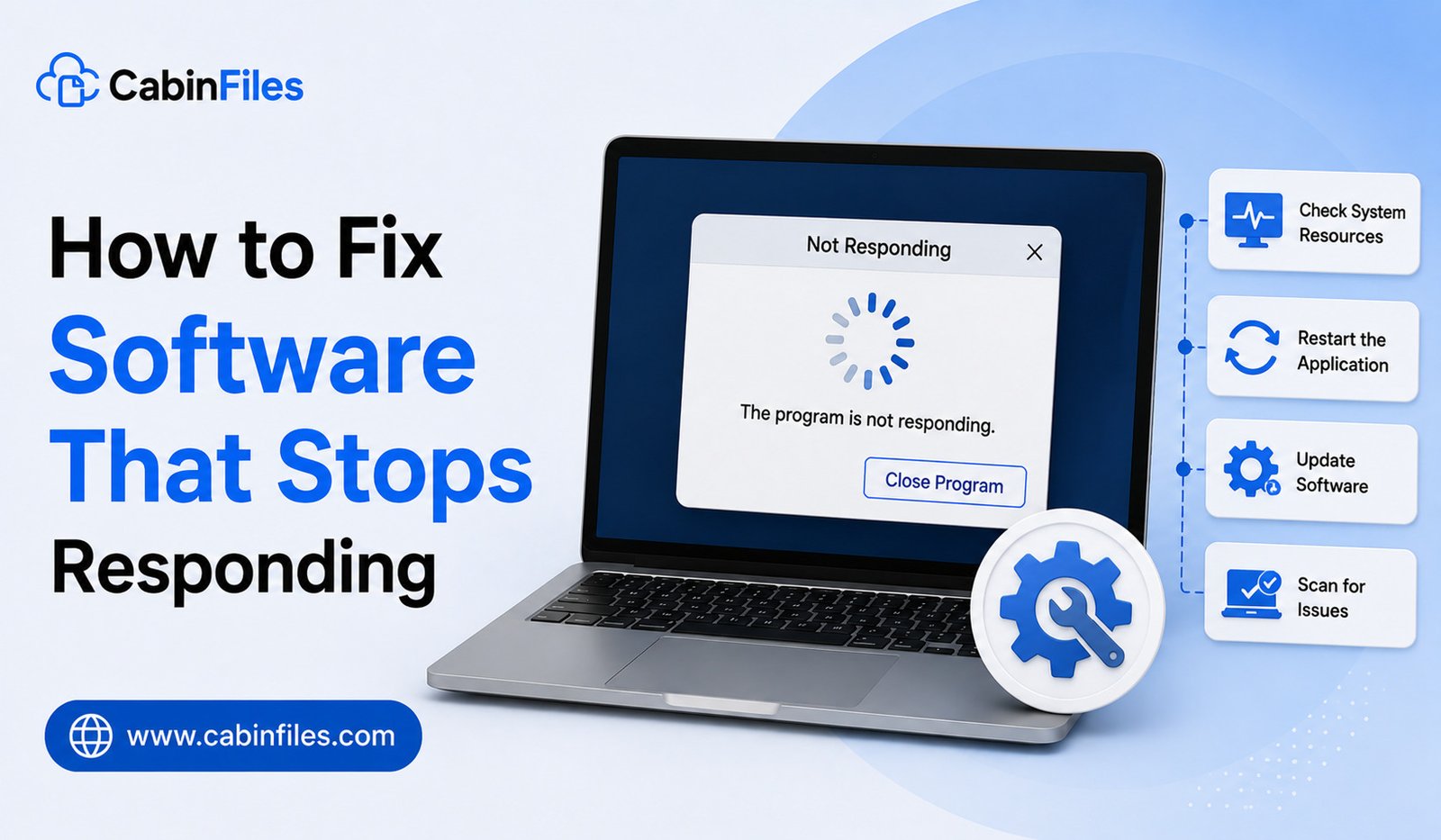
How to Fix Software That Stops Responding on Windows: 12 Practical Solutions
Few things are more frustrating than working in an application when it suddenly freezes and displays a “Not Responding” message. The program may stop accepting clicks, become stuck on one screen, or take several minutes to react. In some cases, it recovers on its own. In others, you may have no choice but to close it.
A frozen application does not always mean that the software is permanently broken. It may be temporarily busy, running out of system resources, processing a large file, or waiting for another component to respond.
This guide explains how to fix software that stops responding on Windows, why applications freeze, and what you can do to prevent the problem from happening repeatedly.
Why Does Software Stop Responding?
Applications can become unresponsive for many different reasons.
The program may be using too much CPU or RAM, working with a large file, waiting for a network connection, encountering corrupted data, or conflicting with another application.
Other possible causes include outdated software, problematic drivers, insufficient storage, damaged installation files, excessive browser extensions, or hardware limitations.
The first step is determining whether the application is temporarily busy or genuinely frozen.
1. Wait Before Closing the Application
If Windows displays “Not Responding,” do not immediately force the program to close.
Some tasks can take a significant amount of time, especially when an application is:
- Opening a large project
- Exporting video
- Processing images
- Installing updates
- Loading a large database
- Saving a complex document
- Performing calculations
Check whether your computer is still active.
If the application begins responding again after a few minutes, the issue may be related to workload or limited system resources rather than a permanent software failure.
2. Check Task Manager
Task Manager can help determine what is happening behind the scenes.
Press Ctrl + Shift + Esc to open Task Manager.
Look at the application’s CPU, memory, disk, and GPU usage.
If the program is using significant resources, it may simply be processing a demanding task.
You can also check whether another application is consuming most of your computer’s resources.
For example, a large file transfer or demanding background application could leave insufficient resources for the program you are using.
3. Close the Frozen Application
If the application remains completely unresponsive, you may need to close it.
Open Task Manager, select the affected application, and choose End task.
Keep in mind that force-closing a program can cause unsaved work to be lost.
If the software regularly freezes, consider enabling its automatic save or recovery features if available.
After closing the program, wait a few moments before reopening it.
4. Restart Windows
If the application continues to freeze after reopening, restart the computer.
A restart clears many temporary processes and gives Windows and the application a fresh environment.
Restarting can be particularly useful if the computer has been running for a long time or several applications have been opened and closed repeatedly.
Before restarting, save important work from applications that are still functioning normally.
5. Check Available RAM
Insufficient memory is a common reason for slow or unresponsive applications.
If you regularly use multiple browser tabs, office applications, games, editing tools, and other programs simultaneously, available RAM can become limited.
Task Manager can show current memory usage.
Close applications you do not need and test the software again.
If the problem happens frequently and your system consistently runs close to its memory limit, a RAM upgrade may improve multitasking performance if your computer supports one.
6. Free Up Storage Space
Low storage space can also contribute to system performance problems.
Windows and applications need free space for temporary files, caches, updates, and other operations.
Open Settings > System > Storage and check how much space remains on your drive.
Remove unnecessary files and uninstall applications you no longer use.
Do not manually delete unfamiliar files from Windows or application folders just to create more space.
7. Update the Application
Software developers regularly release updates to fix bugs and improve stability.
If an application repeatedly stops responding, check whether a newer version is available.
An update may address memory leaks, compatibility problems, crashes, freezing issues, or other known bugs.
If the application has an automatic update feature, use it. Otherwise, obtain updates from the developer’s official website or trusted software distribution channel.
8. Update Windows and Drivers
A software freeze can sometimes result from compatibility problems between the application and Windows.
Open Settings > Windows Update and check for available updates.
You should also consider relevant driver updates, particularly if the affected program relies heavily on graphics or other specialized hardware.
Graphics-intensive applications such as games, video editors, 3D software, and design programs can be especially sensitive to graphics driver problems.
Install drivers through the hardware manufacturer’s official support channel whenever possible.
9. Disable Unnecessary Extensions and Plugins
Some applications support plugins, add-ons, extensions, or third-party integrations.
While these features can be useful, poorly designed or outdated extensions can cause an application to freeze.
If the program allows it, temporarily disable optional plugins and test the application again.
If the freezing stops, enable extensions individually to identify which one is responsible.
This method is especially useful for web browsers and professional applications with large plugin ecosystems.
10. Repair or Reinstall the Software
If the application installation has become corrupted, repairing or reinstalling it may resolve the problem.
Some Windows applications provide a Repair option through their installed-app settings.
Try repair first if it is available.
If the problem continues, uninstall the application and install a fresh version from the developer’s official source.
Before uninstalling, back up important local files, projects, settings, or saved data.
A clean installation can replace damaged files and reset problematic configurations.
11. Check for Conflicting Background Software
Other applications can interfere with software that is currently running.
Possible sources of conflicts include overlays, screen-recording utilities, system customization programs, synchronization tools, security software, and other background services.
If the application freezes only when another program is running, temporarily closing the other program can help identify the conflict.
Do not permanently disable security software without understanding the risks.
12. Check the Application’s System Requirements
Some applications simply require more hardware resources than your computer can comfortably provide.
This is common with modern games, professional editing tools, 3D applications, engineering software, and other demanding programs.
Check the developer’s minimum and recommended system requirements.
Compare them with your computer’s:
- Processor
- RAM
- Graphics hardware
- Storage
- Windows version
Meeting the minimum requirements does not necessarily guarantee smooth performance. Recommended specifications generally provide a better indication of the hardware needed for comfortable use.
What If Only One Application Freezes?
If other software works normally and only one program repeatedly becomes unresponsive, focus your troubleshooting on that application.
Check for updates, damaged settings, plugins, compatibility issues, and application-specific error logs.
You can also search the developer’s support documentation for the exact error or behavior.
If the freezing started after installing a plugin or changing a setting, undoing that change may help.
What If Many Applications Stop Responding?
If several unrelated programs freeze regularly, the problem may be larger than a single application.
Possible causes include:
- Insufficient RAM
- High CPU usage
- Storage problems
- Overheating
- Driver issues
- Windows system corruption
- Malware
- Hardware instability
Pay attention to other symptoms, such as unexpected restarts, blue-screen errors, unusual noises from storage hardware, or system-wide freezing.
In these situations, repeatedly reinstalling individual applications is unlikely to solve the underlying issue.
Can Malware Cause Software to Freeze?
Yes. Malware can consume system resources, interfere with applications, or modify system components.
If your computer suddenly becomes slow or unstable, especially after downloading suspicious software or opening an unexpected file, perform a security scan using a trusted security solution.
Keep Windows security features and security software updated.
Avoid installing unofficial “performance boosters” that claim to fix every Windows problem. Some may create additional issues instead of solving them.
How to Prevent Applications From Becoming Unresponsive
Keeping software updated is one of the simplest ways to reduce freezing problems.
You should also maintain sufficient free storage, avoid running unnecessary applications simultaneously, and keep relevant hardware drivers updated.
For demanding applications, close unnecessary background programs before starting intensive tasks.
Regularly save important work and use automatic recovery features when available. This will reduce the impact if an application becomes unresponsive unexpectedly.
When Should You Consider Hardware Upgrades?
If your computer frequently reaches its resource limits, software may continue becoming unresponsive even after optimization.
An upgrade may be worth considering if you regularly run out of RAM, use an older hard drive, or have hardware that falls significantly below the recommended requirements of the software you use.
Depending on the computer, adding RAM or upgrading from an HDD to an SSD can provide a noticeable improvement.
For older systems that cannot be upgraded sufficiently, replacing the computer may eventually be more practical.
Final Thoughts
Knowing how to fix software that stops responding begins with determining whether the application is temporarily busy or genuinely frozen.
Give demanding tasks time to finish, check Task Manager, close unnecessary applications, and restart Windows when necessary. If freezing continues, update the software, Windows, and relevant drivers, check plugins and background programs, and consider repairing or reinstalling the application.
If several applications become unresponsive, investigate broader system issues such as memory usage, storage, overheating, drivers, malware, or hardware limitations.
The most effective approach is to identify the cause rather than repeatedly force-closing the application. With regular updates, sufficient system resources, and sensible maintenance, many Windows freezing problems can be reduced or eliminated.
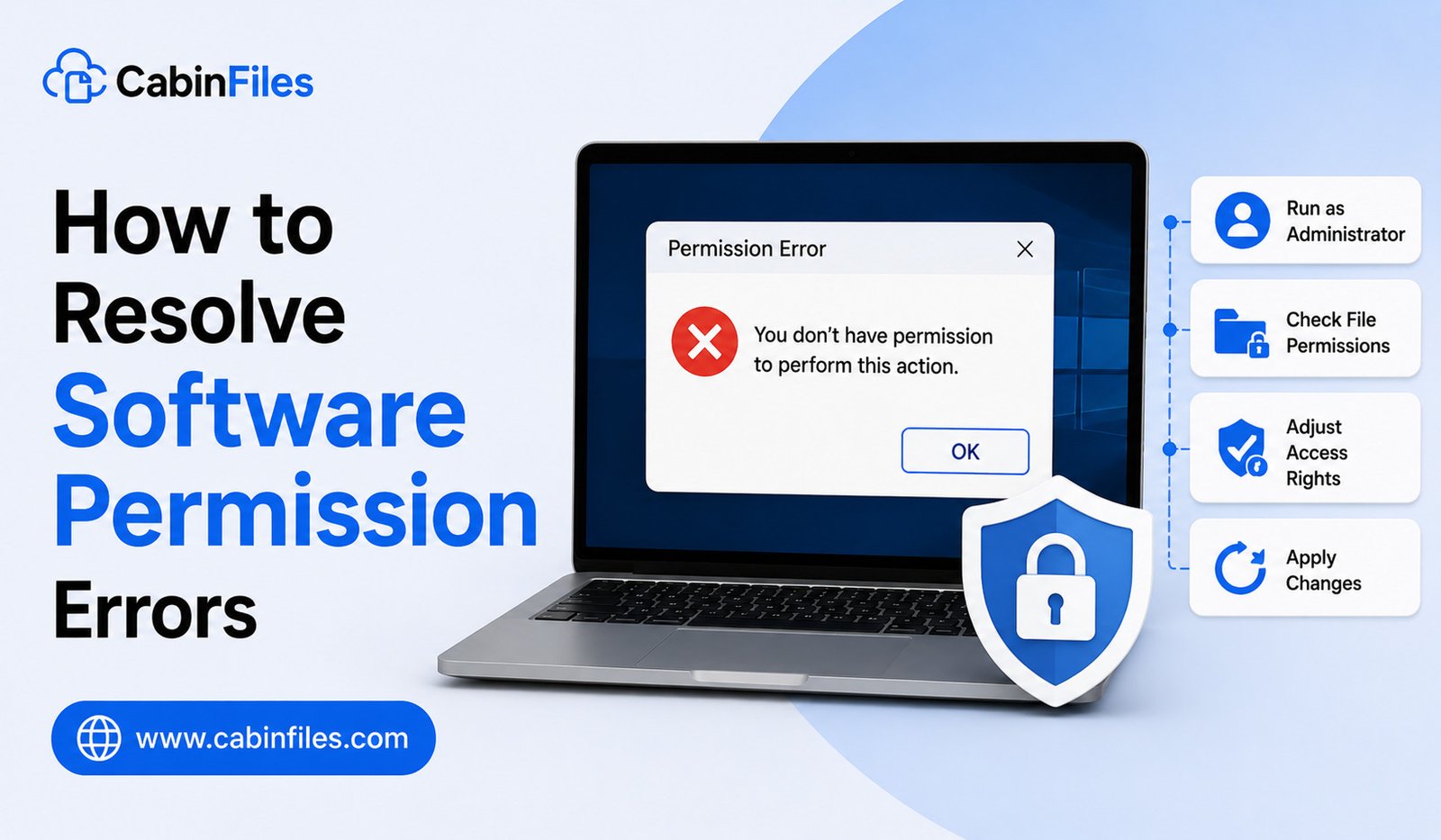
How to Resolve Software Permission Errors on Windows: A Complete Guide
Software permission errors are common on Windows, especially when an application tries to access protected files, folders, system settings, or other resources. You may see messages such as “Access Denied,” “You need permission to perform this action,” “Permission denied,” or “Administrator privileges required.”
These errors do not always mean that the software is broken. In many cases, Windows is simply preventing an application or user account from accessing something it is not authorized to use.
Understanding how Windows permissions work can help you troubleshoot these problems safely. In this guide, we will explain how to resolve software permission errors, why they happen, and which solutions you should try before making advanced system changes.
What Are Software Permission Errors?
A software permission error occurs when an application does not have sufficient rights to perform an operation.
For example, a program may need to:
- Read a protected file
- Save information to a restricted folder
- Modify system settings
- Install additional components
- Access another user’s files
- Write to a protected Windows directory
- Connect to a restricted network resource
Windows uses permissions and security controls to prevent unauthorized changes. These protections are important because they can stop applications from modifying critical files without approval.
Why Do Permission Errors Happen?
Several situations can cause permission problems.
The application may require administrator privileges, the current Windows account may not have access to a particular folder, or the file may belong to another user.
Permission issues can also appear after moving files between computers, restoring backups, changing folder ownership, reinstalling Windows, or modifying security settings.
Security software and Windows features such as User Account Control (UAC) can also affect how applications access protected resources.
1. Restart the Application
Before changing permissions, close the application completely and open it again.
Temporary permission or authentication problems can sometimes disappear after restarting the software.
If the application is frozen, use Task Manager to end the process and then launch it again.
If the error continues, proceed with more targeted troubleshooting.
2. Run the Application as Administrator
One of the simplest ways to test whether insufficient privileges are causing the problem is to run the application with administrator rights.
Right-click the application’s shortcut or executable and select Run as administrator.
Windows may display a User Account Control prompt asking you to confirm the action.
If the application works correctly with administrator privileges, the problem may be related to its access requirements.
However, this should not automatically become your permanent solution. Running applications with elevated privileges gives them greater access to your system.
Only use administrator privileges when necessary and when you trust the application.
3. Check the File or Folder Permissions
If the error occurs while opening, editing, moving, or saving a specific file, check the permissions for that file or its parent folder.
Right-click the file or folder, select Properties, and open the Security tab.
You can see which users and groups have permissions such as:
- Read
- Write
- Modify
- Read & execute
- Full control
If your Windows account does not have the required access, the application may also be unable to perform the requested operation.
Do not change permissions randomly. Windows uses these settings to protect important data and system resources.
4. Check Whether the File Is Read-Only
Sometimes a program cannot save changes because the file or folder has been configured as read-only.
Right-click the relevant file and select Properties.
If the file has a read-only attribute that prevents the required operation, changing it may solve the problem.
However, read-only status is only one possible cause. If the error continues, investigate the folder permissions and application behavior.
5. Check the Folder Location
Some Windows folders are more restricted than others.
Applications may encounter permission errors when attempting to write directly to protected system directories.
If you are working with personal files, consider storing them in an appropriate user-accessible location rather than forcing an application to write to a protected system folder.
For example, applications may behave differently when working with files stored under a user’s Documents folder compared with protected Windows directories.
6. Check Your Windows Account
Your account type can affect what you are allowed to do.
A standard user account has fewer system privileges than an administrator account.
If a particular application requires administrative access, Windows may ask for administrator approval or credentials.
If you are using a work or school computer, you may not have permission to change system-level settings. In that situation, contacting the organization’s administrator may be the correct solution rather than attempting to bypass restrictions.
7. Check User Account Control Settings
Windows includes User Account Control, commonly known as UAC, to prevent applications from making important changes without user awareness.
You may see a UAC prompt when installing software, changing system settings, or launching certain applications.
Do not disable UAC simply because an application displays a permission error.
UAC is an important security feature. If a program repeatedly requires elevated privileges, check whether the application has an updated version or official guidance explaining its permission requirements.
8. Check Whether Another Program Is Using the File
A permission-like error can sometimes occur because another application is currently using a file.
For example, a document may be open in another program while you are attempting to rename, replace, or delete it.
Close applications that may be accessing the file and try again.
Background synchronization software, backup tools, and security applications can also temporarily access files.
Restarting Windows can help identify whether a temporary file lock is involved.
9. Check Antivirus and Security Software
Security software can restrict an application from accessing certain files or folders.
If a program suddenly loses access after a security update, check the security software’s protection history.
Do not immediately turn off antivirus protection. Instead, determine whether the software has been blocked or quarantined and follow the security product’s official procedure for handling legitimate applications.
If an application is unfamiliar or came from an unreliable source, a permission error may actually be protecting your computer from potentially unwanted activity.
10. Repair or Reinstall the Application
Sometimes an application has been installed incorrectly or its configuration has become corrupted.
If the program provides a Repair option, try repairing it first.
If repair does not work, uninstall and reinstall the application using an installer from the developer’s official source.
Before uninstalling software, back up important projects, settings, and local data if necessary.
A fresh installation can restore application files and reset configuration settings that may have contributed to permission problems.
11. Update Windows and the Application
Outdated software can sometimes contain compatibility problems that lead to incorrect permission handling.
Check for updates for both Windows and the affected application.
Developers may release updates that fix compatibility issues with newer Windows versions or security changes.
Keeping software updated can also improve security and stability.
12. Be Careful When Changing Ownership
Advanced Windows users may encounter situations where a file or folder is owned by another account.
Windows provides options for changing ownership and permissions, but this should be treated as an advanced troubleshooting step.
Changing ownership of system folders or protected files without understanding the consequences can cause Windows or applications to malfunction.
If the affected files belong to another user, a work organization, or Windows itself, verify why the ownership exists before changing it.
Permission Error vs Administrator Error
These two problems are related but not identical.
An administrator error generally means an operation requires elevated privileges that the current process does not have.
A file or folder permission error means the current user or application does not have the required access to a particular resource.
Running an application as administrator can solve some administrator-related problems, but it does not necessarily fix every file permission issue.
Understanding this difference can prevent you from unnecessarily changing security settings.
What If Permission Errors Keep Returning?
If an application repeatedly loses access to the same files, look for a pattern.
Does the problem occur after Windows restarts? Does it affect only one folder? Does it happen after a security scan? Does the application work correctly when launched as administrator?
These details can help identify the underlying cause.
If multiple applications experience permission errors, investigate broader Windows account, security, storage, or system configuration issues instead of changing permissions for every application individually.
How to Avoid Permission Problems
You can reduce permission-related issues by installing software from trusted sources and keeping Windows and applications updated.
Avoid storing important application data in protected system directories unless the software specifically requires it.
Do not routinely run every application as administrator, and avoid changing ownership or security permissions without understanding what you are changing.
For shared or business computers, follow the organization’s security policies instead of attempting to bypass restrictions.
Final Thoughts
Learning how to resolve software permission errors starts with understanding what Windows is protecting and why the application needs access.
Start with simple solutions such as restarting the program, checking the affected file or folder, verifying your account permissions, and testing the application with administrator approval when appropriate.
If the issue continues, investigate security software, file locks, application installation problems, and Windows updates. Advanced changes to ownership and permissions should be approached carefully because incorrect settings can create larger security or stability problems.
In many cases, a permission error is not something that needs to be defeated—it is a signal that Windows is protecting a resource. Finding the correct access requirement is safer and more effective than simply granting an application unrestricted control.
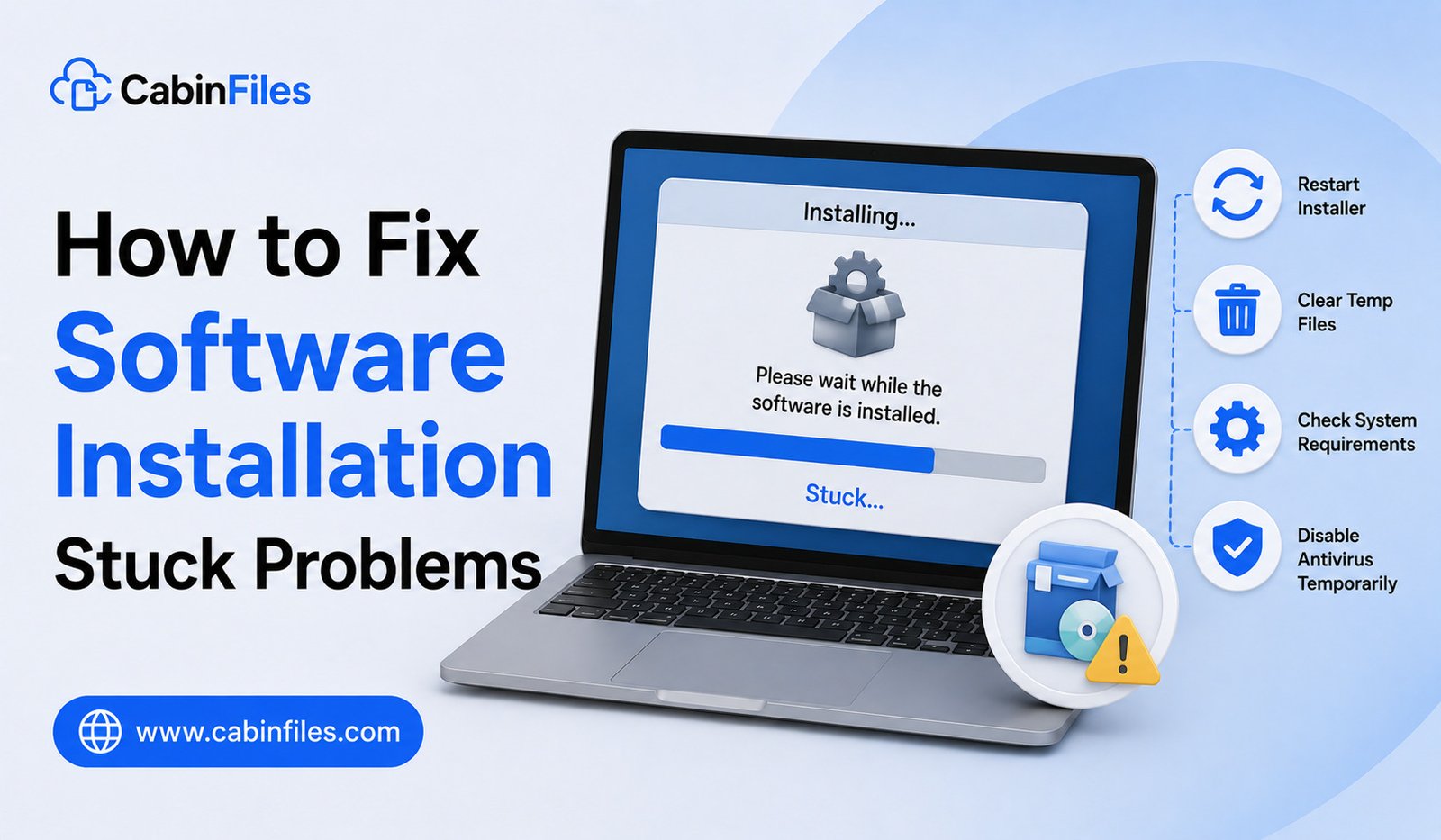
How to Fix Software Installation Stuck Problems on Windows: 12 Easy Solutions
Installing new software on a Windows computer should normally be straightforward. You download the installer, follow the setup instructions, and wait for the program to finish installing. However, sometimes the installation gets stuck at a particular percentage, remains on “Installing,” stops responding, or appears to make no progress for a long time.
A stuck installation can be caused by many things, including insufficient storage, background processes, antivirus interference, corrupted installation files, Windows Installer problems, or an unstable internet connection.
The good news is that most installation problems can be diagnosed without advanced technical knowledge. In this guide, you will learn how to fix software installation stuck problems on Windows and what to check before trying more complicated solutions.
Why Does Software Installation Get Stuck?
A software installation involves more than simply copying files. The installer may need to extract compressed files, download additional components, create folders, modify system settings, install dependencies, and register program components.
If one of these steps encounters a problem, the installation may appear frozen.
Common causes include:
- Corrupted installer files
- Slow or unstable internet
- Insufficient storage space
- Lack of administrator permissions
- Antivirus or security software interference
- Another installation running in the background
- Windows Installer problems
- Outdated Windows components
- Software compatibility issues
- Conflicts with existing applications
Before making major changes, give the installer a little time. Some installations can appear inactive while processing large files or performing background tasks.
1. Wait and Check Whether the Installer Is Actually Working
The first step is not to immediately close the installer.
Some applications take several minutes to complete a particular stage, especially large games, creative software, development tools, and applications that install additional components.
Open Task Manager by pressing Ctrl + Shift + Esc and check whether the installer is using CPU, memory, disk, or network resources.
If activity is continuing, the installation may simply be taking longer than expected.
If the installer has completely stopped responding and resource activity remains inactive for an extended period, continue troubleshooting.
2. Restart the Computer
A simple restart can resolve temporary Windows processes or installer conflicts.
Save your work, close other applications, and restart Windows.
After the computer starts again, try the installation once more.
Restarting is particularly useful if another installation, Windows update, or background setup process may have left temporary files or processes running.
3. Check Your Internet Connection
Many modern software installers are not completely self-contained. They may download additional files during installation.
If your internet connection is unstable, the installer may appear stuck while waiting for a download.
Check whether other websites and online applications are working normally.
If possible, use a reliable connection and avoid interrupting the installation while required files are downloading.
For large software packages, downloading the complete offline installer from the developer’s official website may sometimes be more reliable than using a small web-based installer.
4. Make Sure You Have Enough Storage Space
Insufficient storage can prevent software from installing correctly.
An installer may need more free space than the final application size because it may temporarily extract files during setup.
Open Settings > System > Storage and check the available space on the drive where Windows and the application are being installed.
Remove unnecessary temporary files, old downloads, or unused applications if you need additional space.
Do not delete unfamiliar system files manually just to free storage.
5. Run the Installer as Administrator
Some software requires administrator permissions to create files in protected folders or make system-level changes.
Right-click the installer and choose Run as administrator.
If the installation works normally after doing this, permissions may have been contributing to the problem.
However, administrator access should only be granted to installers from trusted sources. Do not run an unknown installer with elevated privileges.
6. Close Other Applications
Running multiple demanding applications while installing software can slow down the setup process.
Close unnecessary programs before starting the installation.
This is especially useful if the installer is extracting large files or using significant disk and memory resources.
Also check Task Manager for another installer or setup process that may already be running.
Running multiple installations simultaneously can sometimes cause conflicts.
7. Check Antivirus and Security Software
Security software continuously checks files being created or modified by installers.
Occasionally, a legitimate installer can trigger a false positive or experience delays while files are being scanned.
If the installation repeatedly stops at the same stage, check your antivirus or Windows security history to see whether something was blocked or quarantined.
Do not permanently disable your security software simply to complete an installation.
If you believe a legitimate application has been incorrectly blocked, follow the security software’s official procedure for reviewing or allowing the application.
8. Download the Installer Again
A corrupted or incomplete installer can cause setup to freeze.
If the installer was downloaded from the internet, delete the problematic copy and download a fresh version from the software developer’s official website.
Avoid using unofficial download sites whenever possible.
For large applications, an interrupted download may not always produce an obvious error, but damaged installation files can prevent setup from completing properly.
9. Check Windows Updates
Outdated Windows components can sometimes cause compatibility problems with newer software.
Open Settings > Windows Update and check for available updates.
Install appropriate updates and restart the computer if requested.
If the application has specific Windows version requirements, confirm that your system meets them before attempting another installation.
10. Remove an Incomplete Previous Installation
If you previously attempted to install the same software and the process failed, leftover files can sometimes interfere with another installation attempt.
Check Windows’ installed applications list to see whether a partially installed version appears.
If the developer provides an official cleanup or uninstall utility, you may be able to use it to remove remnants of the previous installation.
Be cautious when manually deleting folders or registry entries. Removing the wrong files can create additional problems.
When possible, use the application’s official uninstaller or Windows’ standard uninstall options.
11. Check Windows Installer Problems
Many Windows applications rely on system installation components to complete setup.
If several unrelated programs are failing to install, the issue may not be with the individual applications.
For repeated installation failures across different programs, investigate Windows Installer and system-level troubleshooting rather than repeatedly downloading installers.
Windows also provides built-in troubleshooting and repair options that may help identify system issues.
If you are not comfortable changing advanced Windows settings, use official Microsoft documentation or a trusted technical support source rather than applying random registry modifications.
12. Check Software Compatibility
Older software may not install correctly on newer Windows versions.
Before installing an older application, check the developer’s compatibility information.
Some legacy programs may require compatibility settings or an older supported environment.
On the other hand, very new software may require a newer Windows version, specific processor features, graphics hardware, or additional runtime components.
Checking the software’s system requirements can save time before troubleshooting an installation that the computer cannot properly support.
What to Do If the Installer Freezes at a Specific Percentage
One of the most common installation problems is getting stuck at a number such as 50%, 75%, or 99%.
Do not automatically assume the installer is frozen.
Some installation stages involve large amounts of file extraction, verification, or system configuration. The percentage indicator may remain unchanged even though the process is still working.
Check Task Manager for disk, CPU, or network activity.
If there is continued activity, wait longer. If the installer is completely unresponsive and there has been no activity for an extended period, close it and restart the installation after checking the possible causes above.
What If Software Installs but Will Not Open?
An installation that completes successfully but produces an error when the program launches is a different problem.
Possible causes include missing dependencies, incompatible drivers, permissions, corrupted configuration files, or insufficient hardware resources.
In that situation, check the application’s official troubleshooting documentation and system requirements.
Avoid assuming that reinstalling the application repeatedly will fix every launch problem.
Should You Delete Temporary Installation Files?
Temporary files are often created during software installation.
After a successful installation, some temporary files may be removed automatically. Others may remain in Windows’ temporary folders.
Windows provides storage management tools that can help identify unnecessary temporary data.
However, avoid manually deleting random files from system directories while an installation is still running.
Wait until the installer has finished or has been safely closed before cleaning up temporary files.
How to Prevent Installation Problems
A few simple habits can make future installations more reliable.
Download software from reputable sources, maintain enough free storage space, keep Windows updated, and avoid running multiple major installations simultaneously.
For large programs, make sure your internet connection is stable and your computer meets the application’s requirements.
It is also a good idea to create backups of important files before installing major system utilities or applications that make significant changes to Windows.
Final Thoughts
Knowing how to fix software installation stuck problems can save you from unnecessary frustration and repeated installation attempts.
Start by checking whether the installer is actually working, then restart Windows, verify your internet connection and storage space, run trusted installers with appropriate permissions, and close unnecessary applications.
If the problem continues, investigate security software, corrupted installers, incomplete previous installations, Windows updates, and software compatibility.
Most importantly, download installation files from official or trusted sources and avoid disabling security features or making advanced system changes without understanding their consequences. A systematic approach will usually help you identify why the installation is stuck and get the software installed successfully.
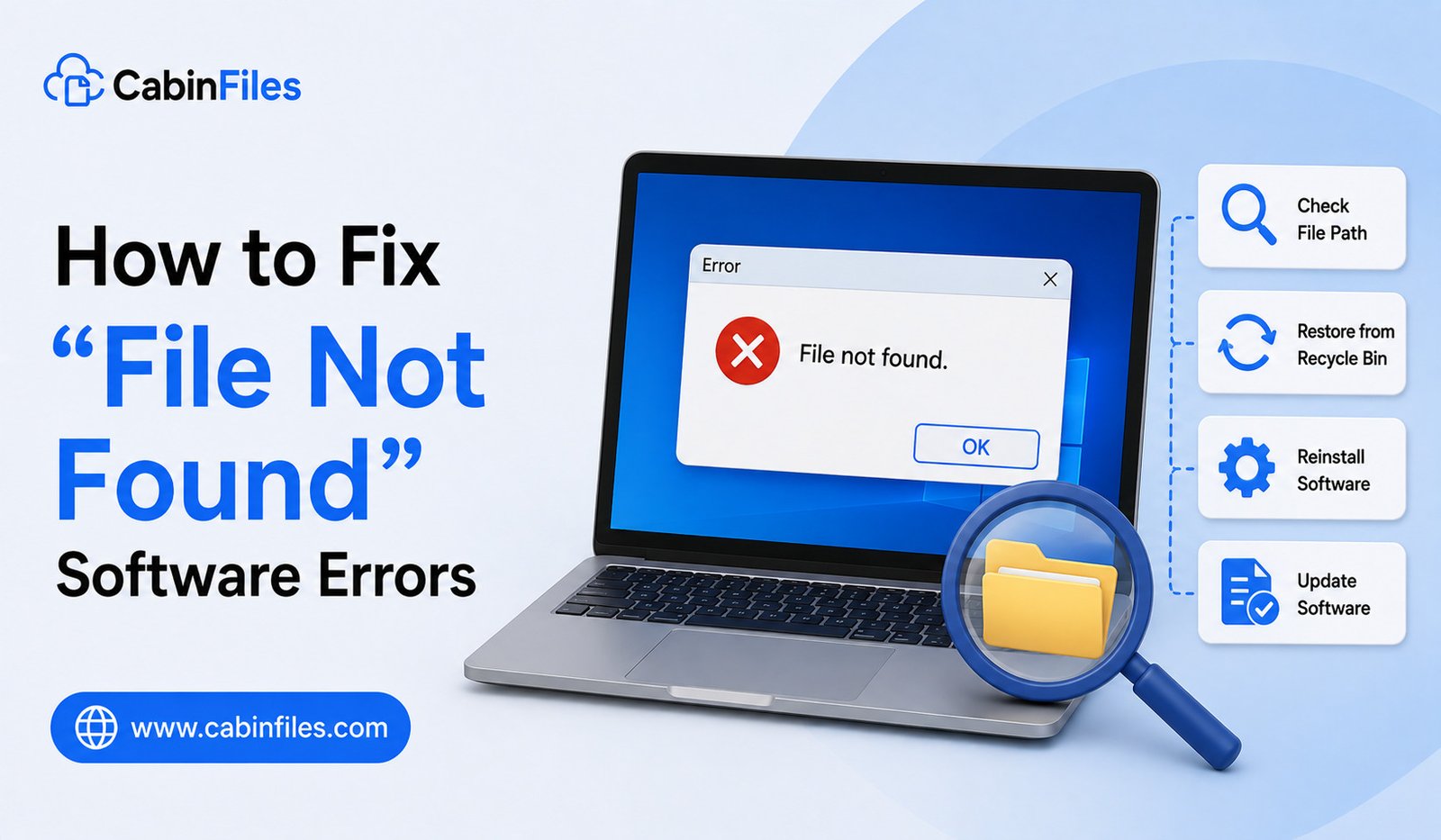
How to Fix “File Not Found” Software Errors: A Complete Guide
Few software errors are as confusing as a simple “File Not Found” message. You may click a program, open a project, launch a game, or perform an update, only to discover that the software cannot find a file it needs.
This error can appear for many reasons. A file may have been accidentally deleted, moved to another folder, renamed, blocked by security software, or removed during an incomplete installation. In other situations, the file may still exist but the application may be looking in the wrong location.
Fortunately, many “File Not Found” errors can be diagnosed and fixed without reinstalling Windows or replacing your computer.
This guide explains how to fix “File Not Found” software errors, why they happen, and what you should check before making major changes to your system.
What Does “File Not Found” Mean?
A “File Not Found” error means that a program attempted to access a particular file but could not locate it where it expected it to be.
The missing item could be an application file, configuration file, library, document, image, database, or another component required by the software.
For example, a program might display an error such as:
“The specified file could not be found.”
Or it may mention a particular filename and folder path.
The exact wording varies between applications, but the underlying problem is usually similar: the software cannot access a required file at the expected location.
Why Do “File Not Found” Errors Happen?
Several situations can cause this problem.
A file might have been:
- Accidentally deleted
- Moved to another folder
- Renamed
- Removed by an uninstaller
- Quarantined by security software
- Lost after an incomplete update
- Damaged because of storage problems
- Missing because an installation failed
- Located on a disconnected external drive
- Stored on a network location that is currently unavailable
Sometimes the application itself has incorrect configuration settings and is searching for a file in an outdated location.
Identifying which situation applies is the first step toward fixing the problem.
1. Read the Complete Error Message
Before changing anything, carefully read the error.
If the message includes a filename or folder path, write it down.
For example, an error might refer to:
C:\Program Files\ExampleApp\data\settings.ini
This information can tell you whether the file is supposed to belong to the application and where Windows expects it to be.
Do not immediately download a replacement file from a random website simply because the error names a missing file. You should first determine what the file is and where it came from.
2. Check Whether the File Still Exists
If the error identifies a filename, search your computer for it.
Use Windows Search or File Explorer to look for the file.
If you find it in another folder, the problem may simply be that the application is using an incorrect path.
For example, a program might be searching for a file in:
C:\Projects\App\
while the file has been moved to:
D:\Projects\App\
If the application provides a setting for changing the file or folder location, update it to the correct path.
3. Check the Recycle Bin
If the file was accidentally deleted, it may still be in the Windows Recycle Bin.
Open the Recycle Bin and search for the missing filename.
If you find the correct file, you can restore it to its previous location.
However, be careful when restoring files. If you are not certain that the file belonged to the application, investigate it before replacing anything.
4. Check Whether an External Drive Is Connected
Some applications rely on files stored on external hard drives, USB drives, memory cards, or network locations.
If the required drive is disconnected, Windows may report that the file cannot be found.
Reconnect the appropriate drive and make sure Windows recognizes it.
If the drive letter has changed, the application may still be looking for the old location.
For example, software may expect a file on drive E: while Windows has assigned the external drive a different letter.
5. Check the File Path
A file can exist on your computer but still produce a “File Not Found” error if the application is using the wrong path.
This can happen after moving a project, changing drive letters, renaming folders, or migrating software to another computer.
Look through the application’s settings for options such as:
- File location
- Default folder
- Library location
- Project directory
- Database path
- Backup folder
- Media folder
Correcting the path can solve the problem without reinstalling the software.
6. Restore or Repair the Software
If an application file has been deleted or damaged, the software may provide a Repair option.
On supported Windows applications, you may find repair options through the installed-app settings.
Repairing an application can replace damaged or missing components while preserving some user data and settings.
If a repair option is unavailable or does not work, reinstalling the application from its official source may be the next step.
7. Reinstall the Application
A missing program component can sometimes be caused by an incomplete or corrupted installation.
In that situation, reinstalling the application can restore the required files.
Before uninstalling, check whether the software stores important projects, settings, licenses, or saved data locally. Back up anything important first.
Download the installer from the software developer’s official website or another trusted distribution source.
Avoid downloading individual missing application files from unknown websites. A file with the correct name is not necessarily a safe or compatible replacement.
8. Check Your Antivirus or Security Software
Security software can sometimes quarantine or remove files that it considers suspicious.
If an application suddenly reports a missing file after a security scan, check the security software’s quarantine or protection history.
If you are certain the file is legitimate and was incorrectly identified, follow the security software’s official recovery procedure.
Do not simply disable antivirus protection because an application reports a missing file. The file may genuinely have been removed because it was unsafe.
9. Update the Software
An outdated application can contain bugs related to file locations, installation components, or compatibility with newer versions of Windows.
Check whether the developer has released a newer version.
If the error began after a software update, look for information from the developer about known issues and available fixes.
Updates are particularly important when the application interacts with other software components or frequently receives changes.
10. Check File and Folder Permissions
Sometimes the file exists but the application cannot access it.
This can happen when permissions have changed or when software is trying to access a protected folder.
Check whether you can open the file manually using your Windows account.
If you receive an access-denied message, the issue may be related to permissions rather than the file actually being missing.
Avoid changing security permissions randomly. Incorrect permissions can create additional security and application problems.
11. Check for Windows System File Problems
If several unrelated applications suddenly report missing files, the problem may extend beyond one application.
Windows includes built-in tools that can check certain system files and repair some types of corruption.
For serious or repeated system-wide errors, consider using Microsoft’s recommended Windows repair procedures rather than downloading replacement system files from third-party websites.
This is especially important for files located in Windows system directories.
12. Avoid Downloading Random DLL or System Files
One of the most common mistakes when dealing with missing-file errors is searching the internet for the missing filename and downloading the first matching file.
This can be risky.
The downloaded file may contain malware, be incompatible with your Windows version, or come from an untrustworthy source.
If the missing file is part of an application, reinstall the application from its official source. If it is a Windows system file, use Windows’ built-in repair tools or Microsoft’s official recovery guidance.
What If the Error Appears After Moving a Program?
Some applications are not designed to be moved manually.
For example, dragging a program’s installation folder from one drive to another may leave shortcuts, configuration files, registry information, and dependencies pointing toward the old location.
If the error started after moving the software, reinstalling it to the desired location is often safer than manually changing multiple paths.
Portable applications are different because they are specifically designed to run from a folder without a traditional installation.
What If the Error Appears After a Windows Update?
If software starts reporting missing files after Windows updates, first check for application updates from the developer.
Also restart Windows and check whether additional updates are available.
If multiple programs are affected, investigate broader Windows compatibility or system-file issues rather than reinstalling every application individually.
How to Prevent “File Not Found” Errors
You can reduce the likelihood of these errors by keeping applications updated and avoiding unnecessary manual changes to program folders.
Do not randomly delete files from application directories just because they appear unfamiliar. Before uninstalling software, make sure important personal data is backed up.
If you regularly work with projects stored on external drives, keep those drives connected when required and maintain consistent folder structures.
Regular backups are also important. They make it much easier to recover files that have been accidentally deleted or damaged.
Final Thoughts
A “File Not Found” software error does not necessarily mean that the file has been permanently lost. The file may have been moved, renamed, deleted, quarantined, or placed somewhere the application does not expect.
Start by reading the complete error message and identifying the missing file and path. Then check whether the file exists, verify external drives and folder locations, review security software, and repair or reinstall the application when necessary.
Most importantly, avoid downloading random replacement files from unknown websites. Using official installers, trusted recovery methods, and Windows’ built-in tools is a safer way to resolve missing-file problems.
With a systematic approach, many “File Not Found” errors can be fixed without major changes to your computer.
Why Software Runs Slowly and How to Improve It: A Complete Guide
Few things are more frustrating than software that takes too long to open, responds slowly, freezes during simple tasks, or becomes noticeably sluggish over time. Whether it is a web browser, office application, photo editor, accounting program, or another desktop application, slow software can waste time and make everyday computer use difficult.
The good news is that slow software does not always mean you need a new computer. Performance problems can often be improved by identifying the actual cause and making a few practical changes.
In this guide, we will explain why software runs slowly and how to improve its performance, including problems related to memory, storage, background applications, outdated software, Windows settings, and hardware limitations.
Why Does Software Run Slowly?
Software performance depends on several factors. An application needs enough processing power, memory, storage space, and system resources to work efficiently.
A program may become slow because too many applications are running at the same time, the computer has limited RAM, storage space is running low, or the software itself has become outdated.
Other causes include unnecessary startup programs, corrupted application files, outdated drivers, excessive browser extensions, background synchronization, and compatibility issues.
Sometimes the application is not actually the problem. The entire computer may be running slowly because of Windows processes, hardware limitations, or other programs consuming resources.
1. Check CPU and Memory Usage
One of the first things you should do when software becomes slow is check which programs are using your computer’s resources.
On Windows, press Ctrl + Shift + Esc to open Task Manager.
The Processes section can show how much CPU, memory, disk, and GPU resources individual applications are using.
If one application is consuming an unusually large amount of resources, it could be responsible for the slowdown.
For example, running a video editor, multiple browser tabs, and a large spreadsheet simultaneously can put considerable pressure on system resources.
Closing applications you are not using can immediately improve responsiveness.
2. Close Unnecessary Background Programs
Many applications continue running in the background even when you are not actively using them.
Cloud synchronization tools, messaging applications, software updaters, launchers, and other utilities can consume memory and processing power.
You do not necessarily need to remove these programs. Simply preventing unnecessary applications from running constantly can reduce resource usage.
However, avoid ending Windows processes if you do not know what they do. Some background processes are essential for the operating system or installed software.
3. Free Up Storage Space
A nearly full storage drive can contribute to performance problems.
Windows and applications need space for temporary files, caches, updates, and other operations. If your system drive has very little free space, everyday tasks may become less efficient.
Check your available storage through Settings > System > Storage.
Remove unnecessary temporary files, old downloads, unused applications, and other data you no longer need.
Do not delete system files manually unless you know exactly what they are used for.
4. Update the Slow Application
Software developers regularly release updates that fix bugs and improve performance.
If an application is running slowly, check whether a newer version is available.
An update may solve memory leaks, compatibility problems, performance bottlenecks, or other issues affecting the application.
Always download updates from the software developer’s official source or the application’s trusted update mechanism.
5. Keep Windows Updated
Windows updates can also affect application performance.
Updates may include bug fixes, driver improvements, security patches, and compatibility changes that help applications work correctly.
Open Settings > Windows Update and check for available updates.
After installing updates, restart the computer if necessary and check whether the application performs better.
If the slowdown started immediately after a major update, investigate whether the application developer has released a compatibility update.
6. Update Hardware Drivers
Outdated or problematic drivers can sometimes affect application performance.
This is particularly relevant for software that relies heavily on graphics processing, such as games, video editing applications, 3D programs, and design tools.
Check for appropriate driver updates through your hardware manufacturer’s official support tools or website.
If a performance problem began immediately after a driver update, investigating driver compatibility may also be worthwhile.
7. Reduce Browser Extensions
If your web browser is the software that runs slowly, extensions may be part of the problem.
Browser extensions can consume memory and processing resources, particularly when many are installed.
Review your installed extensions and remove those you no longer need.
If you suspect an extension is causing a problem, disable extensions temporarily and test the browser again.
This can help determine whether the slowdown comes from the browser itself or an installed add-on.
8. Clear Excessive Cache and Temporary Data
Applications often store temporary information to make future operations faster. Over time, however, caches can become large or contain outdated data.
Some applications provide their own options for clearing cache files.
Browsers, for example, allow users to remove cached web content through their privacy or settings menus.
Do not assume that clearing every cache will automatically make software faster. Cache files are often designed to improve performance, so clearing them is most useful when the cache has become unusually large or corrupted.
9. Check for Malware
Malicious software can consume system resources and cause applications or Windows itself to become unusually slow.
If your computer suddenly becomes sluggish, applications start behaving strangely, or unfamiliar processes appear in Task Manager, perform a security scan using a reputable security solution.
Keep your security software updated and avoid downloading suspicious programs or files from untrusted websites.
Performance problems caused by malware require a security solution rather than simply closing background applications.
10. Upgrade RAM if Necessary
If your computer frequently runs out of available memory, adding more RAM can improve multitasking and application performance.
This can be especially useful if you regularly work with large spreadsheets, video editing software, development tools, virtual machines, or many browser tabs.
However, upgrading RAM will not solve every performance problem.
Before purchasing an upgrade, check whether your computer supports additional memory and determine how much RAM is already installed.
11. Consider Faster Storage
The type and condition of your storage drive can also affect application performance.
Traditional hard disk drives are generally slower than modern solid-state drives. If Windows and your frequently used applications are installed on an older HDD, moving to an SSD can make booting, application launches, and file operations considerably more responsive.
An SSD upgrade can therefore provide a noticeable improvement on older computers.
Before upgrading, make sure important files are backed up and verify that the new drive is compatible with your computer.
12. Restart Your Computer Regularly
Sometimes the simplest solution is restarting Windows.
A computer that has been running for a long time may accumulate background processes and temporary states that affect performance.
Restarting closes running applications and refreshes system processes.
If a program becomes slow after several hours but returns to normal after a restart, that can be a useful clue that a background process, memory issue, or software bug may be involved.
13. Check the Application’s Recommended Requirements
Every application has hardware and software requirements.
A program may run slowly simply because the computer does not meet the recommended specifications.
This is particularly common with modern games, professional video editing tools, 3D software, and other demanding applications.
Check the developer’s minimum and recommended requirements and compare them with your computer’s processor, RAM, graphics hardware, and storage.
Meeting only the minimum requirements does not necessarily mean the software will run smoothly.
Why Software Can Become Slower Over Time
A computer may feel slower after several years even when you use the same applications.
Modern software often becomes more feature-rich and may require more resources than older versions.
Operating system updates, larger files, additional browser extensions, background services, and accumulated applications can also increase resource usage.
This does not automatically mean that the computer is failing. It may simply mean that the software’s requirements have grown faster than the system’s capabilities.
When Should You Upgrade Your Computer?
If you have tried reasonable software and Windows optimizations but demanding applications remain consistently slow, hardware may be the limiting factor.
Consider an upgrade when you regularly experience insufficient RAM, slow storage, high CPU usage during ordinary tasks, or hardware that no longer meets the requirements of the software you need.
An upgrade does not always mean purchasing a completely new computer. Depending on the device, adding RAM or replacing an HDD with an SSD may provide a significant improvement.
Final Thoughts
Understanding why software runs slowly and how to improve it can save you from unnecessarily replacing your computer.
Start by checking Task Manager, closing unnecessary programs, freeing storage space, updating Windows and applications, and checking for background processes. For browser problems, review extensions and cached data. If performance remains poor, investigate hardware limitations such as insufficient RAM or slow storage.
The most effective approach is to identify the specific cause instead of applying every possible optimization at once. With regular software updates, sensible storage management, security checks, and suitable hardware, many applications can continue running smoothly for years.
How to Fix Software Crashes on Windows: 12 Practical Solutions
Few things are more frustrating than opening a Windows application only to have it freeze, close unexpectedly, or stop responding. Software crashes can happen while launching a program, opening a file, performing a specific task, or even when the application has been running normally for several minutes.
The good news is that most software crashes are caused by common problems such as outdated applications, corrupted files, incompatible drivers, insufficient system resources, or conflicts with other software.
In this guide, you will learn how to fix software crashes on Windows using practical troubleshooting methods, starting with the simplest solutions and moving toward more advanced options.
Why Does Software Crash on Windows?
Before fixing a crash, it helps to understand what might be causing it.
An application can crash because of a damaged installation, missing or corrupted files, outdated Windows components, incompatible graphics drivers, insufficient RAM, conflicting background programs, or a bug in the application itself.
Sometimes the problem is specific to one application. In other cases, several programs may crash, which could indicate a broader Windows or hardware problem.
Identifying when the crash happens can also provide useful clues. If a program crashes immediately after launching, its installation or configuration may be responsible. If it crashes only during demanding tasks, resource usage, overheating, or graphics drivers could be involved.
1. Restart the Application
Start with the simplest solution: close the application completely and open it again.
If the program has frozen, press Ctrl + Shift + Esc to open Task Manager. Find the application in the list, select it, and choose End task.
Then launch the program again.
A temporary software glitch may disappear after restarting the application.
If the program continues crashing every time you open it, move on to the next troubleshooting step.
2. Restart Your Windows PC
A complete system restart can resolve temporary problems that affect applications.
Restarting Windows clears certain temporary processes and refreshes system resources. It can also finish installing updates or resolve conflicts caused by background processes.
Before restarting, save any important work from other applications.
After the computer starts again, test the problematic software.
3. Update the Software
An outdated application may contain bugs or compatibility problems that have already been fixed in a newer release.
Open the application’s built-in update feature or visit the developer’s official website to check for a newer version.
Updating is particularly important if the crashes started after a Windows update or hardware change. Developers often release compatibility fixes when operating systems receive major updates.
Avoid downloading unofficial “updated” versions from unknown websites, as they may contain unwanted or malicious software.
4. Install Windows Updates
The problem may not be the application itself. Windows components that the software depends on can also become outdated.
To check for updates in Windows, open Settings > Windows Update and look for available updates.
Install appropriate updates and restart the computer if Windows requests it.
Keeping Windows updated can improve compatibility, fix known bugs, and provide updated system components required by applications.
5. Update Your Graphics Drivers
If the crashing application is a game, video editor, 3D application, design program, or another graphics-intensive tool, your graphics driver may be involved.
Check whether an updated driver is available for your GPU from the appropriate hardware manufacturer’s official support channel.
After installing the driver, restart Windows and test the application again.
If the crashes started immediately after a graphics driver update, the newest driver may not necessarily be the cause, but rolling back to a previously stable driver can sometimes help.
6. Check Available Storage and Memory
Applications require system resources to operate correctly.
If your storage drive is nearly full, Windows and applications may have difficulty creating temporary files. Similarly, running many demanding programs simultaneously can put pressure on available RAM.
Open Task Manager with Ctrl + Shift + Esc and check CPU, memory, disk, and GPU usage.
Close applications you do not currently need and make sure your Windows drive has reasonable free space.
If crashes occur mainly when several demanding applications are running simultaneously, resource limitations may be contributing to the problem.
7. Run the Application as Administrator
Some programs require access to files, folders, or system resources that are restricted under normal permissions.
You can right-click the application’s shortcut and choose Run as administrator to test whether permissions are contributing to the crash.
However, administrator access should not be used blindly for every application. If a program works only when launched with elevated privileges, it is worth investigating why it requires those permissions.
8. Repair or Reset the Application
Some Windows applications provide built-in Repair or Reset options.
Depending on the application and Windows version, these options may be available through Settings > Apps > Installed apps and the application’s advanced options.
Repair attempts to fix the application without completely removing its data.
Reset is more aggressive and may remove application settings or stored data, depending on the software.
If the application contains important local information, check what the reset option will remove before using it.
9. Reinstall the Software
If the application’s installation has become corrupted, reinstalling it can solve persistent crashes.
First uninstall the application using Windows’ installed-app options or the software’s own uninstaller.
Restart Windows if appropriate, then install a fresh copy obtained from the developer or another trusted source.
Reinstalling can replace damaged program files and restore missing components.
If the software continues crashing immediately after a clean installation, the problem may be related to Windows, drivers, hardware, compatibility, or the application’s current version.
10. Disable Conflicting Background Programs
Background applications can sometimes interfere with other software.
Examples include third-party antivirus tools, overlays, system utilities, recording software, customization tools, and other applications that interact with programs while they are running.
If an application crashes only when a particular background tool is active, temporarily disabling that tool can help identify the conflict.
Do not permanently disable security software without understanding the risks. Instead, use controlled troubleshooting and restore normal protection afterward.
11. Try Compatibility Troubleshooting
Older applications may not work correctly with newer versions of Windows.
If a program was designed for an older Windows release, compatibility settings may sometimes help.
Right-click the application’s executable or shortcut, open Properties, and look for the Compatibility options.
Windows also provides compatibility troubleshooting tools that can attempt to identify suitable settings.
Compatibility adjustments are more useful for older applications than for recently released software.
12. Check Windows System Files
If several applications are crashing rather than just one, damaged Windows system files could be contributing to the problem.
Windows includes built-in system tools that can check and repair certain system components.
One commonly used tool is System File Checker, which can be launched from an elevated Command Prompt.
You can also use Microsoft’s DISM servicing tools for Windows image-related problems.
These tools should be used carefully, especially when following commands from online troubleshooting guides. Use Microsoft’s documentation or trusted technical sources for the exact commands appropriate to your Windows version.
What If Only One Program Keeps Crashing?
If every other application works normally but one particular program repeatedly crashes, focus your troubleshooting on that application.
Check for:
- Application updates
- Compatibility information
- Corrupted settings
- Problematic plugins or extensions
- Damaged installation files
- Application-specific error logs
- Known bugs reported by the developer
If the problem began after installing a plugin, extension, modification, or new configuration, temporarily removing that addition can help determine whether it is responsible.
What If Multiple Programs Keep Crashing?
Repeated crashes across different applications may indicate a larger system problem.
Possible causes include damaged Windows components, faulty drivers, overheating, unstable hardware, memory problems, or insufficient system resources.
Pay attention to whether Windows itself displays error messages, blue screens, freezes, or unexpected restarts.
If multiple programs are crashing frequently, simply reinstalling each application may not solve the underlying problem.
How to Prevent Software Crashes
You cannot prevent every software crash, but several habits can reduce the likelihood of recurring problems.
Keep Windows and frequently used applications updated. Maintain enough free storage space, install drivers from trusted sources, avoid unnecessary third-party system modifications, and be cautious when installing unofficial plugins or software.
It is also important to maintain reliable backups. If a program crashes while working on an important document or project, a backup can prevent a software problem from becoming a data-loss problem.
Final Thoughts
Learning how to fix software crashes on Windows starts with identifying whether the problem is limited to one application or affects the entire system.
For a single crashing program, restarting it, updating the software, repairing the installation, checking compatibility, or reinstalling it can often help. If multiple applications are crashing, investigate Windows updates, drivers, system files, hardware stability, and resource usage.
Start with simple solutions and make one change at a time. This makes it easier to identify what actually solved the problem and reduces the chance of introducing additional issues.