
What Is a BAT File and What Does It Do? A Complete Guide
If you have explored files on a Windows computer, you may have come across files ending in .bat. Unlike common document or image files, a BAT file contains a series of commands that Windows can execute automatically. These files have been around for decades and remain useful for automating repetitive tasks, launching programs, managing files, and performing system operations.
But what exactly is a BAT file, how does it work, and when should you use one? This guide explains what a BAT file does, how BAT files work, how to create and open them, common uses, and important safety precautions.
What Is a BAT File?
A BAT file, short for batch file, is a plain-text file containing one or more commands that can be executed by Windows Command Prompt.
BAT files use the .bat file extension. When you run one, Windows processes the commands inside the file in sequence.
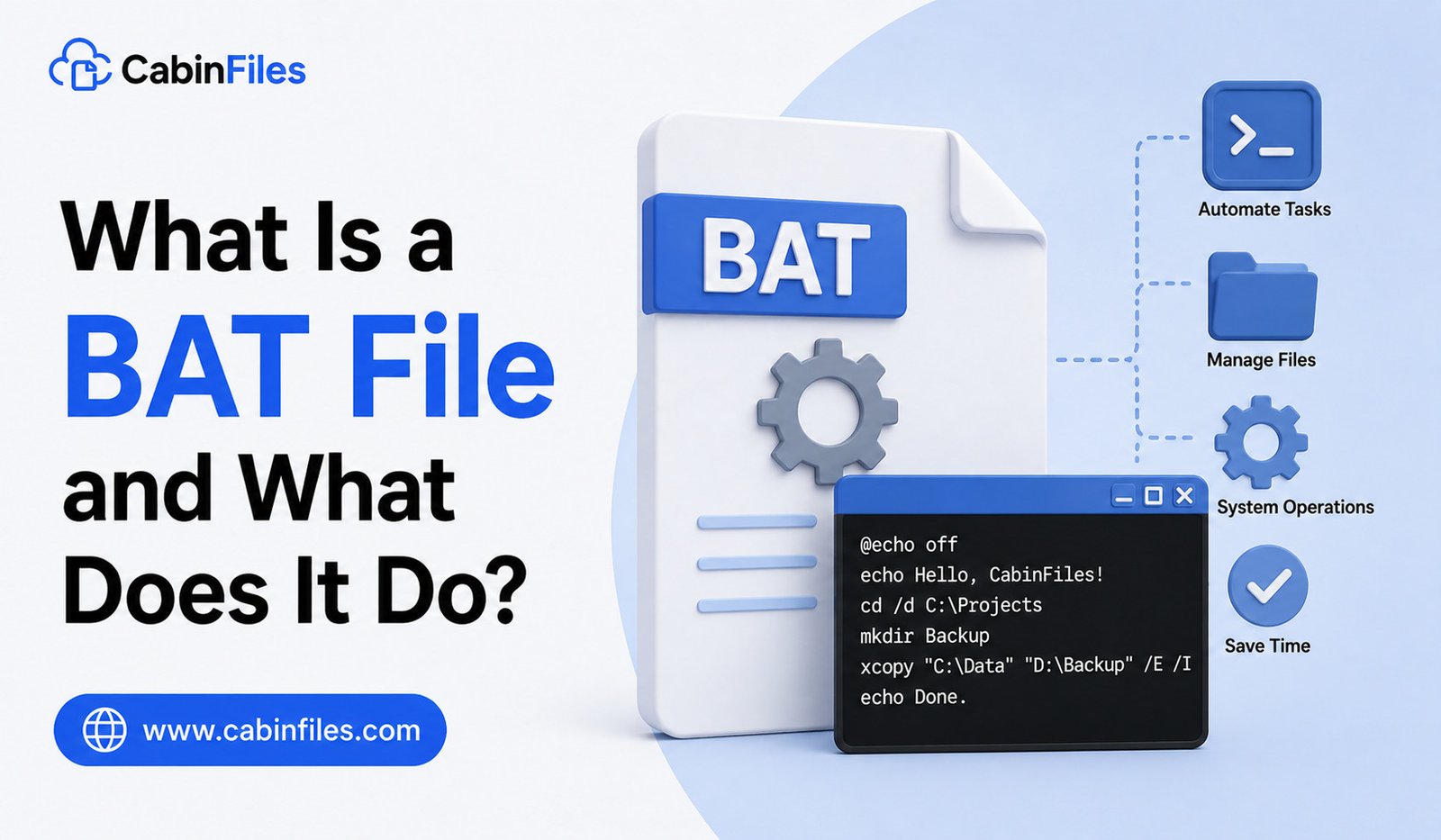
For example, a very simple BAT file could contain:
@echo off
echo Hello, welcome!
pause
When executed, the file opens a Command Prompt window, displays the message, and waits for the user to press a key.
The main idea behind a BAT file is simple: instead of manually typing several commands into Command Prompt, you can save those commands in one file and run them together.
What Does a BAT File Do?
A BAT file can perform many different tasks depending on the commands included in it.
It can:
- Launch applications
- Copy, move, or delete files
- Rename files and folders
- Create directories
- Run system commands
- Automate repetitive tasks
- Start multiple programs
- Set environment variables
- Run scripts or utilities
- Perform basic maintenance operations
For example, someone who regularly backs up files could create a batch file that copies selected folders to another location. Running the BAT file would then perform the task without requiring the user to enter every command manually.
How Does a BAT File Work?
BAT files work through the Windows command-line environment, primarily Command Prompt and the Windows command interpreter.
When you double-click a BAT file, Windows reads the commands inside it and executes them in order.
Consider this example:
@echo off
mkdir Backup
copy report.txt Backup
echo Backup completed.
pause
The commands tell Windows to create a folder called Backup, copy report.txt into it, display a completion message, and wait for user input.
The exact result depends on the commands and files involved.
Because commands are executed sequentially, the order of instructions can be important.
BAT Files Are Plain-Text Files
One useful feature of BAT files is that they are generally plain-text files. You do not need a specialized programming environment to create or edit one.
You can use Notepad or another text editor to write batch commands.
For example:
@echo off
echo Starting application…
start notepad.exe
You could save this as:
start-notepad.bat
When you run the file, Windows launches Notepad.
This simplicity is one reason BAT files have remained popular among Windows users and system administrators.
Common Uses of BAT Files
BAT files are especially useful when the same command-line operations need to be performed repeatedly.
1. Automating File Management
A BAT file can automate basic file operations such as copying, moving, renaming, and organizing files.
For example, a business user might create a script that moves daily reports into a particular folder.
Instead of performing the same operations manually every day, the user can run the batch file.
2. Launching Multiple Programs
A BAT file can start several applications using a single command.
For example, someone beginning their workday could use a batch file to open a browser, text editor, communication application, and other tools.
This can save time when the same programs are opened regularly.
3. Creating Backups
Batch scripts can be used for simple backup operations.
A BAT file can copy important files from one folder to another location. More advanced scripts can include conditions, logging, and additional commands.
However, important data should not rely on an untested script as its only backup method.
4. Running Maintenance Commands
System administrators and experienced Windows users can use BAT files to automate maintenance tasks.
For example, a batch file may run several diagnostic or cleanup commands in sequence.
This can be particularly useful when managing multiple computers or troubleshooting recurring issues.
5. Setting Up Development Environments
Developers sometimes use BAT files to prepare their working environment.
A batch file could change directories, set environment variables, start development tools, or execute build commands.
This allows a developer to perform several setup operations with one action.
How to Create a BAT File
Creating a basic BAT file is relatively easy.
Open Notepad and type the commands you want Windows to execute.
For example:
@echo off
echo My first batch file
pause
Then choose File > Save As.
When saving the file, make sure the filename ends with .bat, such as:
myfirstscript.bat
If Notepad saves it as myfirstscript.bat.txt, Windows will treat it as a text file rather than a batch file. Selecting All Files in the Save as type option can help prevent this issue.
How to Open or Run a BAT File
There is an important difference between opening and running a BAT file.
If you double-click a BAT file, Windows generally attempts to execute its commands.
If you want to inspect the commands without running them, right-click the file and choose an option such as Edit or open it using a text editor.
This is particularly important when the BAT file came from another person or an unfamiliar website.
Never assume a batch file is safe simply because it is a small text file. The commands inside it determine what it can do.
Are BAT Files Safe?
BAT files can be completely legitimate, but they can also be abused.
Because a batch file can execute Windows commands, a malicious BAT file could potentially delete files, modify settings, download or launch other software, or perform other unwanted actions depending on the user’s permissions and the commands involved.
For this reason, do not run an unfamiliar BAT file without checking its contents and source.
If someone sends you a BAT file unexpectedly, be especially cautious. Even if the filename looks harmless, inspect the commands before executing it.
Security software can provide additional protection, but users should still avoid running unknown scripts.
BAT File vs EXE File
BAT and EXE files are very different.
An EXE file is a Windows executable program, generally containing compiled application code.
A BAT file is a text-based script containing commands that Windows executes through its command interpreter.
A BAT file can therefore be easier to create and modify, while an EXE is typically used to distribute a compiled application.
Both can perform actions on a computer, but they work in different ways.
BAT File vs CMD File
You may also encounter files ending in .cmd.
BAT and CMD files are both command scripts used by Windows, and they can look very similar. Many commands work in both formats.
Historically, .bat files are associated with older DOS and Windows batch scripting, while .cmd files were introduced with Windows NT and are commonly associated with newer Windows command environments.
For many everyday scripting tasks, the difference is not important to casual users.
Can You Edit a BAT File?
Yes. Since BAT files are plain text, you can edit them with Notepad or another text editor.
However, you should understand what each command does before changing it.
A small mistake could cause a script to copy files to the wrong location, delete data, launch unwanted programs, or fail to complete its intended task.
If the BAT file is important, create a backup before editing it.
Why Are BAT Files Still Used?
Despite being an old technology, BAT files remain useful because they are simple and widely supported across Windows systems.
For basic automation, users do not necessarily need a complicated programming language or third-party application. A short batch script can accomplish many routine command-line tasks.
Modern Windows users also have access to more powerful scripting technologies, including PowerShell, which is generally better suited to complex automation and administration.
Still, BAT files remain convenient for straightforward tasks and legacy workflows.
Final Thoughts
A BAT file is a Windows batch script containing a sequence of commands that can be executed automatically. It can help users automate repetitive tasks, manage files, launch programs, perform maintenance operations, and simplify command-line workflows.
Because BAT files can execute commands on your computer, they should be treated carefully. Running a script from an unknown source can be risky, so always check where a BAT file came from and inspect its contents when necessary.
For simple Windows automation, however, BAT files remain a practical and surprisingly powerful tool.
What Is an INI File Used For? A Complete Guide to INI Files
If you have ever explored a Windows application folder, you may have noticed files ending in .ini. These files may look simple because they usually contain plain text, but they can play an important role in how software stores and reads configuration settings.
An INI file is a configuration file used by applications to store information such as program preferences, file paths, startup options, interface settings, and other instructions. Instead of hard-coding every setting directly into an application, developers can place changeable options inside an INI file.
In this guide, we will explain what an INI file is used for, how INI files work, where they are commonly found, how to open them, and whether it is safe to edit them.
What Is an INI File?
INI stands for initialization. An INI file is a plain-text configuration file that contains settings an application can use when it starts or performs specific tasks.
INI files became especially popular in Microsoft Windows software, particularly older Windows applications. Although many modern applications now use formats such as JSON, XML, YAML, databases, or application-specific configuration systems, INI files are still used by some programs.
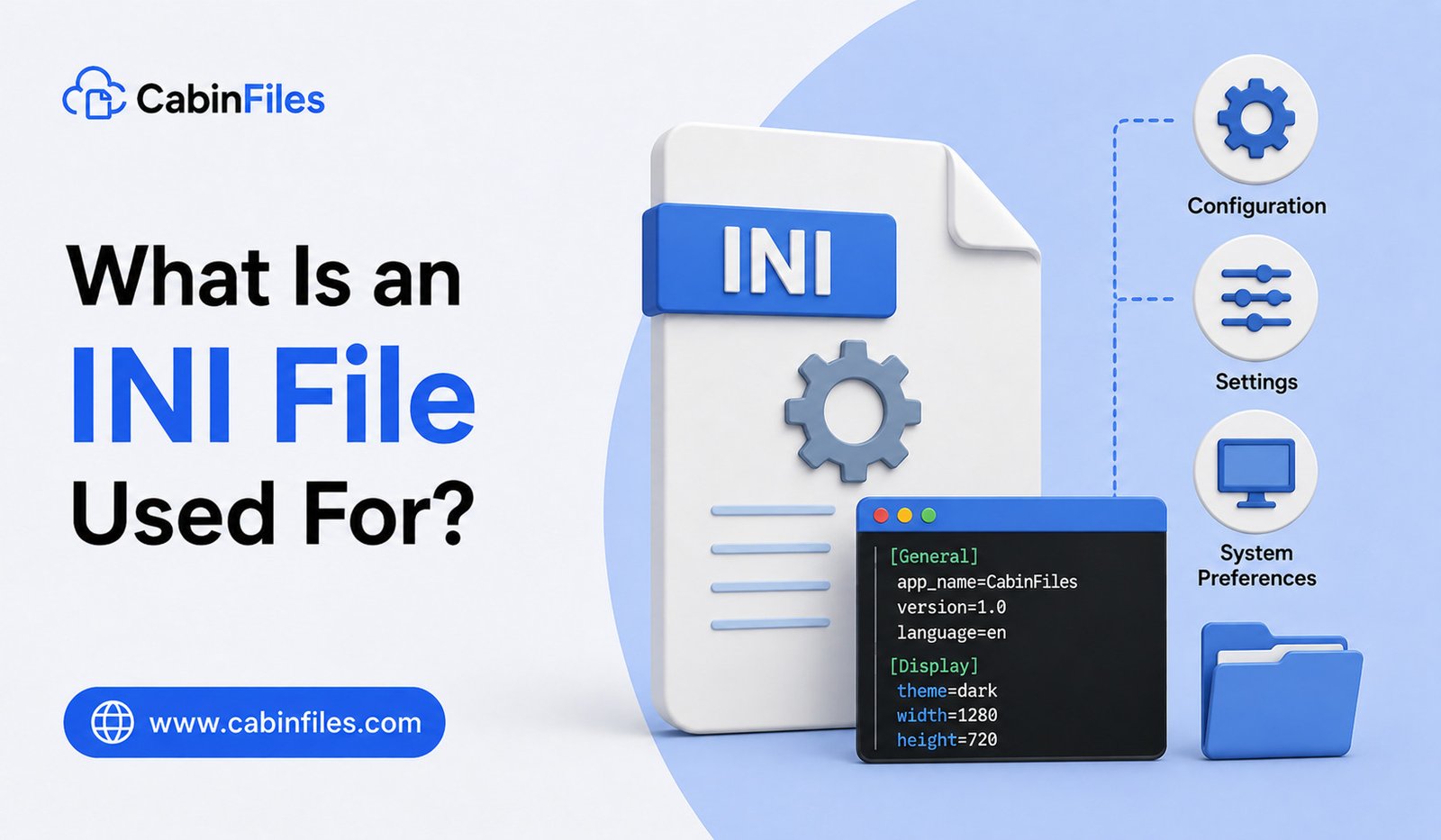
A typical INI file might contain settings like:
[Application]
Name=ExampleApp
Language=English
AutoUpdate=True
[Display]
Width=1280
Height=720
Fullscreen=False
The information is organized into sections and key-value pairs. This makes the file relatively easy for both software and humans to understand.
What Is an INI File Used For?
The main purpose of an INI file is to store application configuration settings. Instead of requiring users to enter the same preferences every time they launch a program, software can save those preferences in a configuration file.
For example, an application may use an INI file to remember the user’s preferred window size, language, theme, default folder, or other options.
Common uses include:
1. Storing Application Settings
One of the most common uses of an INI file is saving program preferences.
An application might store settings such as:
- Language preferences
- Window size
- Display mode
- Startup behavior
- Default folders
- User interface options
- Feature switches
When the program starts, it can read these values and apply the appropriate settings.
2. Configuring Software Behavior
INI files can also control how software behaves.
For example, a program might have settings that determine whether automatic updates are enabled, whether a particular feature is active, or which operating mode the application should use.
This gives developers a convenient way to change application behavior without modifying the program’s executable file.
3. Storing File and Folder Paths
Some applications use INI files to specify where important files are located.
For example:
[Paths]
Documents=C:\Users\User\Documents
Backup=C:\Backups
The application can read these paths whenever it needs to access the corresponding folders.
4. Configuring Games
INI files are also commonly associated with PC games, particularly older titles.
Game developers may use them to store graphics settings, resolution, audio options, controls, performance preferences, and other configuration information.
Advanced users sometimes modify these files to adjust settings that are not available through the game’s normal interface. However, changing undocumented settings can sometimes cause crashes or unexpected behavior.
5. Supporting Installers and Utilities
Some software installers, maintenance tools, and system utilities use configuration files to determine installation options or operational settings.
For example, an installer may use an INI file to identify default installation locations, available components, or other setup parameters.
How Is an INI File Structured?
INI files generally use a straightforward structure.
A typical file contains sections, keys, and values.
A section is usually written inside square brackets:
[General]
A key-value pair is normally written like this:
Language=English
Here, Language is the key and English is its value.
Multiple settings can be grouped under a section:
[General]
Language=English
Theme=Dark
[Network]
Server=example.com
Port=8080
Some INI files also support comments. Depending on the application and parser being used, comments may begin with characters such as ; or #.
It is important to remember that INI does not have one universal standard. Different applications can interpret syntax differently.
Where Are INI Files Found?
INI files can appear in several locations depending on the software.
You may find them inside an application’s installation folder, a program-specific configuration directory, or another folder selected by the developer.
Older Windows software may contain INI files alongside executable files and DLLs. Some applications may also create configuration files inside user-specific folders.
If you are looking for an INI file belonging to a particular program, searching for the program name along with .ini can help locate it.
How to Open an INI File
Because INI files are generally plain text, you do not need specialized software to view them.
You can open an INI file with common text editors such as Notepad on Windows. More advanced editors such as Notepad++ or Visual Studio Code can also display and edit INI files.
To open one manually in Windows, right-click the file and choose an option such as Open with, then select a text editor.
However, simply opening an INI file is different from running a program. An INI file normally contains configuration information rather than executable code.
Can You Edit an INI File?
Yes, you can usually edit an INI file with a text editor. However, you should be careful before changing anything.
Applications may depend on specific values being present or formatted correctly. Removing a setting, changing a value to an unsupported option, or accidentally deleting part of the file can cause the application to behave incorrectly.
Before making changes, it is a good idea to create a backup copy of the original INI file. If something goes wrong, you can restore the previous version.
It is also better to change only the setting you understand rather than modifying several lines at once.
Are INI Files Safe?
An INI file is normally just a text-based configuration file, so its extension alone does not make it dangerous.
However, you should not assume that every file with an .ini extension is trustworthy. Files downloaded from unknown websites can contain misleading or malicious content, and some applications may process configuration files in unexpected ways.
If an INI file came from an unknown source, avoid changing or using it without understanding where it came from. Security software can also help identify suspicious files.
Most importantly, do not delete an INI file simply because you do not recognize it. It may be required by an application.
INI vs JSON and XML
INI is one of several formats used to store configuration information.
INI is generally simple, compact, and easy to read. It works well for basic settings.
JSON supports more complex data structures and is widely used in modern applications, APIs, and configuration systems.
XML is another structured format that can represent complex information but is generally more verbose than INI.
For simple configuration requirements, an INI file can still be convenient. For larger applications with complicated data structures, developers often choose more flexible formats.
What Happens If You Delete an INI File?
The result depends entirely on the application.
Some programs may automatically recreate a missing INI file using default settings. In other cases, the application may fail to start, lose saved preferences, or display an error.
For this reason, deleting an INI file should not be treated as a universal troubleshooting solution.
If an application is malfunctioning, check the software’s documentation before removing configuration files. Creating a backup is also recommended.
Common INI File Problems
Users may encounter several issues involving INI files. A program might fail to read a configuration because a value is incorrect, a file may become corrupted, or an application may create incompatible settings after an update.
Another common issue occurs when users manually edit configuration files without knowing what each option does.
If an application suddenly stops working after you edit an INI file, restoring the original backup may solve the problem.
Why Are INI Files Still Relevant?
Although INI files are an older configuration format, their simplicity remains useful.
They are easy to create, read, edit, and troubleshoot. For applications that only need a small collection of settings, using a simple text-based configuration file can be practical.
However, modern software often requires more complex configuration structures, which explains why formats such as JSON, XML, YAML, databases, and other systems are common today.
Final Thoughts
An INI file is a text-based configuration file used primarily to store software settings and instructions. It can control everything from application preferences and file paths to game settings and startup options.
Because INI files are usually plain text, they are easy to open with a standard text editor. However, editing them requires caution because incorrect changes can affect how an application works.
If you encounter an .ini file on your computer, there is usually no reason to worry simply because you do not recognize it. First determine which application uses it, understand its purpose, and make a backup before changing anything.
What Is an IMG File and How Can You Open It?
If you have downloaded an operating system, backup image, firmware package, or older software, you may have encountered a file ending in .img. IMG files are commonly used to store disk images, but the extension itself does not describe just one specific format.
This can make IMG files confusing. Two files may both end in .img while being created for completely different purposes. One might represent an entire hard drive, another might contain a bootable operating system image, and another could be used for removable media or specialized software.
In this guide, we will explain what an IMG file is, what it is used for, how to open one, and what to do if Windows does not recognize it.
What Is an IMG File?
An IMG file is generally a disk image file that contains a sector-by-sector or structured representation of storage media.
Depending on how it was created, an IMG file can represent:
- A hard drive
- An SSD
- A USB flash drive
- An SD card
- A floppy disk
- An optical disc
- A bootable operating system
- Firmware or recovery media
For example, an IMG file might look like:
Linux.img
Backup.img
Recovery.img
Unlike ordinary files such as .jpg or .txt, an IMG file can represent an entire storage device or partition rather than just one individual document.
What Is a Disk Image?
To understand IMG files, it helps to understand the idea of a disk image.
A disk image is a file that contains a representation of data and, depending on the format, the structure of a storage device.
Instead of copying individual files manually, imaging software can create a single file containing the contents of a drive or removable device.
That image can later be written back to suitable media.
This makes disk images useful for backups, operating system deployment, recovery, and duplication.
What Are IMG Files Used For?
IMG files have several common uses.
Operating System Installation
Some operating systems and specialized distributions are provided as IMG images.
You can write the image to a compatible USB drive or SD card to create bootable media.
This is particularly common with certain Linux distributions, embedded systems, single-board computers, and specialized devices.
Drive Backups
Disk imaging software can create an IMG file containing the contents of a drive or partition.
If something goes wrong, the image can potentially be restored to suitable storage media.
This is different from copying individual documents because an image can preserve more of the original disk structure.
Bootable Media
IMG files are sometimes used to create bootable USB drives, SD cards, or other removable media.
The image may contain an operating system or recovery environment that a compatible device can boot.
Firmware and Embedded Devices
Some hardware platforms use IMG files for firmware or system images.
For example, a manufacturer may provide an IMG file that is written to an SD card or other storage device for a particular device.
Always follow the manufacturer’s instructions in these situations because writing an incorrect image can make a device unusable.
How to Open an IMG File on Windows
The correct way to open an IMG file depends on what type of image it contains.
Unlike a ZIP archive, an IMG file should not automatically be extracted without first understanding its purpose.
If the IMG represents a disk or removable-media image, you may need specialized disk-imaging software rather than a normal archive extractor.
Some IMG files may contain a recognizable file system and can be opened by appropriate tools.
Others are intended to be written directly to a storage device.
Can Windows Mount an IMG File?
Windows has built-in support for certain disk-image formats, but .img files are not as consistently handled as ISO files.
If Windows does not provide a Mount option when you right-click the IMG file, that does not necessarily mean the file is damaged.
It may simply be an image type that Windows does not natively mount.
In such cases, use software designed for the specific image format.
Do not rename the file to .iso and assume Windows will automatically understand it. Changing a file extension does not convert the underlying image.
How to Open an IMG File Using Archive Software
Some IMG files may contain data that compatible archive tools can inspect.
If your archive utility supports the specific IMG format, you may be able to open it and browse its contents.
However, this does not work with every IMG file.
A disk image can contain partitions, boot sectors, file systems, and other structures that ordinary archive software may not handle correctly.
If your goal is to create bootable media, use a disk-imaging tool rather than simply extracting the files.
How to Write an IMG File to a USB Drive
If an IMG file is intended to create bootable or installation media, you generally need an imaging utility.
The basic process is:
Download IMG → Verify image → Connect USB drive → Select image → Select target drive → Write image
The exact steps depend on the imaging software.
Be extremely careful when selecting the destination drive. Writing an image to a drive can erase the existing contents.
Back up important files from the USB drive before starting.
How to Open an IMG File on Linux
Linux provides several tools for working with disk images.
For example, you can inspect and work with images using command-line utilities, depending on the image’s structure and purpose.
Some Linux environments can mount file-system images, while other IMG files need to be written to physical media.
If you know that an IMG contains a compatible file system, tools such as mount may be useful.
However, you should understand the image structure before attempting to mount or modify it.
How to Open an IMG File on macOS
macOS can work with some disk-image formats and provides built-in disk management utilities.
Whether an .img file can be directly mounted depends on the type of image.
If the file does not mount normally, you may need a third-party application or a command-line tool designed for that particular image format.
As with Windows and Linux, the extension alone does not tell you exactly what the file contains.
IMG vs ISO: What’s the Difference?
IMG and ISO are both commonly associated with disk images, but they are not identical.
ISO generally refers to an optical-disc image, especially one based on CD/DVD file systems.
IMG is a more general extension that can represent different types of disk or media images.
An IMG file might represent a USB drive, SD card, hard disk, or another type of storage media.
Because of this, you should not assume that an IMG file can be treated exactly like an ISO.
IMG vs ZIP: What’s the Difference?
An IMG file and a ZIP file have very different purposes.
A ZIP file is primarily an archive used to package and often compress individual files and folders.
An IMG file can represent a storage device or disk structure.
With ZIP, you generally extract files from the archive.
With an IMG, you may need to mount it or write it to a physical device.
Using the wrong tool can result in errors or unexpected behavior.
Is an IMG File Safe?
The .img extension does not guarantee that a file is safe.
An image can contain operating systems, applications, scripts, firmware, or other potentially risky content.
Only download IMG files from trustworthy sources, particularly when they are intended for firmware or operating-system installation.
If the publisher provides a checksum, verify it before writing the image to a device.
This can help confirm that the file was downloaded correctly and has not been unexpectedly modified.
Why Won’t My IMG File Open?
There are several possible reasons an IMG file may not open.
The file could be corrupted, incomplete, unsupported by your current software, or intended to be written directly to a storage device rather than opened like a normal file.
The image may also use a partition structure or file system that your operating system does not recognize.
Start by identifying where the file came from and what it was designed to do.
If it came from a hardware manufacturer, follow that manufacturer’s instructions. If it is an operating system image, check the official documentation for the recommended imaging method.
Can You Convert IMG to ISO?
Sometimes an IMG image can be converted or used in a way that produces an ISO, but the process depends on the underlying image format.
Simply renaming:
file.img
to:
file.iso
does not convert the file.
Conversion should be performed using software that understands the original image structure.
Even when conversion is technically possible, it may not be appropriate if the original IMG was designed for a USB drive, SD card, hard disk, or another type of media.
Important Safety Tip Before Using IMG Files
Disk images can perform powerful operations.
If you are writing an IMG file to a USB drive, SD card, or hard disk, double-check the destination before starting.
Selecting the wrong drive can result in permanent data loss.
Always back up important files before using disk-imaging tools.
Final Thoughts
An IMG file is a disk-image file that can represent storage media such as USB drives, SD cards, hard disks, or other devices. However, .img is a relatively broad extension, so the exact way you open or use the file depends on how it was created.
Some IMG files can be inspected with compatible software, while others are designed to be written directly to a storage device to create bootable or recovery media.
The safest approach is to identify the source and purpose of the IMG file before trying to open, extract, convert, or write it. Never rename an IMG file to another extension as a shortcut, and always back up important data before performing disk-image operations.
What Is a TAR File and How Do You Extract It?
If you download software, source code, Linux packages, or files from a Unix-based system, you may encounter a file ending in .tar. TAR files are commonly used to combine multiple files and directories into a single archive, making them easier to store, transfer, and manage.
However, TAR is different from formats such as ZIP because a basic TAR archive primarily bundles files together rather than compressing them. Compression is often added separately, which is why you may also see formats such as .tar.gz, .tgz, .tar.bz2, or .tar.xz.
In this guide, we will explain what a TAR file is, how TAR archives work, and how to extract them on Windows, macOS, and Linux.
What Is a TAR File?
TAR stands for Tape Archive. It is an archive format originally developed for Unix and Unix-like systems.
A .tar file can contain multiple files and folders packed into a single archive.
For example:
website-backup.tar
The archive might contain:
website-backup/
├── images/
├── documents/
├── configuration/
└── index.html
Instead of transferring every file individually, the entire directory structure can be stored inside one TAR archive.
This makes TAR particularly useful for backups, software source code, system administration, and moving large collections of files.
Does TAR Compress Files?
A common misunderstanding is that every TAR file is compressed.
A standard .tar file is primarily an archive container. It combines multiple files into one file but does not necessarily reduce their size.
Compression can be added using another algorithm.
This creates formats such as:
- .tar.gz
- .tgz
- .tar.bz2
- .tar.xz
- .tar.zst
For example, .tar.gz means a TAR archive has been compressed using gzip.
This two-stage approach allows Unix and Linux tools to separate the tasks of archiving and compression.
TAR vs ZIP: What’s the Difference?
TAR and ZIP both allow multiple files to be packaged together, but they work differently.
A ZIP file normally combines and compresses files as part of the same archive format.
A TAR file primarily bundles files and preserves their directory structure and metadata. Compression, if needed, is generally handled by another tool.
TAR is especially common in Linux and Unix environments, while ZIP is widely supported across Windows, macOS, and Linux.
Neither format is universally better. The right choice depends on the operating system, software, and purpose.
Where Are TAR Files Used?
TAR files are particularly common in Linux and other Unix-like environments.
Developers frequently distribute source code as TAR archives. Software packages and server backups may also be distributed using formats such as .tar.gz.
System administrators can use TAR to create backups of directories while preserving file permissions, ownership information, and directory structures.
TAR is also useful when transferring large collections of files between systems.
How to Extract a TAR File on Windows
Modern versions of Windows can work with some archive formats directly, but support can vary depending on the exact file type and Windows version.
One convenient option is to use a trusted archive utility that supports TAR.
After installing the archive program, right-click the TAR file and look for an extraction option.
You can usually choose something similar to:
Extract Here
or
Extract to [folder name]
The program will unpack the files and folders contained in the archive.
For .tar.gz and other compressed TAR formats, make sure the extraction tool supports both the TAR container and the relevant compression method.
How to Extract TAR Using Windows Terminal
Windows also includes command-line tools that can work with TAR archives.
Open Windows Terminal or Command Prompt and navigate to the folder containing the TAR file.
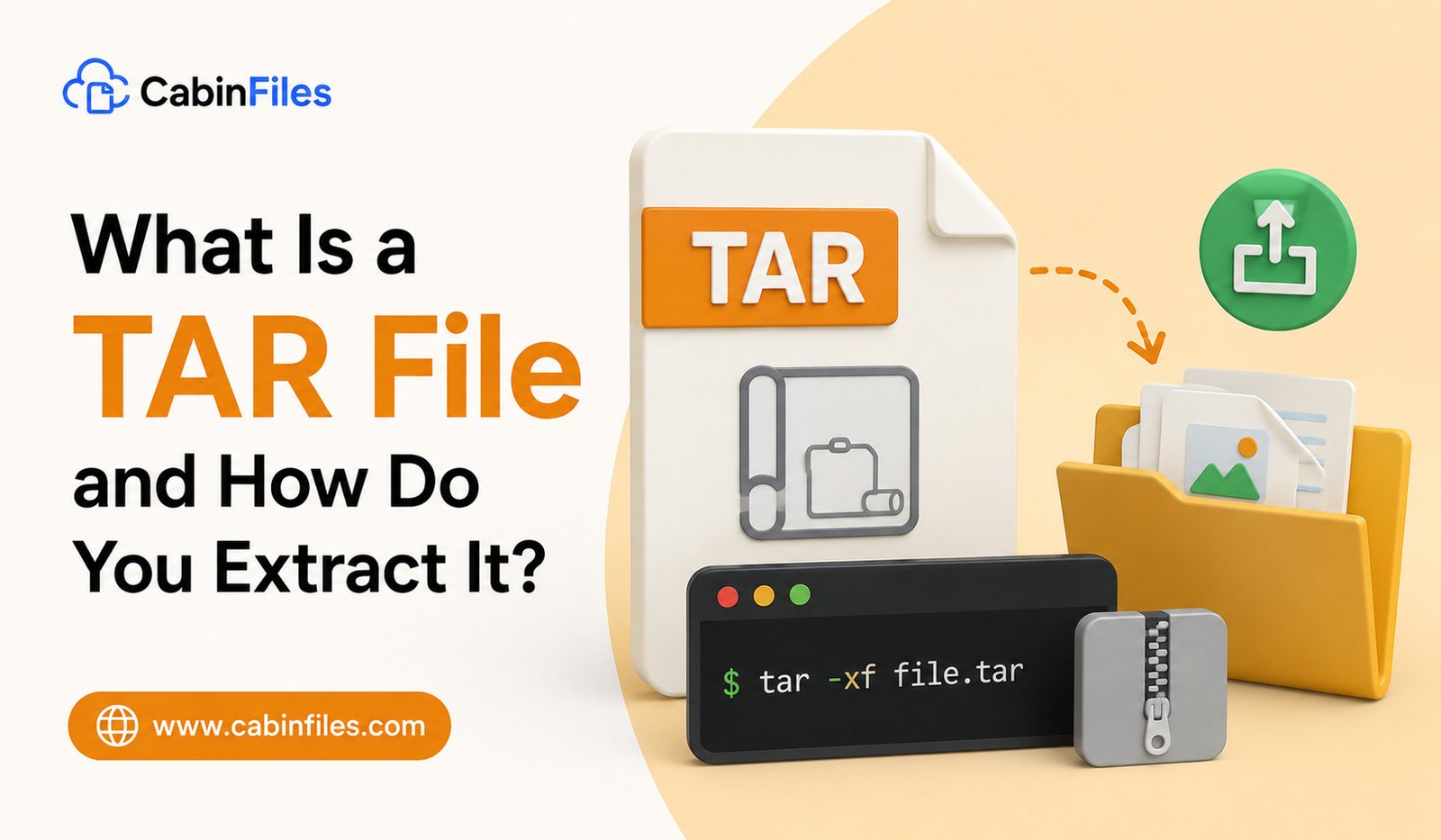
A command such as:
tar -xf archive.tar
can extract a standard TAR archive.
For a compressed archive such as:
archive.tar.gz
you can commonly use:
tar -xzf archive.tar.gz
The exact command options can vary depending on the environment, so check the available tar command documentation if an archive does not extract as expected.
How to Extract a TAR File on Linux
TAR is especially common on Linux, where the command-line tar utility is widely available.
To extract a standard TAR archive:
tar -xf archive.tar
For a gzip-compressed TAR archive:
tar -xzf archive.tar.gz
For a bzip2-compressed archive:
tar -xjf archive.tar.bz2
For an XZ-compressed archive:
tar -xJf archive.tar.xz
The options tell tar which operation to perform and, when necessary, which compression method to use.
How to Extract a TAR File on macOS
macOS includes command-line tools that can work with TAR archives.
Open Terminal, navigate to the directory containing the archive, and use:
tar -xf archive.tar
For a gzip-compressed TAR archive:
tar -xzf archive.tar.gz
You can also use a compatible graphical archive utility if you prefer not to use Terminal.
What Does tar -xf Mean?
If you are new to command-line tools, TAR commands can look confusing.
In:
tar -xf archive.tar
the -x generally means extract, while -f specifies the archive file that should be processed.
For:
tar -xzf archive.tar.gz
the z indicates gzip compression.
Similarly, different options can be used for other compression formats.
Modern TAR implementations may also automatically detect certain compression types, but explicitly specifying the method can make the command clearer.
How to List Files Without Extracting Them
Sometimes you may want to see what is inside an archive before extracting it.
For a TAR file, you can use:
tar -tf archive.tar
The -t option lists the contents instead of extracting them.
This can be useful when you want to check the archive’s folder structure or determine whether it contains the files you need.
How to Extract TAR to a Specific Folder
You can also tell TAR where to place extracted files.
For example:
tar -xf archive.tar -C /path/to/folder
The -C option specifies the destination directory.
Make sure the destination exists and that you have the necessary permissions.
Are TAR Files Safe?
A TAR file is an archive format, not a guarantee of safety.
An archive can contain executable programs, scripts, configuration files, or other content that could be harmful if obtained from an untrusted source.
Before extracting a TAR archive, consider where it came from.
This is particularly important with software downloaded from unknown websites.
You should also be cautious about extracting archives containing files with unusual paths or filenames. Trusted archive tools and updated operating systems can reduce some risks, but you should still treat unknown archives carefully.
What Is a TAR.GZ File?
A TAR.GZ file combines two technologies.
First, TAR packages multiple files and directories together.
Then gzip compresses the resulting archive.
Therefore:
TAR = archive
GZ = gzip compression
The final file usually has the extension:
.tar.gz
You may also see .tgz, which is commonly used as a shorter form of .tar.gz.
Why Are TAR Files Common in Linux?
TAR is deeply integrated into Unix and Linux workflows because it can preserve important file metadata, including permissions and directory structures.
This makes it useful for backups, software source distributions, server administration, and system-level tasks.
Developers may also use TAR archives when distributing source code because the archive can preserve the expected directory structure and file attributes.
Common Problems When Extracting TAR Files
If a TAR archive will not extract, several things could be wrong.
The file may be incomplete or corrupted. The archive could also use a compression method that your extraction tool does not support.
Permission problems can prevent files from being written to the destination folder.
A file may also have been created using a feature that your particular TAR implementation does not handle correctly.
If an archive fails repeatedly, download it again from the original trusted source and verify its checksum if one is provided.
Final Thoughts
A TAR file is an archive used to combine multiple files and folders into a single package. Unlike ZIP, a basic TAR archive does not necessarily compress its contents. Compression is often added separately, producing formats such as .tar.gz, .tar.bz2, and .tar.xz.
You can extract TAR archives using graphical archive utilities or command-line tools. Windows, macOS, and Linux can all work with TAR files, although the available graphical options may differ.
If you regularly work with Linux software, server backups, source code, or large file collections, understanding TAR is especially useful. Once you know the difference between archiving and compression, formats such as .tar.gz become much easier to understand and manage.

What Is a JSON File and How Is It Structured?
If you work with websites, mobile apps, software, or online services, you may eventually come across a file ending in .json. JSON files are widely used to store and exchange structured information between applications.
Unlike a traditional document file, a JSON file is designed to organize data in a format that is relatively easy for both humans and computers to read. Developers commonly use JSON for web APIs, application settings, configuration files, data transfers, and many other software-related tasks.
But what is a JSON file, and how is its information structured? This guide explains JSON in simple terms, including its basic components, common uses, and how you can open a JSON file.
What Is a JSON File?
JSON stands for JavaScript Object Notation. It is a lightweight text-based format used to represent structured data.
A JSON file normally uses the .json extension.
For example:
{
“name”: “Rahul”,
“age”: 28,
“city”: “Mumbai”
}
This file contains three pieces of information: a person’s name, age, and city.
Although JSON was originally associated with JavaScript, it is now widely supported by programming languages and software platforms.
One of its biggest advantages is simplicity. JSON uses a relatively small set of rules to represent information.
How Is a JSON File Structured?
JSON organizes information using several basic data types and structures.
The most important structures are:
- Objects
- Arrays
- Strings
- Numbers
- Booleans
- Null values
Understanding these elements makes JSON much easier to read.
1. JSON Objects
A JSON object stores information as key-value pairs.
An object is surrounded by curly brackets:
{
“name”: “Priya”,
“age”: 31
}
Here, “name” and “age” are keys, while “Priya” and 31 are their corresponding values.
The key is normally written inside double quotation marks.
Each key and value is separated by a colon.
Multiple key-value pairs are separated by commas.
For example:
{
“name”: “Priya”,
“age”: 31,
“country”: “India”
}
This structure is one of the most common patterns you will see in JSON files.
2. JSON Arrays
An array is used when you need to store a collection or list of values.
Arrays are surrounded by square brackets:
{
“colors”: [“red”, “blue”, “green”]
}
The colors key contains an array with three values.
Arrays can also contain numbers:
{
“scores”: [85, 91, 78, 95]
}
They can even contain objects:
{
“users”: [
{
“name”: “Rahul”,
“age”: 28
},
{
“name”: “Priya”,
“age”: 31
}
]
}
This allows JSON to represent more complex datasets.
3. JSON Strings
A string represents text and is enclosed in double quotation marks.
For example:
{
“product”: “Wireless Mouse”
}
The value “Wireless Mouse” is a string.
JSON requires strings to use double quotes rather than single quotes.
For example, this is valid:
“name”: “Rahul”
while using single quotation marks is not standard valid JSON:
‘name’: ‘Rahul’
4. JSON Numbers
JSON can store numeric values without quotation marks.
For example:
{
“price”: 1499,
“quantity”: 5
}
Numbers can represent values such as prices, counts, measurements, and scores.
If a number is enclosed in quotation marks, it becomes a string instead:
“price”: “1499”
This distinction can matter when software processes the data.
5. Boolean Values
JSON supports two Boolean values:
true
false
These are commonly used for yes/no or enabled/disabled information.
For example:
{
“darkMode”: true,
“notifications”: false
}
Boolean values do not use quotation marks.
6. Null Values
JSON also supports null, which can indicate that a value is missing, empty, or intentionally has no value.
For example:
{
“middleName”: null
}
The exact meaning of null depends on how the application uses the data.
Nested JSON Structures
One of JSON’s strengths is its ability to place objects and arrays inside other objects and arrays.
For example:
{
“name”: “Anita”,
“contact”: {
“email”: “[email protected]”,
“city”: “Pune”
}
}
Here, the contact key contains another object.
This creates a hierarchy that allows software to represent complex information.
A larger JSON document could contain customer information, addresses, orders, products, and other related data in one structured file.
What Is JSON Used For?
JSON is used in many areas of modern computing.
One of its most common uses is data exchange between websites and servers.
For example, when a web application requests information from a server, the response may be returned as JSON.
An API could return data like:
{
“product”: “Laptop”,
“price”: 55000,
“available”: true
}
The website or application can then read these values and display them to the user.
JSON is also commonly used for:
- API responses
- Application configuration
- Software settings
- Data exports
- Web applications
- Mobile applications
- Database-related workflows
- Developer tools
- Automated data processing
JSON Files in Software Configuration
Some applications use JSON files to store configuration settings.
A configuration file might look like:
{
“theme”: “dark”,
“language”: “English”,
“autoSave”: true
}
When the application starts, it can read these settings and configure itself accordingly.
You should avoid modifying configuration JSON files unless you understand what the settings do. An incorrect value or invalid JSON structure can prevent an application from working correctly.
Which Apps Can Open JSON Files?
Because JSON is plain text, you can open it with many applications.
On Windows, Notepad can display the contents of a JSON file.
Code editors such as Visual Studio Code can provide syntax highlighting, indentation, and other features that make JSON easier to understand.
Web browsers can also display JSON content, depending on the browser and file.
For large or complicated JSON files, specialized JSON editors and developer tools can make searching, formatting, and validating the data easier.
Can You Open JSON in Excel?
Some JSON data can be imported into spreadsheet software such as Microsoft Excel.
This can be useful when you want to analyze structured data using rows and columns.
However, JSON can contain nested objects and arrays that do not naturally fit into a simple spreadsheet structure.
For straightforward JSON datasets, importing them into a spreadsheet can be convenient. For highly nested data, a dedicated JSON tool or programming environment may be more appropriate.
JSON vs XML: What’s the Difference?
JSON and XML are both used to represent structured data.
JSON is generally more compact and has a relatively simple syntax based on objects and arrays.
XML uses tags to describe data and can be more verbose.
For example, JSON might represent a person like this:
{
“name”: “Rahul”,
“age”: 28
}
XML might represent similar information as:
<person>
<name>Rahul</name>
<age>28</age>
</person>
Both formats have legitimate uses. JSON is particularly common in modern web APIs and application development, while XML remains important in many enterprise systems and established technologies.
Is a JSON File Safe?
A JSON file is a text-based data format, but that does not automatically make every JSON file trustworthy.
A JSON file from an unknown source may contain data that an application processes in unexpected ways. In particular, configuration files can influence how software behaves.
If you receive an unexpected JSON file, consider its source before opening or importing it into an application.
Do not blindly replace existing configuration files with downloaded versions.
Common JSON Errors
JSON follows strict syntax rules.
One common mistake is forgetting a comma:
{
“name”: “Rahul”
“age”: 28
}
Another problem is using single quotes instead of double quotes.
Incorrect:
{‘name’: ‘Rahul’}
Correct:
{“name”: “Rahul”}
Unmatched brackets or quotation marks can also make a JSON file invalid.
Fortunately, many code editors and JSON validators can identify syntax errors and show where the problem occurs.
Final Thoughts
A JSON file is a text-based format used to store and exchange structured data. Its simple combination of objects, arrays, strings, numbers, Boolean values, and null values makes it highly useful across modern software.
You are likely to encounter JSON when working with websites, APIs, mobile applications, software configuration, data exports, and developer tools.
For basic viewing, a text editor is enough. For editing and troubleshooting, a code editor with JSON formatting and validation features can be much more useful.
Once you understand objects, arrays, and key-value pairs, JSON becomes much easier to read—and you will recognize why it has become one of the most widely used formats for exchanging data between modern applications.
What Is an XML File Used For? A Beginner-Friendly Guide
If you have ever downloaded a configuration file, opened a website’s data feed, or worked with software settings, you may have encountered a file ending in .xml. XML files are widely used by websites, applications, businesses, and developers to store and exchange structured information.
Unlike formats designed primarily for human reading, XML is structured so that both people and computer programs can understand the relationships between different pieces of data.
But what is an XML file used for, and how does it actually work? In this guide, we will explain XML in simple terms, explore its common uses, and show how you can open and edit XML files safely.
What Is an XML File?
XML stands for Extensible Markup Language. An XML file is a text-based file that stores structured information using tags.
A simple XML file might look like this:
<?xml version=”1.0″ encoding=”UTF-8″?>
<product>
<name>Wireless Keyboard</name>
<price>1500</price>
<stock>25</stock>
</product>
Unlike HTML, XML does not come with a fixed set of tags for displaying content. Developers can create tags that describe the information being stored.
In this example, tags such as <name>, <price>, and <stock> describe what each value represents.
This makes XML useful for storing and transferring structured data.
How Does XML Work?
XML organizes information using a hierarchy.
A document can contain a main element, often called the root element, with other elements nested inside it.
For example:
<customer>
<name>Priya</name>
<email>[email protected]</email>
<address>
<city>Pune</city>
<country>India</country>
</address>
</customer>
Here, the <customer> element contains several pieces of information. The <address> element contains additional child elements.
This hierarchical structure allows software to understand relationships between different pieces of data.
What Is XML Used For?
XML has many uses, particularly when different systems need to store or exchange structured information.
Common applications include:
- Software configuration
- Data exchange
- Website feeds
- Document storage
- Application settings
- Business data
- Web services
- Database exports
- Office documents
- System integration
Although newer technologies are often preferred for certain applications, XML remains widely used because of its flexibility and long history.
1. Storing Configuration Settings
One common use of XML is storing application configuration information.
A program might use an XML file to store settings such as:
<settings>
<theme>dark</theme>
<language>English</language>
<autosave>true</autosave>
</settings>
When the application starts, it can read these values and configure itself accordingly.
Many software systems use configuration files to separate settings from the main application code.
You should not edit an application’s XML configuration file unless you understand what the settings control. Changing the wrong value can cause the software to malfunction.
2. Exchanging Data Between Applications
XML is useful when two different applications need to exchange structured information.
For example, one business system might generate customer information in XML, while another system reads the file and imports the records.
Because XML describes the meaning of data through tags, different systems can interpret the information without needing to rely on the same internal database structure.
This makes XML useful for integrations between different software platforms.
3. Websites and RSS Feeds
XML has historically played an important role in web technologies.
RSS feeds, which allow websites to publish updates that can be read by feed readers and other applications, commonly use XML-based structures.
An RSS document might contain information about an article such as its title, link, publication date, and description.
Although users may not directly see the XML when reading a website, applications can process it in the background.
4. Website Sitemaps
XML is also commonly associated with XML sitemaps.
A sitemap can provide search engines with information about URLs on a website.
A basic sitemap structure can look like:
<urlset>
<url>
<loc>https://example.com/page</loc>
</url>
</urlset>
Website owners can use XML sitemaps to help search engines discover pages and understand certain information about a site’s URL structure.
5. Software and System Integration
Businesses often use XML when connecting different systems.
For example, an organization might have separate systems for orders, inventory, accounting, and customer management.
XML can provide a structured format for moving information between these systems.
Although APIs using JSON are extremely common today, XML remains important in many enterprise environments and older integrations.
6. Storing Structured Documents
XML is not limited to small pieces of data.
It can also represent complex documents containing headings, paragraphs, tables, metadata, and other structures.
Some document formats use XML internally.
For example, modern Office document formats such as .docx and .xlsx are based on collections of XML files packaged inside ZIP containers.
This means that although you normally open a Word or Excel document using an Office application, XML is part of the underlying structure.
7. Data Import and Export
Many applications provide XML as an option for importing or exporting data.
This can be useful when moving information between different programs or creating backups of structured records.
For example, an application might allow users to export settings or records to an XML file and later import them into another installation.
Whether XML is available depends on the particular software.
XML vs HTML: What’s the Difference?
XML and HTML both use tags, but they have different primary purposes.
HTML is mainly designed to structure and display content on web pages.
XML is designed to describe and store structured information.
For example, HTML might use a heading tag to define how text appears on a page, while XML could use a custom <product> or <customer> tag to describe what a piece of data represents.
XML does not automatically determine how information should look on a screen.
XML vs JSON: Which Is Better?
XML and JSON are both used for structured data exchange.
JSON is often more compact and is widely used in modern web APIs. It is also straightforward to work with in many programming languages.
XML can be more verbose, but it offers a rich structure and supports features such as attributes, namespaces, and schemas.
Neither format is universally better.
For modern web applications, JSON is often a popular choice. XML remains valuable in enterprise software, document formats, legacy systems, configuration files, and established data-exchange systems.
How Can You Open an XML File?
Because XML is text-based, you can open it with many applications.
On Windows, you can use Notepad or another text editor to view the raw XML.
Web browsers can also display XML in a readable tree-like or text format, depending on the browser.
For editing larger XML files, developers often use specialized XML editors or code editors that provide syntax highlighting and validation.
If the XML belongs to a particular application, it is usually best to let that application manage the file rather than manually editing it.
Can You Edit an XML File?
Yes, XML files can be edited with a text editor or XML editor.
However, XML has rules that must be followed.
For example, elements generally need properly matched opening and closing tags:
<name>Rahul</name>
Changing:
<name>Rahul</email>
would make the structure invalid because the opening and closing tags do not match.
A missing quotation mark, incorrect nesting, or invalid character can also cause software to reject the file.
For important configuration or data files, create a backup before editing.
Are XML Files Safe?
XML is simply a data format, so the .xml extension alone does not tell you whether a file is safe.
XML files can contain ordinary data, configuration information, or content that an application processes in potentially sensitive ways.
Be cautious with XML files received from unknown sources, particularly if a program will automatically process them.
For business or development environments, XML processing should follow appropriate security practices.
Final Thoughts
An XML file is used to store, organize, and exchange structured information. Its flexible tag-based structure makes it useful for application configuration, data transfers, website feeds, sitemaps, business integrations, document formats, and many other purposes.
XML may look complicated when you first open it, but its basic concept is simple: tags describe what different pieces of information represent and how they relate to one another.
While JSON has become increasingly popular for modern web applications, XML remains an important technology, especially in enterprise software, established systems, configuration files, and structured document formats. Understanding XML can therefore help you work with a wide range of software and data files.

What Is a CSV File and Which Apps Open It?
If you have downloaded a customer list, financial report, product catalog, survey results, or data export from a website, you may have encountered a file ending in .csv. CSV files are one of the simplest and most widely used ways to store structured data.
Unlike formats designed for documents or presentations, CSV files focus mainly on rows and columns of information. They are lightweight, easy to transfer, and supported by many software applications.
But what exactly is a CSV file, and which programs can open it? This guide explains what CSV files are, how they work, how to open them, and when you should use them.
What Is a CSV File?
CSV stands for Comma-Separated Values. A CSV file is a plain-text file used to store tabular data.
Each line generally represents one row, while individual values within that row are separated by a delimiter, commonly a comma.
For example, a simple CSV file might look like this:
Name,Age,City
Rahul,28,Mumbai
Priya,31,Pune
Amit,25,Nagpur
When opened in a spreadsheet application, the information can appear as a table with separate columns.
Despite the name, CSV files do not always use commas. Some files use semicolons, tabs, or other delimiters depending on the software, language, and regional settings.
How Does a CSV File Work?
A CSV file stores data as text rather than using the complex internal structure of a spreadsheet workbook.
A typical CSV contains:
- Rows of data
- Columns of values
- A delimiter separating fields
- Optional column headings
- Text, numbers, dates, or other simple values
For example:
Product,Price,Stock
Laptop,55000,12
Keyboard,1500,45
Mouse,800,60
The first row can be used as column headings, while subsequent rows contain individual records.
Because CSV is text-based, many different programs can read and create it.
Which Apps Can Open CSV Files?
Several popular applications can open CSV files. The best option depends on what you want to do with the data.
Microsoft Excel
Microsoft Excel is one of the most common applications for opening CSV files.
When you open a CSV in Excel, the data can be displayed in rows and columns, making it easier to sort, filter, calculate, and analyze.
Excel is particularly useful for larger datasets and situations where you need formulas, charts, formatting, or data-cleaning tools.
However, remember that a CSV file does not preserve all the features of a normal Excel workbook. If you save a complex spreadsheet as CSV, features such as multiple worksheets, formulas, formatting, and charts may not be retained.
Google Sheets
Google Sheets is another convenient way to open CSV files.
You can upload a CSV to Google Drive and open it with Google Sheets. This is useful when you want to access the data from different devices or collaborate with other people.
Google Sheets can also export spreadsheets back into CSV format.
For simple data analysis and online collaboration, it can be a practical option.
Microsoft Notepad
Because CSV files are plain text, you can open them with Notepad on Windows.
Instead of seeing a traditional table, you will see the raw text.
For example:
Name,Email,Country
Anita,[email protected],India
John,[email protected],USA
Notepad is useful when you want to inspect the actual structure of a CSV or make a very small text-based change.
It is not ideal for analyzing large datasets.
LibreOffice Calc
LibreOffice Calc is a free spreadsheet application that can open CSV files.
When importing a CSV, Calc can provide options for choosing the separator, text encoding, and other settings.
This can be particularly useful when a CSV does not display correctly because it uses a delimiter other than a comma.
Apple Numbers
Mac users can open CSV files with Apple Numbers.
Numbers can import CSV data into a spreadsheet-like format, allowing users to organize, edit, and analyze the information.
It can also export data into CSV when needed.
Text Editors and Code Editors
Advanced users can open CSV files using text editors or code editors such as Visual Studio Code and similar applications.
This is useful for inspecting raw data, checking delimiters, fixing formatting problems, or working with CSV files as part of a programming project.
How to Open a CSV File in Windows
If Microsoft Excel or another spreadsheet application is installed, you can often double-click a CSV file to open it.
If Windows does not know which program to use, right-click the file and choose Open with.
You can then select an appropriate application such as Excel, LibreOffice Calc, or another spreadsheet program.
For simple inspection, you can also choose Notepad.
Why Does My CSV Look Wrong?
Sometimes a CSV opens but the information appears in one column instead of several.
This usually happens because the program is expecting a different delimiter.
For example, the file might use semicolons:
Name;Age;City
Rahul;28;Mumbai
Priya;31;Pune
If your spreadsheet application expects commas, it may not separate the fields correctly.
When importing the file, look for options related to delimiter, separator, or text import and select the character actually used by the CSV.
What Is a Delimiter?
A delimiter is the character used to separate individual values in a CSV-like file.
A comma is the most familiar delimiter, but other characters can be used.
Common delimiters include:
- Comma ,
- Semicolon ;
- Tab
- Pipe |
The correct delimiter depends on how the file was generated.
This is one reason two CSV files can behave differently even though both use the .csv extension.
Can CSV Files Contain Commas?
Yes.
If a value itself contains a comma, CSV formatting can use quotation marks to keep the value together.
For example:
Name,Address
Rahul,”12 Main Street, Mumbai”
Here, the comma inside the address is part of the address rather than a separator between columns.
CSV specifications and software implementations can vary, so properly formatted quotation and escaping are important when working with complex data.
Can CSV Files Contain Formulas?
CSV files can contain text that resembles formulas, but they are not full spreadsheet workbooks.
A CSV does not preserve the complete spreadsheet structure found in formats such as .xlsx.
If you need formulas, multiple worksheets, cell formatting, charts, or advanced spreadsheet features, a dedicated spreadsheet format is usually more appropriate.
CSV is best when the goal is to transfer straightforward tabular data between different systems.
CSV vs Excel: What’s the Difference?
CSV and Excel files are both commonly used for tabular information, but they serve different purposes.
A CSV file is plain text and focuses on raw data. It is lightweight and highly compatible with different applications.
An Excel workbook can contain formulas, formatting, charts, multiple worksheets, tables, and other advanced features.
Choose CSV when you need simple, portable data. Choose a spreadsheet format such as Excel when you need advanced editing and presentation features.
Where Are CSV Files Used?
CSV files are used in many different situations.
Businesses use them to transfer customer records, sales data, inventory information, and financial information between systems.
Websites may allow users to export account or reporting data as CSV.
Researchers use CSV files for datasets, while developers frequently use them to exchange structured information between applications.
They are also common in data analysis because many programming languages and analytical tools can read CSV files.
Are CSV Files Safe?
CSV files are generally simple text files, but you should still be careful with files from unknown sources.
A CSV can contain links, unusual content, or spreadsheet formulas that may behave differently when opened in certain applications.
For example, spreadsheet software can sometimes interpret particular cell contents as formulas. This is one reason organizations should validate externally supplied CSV files before opening or importing them into sensitive systems.
Download data from trusted sources and avoid opening unexpected attachments.
Final Thoughts
A CSV file is a plain-text format used to store structured, table-like data, usually with values separated by commas or another delimiter. Its simplicity makes it one of the most widely supported data formats available.
You can open CSV files with applications such as Microsoft Excel, Google Sheets, LibreOffice Calc, Apple Numbers, Notepad, and many text or code editors.
For everyday data analysis, a spreadsheet application is usually the easiest choice. If you need to inspect the raw structure, a text editor may be better.
The main advantage of CSV is compatibility. Whether you are transferring business data, exporting information from a website, or moving records between software systems, CSV provides a simple way to exchange structured information without depending on one particular application.
What Is an ISO File and When Should You Use It?
If you have downloaded a Windows installer, Linux distribution, recovery tool, or a large software package, you may have encountered a file ending in .iso. ISO files are widely used for distributing operating systems, creating bootable installation media, backing up optical discs, and sharing large collections of files in a single package.
For many users, the .iso extension can look confusing because an ISO file is not opened in the same way as a normal document or image. Instead, it represents the contents and structure of an optical disc in a single file.
Understanding what an ISO file is and when to use it can make tasks such as installing an operating system, creating a bootable USB drive, or accessing archived disc content much easier.
What Is an ISO File?
An ISO file is a disk image that contains a complete copy of the data and file structure from an optical disc or another disk-based source.
The name ISO comes from the ISO 9660 file-system standard, which was widely used for CD-ROM media. Today, the term ISO is commonly used for disk-image files even when they are distributed digitally rather than stored on physical discs.
An ISO file may contain:
- Operating system installation files
- Software installers
- Recovery tools
- Applications and utilities
- Drivers
- Multimedia files
- Other folders and files
Instead of sending hundreds or thousands of individual files separately, a developer can package them into one ISO image.
For example:
Windows-Installer.iso
Linux-Distribution.iso
Recovery-Tool.iso
How Does an ISO File Work?
An ISO file preserves the structure of the source disc or image.
When you mount an ISO file, your operating system treats it like a virtual optical drive. You can then browse its folders and files without physically burning the image to a CD or DVD.
Alternatively, you can write the ISO image to suitable bootable media, such as a USB flash drive, when the ISO is designed for booting.
The important distinction is that simply copying an ISO file onto a USB drive is not always enough to make that USB bootable. A suitable imaging tool may need to write the ISO’s contents and boot information correctly.
When Should You Use an ISO File?
ISO files are particularly useful when you need to distribute, store, or use a complete disk image.
One of the most common uses is operating system installation.
For example, if you need to install Windows or a Linux distribution on a computer, the official operating system provider may offer an ISO image. You can use that image to create installation media.
ISO files are also useful for recovery environments, software distribution, testing, virtualization, and preserving older optical-disc content.
1. Installing an Operating System
One of the most common reasons to use an ISO file is to install an operating system.
An official Windows or Linux ISO can be used to create installation media on a USB drive.
The general process is:
Download ISO → Verify the file → Create bootable USB → Boot from USB → Install operating system
The exact steps depend on the operating system and the tool being used.
When downloading an operating system ISO, always obtain it from the official source whenever possible.
2. Creating a Bootable USB Drive
An ISO file is often used to create a bootable USB drive.
This is useful when you need to:
- Install an operating system
- Repair a computer
- Run a diagnostic environment
- Recover files
- Test a Linux distribution
Specialized imaging tools can write the ISO to a USB drive in a way that allows compatible computers to boot from it.
Remember that creating bootable media can erase existing data on the USB drive. Back up anything important before using a USB drive for this purpose.
3. Mounting an ISO Without Burning a Disc
You do not necessarily need a physical CD or DVD to use an ISO.
Modern Windows versions can mount many ISO files directly.
In File Explorer, right-click the ISO and choose the available Mount option. Windows can then make the contents accessible through a virtual drive.
You can browse the files, run appropriate installers, or inspect the image without creating physical media.
When you are finished, you can usually right-click the virtual drive and select Eject.
4. Backing Up Optical Discs
ISO files can also be used to preserve the contents of CDs and DVDs.
Instead of storing the physical disc as the only copy, you can create a disk image containing its data.
This can be useful for archiving older software, installation discs, educational materials, or other optical media.
However, creating an ISO does not necessarily preserve every possible feature of every type of disc. Specialized disc formats or copy-protection systems may require other imaging methods.
5. Using ISO Files With Virtual Machines
ISO files are commonly used with virtual machines.
If you want to install an operating system inside virtualization software, you can often attach an ISO as a virtual DVD drive.
The virtual machine then boots from the ISO in much the same way a physical computer could boot from an installation DVD.
This is useful for testing operating systems, learning Linux, developing software, and experimenting without changing the primary operating system on your physical PC.
6. Software Distribution
Developers and organizations can distribute complete software environments as ISO images.
This can be useful when the package contains many files or needs to preserve a particular directory structure.
An ISO can also make it easier to distribute a standardized installation environment to multiple computers.
However, modern software is frequently distributed through application stores, web installers, compressed archives, and other formats instead.
ISO vs ZIP: What’s the Difference?
ISO and ZIP files can both contain multiple files, but they are designed for different purposes.
A ZIP file is primarily a compressed archive. It is useful when you want to reduce file size and bundle several files into one package.
An ISO file is primarily a disk image. It preserves the structure and contents of the source media and can be mounted as a virtual disc or used to create bootable media.
A ZIP archive is usually opened and extracted. An ISO can be mounted, examined, or written to appropriate media.
ISO vs IMG: Are They the Same?
ISO and IMG files are both types of disk images, but they are not always interchangeable.
ISO files are strongly associated with optical-disc images and commonly use file systems designed for CD/DVD media.
IMG is a more general extension that can represent different kinds of disk images.
Whether one can replace the other depends on the software and the type of image involved.
Do not simply rename an .img file to .iso and assume it will become a valid ISO image. Changing the file extension does not convert the underlying data.
Are ISO Files Safe?
An ISO file is not automatically safe just because it is a disk image.
Like other file formats, an ISO can contain legitimate software or potentially malicious files.
The safest approach is to download ISO files from official or trusted sources.
This is especially important for operating system installation images. Using an unofficial or modified operating system ISO can introduce security and reliability risks.
If the publisher provides a checksum or hash, verifying the downloaded file can help confirm that it matches the expected image.
How Large Can ISO Files Be?
ISO file sizes vary considerably.
A small utility ISO may be only a few hundred megabytes, while an operating system image can require several gigabytes of storage.
Before downloading or creating an ISO, make sure you have enough free disk space.
You should also check whether your USB drive has enough capacity if you plan to create bootable installation media.
Should You Keep an ISO File?
Whether you should keep an ISO depends on why you downloaded it.
If you regularly reinstall an operating system or use a recovery environment, keeping a verified ISO can be convenient.
However, large ISO files can consume significant storage space. If you no longer need the image and can download it again later from a trusted source, deleting it may be reasonable.
Before deleting an ISO, make sure you do not need it for an existing virtual machine, recovery process, or installation project.
Common Mistakes With ISO Files
One common mistake is assuming that an ISO is just a normal folder compressed into one file.
Another is copying the ISO directly onto a USB drive and expecting the computer to boot from it.
Users may also download modified ISO files from unknown websites, creating unnecessary security risks.
Finally, changing .iso to another extension does not convert the file into a different format.
Understanding what an ISO actually represents helps avoid these mistakes.
Final Thoughts
An ISO file is a disk image that stores the contents and structure of a disc or disk-based environment in a single file. It is especially useful for installing operating systems, creating bootable USB drives, mounting virtual discs, preserving optical media, and working with virtual machines.
You should consider using an ISO when you need an exact or structured image of installation media rather than simply a collection of individual files.
For the safest results, download ISO files from official sources, verify them when possible, and back up important USB data before creating bootable media. Once you understand how mounting and imaging work, ISO files become a powerful and practical tool for managing software and operating systems.

What Is an APK File and How Does It Work?
If you have ever installed an Android application outside the Google Play Store, you may have come across a file with the .apk extension. APK files are an important part of the Android software ecosystem because they contain the files needed to install an application on an Android device.
For many users, the term APK can sound technical. In reality, the basic concept is straightforward: an APK is an Android application package that Android uses to install and manage an app.
In this guide, we will explain what an APK file is, how it works, what it contains, where APK files are used, and what you should know before installing one.
What Is an APK File?
APK stands for Android Package Kit. It is the package file format used by Android to distribute and install applications.
An APK file usually has the .apk extension, for example:
ExampleApp.apk
The file packages the application and the resources required for Android to install it.
When you download an application through the Google Play Store, you do not normally see the APK file directly. The Play Store handles the application delivery and installation process in the background.
When an application is distributed outside the Play Store, however, users may receive an APK file that can be installed manually.
How Does an APK File Work?
An APK works much like a package containing the different components an Android application needs.
When you install an APK, Android reads the package, verifies relevant information, extracts or processes its components, and registers the application with the operating system.
Once installation is complete, the app can appear in your application list and can be launched like other installed applications.
The process can be summarized as:
Download APK → Verify source → Open package → Android installs app → Launch application
The exact process can vary depending on the Android version, device manufacturer, application packaging method, and security settings.
What Is Inside an APK File?
An APK is essentially an archive containing multiple files and directories.
Its contents can include:
- Application code
- Images and other resources
- Configuration information
- Application metadata
- Compiled resources
- Native libraries
- Digital signature information
One important component is the AndroidManifest.xml file. It provides Android with information about the application, including its package identity, components, permissions, and other configuration details.
APK files may also contain compiled application code and resources required for the software to operate.
Developers use Android development tools to build these components into an installable package.
APK and Google Play Store
The Google Play Store is one of the most common ways Android users obtain applications.
When you install an app from Google Play, you generally do not need to manually download an APK and open it yourself.
Google Play manages much of the distribution process, including delivering the appropriate application components to the device.
This makes installation easier for most users and provides additional security and update mechanisms.
APK files become more visible when users install applications from other sources, test applications, use developer builds, or need software that is not available through their normal app store.
What Is Sideloading?
Sideloading means installing an application from a source other than the device’s normal app store.
For Android devices, manually installing an APK is a common form of sideloading.
This can be useful in certain situations. For example, developers may distribute test versions of applications, or an application may not be available through the user’s regional app store.
However, sideloading also requires additional caution because the APK may come from a source that has not been vetted by the same distribution channel you normally use.
Are APK Files Safe?
An APK file is not automatically safe simply because it is an Android application package.
A legitimate APK from a trustworthy developer can be perfectly safe. A modified or malicious APK can potentially contain harmful software.
The biggest factor is the source of the file.
Before installing an APK, consider where it came from. Official developer websites, reputable application repositories, and trusted distribution channels are generally preferable to unknown download sites.
Be especially careful with APKs that promise paid applications for free, modified versions of popular apps, unlimited in-app features, or other offers that seem too good to be true.
Why Does Android Warn About APK Installation?
Android includes security protections that can restrict applications installed from outside approved app stores.
Depending on the Android version and device manufacturer, you may need to explicitly allow installation from a particular source before an APK can be installed.
This security feature exists because installing software from unknown sources can increase the risk of malware.
Do not enable broad installation permissions permanently just to install one application. If your device provides more specific controls, use the narrowest permission necessary and review it afterward.
APK vs App: What Is the Difference?
An APK is the package used to install an Android application, while the installed application is the software that runs on your device.
A simple comparison is an installer package versus the installed program.
For example, downloading ExampleApp.apk gives you the package. Installing it places the application’s components into the appropriate locations and registers the app with Android.
After installation, you do not normally need to keep the APK unless you want it for backup, testing, or another legitimate purpose.
Can APK Files Be Updated?
Yes. Applications installed from APK files can receive updates, but the update process depends on how the application was installed and distributed.
If you manually installed an APK, you may need to obtain newer versions yourself.
Some applications have their own update mechanisms, while others may require you to download a newer APK from the developer.
Always make sure that updates come from a legitimate source. Installing a newer version from an unknown website can introduce unnecessary security risks.
Why Do Some APK Files Have Different Versions?
Android applications can be built for different device configurations, Android versions, processor architectures, and screen characteristics.
Developers may therefore distribute different variants of an application.
For example, a package may be designed for a particular CPU architecture or minimum Android version.
Modern application distribution can also use formats and delivery methods that are more sophisticated than a single universal APK.
This is one reason why downloading an APK from an unofficial source can sometimes result in installation errors or compatibility problems.
What Does “App Not Installed” Mean?
One common APK-related error is:
App not installed
This message can have several possible causes.
The APK may be incompatible with your Android version or device architecture. The package may be damaged, incomplete, incorrectly signed, or conflict with an existing version of the application.
Insufficient storage can also prevent installation.
If an APK does not install, verify that it came from a trustworthy source and that the application supports your device before trying random fixes.
Can You Open an APK on Windows?
An APK is designed for Android, so Windows cannot normally run it like a standard Windows application.
Windows software commonly uses formats such as .exe or .msi, while APK is associated with Android applications.
There are Android emulators and other development tools that can run some Android applications in a Windows environment, but this is different from directly installing an APK as a normal Windows program.
If you simply need a Windows version of an application, look for a version specifically developed for Windows.
Should You Keep APK Files?
Once an APK has been installed successfully, you generally do not need to keep the file.
Deleting the downloaded APK does not normally uninstall the application already installed on your Android device.
You might keep an APK if you intentionally want an offline copy of a legitimate installer, are testing software, or need it for a specific technical purpose.
Otherwise, removing old APK files can help save storage space.
Best Practices for Using APK Files
If you need to install an APK, follow a few basic safety practices.
Download it from a trustworthy source and verify that the application is published by the expected developer. Keep Android updated and pay attention to the permissions requested by the application.
Avoid modified or pirated APKs, especially those promising features that would normally require payment.
After installing an application from outside your normal app store, review whether the source has been granted permission to install unknown applications and disable that permission when it is no longer necessary.
Final Thoughts
An APK file is the package format Android uses to distribute and install applications. It contains the application’s code, resources, metadata, and other components needed for installation.
Most Android users encounter applications through the Google Play Store without ever handling APK files directly. However, APKs are useful for developers, testers, alternative distribution methods, and situations where an application needs to be installed manually.
The most important thing to remember is that APK is simply a file format it does not guarantee that the software inside is safe. Always consider the source, verify the developer, keep your device updated, and be cautious when installing applications from outside trusted app stores.
What Is a DMG File and Where Is It Used?
If you have ever downloaded software on a Mac, you may have come across a file ending in .dmg. For Windows users, the format can look unfamiliar, but DMG files are a normal and important part of software distribution on macOS.
A DMG file is commonly used to package Mac applications and other files into a single downloadable disk image. When you open one, macOS can mount it like a virtual drive, allowing you to access the files inside.
In this guide, we will explain what a DMG file is, where it is used, how it works, and how to open one safely.
What Is a DMG File?
DMG stands for Disk Image. It is a file format primarily associated with Apple devices running macOS.
A DMG file acts like a virtual representation of a physical disk or storage device. It can contain applications, folders, documents, installation files, and other data.
The .dmg extension tells macOS that the file is a disk image that can be mounted and accessed through Finder.
For example, when you download a Mac application, you might receive a file such as:
ExampleApp.dmg
Double-clicking the file can cause macOS to mount it. A new disk image may then appear in Finder, allowing you to view its contents.
Why Are DMG Files Used on Mac?
DMG files are popular because they provide a convenient way for developers to distribute Mac software.
Instead of downloading numerous individual files, users can download a single disk-image file containing everything needed to access the application.
A typical Mac software download might work like this:
- You download a .dmg file.
- You double-click the file.
- macOS mounts the disk image.
- A Finder window displays its contents.
- You drag the application into the Applications folder.
- You eject the mounted disk image.
- You can then launch the application from Applications.
This process is particularly common for applications distributed directly from developers rather than exclusively through the Mac App Store.
What Does a DMG File Contain?
A DMG file can contain different types of content depending on what the developer chooses to include.
A software DMG might contain:
- A Mac application
- An Applications folder shortcut
- Installation instructions
- Documentation
- License information
- Additional resources
- Configuration or support files
The contents are not standardized to one particular arrangement. Developers can package their software in different ways.
This is why one DMG may show a simple application icon and an Applications shortcut, while another may contain an installer package or several folders.
DMG Files and Mac Software Installation
One of the most recognizable uses of DMG files is distributing applications.
Many Mac applications can be installed simply by opening a DMG and dragging the application into the Applications folder.
This differs from the traditional Windows installer experience, where users often run an .exe or .msi file and follow an installation wizard.
However, not every Mac application distributed as a DMG uses drag-and-drop installation. Some DMG files contain a .pkg installer that must be opened separately.
Always follow the installation instructions provided by the software developer.
Is a DMG File an Installer?
Technically, a DMG file is a disk image, not necessarily an installer.
It is better to think of it as a container or packaged disk image that can hold installation files.
The actual application may be inside the DMG, or the DMG may contain an installer package such as a .pkg.
This distinction matters because opening a DMG does not automatically mean software has been installed.
In many cases, you must copy the application to the Applications folder or run the installer contained inside the disk image.
How to Open a DMG File on macOS
Opening a DMG file on a Mac is generally straightforward.
Locate the downloaded .dmg file in Finder and double-click it.
macOS will attempt to mount the disk image. Once mounted, it may appear in Finder’s sidebar or on the desktop, depending on your settings.
Open the mounted image to see its contents.
If it contains an application and an Applications folder shortcut, drag the application into Applications.
After you finish, eject the mounted disk image by clicking the eject icon next to it in Finder or using the appropriate eject option.
You can then launch the installed application from the Applications folder.
Can You Open a DMG File on Windows?
DMG is primarily a Mac format, so Windows does not natively handle it in the same way macOS does.
Some third-party utilities can read or extract certain DMG files on Windows.
However, extracting a DMG on Windows does not mean that the Mac application inside will run on Windows.
A Mac application is generally built for macOS and may rely on macOS-specific frameworks, libraries, and system components.
If you are using Windows and downloaded a DMG by mistake, look for a Windows version of the software instead. Windows applications are commonly distributed in formats such as .exe or .msi.
Are DMG Files Safe?
A DMG file itself is not automatically safe or dangerous. Like other file formats, it can contain legitimate software or potentially harmful content.
The important question is where the DMG came from and what it contains.
Download Mac software from the developer’s official website, the Mac App Store when available, or another trusted source.
Be cautious with DMG files obtained from unknown websites, file-sharing platforms, or suspicious email attachments.
Before installing software, verify that the application comes from a trustworthy developer.
Why Does macOS Show Security Warnings?
macOS includes security features designed to protect users from potentially unsafe applications.
If you open an application from a downloaded DMG, macOS may display a warning depending on the application’s source and security status.
Do not automatically bypass a warning just because you want the application to open.
Instead, verify that you intentionally downloaded the software and that it came from a legitimate source.
Security warnings can be useful protection against malicious or tampered applications.
DMG vs ZIP: What’s the Difference?
Both DMG and ZIP files can be used to distribute software, but they serve different purposes.
A ZIP file is primarily a compressed archive. It can contain multiple files and folders and is widely supported across operating systems.
A DMG file is a disk-image format designed primarily for macOS. When mounted, it behaves more like a virtual disk.
For Mac software distribution, a DMG can provide a more controlled installation experience because the developer can present the application, Applications shortcut, documentation, and other files together.
Can You Delete a DMG After Installation?
Usually, yes.
If you have successfully installed the application and no longer need the downloaded installer image, you can generally delete the original DMG file to free up storage space.
Deleting the DMG does not normally uninstall the application that you copied into the Applications folder.
However, keep the DMG if you intentionally want a copy of that particular installer for future use.
Common Problems With DMG Files
Sometimes a DMG file may not open or mount correctly.
Possible causes include an incomplete download, a damaged file, insufficient storage, an incompatible macOS version, or a problem with the disk image itself.
If a DMG fails to open, consider downloading it again from the software developer’s official website.
If the developer provides a checksum or other verification method, you can use it to confirm that the downloaded file has not been corrupted.
You should also check whether the software supports your Mac’s version of macOS and hardware architecture.
Final Thoughts
A DMG file is a disk image commonly used to distribute software and other files on macOS. It provides a convenient way to package applications so users can download, mount, and access them through Finder.
For many Mac applications, the process is simple: download the DMG, open it, move the application to the Applications folder, and eject the disk image.
Remember that DMG does not automatically mean “installer,” and opening a DMG does not guarantee that its contents are safe. Always obtain software from trusted sources and pay attention to macOS security warnings.
Once you understand how DMG files work, installing Mac software becomes much less confusing.