
How to Back Up Important Software Files
Software files can be easy to overlook when creating a backup plan. Many people remember to protect photos, videos, documents, and financial records but forget about application installers, configuration files, license information, project dependencies, and other software-related data.
A reliable software backup can save time when you replace a computer, reinstall Windows, recover from a drive failure, or need to restore an older project. However, backing up software requires a little more thought than simply copying program folders to another drive.
This guide explains how to back up important software files, what you should save, where to store backups, and how to make sure those backups are actually useful when you need them.
Why Back Up Software Files?
Software itself can often be downloaded again, but that does not mean everything associated with it is easy to replace.
An application may have a large installer, an older version that is no longer readily available, custom configuration files, templates, plugins, or other supporting resources.
Developers can also discontinue software, change distribution methods, or remove older versions from their websites.
Keeping appropriate backups gives you another way to restore your software environment when necessary.
A backup can be particularly valuable if you work with specialized applications, older projects, development tools, or software that requires complicated setup.
What Software Files Should You Back Up?
Not every software-related file needs to be preserved.
Start by identifying files that would be difficult or time-consuming to replace.
These may include:
- Software installers that are no longer easily available
- Portable applications
- Custom plugins and extensions
- Application templates
- Presets and custom settings
- Configuration files
- Project-specific dependencies
- Installation documentation
- Legitimate license information
- Software-related project files
Installed application folders themselves are not always the most useful thing to back up. Many desktop applications depend on system components, registry settings, services, or other files that cannot simply be restored by copying their installation folder.
For most applications, it is better to back up the installer and important user-created data rather than relying entirely on a copy of the installed program.
Back Up Software Installers
If you regularly download software, create a dedicated folder for installers you want to keep.
For example, you might create:
Software Backup
Inside it, you could organize files by application or category.
A useful filename can include the application name and version so that you know exactly what the file contains.
For example:
ExampleApp_2026_Installer.exe
or
ExampleApp_2026_Portable.zip
This is especially helpful when you have multiple versions of the same application.
Before storing an installer permanently, make sure it came from a legitimate source and has not been modified or corrupted.
Save Portable Applications
Portable applications deserve special attention because they may not use a traditional installation process.
Instead of installing files into standard system directories, a portable application may run directly from a folder.
If you rely on one, back up the entire portable application folder rather than copying only the executable.
Portable software can contain configuration files, plugins, libraries, themes, or other components required for the application to work correctly.
Keeping the complete folder structure makes restoration much easier.
Back Up Software Settings and Configurations
Your software installation may not contain your personal settings.
Applications can store preferences, templates, custom dictionaries, presets, profiles, and other configuration information in different locations.
For example, some programs store user data inside your Documents folder, while others use AppData or application-specific directories.
If an application is important to your work, check its official documentation to determine where it stores user settings and whether it provides an export or backup feature.
Using the application’s own backup or export function is often preferable to manually copying hidden configuration files.
Protect License Information
Some paid applications require activation or license information.
Keep legitimate purchase records, license details, activation instructions, or account information in a secure location where appropriate.
Do not store sensitive license information in a publicly accessible folder or share it with other people.
Some modern applications use account-based activation, so reinstalling the software may simply require signing into the appropriate account. In that situation, preserving your account access is more important than keeping an old activation file.
Never assume that an old installer alone will restore an application’s license.
Use an External Drive
An external SSD or hard drive is one of the simplest ways to create a local software backup.
You can create a dedicated backup folder and copy important installers, portable applications, configurations, and documentation to it.
External storage is useful because it keeps a separate copy away from your main computer.
However, an external drive can also fail, become corrupted, or be lost. Therefore, it should not necessarily be your only backup location for irreplaceable files.
Consider Cloud Storage
Cloud storage can provide another layer of protection.
Smaller installers, configuration files, documentation, and other software-related resources can be stored in a cloud account and accessed from another computer.
This can be convenient if you replace your PC or need to recover files while away from your primary machine.
However, cloud storage has limits. Large software packages can consume significant storage space, and uploading large files can take time.
For files that can easily be downloaded again from official sources, cloud storage may not be worth using unless you specifically need an offline copy.
Keep Multiple Backup Copies
For important files, relying on one backup is risky.
A practical approach is to maintain more than one copy and, when appropriate, store copies in different locations.
For example, an important software archive could exist on your main computer, an external drive, and a secure cloud location.
The exact setup depends on how valuable the files are and how much storage they require.
The principle is simple: a backup is useful only if you still have access to it when the original is lost.
Test Your Software Backups
One of the most overlooked parts of backup management is testing.
A file can appear to be safely stored but still be corrupted or incomplete.
Periodically test important backup archives by opening them or restoring selected files.
For software installers, you do not necessarily need to reinstall everything each time, but you should verify that the files can be accessed and are not obviously damaged.
If you maintain a backup of a portable application, test whether a copy can run correctly on an appropriate system.
Testing gives you greater confidence that the backup will work when you actually need it.
Use ZIP Archives Carefully
ZIP archives can make software backups easier to organize.
If an application consists of many files and folders, creating a ZIP archive can package everything into one file.
This can be particularly useful for portable applications, plugins, templates, and completed software projects.
However, compression does not replace backup protection. If the only copy of your software archive is one ZIP file on one drive, that is still a single point of failure.
Keep important archives in more than one appropriate location.
Create a Software Backup Schedule
You do not necessarily need to back up every software file every day.
Instead, create a schedule based on how frequently the files change.
Software installers may only need to be archived when you download a version you want to preserve.
Application settings and project-related files may need more frequent backups because they can change regularly.
Automated backup software can be useful when important files are updated frequently. Automation reduces the chance that you will forget to create a new backup.
Do Not Back Up Everything
A common mistake is trying to preserve every file associated with every application.
This can waste storage and make backups harder to manage.
If a program can be downloaded again easily from its official website, there may be little reason to preserve several copies of its installer.
Instead, focus on software that is difficult to replace, older versions needed for compatibility, custom configurations, plugins, templates, and files that contain your own work.
A smaller, well-organized backup is often more useful than a huge collection of unnecessary files.
Keep Backups Organized
A backup becomes much more useful when you can understand its contents.
Use clear folder names and filenames.
For example:
Software Backup
→ Graphics
→ Productivity
→ Development
→ Portable Apps
→ Older Versions
→ Licenses and Documentation
You can organize applications by name and version within these folders.
Avoid storing everything in one giant directory with unclear filenames.
Protect Backups From Malware
If your computer becomes infected with malware, connected backup drives can potentially be affected too.
For important data, consider keeping at least one backup that is disconnected or otherwise protected from routine access.
Do not download questionable software simply because you want to preserve an installer. Verify the source before adding files to your backup collection.
A backup should preserve useful software, not introduce unnecessary security risks.
What About Installed Programs?
Simply copying the Program Files folder is usually not a complete backup of an installed Windows application.
Many programs rely on system settings, registry entries, services, shared components, user profiles, and other dependencies.
If you need to recreate a computer, a better strategy is usually to keep the official installer, application-specific configuration or export files, personal project data, and relevant documentation.
For complete system recovery, a properly configured system image or full-device backup may be more appropriate than manually copying application folders.
Final Thoughts
Learning how to back up important software files is about more than copying application folders to another drive. The most valuable files may include installers, portable applications, configuration settings, plugins, templates, documentation, and legitimate license information.
Start by identifying software that would be difficult to replace. Keep those files organized, store copies in more than one appropriate location, and test important backups periodically.
For software that is easily downloadable from an official source, you may not need to keep every installer. Instead, focus your backup efforts on versions, settings, custom resources, and other files that would be difficult to recreate.
A well-organized software backup can make computer upgrades, system recovery, and software reinstallation considerably easier. The goal is not to save everything—it is to make sure the software and related files you genuinely depend on can be recovered when you need them.
How to Organize Software Files on Your PC
A computer can quickly become cluttered with software installers, downloaded ZIP archives, application folders, updates, setup files, and old programs. When these files are scattered across the Desktop, Downloads folder, Documents, and different drives, finding what you need can become frustrating.
Good software file organization does not require a complicated system. A few consistent habits can make it easier to find installers, remove unnecessary files, recover older software, and keep your PC running with less digital clutter.
Whether you regularly download applications or simply want to clean up years of accumulated files, learning how to organize software files on your PC can save time and prevent accidental deletions.
Why Should You Organize Software Files?
Software files can accumulate for many reasons. You might download an installer and forget about it after installing the program. ZIP archives may remain in the Downloads folder, while extracted software folders sit somewhere else on the drive.
Over time, these files can make it difficult to determine which programs are installed, which installers are still useful, and which files can safely be removed.
An organized system makes these distinctions easier.
It can also help when you need to reinstall a program. Instead of searching through hundreds of downloads, you can quickly locate the installer or identify where the software was stored.
Organization is especially valuable if you regularly work with portable applications, software development tools, utilities, drivers, or older versions of programs.
Start With the Downloads Folder
The Downloads folder is one of the most common places for software clutter.
Whenever you download an installer, ZIP archive, PDF guide, or update package, it may automatically be saved there. If you never review the folder, files can accumulate for months or years.
Start by opening Downloads and sorting files by type, size, or date.
Look for old installers, duplicate downloads, outdated ZIP archives, and files you no longer need.
Do not delete everything simply because it is old. Some installers may still be useful, particularly for software that is difficult to download again. Review each file before removing it.
Create a Dedicated Software Folder
If you regularly keep software installers or portable applications, creating a dedicated folder can make management much easier.
For example, you could create:
Software
Inside it, you might create folders such as:
Installers
Portable Apps
Utilities
Drivers
Older Versions
The exact structure is up to you. The important part is consistency.
Avoid creating dozens of unnecessary subfolders. A simple structure that you actually maintain is better than an elaborate system that becomes confusing.
Separate Installers From Installed Programs
One of the most important distinctions is between software installers and installed applications.
An installer is a file used to install a program. It may have an extension such as .exe or .msi on Windows.
The installed application is usually stored elsewhere by the operating system or by the application itself.
You generally do not need to move installed program folders simply to make your files look organized. Windows and application installers often expect programs to remain in their designated locations.
Instead, organize the installer files that you choose to keep.
This prevents accidental changes to application directories that could cause programs to stop working.
Keep ZIP Archives Organized
Software is often distributed as ZIP archives, especially when developers provide portable versions or collections of files.
Instead of leaving ZIP files mixed with documents and images in Downloads, move useful archives into a dedicated software archive folder.
You could organize them by software category or application name.
For example:
Software Archive
→ Utilities
→ Browsers
→ Development
→ Graphics
→ Portable Apps
If you already extracted an archive and confirmed that the software works, decide whether the original ZIP is still worth keeping.
Use Meaningful File Names
A clear filename makes software easier to identify later.
Instead of leaving a file with a name such as:
setup_final_new2.exe
you could use a more descriptive naming approach that includes the application and version.
For example:
ApplicationName_2026_Installer.exe
A consistent naming system is particularly useful when you keep multiple versions of the same application.
Avoid renaming files if doing so could interfere with an application’s installation or update process. For standalone installers and archives, descriptive names are generally easier to manage.
Organize Software by Purpose
Another useful approach is grouping software according to what you use it for.
For example, you could have folders for:
Productivity: Office tools, PDF utilities, note-taking applications, and file-management software.
Media: Image editors, audio tools, video utilities, and media players.
Development: Code editors, SDKs, testing tools, and development utilities.
Security: Trusted security-related utilities and recovery tools.
System Tools: Hardware utilities, diagnostics, backup software, and maintenance applications.
This approach can make large software collections easier to browse.
Do Not Move Installed Program Folders Randomly
A common mistake is manually moving folders from locations such as Program Files simply because they appear disorganized.
Installed applications can depend on specific file paths, system settings, registry entries, permissions, services, or supporting components.
Moving an application folder manually can therefore cause problems.
If you want to move an installed application, use Windows’ supported settings or the application’s own installation and configuration options whenever available.
For software that needs to remain portable, use a separate portable-app folder instead.
Keep Only Software You Actually Need
Digital clutter can accumulate just as easily as physical clutter.
Review your software collection occasionally and ask whether you still use each program.
If you no longer need an application, uninstall it through the operating system’s normal uninstall process rather than simply deleting its folder.
After uninstalling, you can review leftover installers or archives and decide whether they should also be removed.
Be careful with software that you may need for opening older projects or files. An application that seems unused today could still be useful for accessing an older project later.
Store Older Installers Separately
If you want to keep older versions of software, do not mix them with current installers.
Create an archive folder such as:
Software Archive
You can then organize older versions by application.
For example:
Software Archive > Video Editor > 2024
Software Archive > Video Editor > 2025
Software Archive > Video Editor > 2026
This approach can be helpful when working with projects that depend on a particular application version.
However, old software may contain security vulnerabilities. Keep archived installers for legitimate compatibility or recovery purposes rather than using outdated software for everyday internet-connected work.
Use an External Drive for Large Collections
If your software archive contains many large installers, development environments, virtual machine images, or other large packages, storing everything on your main system drive may not be necessary.
An external SSD or hard drive can provide additional storage.
You can create a clearly labeled software archive and maintain a consistent folder structure on the external drive.
However, an external drive should not be the only copy of important data. Drives can fail, be lost, or become corrupted.
Consider Cloud Storage for Important Files
Cloud storage can be useful for smaller installers, configuration files, documentation, and other software-related resources you want to access from multiple devices.
However, uploading every large software file may not be practical because of storage limits and upload times.
Cloud storage is also not automatically a complete backup strategy. Important files should have appropriate backup copies.
For software installers that are freely available from official sources, you may not need to keep a large local collection if downloading them again is easy.
Create a Simple Naming and Folder System
The best organization system is one you can maintain consistently.
For example, you could use a structure like:
Software
→ Current Installers
→ Portable Apps
→ Drivers
→ Utilities
→ Archive
→ Documentation
You can then use application names and versions within those folders.
The goal is to make it possible to answer three questions quickly: What is this file? Which version is it? Do I still need it?
If your organization system answers those questions clearly, it is probably working.
Back Up Important Software Files
If you keep software installers because they are difficult to find or download again, consider backing them up.
Important application configuration files and license information may also need separate protection, depending on the software.
For business or professional applications, keep documentation and legitimate license information in a secure location.
Remember that backing up an installer does not necessarily preserve the application’s settings or user data. Those may need to be backed up separately.
Review Your Software Folder Regularly
You do not need to reorganize your entire PC every week.
A periodic review can be enough.
Check your Downloads folder, software archive, Desktop, and external storage. Remove unnecessary duplicates, identify outdated files, and move useful installers into their appropriate locations.
Regular small cleanups are easier than waiting until hundreds or thousands of files become mixed together.
Final Thoughts
Learning how to organize software files on your PC is mainly about creating a simple system and using it consistently.
Keep installers separate from installed applications, organize useful ZIP archives, use meaningful filenames, store older versions separately, and avoid manually moving program folders that Windows or the software itself manages.
You also do not need to keep every installer you download. If a program can easily be downloaded again from its official source, keeping multiple old copies may simply create unnecessary clutter.
A clean software archive should make it easier not harder to find what you need. With a dedicated folder structure, regular cleanup, sensible naming, and reliable backups, you can keep your PC’s software files organized even as your collection grows.
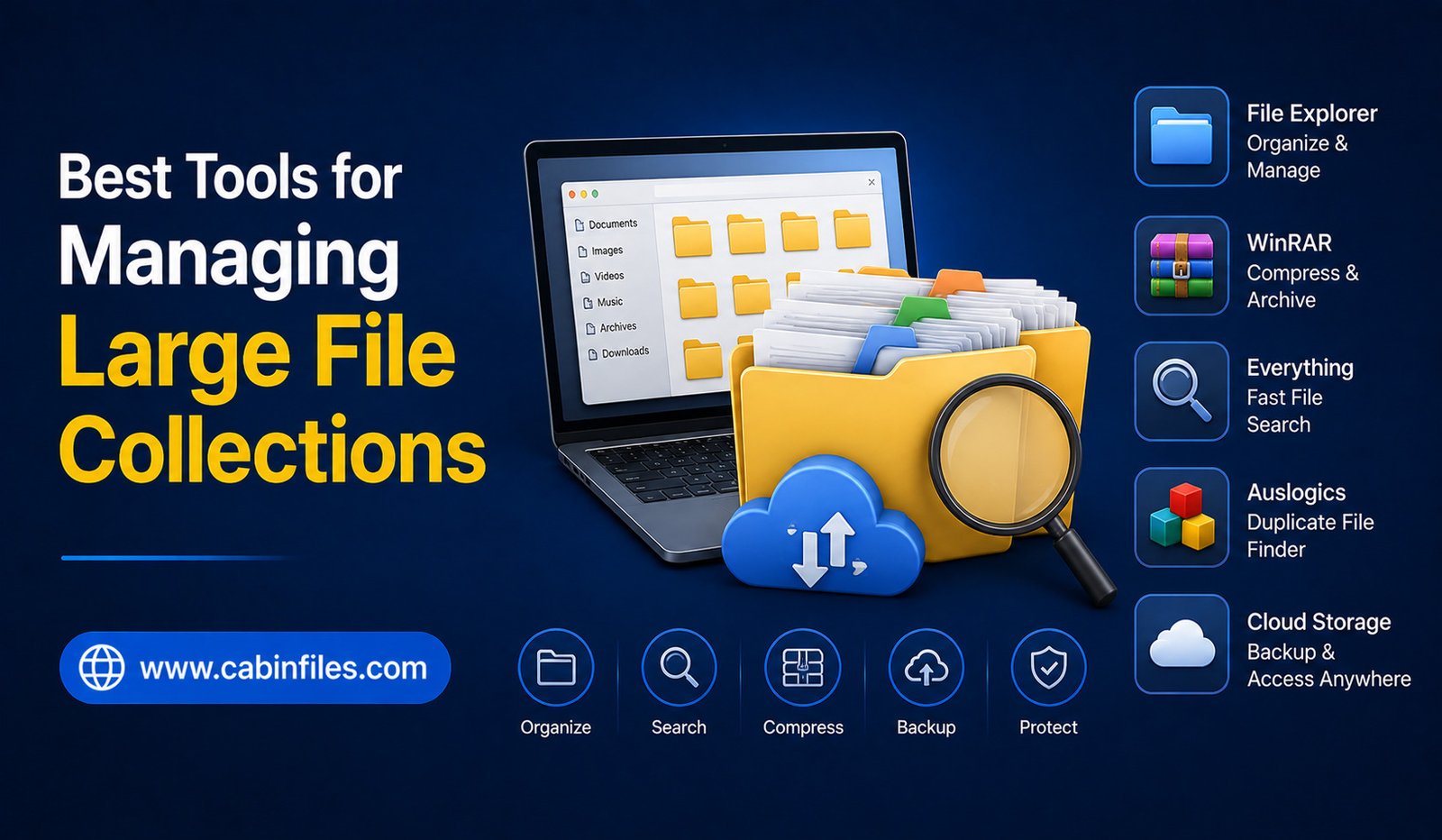
Best Tools for Managing Large File Collections
Managing a large collection of files can become difficult surprisingly quickly. A computer may contain thousands of documents, photographs, videos, software installers, ZIP archives, downloads, and project folders. As the collection grows, finding specific files, identifying unnecessary data, and keeping everything organized can take more time than expected.
The good news is that you do not need to manage everything manually. Modern file management tools can help you search for files, analyze storage usage, identify duplicates, organize folders, rename files in batches, and create safer backup workflows.
The best tool depends on what you need. Some applications focus on fast searching, while others are designed to visualize disk usage or provide advanced file-management features. Here are some of the most useful options for managing large file collections.
Why Large File Collections Become Difficult to Manage
Large collections usually become disorganized gradually. A few downloaded files turn into hundreds of downloads, old project folders remain untouched, and duplicate photographs accumulate across multiple locations.
Another problem is storage visibility. Windows File Explorer can show individual files, but it is not always easy to understand which folders are consuming the most space.
Large collections also make searching more important. When you have thousands or millions of files, manually browsing folders is inefficient.
This is where specialized file-management tools can make a noticeable difference.
1. Windows File Explorer
Before installing third-party software, it is worth using the file manager already included with Windows.
File Explorer provides folder navigation, file searching, sorting, filtering, file previews, and access to local and connected cloud storage. Windows Search can also search files and apps from the taskbar or File Explorer.
For many users, File Explorer is enough for basic organization.
You can create a folder structure based on projects, file types, years, or other categories. Sorting files by name, date, size, or type can also make large folders easier to understand.
The main limitation appears when your collection becomes extremely large or when you need specialized functions such as duplicate detection, visual storage analysis, or advanced batch operations.
2. Everything
When the biggest problem is finding files quickly, Everything is one of the tools worth considering.
Everything is a Windows file-search application designed to find files and folders by name. Its project describes quick indexing, real-time updating, and very fast search results, including environments containing very large numbers of files.
Instead of opening multiple folders and searching manually, you can type part of a filename and quickly narrow down the results.
This is particularly useful for large collections containing software installers, documents, images, archives, and project files with inconsistent locations.
Everything is best viewed as a specialized search tool rather than a complete replacement for File Explorer. It helps you locate files quickly, after which you can manage them using normal file operations.
3. WinDirStat
If your main problem is running out of storage space, WinDirStat can be particularly useful.
WinDirStat is an open-source disk-usage analyzer for Windows. It scans selected drives or folders and presents storage information through a directory tree, file-type statistics, and an interactive treemap.
The treemap is especially useful because large files appear as larger blocks. This gives you a visual way to identify what is consuming your storage.
WinDirStat can also help identify large files, search and filter results, and detect duplicates.
For example, if your hard drive is nearly full, a scan may reveal that an old video folder, software archive, or backup directory is taking up far more space than expected.
The important thing is to review files carefully before deleting anything. A large file is not necessarily an unnecessary file.
4. Dedicated File Managers
Power users who regularly move, copy, rename, or compare large numbers of files may benefit from a dedicated third-party file manager.
These applications can offer features such as dual-pane browsing, advanced search, batch renaming, folder comparison, synchronization, and improved file-operation workflows.
A dual-pane interface is particularly useful for large collections because you can view two locations at the same time. This makes it easier to move files between drives or compare folder structures.
Dedicated file managers are most useful when standard File Explorer feels too limited for repetitive file-management tasks.
5. Cloud Storage Services
Cloud storage can also become an important part of managing large collections.
Services such as OneDrive, Google Drive, and Dropbox allow files to be stored and synchronized across devices. They can be particularly useful for documents and projects that need to remain accessible from multiple computers.
However, cloud storage should not automatically be considered a complete backup solution.
Synchronization can sometimes replicate deletions or unwanted changes. For important files, maintain a proper backup strategy in addition to cloud synchronization.
Cloud storage is best used as part of a broader file-management system rather than as the only place where important data exists.
6. Duplicate File Finders
Duplicate files can consume a surprising amount of storage.
You might have the same photograph saved in several folders, multiple copies of an installer, or duplicate documents created during different versions of a project.
Duplicate-file tools compare files and identify potential copies so you can review them before removing unnecessary versions.
Some tools compare filenames, while more advanced utilities can compare file contents or hashes.
Be careful when deleting duplicates. Two files with identical names are not necessarily identical, and two files with identical contents may still have different purposes or locations.
Always review the results before permanent deletion.
7. Batch Renaming Tools
Large collections often become difficult to manage because filenames are inconsistent.
Imagine having hundreds of photographs named with camera-generated numbers or a collection of documents using unrelated naming styles. Finding the right file becomes harder when filenames provide little useful information.
Batch-renaming tools allow you to rename many files according to a consistent pattern.
For example, photographs could be renamed using a project name and date, while documents could receive a consistent naming structure.
A good naming system can reduce your dependence on complicated folder structures and make future searches much easier.
8. Archive and Compression Tools
Archive utilities are useful when your large file collection contains many files that do not need to be accessed individually every day.
ZIP, RAR, and 7Z archives can package multiple files and folders into a single container. Compression may also reduce storage requirements for data that compresses efficiently.
Archives can be useful for completed projects, old documents, software collections, and files that need to be transferred as a single package.
However, do not treat compression as a guaranteed way to dramatically reduce file size. Already-compressed photographs, videos, and many software packages may shrink very little.
9. Backup Software
Organization is only one part of managing a large collection. Protecting the files is equally important.
Backup software can automatically copy important files to another drive, server, or storage location according to a schedule.
This becomes increasingly important as your collection grows. Losing a few unimportant downloads may be inconvenient, but losing years of photographs or an entire business project can be much more serious.
A practical backup strategy should include more than one copy of important data and, ideally, protection against hardware failure, accidental deletion, and other problems.
How to Choose the Right File Management Tool
The best tool depends on your biggest problem.
If you simply need to browse folders and perform ordinary file operations, File Explorer may be sufficient.
If you frequently struggle to find files, Everything can provide much faster filename searching.
If your hard drive is full and you need to understand where the storage is going, WinDirStat is a useful option.
If you regularly perform advanced file operations, a dedicated file manager may be more appropriate.
For duplicate-heavy collections, consider a reputable duplicate-file finder. For long-term storage, combine organization tools with a reliable backup system.
Create an Organization System Before Installing More Tools
Software can help, but no application can completely replace a sensible organization system.
Start by deciding how your files should be grouped. You might organize them by project, year, client, file type, or purpose.
Use meaningful filenames rather than relying entirely on random numbers. Avoid creating excessively deep folder structures, but also avoid putting thousands of unrelated files into a single directory.
It is also useful to periodically review your Downloads folder and temporary directories.
A simple organization system maintained consistently can be more effective than installing several specialized applications and using none of them regularly.
Be Careful When Deleting Large Files
One of the biggest risks of storage-management software is deleting something simply because it looks unnecessary.
Before deleting a large file, check what it is, where it came from, whether another application depends on it, and whether you have a backup.
Be especially careful with system folders, application directories, recovery files, and unfamiliar files.
Storage analysis tools are designed to help you identify potential cleanup targets, but the final decision should be made carefully.
Final Thoughts
Managing a large file collection becomes much easier when you combine the right tools with a consistent organization strategy.
Windows File Explorer remains a good starting point for everyday file management, while Everything is useful when fast searching is the priority. WinDirStat is particularly helpful for understanding which files and folders are consuming storage, thanks to its detailed disk-usage views and treemap.
For more advanced workflows, dedicated file managers, duplicate-file utilities, archive tools, and backup software can provide additional capabilities.
The most effective approach is not simply to install as many tools as possible. Instead, identify the problem you face finding files, freeing storage, removing duplicates, organizing folders, or protecting data and choose a tool designed specifically for that task. With a clear folder structure, sensible filenames, regular cleanup, and reliable backups, even a collection containing thousands of files can remain manageable.
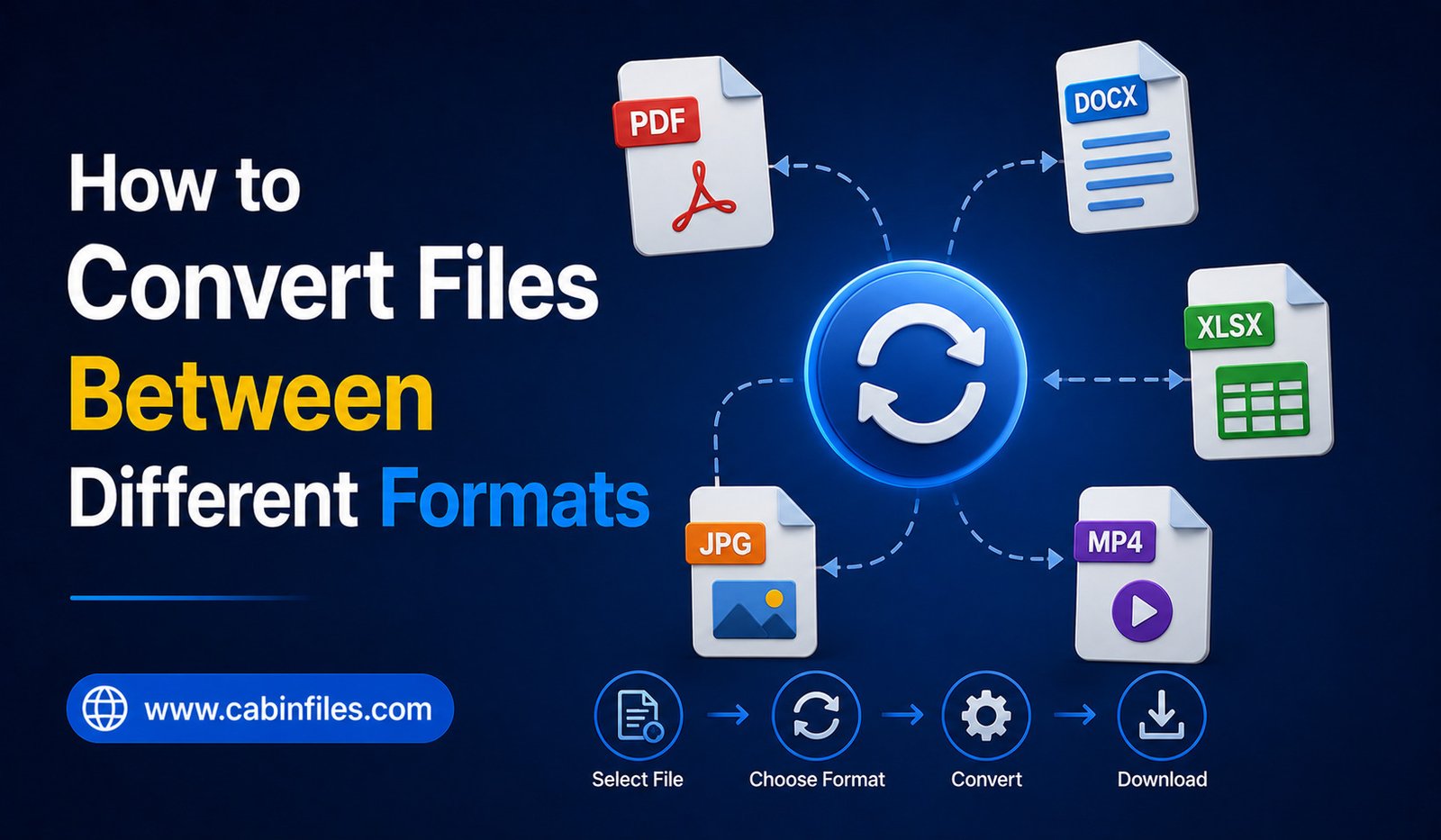
How to Convert Files Between Different Formats
Different file formats are designed for different purposes. A document may be saved as DOCX, PDF, or TXT, an image can exist as JPG, PNG, or WebP, and videos may use formats such as MP4, MOV, or MKV. Because different devices, applications, and websites support different formats, knowing how to convert files between different formats is an important digital skill.
File conversion changes the way information is stored so that another application or device can read it. Depending on the format, conversion can be simple and lossless, or it can affect quality, formatting, and functionality.
This guide explains what file conversion means, when you need it, the safest ways to convert files, and what you should check before and after converting them.
What Is File Conversion?
File conversion is the process of changing a file from one format into another.
For example, converting a Word document from DOCX to PDF creates a new PDF version of the document. Similarly, converting a PNG image to JPG changes the image into a different format with different characteristics.
The purpose is usually compatibility. If an application cannot open the original file type, converting it to a supported format may solve the problem.
Conversion can also be useful when you need a smaller file, want to prepare a document for printing, or need a format supported by a particular website or device.
Why Do You Need to Convert Files?
There are many situations where file conversion becomes useful.
You may receive a document created in software you do not have. A conversion tool can sometimes turn it into a more accessible format.
A website may require images in JPG or PNG instead of another format. A video editor might work better with a particular video container or codec. An e-reader may support EPUB but not DOCX.
File conversion can also make sharing easier. PDF is commonly used for distributing documents because the layout tends to remain consistent across different devices.
The important thing is to choose a format based on what you need to do with the file after conversion.
Common Types of File Conversion
Different file categories have different conversion methods.
Document Conversion
Documents are frequently converted between DOCX, PDF, TXT, RTF, and other formats.
For example, a Word document can often be exported as PDF directly from the word processor. Converting a document to PDF is useful when you want to share a version that is less likely to be accidentally edited.
However, converting PDF back to an editable document can be more complicated. Complex layouts, tables, images, fonts, and columns may not convert perfectly.
Image Conversion
Images can be converted between formats such as JPG, PNG, WebP, GIF, TIFF, and others.
The best format depends on the purpose of the image.
JPG is commonly used for photographs because it can produce relatively small files. PNG is useful when transparency or lossless image quality is important. WebP can provide efficient compression for web use.
When converting images, pay attention to dimensions, quality, transparency, and file size.
Audio Conversion
Audio files can be converted between formats such as MP3, WAV, AAC, FLAC, and others.
Different formats offer different combinations of quality, compression, compatibility, and file size.
Converting a compressed audio file into another compressed format does not restore quality that was already lost. Repeatedly converting between lossy formats can potentially reduce quality further.
Video Conversion
Video conversion is more complicated because video files contain multiple components, including video and audio streams, codecs, resolution, frame rate, and other information.
Common video containers include MP4, MKV, MOV, and AVI.
A video converter may allow you to change resolution, codec, bitrate, frame rate, or audio settings in addition to changing the container format.
For simple sharing and broad compatibility, MP4 is often a practical choice, but the best format depends on the target device or platform.
Use the Original Application When Possible
One of the safest ways to convert a file is to use the application that created it.
For example, if you created a document in a word processor, look for an Export, Save As, or Download option. If you created an image in an editing application, check whether it can save directly in the required format.
This approach can preserve formatting and features more reliably than using an unknown third-party converter.
Built-in conversion options are especially useful for documents because they may understand the original file’s structure better than generic conversion websites.
Using Online File Converters
Online conversion services can be convenient when you do not have appropriate desktop software.
You typically upload a file, choose the desired output format, start the conversion, and download the result.
However, think carefully before uploading sensitive information.
Documents containing personal information, financial details, business data, passwords, confidential projects, or private photographs should not automatically be uploaded to an unfamiliar website.
Before using an online converter, check who operates the service, what it says about uploaded files, and how long files are retained.
For confidential files, an offline conversion tool is often a better choice.
Using Desktop Conversion Software
Desktop applications can provide greater control over file conversion.
They may support batch processing, advanced quality settings, metadata management, and multiple formats. They also allow you to convert files without uploading them to an external website.
When downloading conversion software, use the developer’s official website or a trusted software distribution source.
Avoid installing programs that bundle unnecessary applications or make suspicious changes to your browser or system.
How to Convert a File Step by Step
The exact process varies by file type, but the general workflow is similar.
First, identify the original file format. You can usually determine this from the file extension, such as .docx, .jpg, .png, .mp4, or .pdf.
Next, determine which format you actually need. Do not convert a file simply because another format exists. Choose one based on the application, device, website, or purpose.
Then select a reliable conversion method. If the original application supports the required format, use its built-in export or save feature.
Choose the desired output settings and start the conversion.
Finally, open the converted file and check it carefully.
Check the Converted File
Never assume that a successful conversion automatically means the result is perfect.
Open the new file using an appropriate application and check its contents.
For documents, look for missing text, changed fonts, broken page layouts, misplaced images, or altered tables.
For images, check resolution, colors, transparency, and quality.
For videos, verify that both the picture and sound work correctly and that the output has the expected resolution.
For audio, listen for distortion, missing sections, or unexpected changes in quality.
A few seconds of checking can prevent problems later.
Does File Conversion Reduce Quality?
It depends on the file type and conversion method.
Some conversions can be performed without losing information. Others involve converting from one lossy format to another, which can reduce quality.
For example, converting a high-quality image into a heavily compressed JPG can remove visual information. Converting an already-compressed JPG to another JPG repeatedly can cause additional degradation.
The same principle applies to audio and video.
When quality matters, keep the original file and use suitable settings during conversion.
File Conversion vs File Renaming
Changing a file’s extension is not the same as converting it.
For example, changing photo.png to photo.jpg by simply renaming the filename does not convert the image. The underlying file remains a PNG.
Doing this can cause applications to misidentify the file or display an error.
A proper conversion process actually changes the internal structure of the file so that it follows the rules of the new format.
How to Choose the Right Output Format
The right format depends on your goal.
If you need an editable document, choose an appropriate editable format rather than PDF.
If you need a document that is easy to share and print consistently, PDF may be preferable.
For photographs, JPG can be useful when smaller file sizes are important. PNG can be better when transparency or lossless quality is required.
For web images, WebP may offer a useful balance between quality and file size.
For videos, consider the compatibility requirements of the device or platform before selecting the output format.
Keep a Backup of Important Files
Before converting an important file, keep the original.
Conversion tools can sometimes produce unexpected results, particularly with complicated documents, older formats, or unusual media files.
Keeping the source file gives you the option to try a different conversion method without losing the original.
This is particularly important when converting business documents, photographs, creative projects, or files that would be difficult to recreate.
Common File Conversion Problems
One common problem is incomplete conversion. A file may open but contain missing content or formatting errors.
Another issue is unsupported features. Some formats support functions that other formats cannot represent. When converting between them, those features may be removed or changed.
Large files can also take considerable time to process, especially high-resolution videos.
If conversion repeatedly fails, check whether the software supports the original format, verify that the source file is not corrupted, and make sure you have enough available storage.
Final Thoughts
Learning how to convert files between different formats makes it easier to work across different applications, devices, and platforms. The process is usually straightforward, but choosing the correct format and conversion method is just as important as performing the conversion itself.
Whenever possible, use the original application’s built-in export or save features. For sensitive files, consider offline software instead of uploading information to an online converter. Always keep the original file and check the converted version for quality, formatting, and missing information.
With the right approach, file conversion can improve compatibility and convenience without unnecessarily sacrificing quality or security.
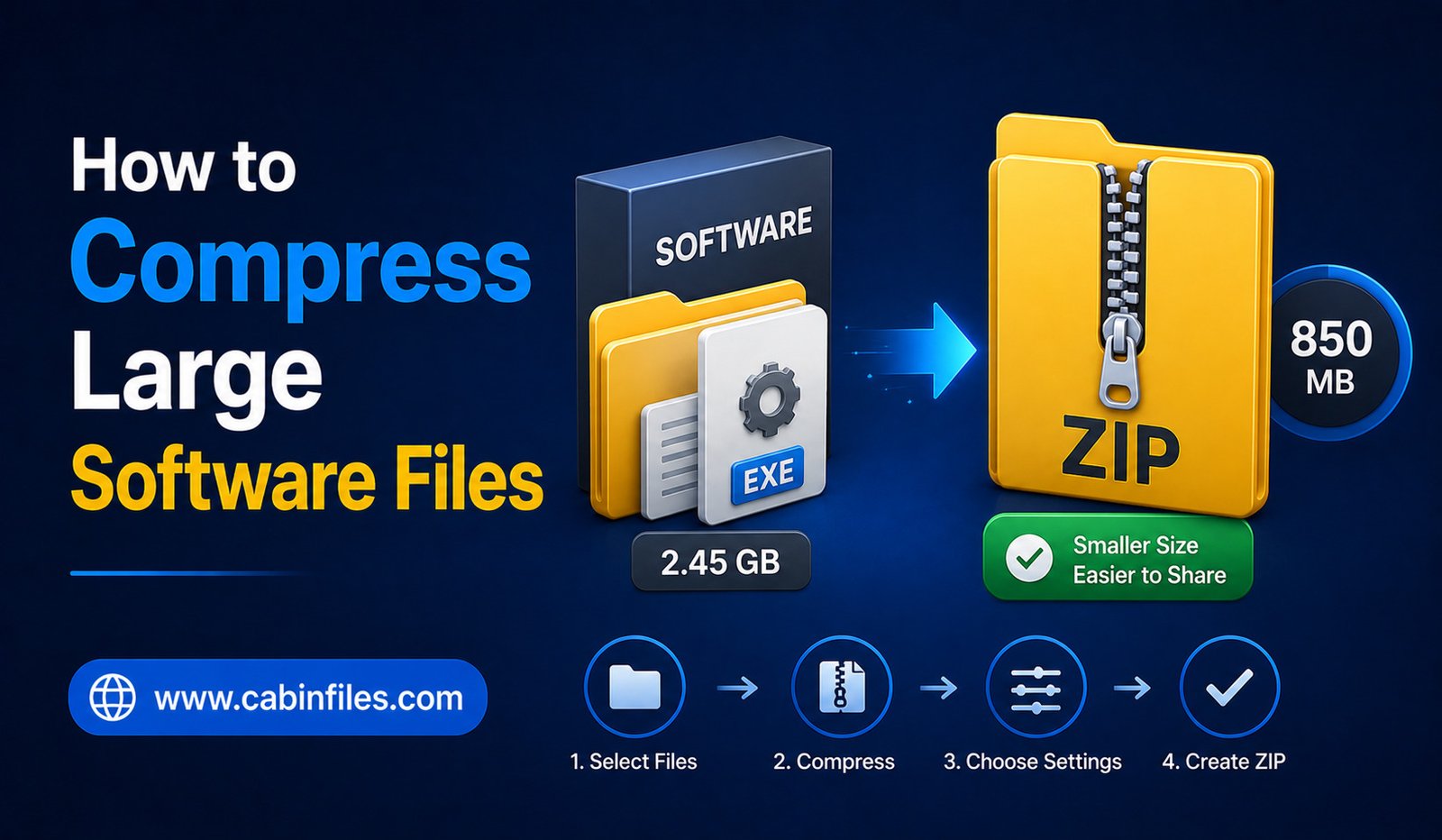
How to Compress Large Software Files: A Complete Guide
Large software files can take up considerable storage space and may be difficult to transfer through email, cloud services, messaging platforms, or websites with upload limits. Compressing these files can make them easier to organize, store, and share.
Whether you are dealing with an application folder, software backup, installation package, or collection of program files, archive formats such as ZIP can package multiple files into a single container. Depending on the type of software, compression may also reduce the total file size.
However, not every software file can be compressed significantly. Many modern applications already contain compressed images, videos, libraries, and other data. Understanding how compression works and choosing the right method can help you achieve better results.
This guide explains how to compress large software files, which formats to consider, how to split large archives, and what precautions to take before sharing compressed software.
What Does Software Compression Mean?
Software compression involves using an archive program to reduce the size of files or package multiple files into a single archive.
For example, suppose you have a software folder containing dozens of files and several subfolders. Instead of storing or sending the folder as separate items, you can create a ZIP or another compressed archive.
The compression software analyzes the data and attempts to represent repeated patterns more efficiently. When the archive is extracted, the original files are reconstructed.
Most common archive compression is lossless, meaning the process does not intentionally remove information from the original software files.
Why Compress Large Software Files?
There are several reasons to compress software files.
The first is convenience. A software project containing hundreds of files can be packaged into one archive, making it easier to move or upload.
Compression can also reduce storage requirements when the files contain data that compresses well. This can be useful when creating backups of software installers, development projects, or application resources.
Another advantage is organization. Instead of having a folder containing many individual files, you can maintain a single archive with the complete directory structure.
However, compression should not be expected to dramatically shrink every application. The results depend on the data inside the software package.
ZIP: The Simplest Option
ZIP is usually the easiest format for compressing software files because it is widely supported.
Windows and macOS can handle standard ZIP archives without requiring specialized software for basic tasks. This makes ZIP a practical choice when you plan to send the compressed software to another person.
To compress a software folder on Windows, locate the folder, right-click it, and use the operating system’s option for creating a compressed or ZIP folder.
Windows will create a new ZIP archive containing the folder and its files.
For large software packages, the resulting archive may still be quite large. In that case, you may need to use a dedicated archive utility with additional compression options.
Choosing the Right Compression Format
ZIP is not the only option.
Other archive formats can provide different combinations of compression efficiency, speed, encryption, and file-splitting capabilities.
RAR is commonly used for advanced archive management and can be useful when working with large collections of files. 7Z is another popular format that can provide strong compression with suitable data.
The best format depends on your requirements.
If compatibility is the priority, ZIP is usually a convenient choice. If you are more concerned about achieving a smaller archive and the recipient has compatible software, other formats may be worth considering.
Use the Correct Compression Level
Many compression utilities offer different compression levels.
A faster setting generally uses less processing power and completes more quickly. A higher compression setting may produce a smaller archive but can take longer and use more system resources.
For very large software folders, maximum compression is not always the best option.
If the software is already heavily compressed, increasing the compression level may provide little benefit while significantly increasing the time required to create the archive.
A balanced compression setting is often a practical choice for everyday file management.
Why Some Software Files Barely Shrink
One of the most common misconceptions is that every large file can become dramatically smaller after compression.
This is not true.
Many software packages already contain compressed resources. Images may use formats such as JPEG or WebP, while videos and audio frequently use highly compressed codecs. Some installers and application packages are also already compressed.
Trying to compress such files again may produce only a small reduction.
For example, a 5 GB software folder does not necessarily become a 1 GB archive. The final size could remain close to the original depending on what the folder contains.
Compression works best when there is redundant or efficiently compressible data.
Compress the Complete Software Folder
If software depends on multiple files, avoid selecting only the main executable when creating an archive.
Many applications require supporting libraries, configuration files, resource folders, or other components.
Instead, compress the complete software folder while preserving its directory structure.
This makes the archive easier to extract later and reduces the risk of missing files.
If the developer provides a specific folder structure, preserve it rather than rearranging individual files.
How to Compress Large Software Files on Windows
Windows provides a basic built-in ZIP option.
Start by locating the software folder you want to archive. Right-click the folder and choose the option for creating a compressed ZIP folder.
Windows will create an archive in the same general location. You can rename it to something descriptive, such as:
Software_Backup.zip
For larger archives or more advanced settings, dedicated archive software may provide additional options such as compression levels, encryption, and archive splitting.
Before deleting the original software folder, extract the archive somewhere else and verify that the files are intact.
How to Compress Software on macOS
On macOS, you can create a ZIP archive directly through Finder.
Select the software folder, open the context menu, and choose the compression option. macOS will generate a ZIP archive containing the selected folder.
As with Windows, keep the original files until you have verified that the archive works correctly.
For advanced compression formats or settings, you may need dedicated archive software.
How to Compress Software Using 7Z or RAR
If you need more control over compression, specialized archive applications can provide additional formats and settings.
A typical workflow is to select the software folder, choose an archive format, select an appropriate compression level, and start the process.
Higher compression settings can take significantly longer, especially when processing several gigabytes of data.
For very large archives, monitor available storage and system resources during compression. The software may need temporary working space in addition to the size of the final archive.
Splitting a Large Software Archive Into Parts
Sometimes the compressed archive is still too large to upload or transfer as a single file.
Some archive tools allow you to split an archive into multiple parts. For example, a large software archive could be divided into several smaller volumes.
This can be useful when a service has an individual file-size limit.
When splitting an archive, keep all parts together. Missing even one required part may prevent the complete archive from being extracted.
Use clear filenames and explain to the recipient that the parts belong to the same archive.
Password-Protecting Compressed Software
If the software package contains confidential files, some archive tools allow you to protect the archive with a password.
Password protection can be useful when transferring private development projects, proprietary software, or other sensitive information.
Choose a strong password and share it through a separate secure communication method when appropriate.
Remember that the security of an archive depends on the encryption method and software being used. Older or weak encryption options should not be relied upon for highly sensitive information.
Is Compressing Software Safe?
Compressing software does not normally change the program’s functionality, but you should be careful about where the software came from.
If you are downloading an application from the internet, verify that it comes from the official developer or another trustworthy source.
Compressed archives can contain executable files, scripts, and other potentially dangerous content. An archive extension such as .zip, .rar, or .7z does not guarantee that its contents are safe.
Before extracting unfamiliar software, use appropriate security tools and avoid running files from suspicious sources.
Common Problems When Compressing Software
Large software archives can sometimes cause errors.
Insufficient disk space is one common problem. The computer may need additional temporary storage during the compression process.
Another problem is corrupted or incomplete source files. If the original software folder contains damaged files, compressing it will not repair them.
Very large archives can also take considerable time to create, especially when using high compression settings.
If an archive fails, check available storage, verify the original files, and try creating the archive again using a different compression setting or reputable archive application.
Should You Delete the Original Files?
Do not immediately delete the original software folder after creating an archive.
First, test the archive. Extract it to another location and verify that important files are present and readable.
Once you are confident that the archive is complete, you can decide whether the original folder is still necessary.
If the archive is intended as a backup, keeping only one copy is not ideal. A backup should ideally exist in another storage location as protection against hardware failure or accidental deletion.
Final Thoughts
Knowing how to compress large software files can make file storage, backups, and transfers much easier. ZIP is generally the simplest option because of its broad compatibility, while formats such as RAR and 7Z can provide additional features and compression options.
The most important thing to remember is that compression results depend on the type of software. Already-compressed files may not become much smaller, while folders containing text, source code, and other highly compressible data can often benefit more.
For large software packages, compress the complete folder, choose a sensible compression level, consider splitting very large archives when necessary, and verify the resulting archive before deleting the original files. With these practices, you can manage large software collections more efficiently without risking missing or damaged files.
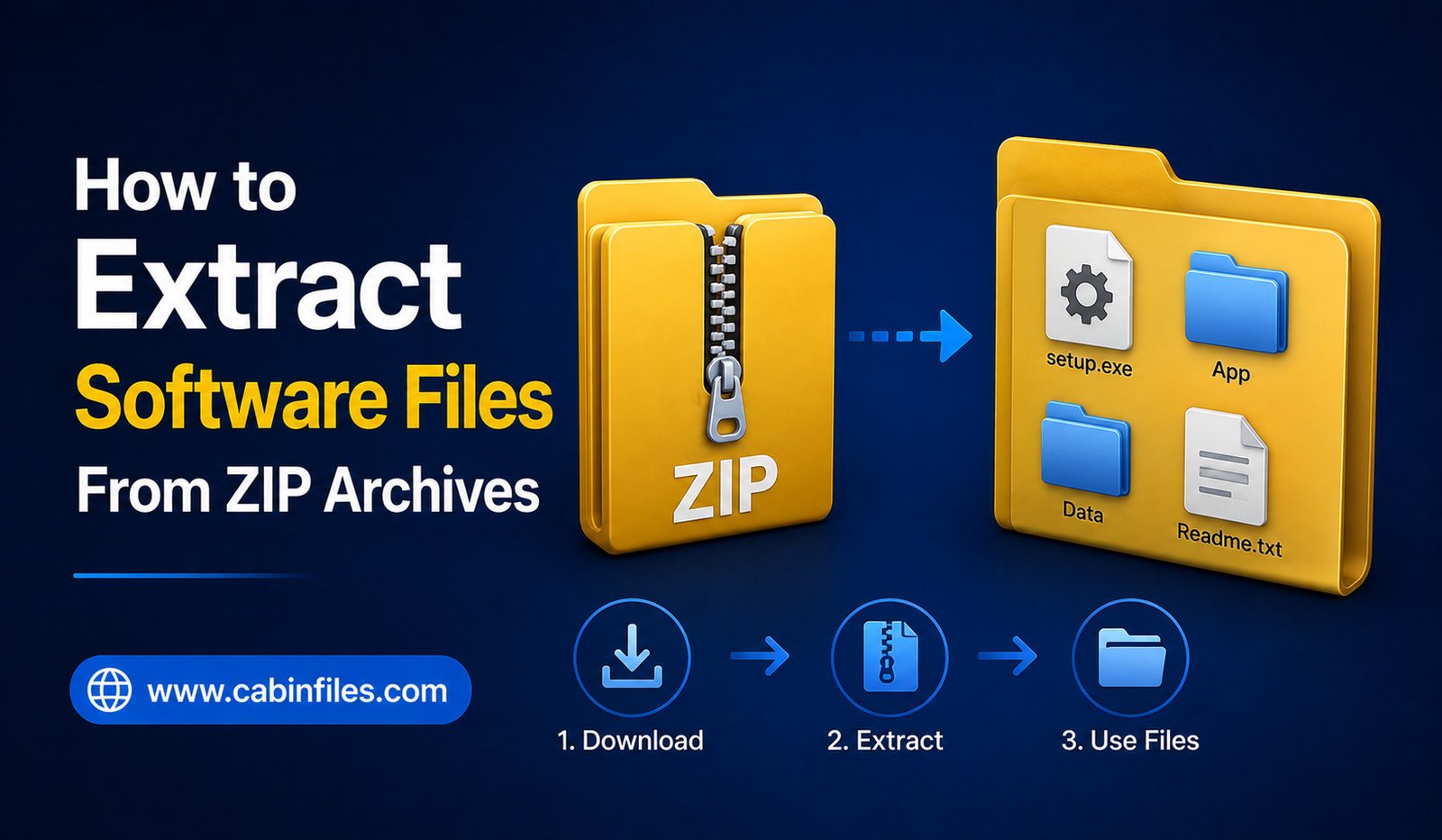
How to Extract Software Files From ZIP Archives
Downloading software from the internet often means receiving the program inside a ZIP archive. Instead of seeing an application file immediately, you may find a file ending in .zip that contains installers, executable files, folders, documentation, or supporting components.
ZIP archives are useful because they package multiple files into a single downloadable file and may reduce the amount of storage space required. However, beginners sometimes try to run software directly from the ZIP archive or extract only part of its contents, which can cause installation or startup problems.
Learning how to extract software files from ZIP archives is therefore an important basic computer skill. The process is usually simple, but it is worth understanding what extraction does, where the files should go, and how to handle downloaded software safely.
What Is a ZIP Software Archive?
A ZIP archive is a container that can hold one or more files and folders. Software developers commonly use ZIP files to distribute applications because they can package everything required by a program into one download.
A ZIP archive might contain an .exe installer, a portable application, configuration files, libraries, documentation, and other folders. Some software may also be distributed without an installer, meaning the extracted folder itself contains everything needed to run the application.
The important point is that a ZIP file is usually not the software itself. It is a package containing the software and its related files.
Before using the program, you normally need to extract the archive.
Why Do Software Developers Use ZIP Files?
ZIP archives provide a convenient way to distribute groups of files.
Instead of asking users to download dozens of individual files, a developer can package them into one archive. This also helps preserve the folder structure required by some applications.
ZIP files can be especially useful for portable applications. A portable program may not require a traditional installation process. Instead, you extract the archive and launch the appropriate executable file from the extracted folder.
Software distributed as ZIP files can also be useful when developers want users to have more control over where the program is stored.
How to Extract a ZIP File in Windows
Windows includes built-in support for basic ZIP archives, so you usually do not need additional software.
First, locate the downloaded ZIP file. It may be in your Downloads folder unless you selected another location.
Right-click the ZIP file and look for the option to extract its contents. Choose the extraction option, select a destination if required, and allow Windows to create the extracted folder.
Once the process finishes, open the new folder and examine its contents.
You may find an installer such as setup.exe, an application file ending in .exe, or a folder containing several supporting files.
Do not delete files from the extracted software folder unless you know they are unnecessary. Some applications depend on files stored alongside the main executable.
How to Extract Software From a ZIP on macOS
macOS also provides built-in support for ZIP archives.
Locate the downloaded ZIP file in Finder and double-click it. The system will normally extract the archive and create a new folder containing its contents.
Open the extracted folder and look for the application’s instructions or the appropriate application file.
If the software requires installation, follow the instructions supplied by the developer. If it is a portable-style application, you may be able to launch it directly after extraction.
How to Extract ZIP Software on Android
Android devices can also handle ZIP archives, although the exact steps depend on the phone and file-management application.
Open your file manager and navigate to the location where the ZIP archive was downloaded. Select the archive and look for an option such as Extract, Unzip, or Extract here.
Choose a destination folder and wait for the extraction to finish.
However, be careful when downloading software intended for computers. An Android phone may be able to store a ZIP archive containing Windows software, but that does not mean the software can run on Android.
What Happens During Extraction?
When you extract a ZIP archive, the files inside it are copied out into a normal folder structure.
For example, a software archive might contain:
Software.zip
After extraction, you could see:
Software/
Inside that folder might be:
Software.exe
along with folders containing libraries, configuration files, images, or documentation.
The ZIP archive remains unchanged unless you delete it manually. This means you may temporarily have both the original compressed archive and the extracted files.
After confirming that the software works correctly, you can usually delete the ZIP archive if you no longer need it.
How to Know Which File Runs the Software
Finding the correct file after extraction can sometimes be confusing.
Windows software commonly uses the .exe extension for executable programs. You might see names such as setup.exe, install.exe, or the actual application name followed by .exe.
A file named setup.exe or install.exe often indicates that the software has a traditional installation process.
If the archive contains an application executable without an installer, the program may be designed to run directly from the extracted folder.
Read any included README, installation guide, or documentation before launching unfamiliar files. The developer may provide specific instructions about where the program should be installed or which executable should be opened.
Should You Run Software Directly From a ZIP File?
It is generally better to extract software before running it, especially when the archive contains multiple files.
Some programs require access to supporting files located in the same folder or in subfolders. Running an executable while it is still inside a compressed archive can cause unexpected behavior or make it difficult for the program to access everything it needs.
Extracting the complete archive preserves its folder structure and gives the application normal access to its files.
For this reason, create a dedicated folder and extract the entire archive before trying to use the software.
Check the ZIP File Before Opening It
Software downloaded from the internet should be treated carefully, particularly when it comes from an unfamiliar website.
A ZIP archive can contain executable files, scripts, or other potentially harmful content. The fact that a file is compressed does not make it safe.
Before extracting and launching unfamiliar software, consider whether you trust the source. Download applications from the developer’s official website or another reputable distribution platform whenever possible.
It is also a good idea to keep your operating system and security software updated.
If your antivirus program warns you about a file inside the archive, do not simply ignore the warning. Investigate the detection and verify that the software came from a legitimate source before continuing.
What If the ZIP File Will Not Extract?
Sometimes a ZIP archive may produce an error during extraction.
One common reason is an incomplete download. If the download was interrupted or the file became corrupted, the archive may not contain all the required data.
Try downloading the file again from the original trusted source.
Another possibility is that the archive uses features that your operating system’s built-in extractor does not support. In that situation, a reputable archive utility may be able to handle the file.
You should also check whether your computer has enough free storage space. Extraction can require considerably more space than the compressed archive itself.
What If the Extracted Software Does Not Work?
Successful extraction does not guarantee that the program will run.
The software may require additional components, a specific operating system version, certain system libraries, or administrator permissions.
Check the developer’s documentation for system requirements and installation instructions.
If the program displays a missing DLL error, compatibility warning, or another startup message, avoid downloading random replacement files from unknown websites. Instead, identify the software’s official requirements and obtain required components from trustworthy sources.
ZIP Extraction vs Installation
One of the most important things to understand is that extracting software is not necessarily the same as installing it.
Extraction simply removes the files from the compressed archive.
Installation may involve copying files to specific system locations, creating shortcuts, registering components, setting permissions, or making configuration changes.
Some portable applications do not require a traditional installation. Others need you to run an installer after extraction.
Always check what type of software you downloaded before assuming that extraction alone completes the installation.
Best Practices for Extracting Software ZIP Files
For a smooth and safer experience, download software from a trustworthy source and extract the complete archive into a dedicated folder. Avoid deleting individual files from the extracted directory unless the developer says they are unnecessary.
Keep the original ZIP file until you have confirmed that the extracted software works correctly. If you need to reinstall the application later, the archive can save you from downloading it again.
It is also useful to keep software organized rather than extracting random applications directly onto the desktop or into system folders.
Final Thoughts
Learning how to extract software files from ZIP archives is straightforward once you understand the difference between an archive and the software inside it.
A ZIP file is simply a package that stores compressed files and folders. Extracting it creates a normal folder containing the software and its supporting components. Depending on the application, you may then need to run an installer or launch a portable executable.
The safest approach is to download software from a trusted source, extract the complete archive, read the developer’s instructions, and scan unfamiliar files when appropriate. By following these basic steps, you can avoid many common problems and handle ZIP-based software downloads with confidence.
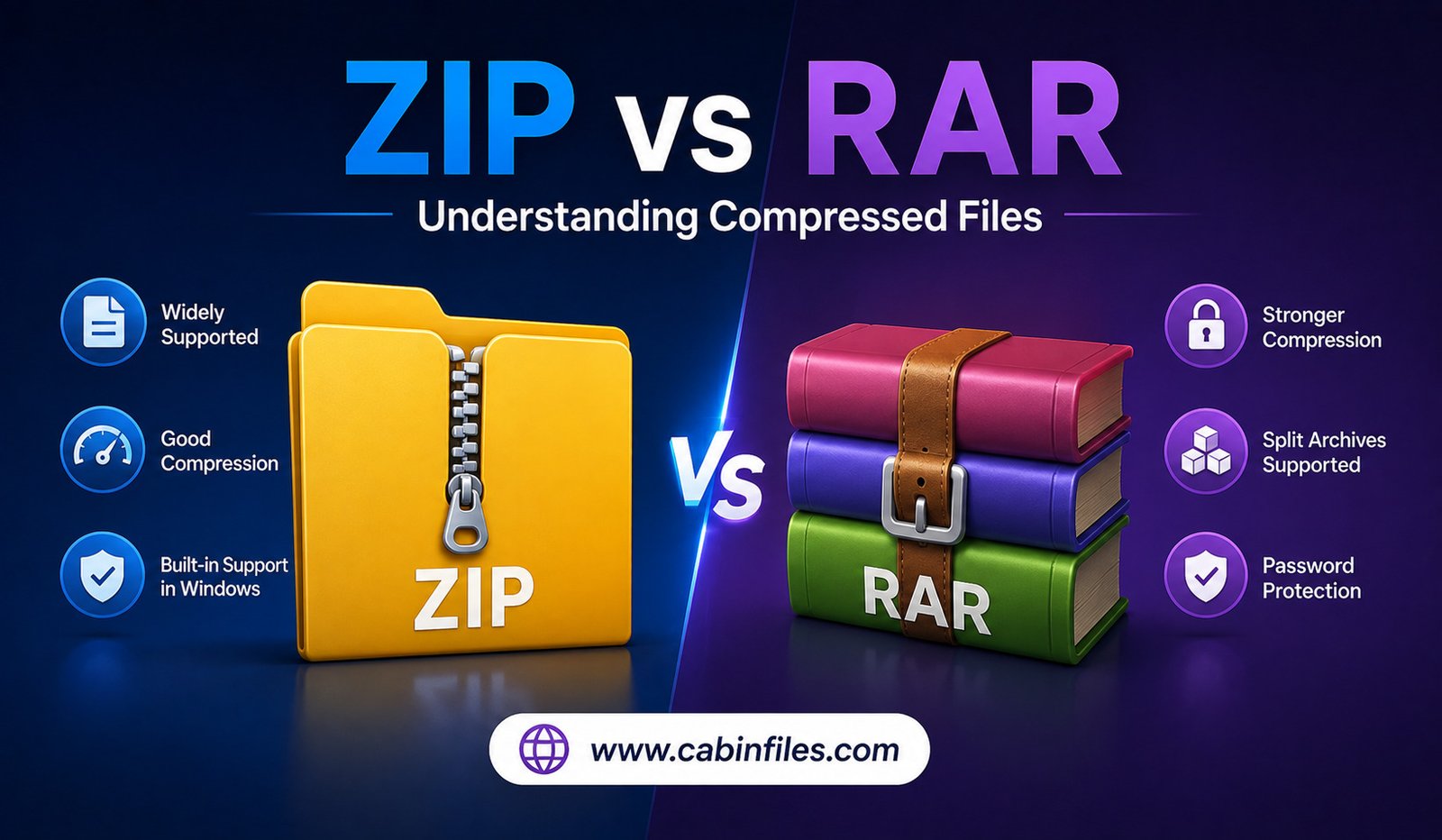
ZIP vs RAR: Understanding Compressed Files
Compressed files are a common part of everyday computing. Whether you are downloading software, sharing documents, transferring photos, or backing up important folders, you have probably encountered formats such as ZIP and RAR. Both are designed to package files into archives and reduce storage or transfer requirements, but they work differently and offer different advantages.
Understanding the difference between ZIP and RAR can help you choose the right format for file sharing, storage, and compression. While ZIP is widely supported and easy to use, RAR is known for strong compression capabilities and additional archive-management features.
In this guide, we will compare ZIP vs RAR, explain how both formats work, and look at their differences in compression, compatibility, security, speed, and everyday usability.
What Is a ZIP File?
ZIP is one of the most widely recognized compressed archive formats. A ZIP file can contain one or multiple files and folders, often while reducing their overall size.
The format is popular because of its broad compatibility. Modern versions of Windows and macOS can generally create and extract basic ZIP archives without requiring additional software.
ZIP files are commonly used for sending multiple documents as a single attachment, packaging website files, sharing software, and distributing collections of images or other data.
ZIP compression is generally lossless, meaning the original files can be reconstructed without intentionally losing information when the archive is extracted.
What Is a RAR File?
RAR stands for Roshal Archive and is another archive format designed for file compression and packaging. RAR is particularly associated with advanced compression and archive-management features.
Unlike ZIP, RAR has historically depended more heavily on dedicated archive software for creating and managing files. Users may need a compatible application to extract or create certain RAR archives, depending on their operating system and the specific features used.
RAR archives can be useful when dealing with large collections of files or when advanced archive features are important.
ZIP vs RAR: The Main Difference
The biggest difference between ZIP and RAR is the balance between compatibility and advanced compression features.
ZIP is usually the easier choice when you want to share a file with someone who may not have specialized compression software. Its widespread operating-system support makes it highly convenient.
RAR can be attractive when compression efficiency, archive management, recovery features, or splitting large archives are more important.
Neither format is universally better. The right option depends on what you are trying to accomplish.
Compression Performance
Compression performance is one of the areas where RAR can have an advantage, although the actual result depends on the files being compressed and the software settings being used.
Some types of data compress more effectively than others. Text-heavy files, uncompressed documents, and certain datasets can often be reduced substantially. Already-compressed files, such as JPEG images and many video files, may show little additional compression regardless of whether you use ZIP or RAR.
RAR can sometimes produce smaller archives than ZIP, especially when using suitable compression settings and certain types of data. However, the difference may be relatively small for ordinary files.
If maximum compression is your priority, it is worth testing both formats with your specific data rather than assuming one will always produce a smaller archive.
Compatibility and Ease of Use
This is where ZIP has a major advantage.
ZIP support is built into many operating systems and file-management applications. Someone receiving a ZIP file can often open it immediately without installing another program.
RAR is also widely supported, but creating and extracting RAR archives may require dedicated archive software depending on the platform and archive configuration.
For businesses, schools, workplaces, and general file sharing, compatibility can be more important than achieving the smallest possible archive size. If you are unsure what software the recipient has, ZIP is often the safer choice.
ZIP vs RAR for Large Files
Both formats can be used for large collections of data, but RAR offers several features that can make it useful for handling large archives.
RAR archives can be divided into multiple parts. This can be helpful when a large collection needs to be transferred through a service with file-size restrictions.
For example, a large archive could be divided into several smaller volumes. The recipient can then combine or extract the archive using compatible software.
ZIP can also support large archives and related features, but the exact capabilities depend on the ZIP specification and software being used.
Recovery and Damaged Archives
Another important difference is support for recovery features.
Some RAR archives can include recovery information designed to help recover data when part of an archive becomes damaged. This can be particularly useful for large archives stored or transferred over unreliable media.
Standard ZIP archives do not generally provide the same type of recovery capabilities.
However, recovery features should not be considered a replacement for proper backups. If a file is important, maintaining another copy in a separate location remains one of the best ways to protect it.
Password Protection and Security
Both ZIP and RAR can be used with password protection and encryption, depending on the software and archive features involved.
A password-protected archive can prevent unauthorized users from easily accessing its contents. Modern encryption options can provide stronger protection than older archive-security methods.
When protecting confidential files, the archive format is only part of the security equation. Use a strong password, keep the password private, and use trustworthy software.
You should also remember that compressed archives can contain executable programs and other potentially harmful files. A ZIP or RAR file downloaded from an unknown source should not automatically be considered safe.
Speed: Which Is Faster?
There is no universal answer to whether ZIP or RAR is faster.
Compression speed depends on the type of files, compression level, computer hardware, available memory, and software being used.
ZIP can be convenient for quick compression because its basic functions are widely integrated into operating systems. RAR may take longer at certain compression settings because more computational work can be performed to achieve better compression.
If you frequently compress large amounts of data, experimenting with compression levels can help you find the right balance between speed and file size.
ZIP vs RAR for Sharing Files
For everyday file sharing, ZIP is often the most practical option.
Suppose you want to send a folder containing photographs, PDFs, spreadsheets, and other documents. Creating a ZIP archive lets you package everything into one file. The recipient can usually extract it without installing specialized software.
RAR can still be useful when the recipient already has compatible software or when you need features such as multi-volume archives and recovery information.
For maximum convenience, ZIP generally has the edge.
ZIP vs RAR for Backup
Both formats can be used to package collections of files, but neither should automatically be treated as a complete backup strategy.
An archive can make it easier to store a collection of related files, but if the only copy of the data exists inside one ZIP or RAR archive, losing or corrupting that archive could result in significant data loss.
For important documents and personal files, maintain multiple copies in different locations. An archive can be part of a backup workflow rather than the entire backup strategy.
Which Format Is More Secure?
Security depends more on the encryption method, software, password strength, and how the archive is handled than simply whether the file is ZIP or RAR.
Both formats can be used to protect information, but users should avoid relying on outdated encryption options.
It is also important to scan suspicious archives before opening their contents. A compressed archive can hide potentially dangerous files until it is extracted.
For sensitive information, use current software and strong encryption rather than choosing a format based solely on its reputation.
ZIP vs RAR: Which One Should You Choose?
The answer depends on your needs.
Choose ZIP when:
- You want maximum compatibility.
- You are sharing files with general users.
- You want to create a basic archive quickly.
- You want an archive that most modern operating systems can open easily.
Choose RAR when:
- You need advanced archive features.
- You want to divide a large archive into multiple volumes.
- Recovery features are useful for your workflow.
- You are comfortable using dedicated archive software.
For most casual users, ZIP is the simpler choice. For users who regularly manage large archives and need advanced capabilities, RAR can be more attractive.
Can You Convert RAR to ZIP?
Yes. RAR archives can generally be extracted and then compressed again into ZIP format using compatible archive software.
The process usually involves extracting the files from the RAR archive and creating a new ZIP archive from those extracted files.
However, converting between formats does not necessarily make the files smaller. If the contents are already compressed, the new ZIP archive may have a similar size or even be slightly larger.
Final Thoughts
The ZIP vs RAR comparison is less about finding one universally superior format and more about choosing the right tool for a particular job.
ZIP remains one of the best choices for everyday file sharing because of its excellent compatibility and straightforward operation. RAR can be valuable when users need advanced compression, archive splitting, recovery features, or other specialized capabilities.
If you simply need to package several files and send them to someone, ZIP is usually the easiest option. If you regularly work with large archives and specialized compression tools, RAR may provide features that better match your needs.
Ultimately, the best compressed file format is the one that provides the right balance of file size, compatibility, speed, security, and convenience for your specific situation.
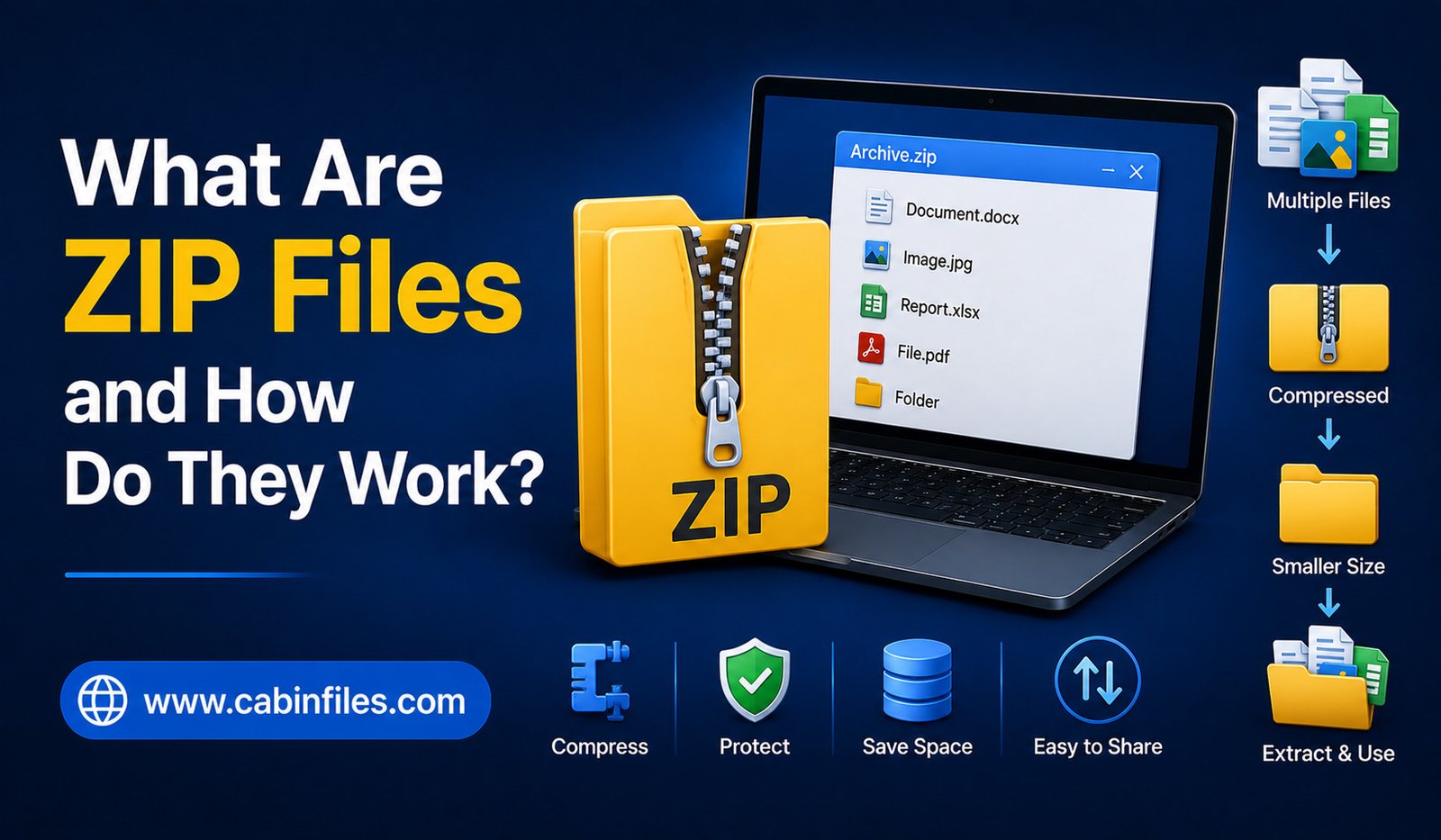
What Are ZIP Files and How Do They Work?
ZIP files are one of the most common file formats used for storing, sharing, and transferring digital data. You may have downloaded a software package, received several documents in one attachment, or downloaded images from a website and found them inside a file ending in .zip. But what exactly is a ZIP file, and how does it work?
A ZIP file is essentially a container that can hold one or more files and folders while often reducing their overall size through compression. This makes it easier to organize multiple files and transfer them over the internet.
Understanding ZIP files can help you manage downloads, share documents more efficiently, and troubleshoot common problems when a compressed file refuses to open. In this guide, we will explain what ZIP files are, how ZIP compression works, how to create and extract them, and when you should use them.
What Is a ZIP File?
A ZIP file is a compressed archive file that can contain multiple files and folders. Its file extension is .zip, which tells your operating system that the file uses the ZIP archive format.
Unlike a normal document or image, a ZIP file can act as a container for many different types of files. For example, you could place PDFs, Word documents, photographs, spreadsheets, and other files into a single ZIP archive.
The main purpose of ZIP files is to make file storage and sharing more convenient. Instead of sending 20 individual files, you can combine them into one ZIP file. Compression can also reduce the amount of storage space required and make certain files faster to transfer.
ZIP is widely supported by operating systems, including Windows, macOS, and many Linux distributions. Smartphones can also open ZIP archives using built-in or third-party file management applications.
How Do ZIP Files Work?
ZIP files generally perform two related jobs: archiving and compression.
Archiving means combining multiple files and folders into one package. Compression means reducing the amount of data needed to store those files.
When you create a ZIP archive, the software examines the selected files and stores them in a structured container. Depending on the data, compression algorithms can identify repeated patterns and represent them more efficiently.
For example, a large text file may contain many repeated words, characters, or patterns. Instead of storing every repeated piece of information in exactly the same way, a compression algorithm can store some information more efficiently.
When you extract the ZIP file, the process is reversed. The compression data is decoded, and the original files are reconstructed.
Importantly, ZIP compression is usually lossless. This means that extracting a compressed document, program file, or other supported data should restore the original information without intentionally removing important data.
Why Are ZIP Files Useful?
ZIP files are useful because they solve several everyday file-management problems.
One major advantage is convenience. If you need to send a folder containing dozens of files, creating a ZIP archive lets you package everything into a single file. The recipient only needs to download one item instead of managing many separate attachments.
ZIP files can also reduce file sizes. The amount of compression depends heavily on the type of content. Text files and some documents can often compress significantly, while already-compressed formats such as JPEG images, MP4 videos, and many modern software packages may show only a small reduction.
Another advantage is organization. A ZIP archive can preserve folders and their internal structure, making it easier to transfer a collection of related files without losing their organization.
ZIP Compression vs. Simply Combining Files
It is important to understand that archiving and compression are not exactly the same thing.
You can put multiple files into an archive without necessarily achieving a large reduction in size. Compression is an additional process that attempts to represent the information more efficiently.
For example, a folder containing several uncompressed text files may become much smaller after ZIP compression. However, a folder containing already-compressed photographs may not shrink very much.
This is why a ZIP file is not automatically smaller than the total size of all the files inside it. The result depends on the content and the compression method used.
How to Open a ZIP File
Opening a ZIP file is usually straightforward.
On Windows, you can generally right-click a ZIP file and choose the option to extract its contents. You can select a destination folder, and the operating system will create an uncompressed copy of the files.
On macOS, double-clicking a ZIP archive normally extracts it automatically.
On Android and other platforms, file manager applications may provide an option to open or extract ZIP archives.
Third-party applications can also provide additional features, such as stronger encryption support, advanced archive management, and compatibility with other compressed formats.
After extraction, the files inside the ZIP archive can normally be opened like ordinary files.
How to Create a ZIP File
Creating a ZIP file is also simple on most computers.
Select the files or folders you want to package, open the context menu, and choose the option to create a compressed or ZIP folder. Your operating system will then generate a new ZIP archive containing the selected items.
The process is useful when you want to email multiple documents, upload a group of files to a website, back up a collection of smaller files, or share a project folder with someone else.
Before creating the archive, it is a good idea to organize the files clearly. A meaningful ZIP filename can also help recipients understand what the archive contains.
Are ZIP Files Safe?
A ZIP file itself is not necessarily dangerous. However, ZIP archives can contain potentially harmful files, just like folders can.
For example, a ZIP archive downloaded from an unknown source could contain a malicious executable program or another dangerous file. Compression does not make a file automatically safe.
You should therefore be careful when downloading ZIP files from unfamiliar websites or receiving unexpected ZIP attachments.
Before opening an archive, consider where it came from. If the source is suspicious, scan the file with reputable security software and avoid opening unknown executable files inside it.
It is also important to remember that malicious files can sometimes be hidden inside multiple layers of compressed archives. Security precautions should therefore continue even after extracting the first ZIP file.
Can ZIP Files Be Password Protected?
Yes. ZIP archives can support password protection and encryption, depending on the software and ZIP encryption method being used.
A password-protected ZIP file can require a password before its contents can be accessed. This can be useful when sharing sensitive documents or personal files.
However, not all ZIP encryption methods provide the same level of security. Older encryption methods can be weaker than modern alternatives, so users handling highly confidential information should choose reputable compression software and strong encryption options.
A strong, unique password is also essential. Password protection is only useful if the password itself is difficult to guess.
Common ZIP File Problems
Although ZIP files are generally reliable, you may occasionally encounter problems.
A ZIP file may fail to open because it is incomplete or corrupted. This can happen if a download was interrupted or if the archive was damaged during storage or transfer.
Another issue occurs when the software being used does not support a particular archive feature or encryption method. In such cases, trying a different modern archive utility may solve the problem.
You may also encounter an error stating that a file cannot be extracted because there is insufficient storage space. Remember that extracting a compressed archive requires enough free space for the uncompressed contents.
If a ZIP file comes from an unreliable source and repeatedly produces errors, downloading it again from the official source may be safer than trying to repair an unknown archive.
ZIP Files and Cloud Storage
ZIP archives are also useful when working with cloud storage and online file-sharing services.
Instead of uploading many individual files, users can sometimes package them into one ZIP archive. This makes organization easier and can simplify downloading the entire collection later.
However, compression is not always necessary. If a cloud service already handles folders efficiently, uploading individual files may be more convenient when you need to access or edit them separately.
ZIP files are particularly useful when the goal is to transfer a complete collection as a single package.
ZIP Files vs. Other Archive Formats
ZIP is only one type of compressed archive format. Other formats include RAR, 7Z, TAR, and several specialized formats.
ZIP’s biggest advantage is compatibility. Because it is widely supported, recipients often do not need to install special software to open a basic ZIP archive.
Other formats may offer different compression performance, security features, or capabilities. For everyday file sharing, however, ZIP remains one of the most convenient choices because of its broad support.
Final Thoughts
ZIP files provide a simple way to compress, organize, and share digital files. They can combine multiple documents into one archive, reduce storage requirements for suitable data, preserve folder structures, and make file transfers more convenient.
For everyday users, creating and opening ZIP files is usually straightforward because modern operating systems provide built-in support. At the same time, it is important to treat downloaded ZIP archives carefully because compressed files can contain potentially harmful content.
Whether you are sending a collection of documents, downloading software, organizing backups, or transferring project files, understanding how ZIP files work can make everyday file management much easier. Their combination of compatibility, organization, and lossless compression is why the ZIP format remains an important part of modern computing.
How to Identify Old Software Versions: A Complete Guide
Software changes constantly. Developers release updates to fix security vulnerabilities, improve performance, add features, and maintain compatibility with newer operating systems. But if you have several programs installed on your computer, it can be difficult to know which ones are outdated.
An old software version may continue working normally, so you might not realize that an update is available. In some cases, however, outdated software can cause compatibility problems, security risks, crashes, or missing-feature issues.
The good news is that checking software versions is usually simple. You can identify the installed version, compare it with the latest release, and decide whether an update is necessary.
This guide explains how to identify old software versions on Windows and what you should check before updating an application.
What Does an Old Software Version Mean?
An old software version is a release that is no longer the newest version available from its developer.
For example, a program might currently be available as version 8.5 while your computer has version 7.2 installed. The older release may still work, but it could lack recent security patches, features, bug fixes, or compatibility improvements.
Being old does not automatically mean that software is unsafe. Some applications remain supported for years, while others stop receiving updates relatively quickly.
The important question is whether the developer still supports the version you are using.
Check the Software’s Version Number
The easiest way to identify an old application is to check its version number.
Open the program and look through menus such as Help, About, or Settings. Many Windows applications display their version information in an About window.
You might see a number such as:
Version 5.4.2
Version numbers are commonly divided into major, minor, and patch releases.
For example, in 5.4.2, the first number may represent a major release, the second a feature release, and the final number a smaller bug-fix update. However, developers use different versioning systems, so the numbering pattern is not universal.
Look for an About Page
Most desktop applications provide an About section containing useful information.
It may show the exact version, build number, publisher, copyright information, and sometimes the release date.
For example, an application might display:
Version: 4.7.1
Build: 8923
The build number can be particularly useful when contacting technical support because two installations may have the same general version but different builds.
If you are trying to determine whether software is outdated, record the complete version and build number rather than only the first number.
Check Windows Settings
Windows can also provide information about installed applications.
Open Settings > Apps > Installed apps and find the application you want to inspect.
Depending on the application and Windows version, its installed version may be displayed in the application information.
This is useful when you have many programs installed and do not want to open each one individually.
However, Windows may not always show complete version information for every application. In those cases, the application’s own About section is usually more useful.
Check the Software’s Official Website
Knowing your installed version is only half the process.
You also need to determine what the current version is.
Visit the software developer’s official website and look for sections such as Downloads, Release Notes, What’s New, Changelog, or Version History.
Compare your installed version with the latest version listed by the developer.
For example, if you have version 3.8 installed and the developer currently lists version 4.2, your software is behind the latest release.
Avoid relying entirely on third-party websites for version information. The official developer is usually the best source for current releases and support information.
Check the Software’s Built-In Update Feature
Many modern applications include automatic update functionality.
Look under menus such as Help, Settings, or About for an option like Check for Updates.
The application may connect to the developer’s servers and determine whether a newer version is available.
This can be more convenient than manually comparing version numbers.
If an update is available, read the release information before installing it, especially if the software is critical to your work.
Look at the Release Date
Version numbers are useful, but the release date provides additional context.
Suppose you have an application that has not been updated for several years. Even if the version number does not look obviously old, the release date may reveal that you are using an outdated build.
Check the developer’s release history to see how frequently the software receives updates.
A program that has not received updates for a long time may be discontinued or approaching the end of its support period.
Check Whether Your Version Is Still Supported
One of the most important questions is not simply “Is my software old?” but “Is my version still supported?”
Developers sometimes support several versions simultaneously. Other companies stop supporting older releases after a major upgrade.
If your version is no longer receiving security fixes, continuing to use it may carry unnecessary risks, particularly if the application connects to the internet or handles sensitive information.
Look for the developer’s official support policy or product lifecycle information.
Watch for Update Notifications
Some applications automatically notify users when updates are available.
You might see a notification saying that a new version has been released or that a security update is required.
Do not automatically dismiss these messages.
However, you should also be careful with unexpected update notifications, particularly if they appear inside a browser or come from an unfamiliar source.
If you are unsure whether an update notification is legitimate, open the application yourself and use its built-in update function or visit the official developer website.
Check File Properties
For Windows executable files, you can sometimes find version information without opening the application.
Right-click the program’s .exe file, select Properties, and look for the Details tab.
Depending on the software, you may see information such as:
- File version
- Product version
- Product name
- Company name
- Copyright information
This can be useful when an application does not provide an obvious About section.
Keep in mind that file version information may not always match the application’s overall product version.
Be Careful With Very Old Software
Old applications can create problems beyond missing features.
They may depend on outdated system components, use unsupported security technologies, or behave incorrectly on newer versions of Windows.
Some older software may also have compatibility problems with modern hardware.
If an application is no longer maintained, consider whether there is a current alternative from the same developer or another reputable provider.
Check Browser Extensions and Other Add-Ons
Software versions are not limited to traditional desktop applications.
Browser extensions, plugins, media codecs, drivers, and other add-ons can also become outdated.
For browser extensions, check the browser’s extension management page and look for update information.
For drivers and hardware utilities, use the manufacturer’s official support page when checking for newer versions.
Avoid downloading drivers or software updates from random websites simply because they claim to have the newest version.
Use Software Inventory Tools Carefully
If you manage many applications, software inventory tools can help identify installed versions across a computer or organization.
These tools can be useful for businesses and IT administrators because manually checking dozens or hundreds of applications is impractical.
However, ordinary users should be cautious about installing unknown “software updater” utilities that promise to update every program automatically.
Some third-party updater applications may bundle unwanted software or recommend unnecessary programs.
When possible, use trusted operating-system features or official application update mechanisms.
Why You Should Not Update Everything Immediately
Finding an outdated version does not always mean you should update it instantly.
Major software updates can sometimes change features, system requirements, interfaces, or compatibility.
If the application is essential to your work, check the release notes before updating.
You may also want to create a backup of important project files and settings.
For business environments, testing major updates before deploying them across multiple computers can prevent unexpected compatibility problems.
What If the Software Is No Longer Available?
Sometimes you may discover that the software installed on your computer has been discontinued.
In this situation, searching random websites for an old installer can be risky.
If the application handles sensitive information or connects to online services, consider replacing it with a currently supported alternative.
If you absolutely need an older application for compatibility reasons, research its security implications carefully and obtain the software only from a trustworthy source.
Final Thoughts
Learning how to identify old software versions is an important part of maintaining a healthy computer.
Start by checking the application’s About section, Windows Installed Apps settings, or the executable’s file properties. Then compare the installed version with the current release listed on the developer’s official website.
More importantly, find out whether your version is still supported. A program does not become dangerous simply because a newer version exists, but unsupported software can become increasingly risky over time.
Keep important applications updated, pay attention to security releases, and avoid questionable third-party download sites. For major updates, read the release notes first and make sure your important files are backed up.
A few minutes spent checking software versions can help you avoid compatibility problems, security issues, and unnecessary troubleshooting later.
How to Change the Default App for a File Type in Windows
Have you ever double-clicked a file and watched Windows open it in the wrong application? Perhaps your images keep opening in one photo viewer when you prefer another, or a document launches in a program you rarely use.
Windows allows you to change the default app for a file type, so files with a particular extension automatically open with the application you choose. This can make everyday tasks faster and give you more control over how different files are handled.
The process is straightforward, although the exact menus can vary slightly between Windows versions. In this guide, you will learn several ways to change default applications safely and understand what happens when you modify a file association.
What Is a Default App?
A default app is the program Windows automatically uses when you open a particular type of file.
For example, Windows may associate .jpg files with a photo application. When you double-click a JPG image, Windows checks that association and launches the selected program.
The same principle applies to documents, videos, audio files, archives, web pages, and many other formats.
Changing the default app does not change the file itself. It only tells Windows which compatible application should be used when you open that type of file.
Why Change the Default App?
There are several reasons you might want to change a file association.
You may prefer a different application because it loads faster, offers more features, or has a better interface. You may also install a new application that you want to use instead of the existing default.
Sometimes software installation automatically changes file associations. After installing a new browser, media player, image editor, or document application, you may notice that certain files open differently.
Changing the default app lets you restore your preferred behavior.
Method 1: Change the Default App From a File
One of the quickest methods is to change the association directly from a file.
Find a file with the extension you want to change. For example, if you want to change how .pdf files open, locate any PDF file.
Right-click the file and select Open with.
Windows may display a list of suggested applications. If the application you want appears, select it.
Look for the option that allows you to choose another app and, when available, select the option to always use that application for files of this type.
After confirming your choice, Windows will associate that extension with the selected application.
From that point forward, double-clicking files with the same extension should open them using your chosen program.
Method 2: Use Windows Settings
Windows also provides a centralized area for managing default applications.
Open Settings and go to Apps > Default apps.
You can search for an application or look for a specific file extension.
If you search for an extension such as .jpg, Windows will show the application currently associated with that file type.
Select the current application and choose another compatible program from the available options.
This method is particularly useful when you want to manage several file associations or cannot easily find a suitable file to right-click.
Change Defaults by Application
Windows also allows you to view the file types associated with a particular application.
Open Settings > Apps > Default apps and search for the application you want to configure.
Depending on your Windows version, you may see the file extensions and protocols associated with that application.
You can then change individual associations.
This approach is useful when you have installed a new application and want to make it the preferred program for several supported file types.
How to Change the Default PDF App
PDF files are a common example.
If PDFs are opening in an application you do not want to use, right-click a PDF file and select Open with.
Choose your preferred PDF application and select the option to always use it for PDF files.
You can also manage the association through Windows Settings by searching for .pdf under Default apps.
After changing the association, double-clicking a PDF should launch your selected application.
How to Change the Default Image App
The same process works for image formats.
Common image extensions include .jpg, .jpeg, .png, .gif, and .webp.
You can change each extension individually if you want different applications to handle different image formats.
For example, you might prefer one application for viewing images and another for editing them.
Remember that changing the default app for .jpg does not automatically change the default for every other image format.
How to Change the Default Video or Audio App
Windows also allows you to choose applications for media formats.
You might want your .mp4 files to open in a particular video player or your .mp3 files to open in a preferred music application.
Open Settings > Apps > Default apps and search for the relevant extension.
Select the current application and choose the media player you want to use.
If your preferred player does not appear, make sure it is properly installed and supports the file format.
What If Your Preferred App Does Not Appear?
Sometimes the application you want does not appear in Windows’ list of available programs.
First, make sure the application is installed correctly.
If it is installed but still does not appear, you may be able to browse to the application’s executable file manually.
However, be careful when selecting executable files. Only choose a program you recognize and trust.
You should not select an unknown .exe file simply because it claims to support the file extension.
Can You Have Different Apps for Different File Extensions?
Yes.
You can assign different applications to different file types.
For example, you could configure one application to open .jpg files, another to handle .png files, and a separate editor for .psd files.
This gives you fine control over how Windows handles different formats.
You can also change these associations later without modifying the files themselves.
Changing a Default App Does Not Convert Files
It is important to understand that changing a file association does not change the file format.
If you tell Windows to open .txt files with a word processor instead of Notepad, the files are still plain-text files.
Similarly, selecting a different PDF reader does not convert PDFs into another format.
The association only determines which application Windows launches when you open the file.
What Happens When You Uninstall the Default App?
If you uninstall an application that was associated with a particular file type, Windows may automatically assign another application or ask you to choose a new default.
If files suddenly stop opening after uninstalling software, check the Default apps settings and select another compatible application.
Installing a new program can also modify file associations, so it is worth checking your defaults whenever you notice unexpected changes.
How to Restore the Original Default Apps
If you change several associations and later want to return to Windows’ recommended settings, you can use the reset option in the Default apps section of Windows Settings.
Depending on your Windows version, this can restore Microsoft’s recommended applications for common file types.
You can also manually change individual associations instead of resetting everything.
This is useful if only one or two file types are causing problems.
Common Mistakes to Avoid
One common mistake is selecting an application that does not actually support the file format.
Windows may allow you to associate a file extension with a program, but that does not mean the program can correctly read the file.
Another mistake is choosing an unknown executable when browsing for an application.
Always use trusted software and confirm that the application officially supports the file type you are trying to open.
You should also avoid downloading random programs just because a website claims they can open a particular file.
What If Windows Keeps Changing the Default App?
In some cases, a software update or new installation may attempt to change file associations.
If your preferred application keeps getting replaced, check its settings for options related to default file associations.
You may also need to revisit Windows Default apps after major software updates.
Keeping your preferred application updated can help reduce compatibility issues.
Final Thoughts
Knowing how to change the default app for a file type gives you greater control over your Windows experience.
The easiest method is often to right-click a file, choose Open with, and select your preferred application. For more control, use Settings > Apps > Default apps, where you can manage associations by file extension or application.
Remember that changing a default app does not modify or convert the file itself. It simply tells Windows which compatible program should open it.
If you regularly work with different file formats, setting the right default applications can save time and make your computer much easier to use.