
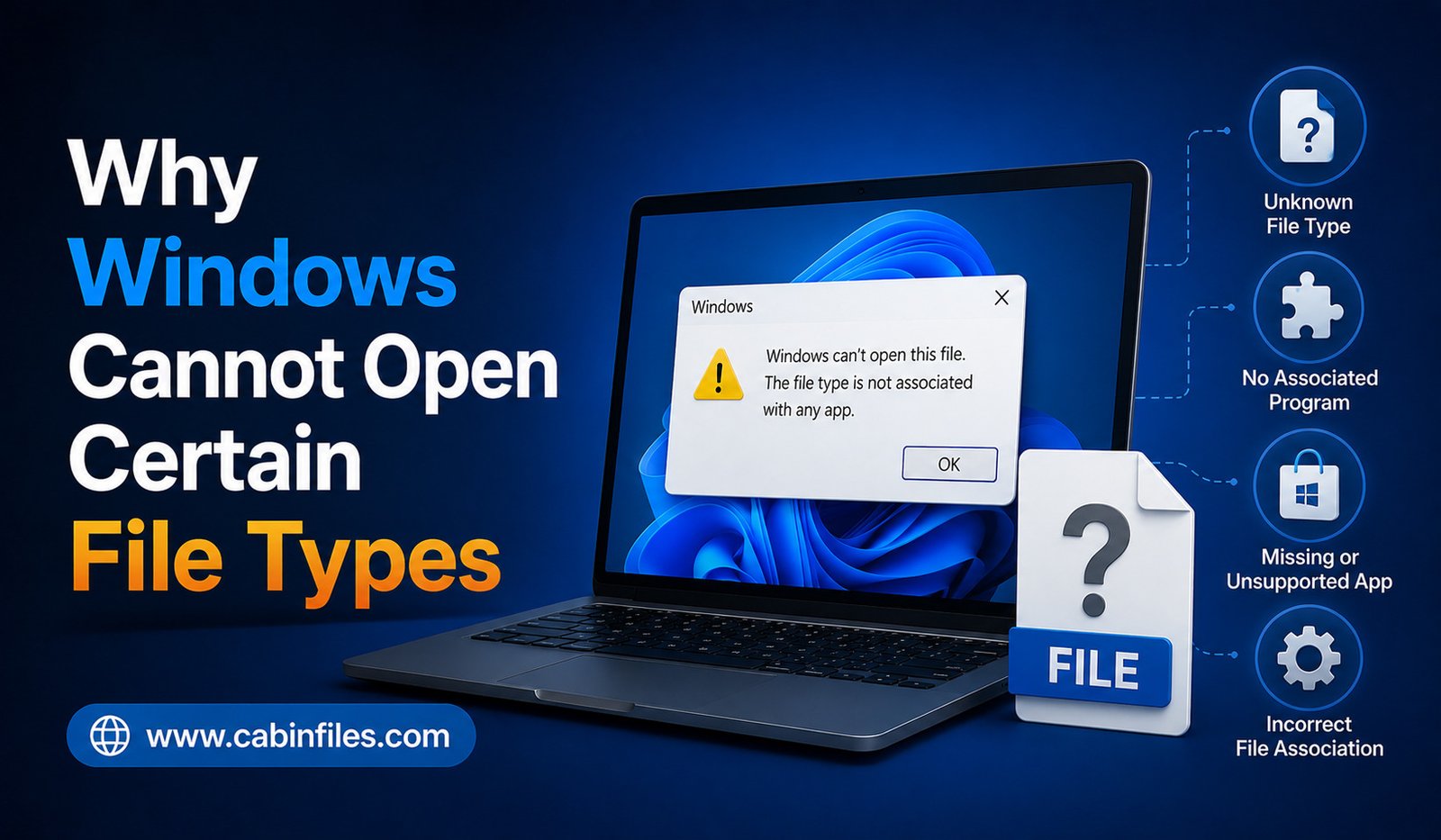
Why Windows Cannot Open Certain File Types
Have you ever double-clicked a file in Windows only to see a message saying “How do you want to open this file?” or “Windows cannot open this file”? This usually means Windows does not know which application is capable of handling the file.
Although the problem can seem complicated, there are several common reasons why Windows cannot open certain file types. The required application may not be installed, the file extension may be unfamiliar, the file could be corrupted, or the format may not be compatible with your version of Windows or the software you are using.
Understanding these causes can help you identify the right solution without downloading unnecessary or potentially unsafe software.
Windows Does Not Have a Matching Application
One of the most common reasons Windows cannot open a file is that there is no compatible application installed.
Windows uses file extensions to associate files with programs. For example, a .docx file is commonly associated with word-processing software, while .jpg files are generally associated with image viewers.
If Windows encounters an extension for which there is no registered application, it may display an error or ask you to choose a program.
This does not necessarily mean that the file is damaged. You may simply need to install software that supports the format.
The File Extension Is Unfamiliar
Some file extensions are widely recognized, while others belong to specialized applications.
You may encounter unusual extensions used by accounting programs, engineering software, games, development tools, databases, or proprietary applications.
If you do not recognize an extension, do not immediately download a random file opener.
Instead, research the extension and determine what type of file it represents. The software developer that created the format is often the best source of information.
The Correct Application Is Installed but Not Associated
Sometimes the required program is already installed, but Windows does not know that it should be used to open a particular file type.
This can happen after installing or uninstalling software, changing default applications, or updating a program.
In this situation, right-click the file and choose Open with. You can then select the appropriate application.
You can also change default applications in Windows settings so that compatible files automatically open with your preferred program.
The File May Require a Specialized Application
Some file types are designed for specific software.
For example, a professional design project may require the application that created it. A database file may need a particular database program. An engineering file may require specialized industry software.
In these situations, a general-purpose file viewer may not be enough.
If the file was sent to you by another person, ask which program they used to create it. This can often solve the mystery much faster than searching for the extension alone.
The File May Be Corrupted
Another possibility is that Windows cannot open the file because the file itself is damaged.
Files can become corrupted during downloading, copying, storage, or transfer.
For example, an interrupted download may produce an incomplete archive or document. A damaged storage device can also cause files to become unreadable.
If you know which application normally opens the file, try opening it through that application rather than double-clicking it.
Some programs also provide repair or recovery features for damaged files.
The File May Be Incomplete
An incomplete file can look perfectly normal in File Explorer while still being unusable.
This is particularly common with large downloads.
If you obtained the file from a website, consider downloading it again from the official source. If someone sent it to you, ask them to resend the original file.
Compare the file size with the size reported by the source when that information is available.
The File Format May Not Be Supported by Your Software Version
Even when you have the correct application, the software may not support the specific version of the file.
Modern applications often support older formats, but older software may not understand files created by newer versions.
This is common with specialized project files.
If you cannot open a file because of a version mismatch, check whether the developer provides a compatibility update or whether the file can be exported into an older or more widely supported format.
Windows May Be Blocking the File
Windows includes security features that can restrict files obtained from the internet or other potentially untrusted locations.
You may see a security warning when attempting to open certain downloaded files.
This does not automatically mean that the file is malicious, but you should verify the source before allowing it to run.
If you downloaded the file from a trusted developer, review its properties and security information before deciding what to do.
Never bypass a Windows security warning simply because you want the file to open.
The File Extension May Be Wrong
Sometimes a file has an incorrect extension.
A user may have renamed the file accidentally, or a program may have generated a file with an unusual naming convention.
Remember that changing a filename does not normally convert the actual file format.
For example, changing image.xyz to image.jpg does not transform the contents into a JPEG image.
If you suspect that the extension is incorrect, identify the actual format first rather than repeatedly renaming the file.
Hidden Extensions Can Cause Confusion
Windows can hide file extensions for known file types.
This can make it difficult to determine what a file actually is.
For example, what appears to be:
invoice.pdf
could potentially have a complete filename such as:
invoice.pdf.exe
if extensions are hidden.
To reduce this confusion, open File Explorer and enable View > Show > File name extensions.
Seeing the complete filename is particularly important when dealing with files received through email or downloaded from unfamiliar sources.
The File May Be an Executable or Script
Some file types can execute instructions rather than simply display information.
Examples include .exe, .msi, .bat, .cmd, and various script formats.
Windows may restrict or warn about these files because executing them can make changes to your computer.
If an unknown executable will not open, do not immediately try to bypass Windows protections.
First verify the source, scan the file with security software, and determine why the file needs to run.
Missing Dependencies Can Prevent a Program From Opening a File
Sometimes the file itself is perfectly healthy, but the application required to open it is missing a dependency.
A program might require a specific runtime, framework, library, codec, or supporting component.
This is especially common with older applications and specialized software.
If the application displays a message about a missing component, check the developer’s official documentation for the required dependency.
Avoid downloading individual system files from unknown websites.
The File Could Be Encrypted or Password Protected
Some files cannot be opened normally because they are encrypted or protected by a password.
A password-protected archive, encrypted document, or secured project file may require specific software and the correct credentials.
If you received the file from another person, ask them whether it has a password or special access requirements.
Trying random programs will not necessarily solve an encryption problem.
The File May Need to Be Extracted First
Compressed archives can contain other files inside them.
Formats such as ZIP and other archive types may need to be extracted before you can access the files they contain.
If you try to open an individual file inside an archive without properly extracting it, some applications may not function correctly.
Use a trusted archive utility that supports the specific format.
Security Software May Have Quarantined a File
If a file suddenly disappears or an application reports that a required file is missing, security software may have quarantined it.
Check your antivirus protection history to see whether the file was detected.
Do not restore a quarantined file simply because an application is complaining about it. First confirm that the software and file came from a legitimate source and investigate the detection.
How to Safely Open an Unknown File
If Windows cannot open a file, use a systematic approach.
First, identify the complete extension. Then determine where the file came from and which application created it. Research the format using reliable sources and check the developer’s documentation.
If you identify compatible software, install it only from a trusted source. Scan suspicious files before opening them and pay attention to Windows security warnings.
If the file remains unexplained or came from an untrusted source, it may be safer not to open it.
Final Thoughts
There are many reasons Windows cannot open certain file types, and the problem does not necessarily mean your computer is malfunctioning.
The required application may be missing, the file association may be incorrect, the file could be damaged, or the format may require specialized software. Version compatibility, security restrictions, missing dependencies, incorrect extensions, and encryption can also prevent a file from opening.
The safest approach is to identify the file before trying random solutions. Check its extension, source, format, and compatibility requirements. Use software from reputable sources and avoid disabling security protections simply to force an unfamiliar file to open.
Once you understand why Windows is refusing to open a particular file, finding the right solution becomes much easier and considerably safer.
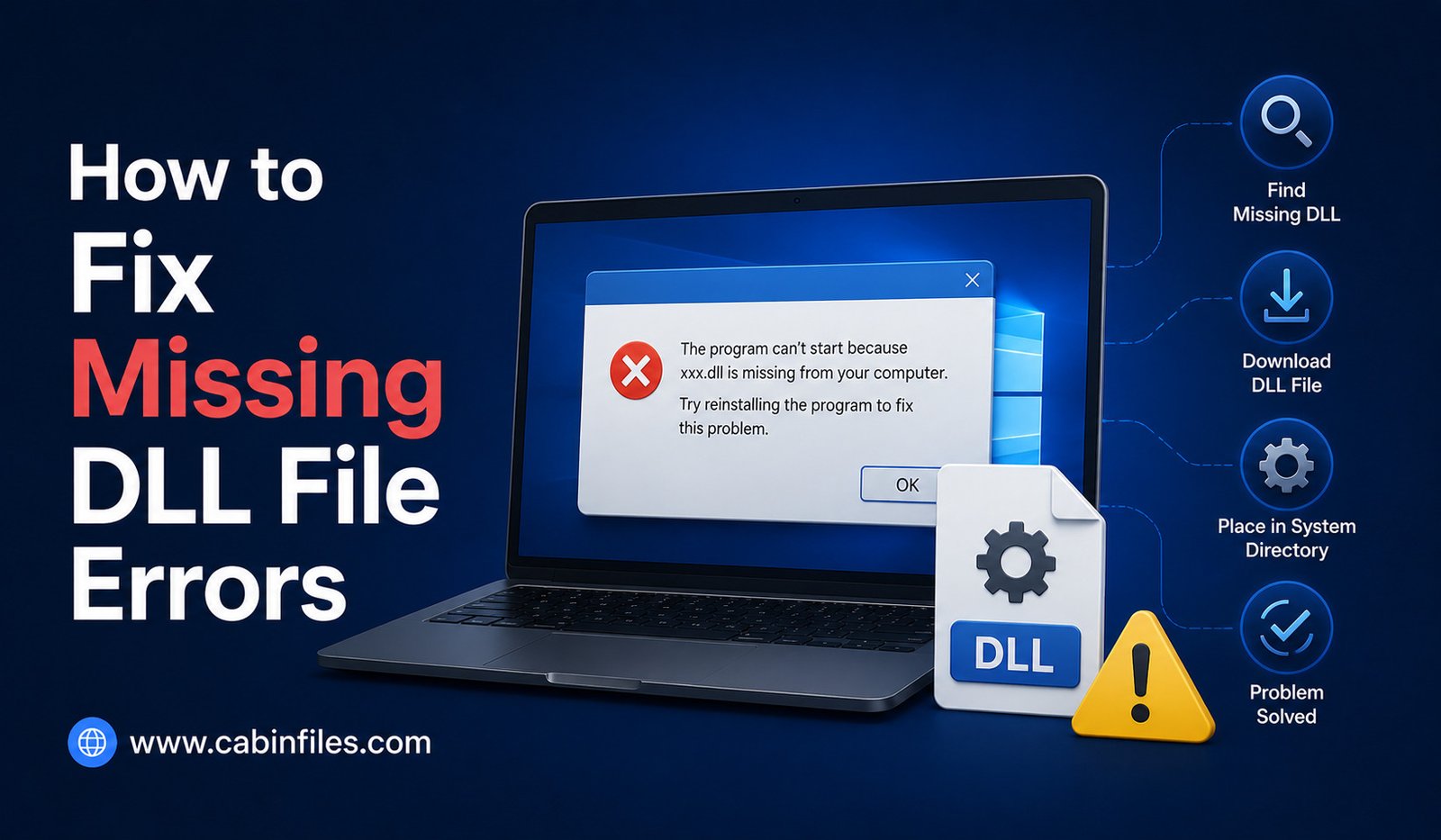
How to Fix Missing DLL File Errors in Windows
If you have ever tried to open a Windows application and received an error such as “The program can’t start because a DLL file is missing from your computer,” you are not alone. Missing DLL errors are common Windows problems that can prevent applications, games, and utilities from launching correctly.
A DLL, or Dynamic Link Library, contains code and resources that Windows programs can use. Instead of including every function inside the main application file, developers can place shared functionality in DLL files that multiple programs can access.
When a required DLL cannot be found, is damaged, or is incompatible with the application, Windows may display an error.
Fortunately, many missing DLL problems can be fixed without downloading random DLL files from the internet.
What Is a DLL File?
DLL stands for Dynamic Link Library.
A DLL file contains code, functions, resources, or other components that software applications can use while running. Multiple programs may share certain DLLs instead of storing separate copies of the same functionality.
For example, an application may depend on a particular Windows component or runtime library. If that required component is unavailable or damaged, the application may fail to start.
DLL files are commonly associated with Windows and often have the .dll file extension.
A missing DLL message may mention a specific filename, such as example.dll. However, the filename alone does not tell you why the file is missing.
Why Do Missing DLL Errors Happen?
There are several possible causes.
A DLL may have been accidentally deleted, damaged by a failed update, removed during software cleanup, or quarantined by security software.
Sometimes an application is installed incorrectly or incompletely. In other cases, the program may require a Microsoft runtime component that is not installed.
Compatibility problems can also occur when software expects a particular version of a library.
The important thing is to identify the cause instead of simply downloading a replacement DLL from an unknown website.
Restart Your Computer First
Before trying more complicated solutions, restart Windows.
A temporary system problem, incomplete update, or process that has not closed correctly can occasionally cause application errors.
After restarting, try opening the affected program again.
If the same DLL error appears, continue with the next troubleshooting steps.
Reinstall the Affected Application
If only one application is displaying the missing DLL message, reinstalling that application may be the simplest solution.
An incomplete or damaged installation can leave required files missing.
First, uninstall the affected application using Windows’ normal uninstall process. Then download the latest compatible version from the software developer’s official website and install it again.
Avoid downloading a separate DLL from an unknown website just because its filename matches the error message.
A proper application installer is designed to place the correct files and dependencies in the appropriate locations.
Check Windows Security and Antivirus Quarantine
Sometimes a security program removes or quarantines a DLL because it detects suspicious behavior.
If the error appeared immediately after an antivirus scan, update, or security event, check your security software’s protection history.
If you find that a legitimate file was incorrectly flagged, do not simply disable your antivirus protection and download another copy.
Instead, verify that the application came from a legitimate source and consult the security software’s documentation or the application’s developer for guidance.
Run Windows Update
Outdated Windows components can sometimes cause compatibility and library problems.
Open Windows Update and check whether updates are available. Installing current Windows updates can restore or update system components and resolve known compatibility issues.
After updating, restart your computer and test the application again.
You should avoid downloading system DLLs from random websites when the required component may actually be supplied through Windows Update or an official Microsoft package.
Repair Windows System Files
Windows includes built-in tools that can check and repair certain damaged system files.
One commonly used tool is System File Checker, or SFC.
To use it, open Command Prompt or Windows Terminal with administrator privileges and run:
sfc /scannow
Windows will scan protected system files and attempt to repair problems it finds.
The process may take some time. Do not close the window while the scan is running.
If SFC reports that it could not repair some files, additional Windows repair tools may be appropriate.
Use DISM When Windows Components Are Damaged
Another Windows tool called Deployment Image Servicing and Management (DISM) can help repair the Windows component store.
An administrator can run:
DISM /Online /Cleanup-Image /RestoreHealth
After DISM completes, running sfc /scannow again can be useful in some situations.
These tools are particularly relevant when the missing DLL is a Windows system component rather than a file belonging exclusively to one application.
Install the Required Microsoft Runtime
Some programs depend on Microsoft runtime packages.
For example, software created using certain versions of Microsoft Visual C++ may require a corresponding Visual C++ Redistributable package.
If an application’s documentation specifically states that a particular runtime is required, download that component from Microsoft’s official website rather than from an unofficial DLL download site.
The same principle applies to other frameworks and runtimes: identify the actual dependency and obtain it from the original developer or platform provider.
Check Whether You Installed the Correct Version
DLL problems can sometimes result from software architecture mismatches.
For example, a program may require a 64-bit component while you have installed an incompatible 32-bit version, or vice versa.
Check whether the application is designed for 32-bit or 64-bit Windows and whether the required dependency matches that architecture.
Do not randomly copy DLL files between different program folders in an attempt to fix architecture problems.
Do Not Download Random DLL Files
One of the most important rules when fixing missing DLL errors is:
Do not download individual DLL files from random websites.
Search results may lead you to websites offering downloadable copies of almost every DLL imaginable.
These files can be outdated, modified, incompatible, or malicious. Even if the downloaded DLL removes the original error, it may create a different problem later.
More importantly, a missing DLL message is often a symptom of a larger installation or dependency problem.
The safest solution is usually to reinstall the application or obtain the required runtime from its official source.
Check the Exact Error Message
Pay attention to the complete error message.
A message such as:
“The code execution cannot proceed because example.dll was not found.”
is different from an error saying:
“The procedure entry point was not found in example.dll.”
The second type can indicate that the DLL exists but does not contain the function the application expects.
This can happen when incompatible versions of a library are installed.
Therefore, copying any file with the same name may not solve the actual problem.
Consider Recent Software Changes
Think about what happened immediately before the DLL error appeared.
Did you install a new application? Remove another program? Update Windows? Install a driver? Run a system-cleaning tool?
If the error started immediately after a software change, that event may provide an important clue.
Some aggressive cleanup utilities can remove files they incorrectly identify as unnecessary. Similarly, an incomplete software update can leave an application in an inconsistent state.
Understanding what changed can make troubleshooting much faster.
Restore or Repair the Application
Some Windows applications provide a Repair option instead of requiring a complete uninstall.
If available, open Windows settings and check the application’s advanced options for Repair or Reset features.
Repairing an application can restore missing files while preserving some configuration and user data.
For third-party applications, check the developer’s support documentation for a repair option.
When Should You Use System Restore?
If a serious DLL problem appeared after a major system change, Windows System Restore may sometimes help return system configuration to an earlier state.
However, System Restore is not a universal solution and may not be available or appropriate on every computer.
Before using recovery options, make sure important personal files are backed up.
For workplace computers, consult your IT administrator before making major system changes.
Final Thoughts
Missing DLL errors can look complicated, but they are often caused by relatively straightforward problems such as incomplete installations, damaged system files, missing runtimes, outdated software, or incompatible versions.
The safest way to fix missing DLL file errors is to identify which application is affected and determine where the required DLL should come from.
Start by restarting Windows and reinstalling the affected application if appropriate. Check Windows Update, review security software alerts, and use Microsoft’s official runtime packages when a dependency is required.
For Windows system files, tools such as SFC and DISM can help repair damaged components.
Most importantly, avoid downloading individual DLL files from questionable websites. A missing DLL is often a symptom of a deeper problem, and replacing the file blindly can create additional security or compatibility issues.
With a systematic approach, many DLL errors can be resolved without risking the security or stability of your Windows computer.
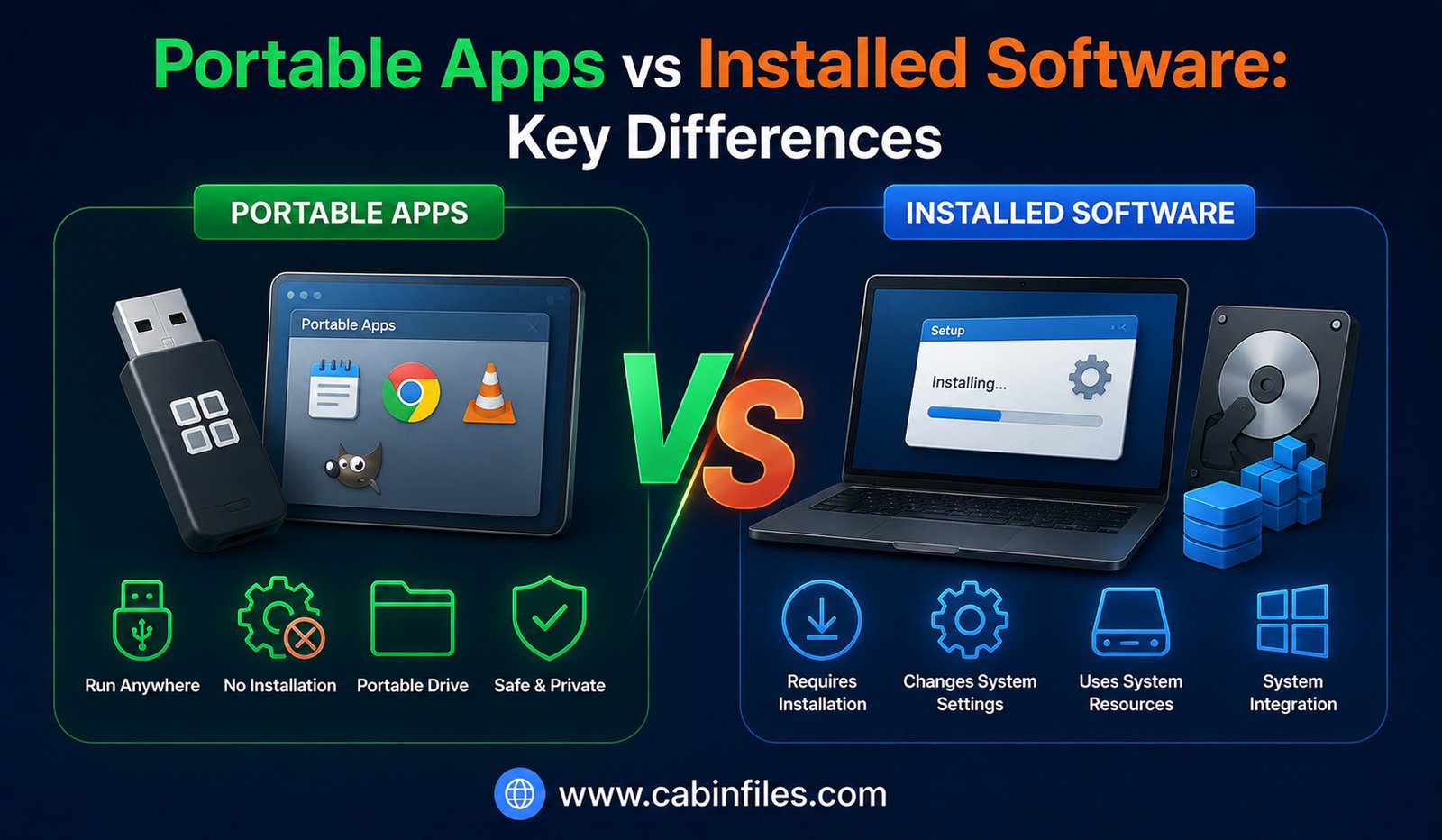
Portable Apps vs Installed Software: Key Differences
When you need to use a new application on a Windows computer, you may have two choices: install it normally or use a portable version. Both approaches can provide access to the same type of software, but the way the application is stored, configured, updated, and removed can be very different.
Traditional installed software is deeply integrated with the operating system. Portable apps, on the other hand, are designed to run from a folder or external storage with little or no conventional installation.
So, which option is better?
The answer depends on how you use the software, whether you need system integration, how frequently you switch computers, and how important easy deployment is to you. Here is a detailed look at portable apps vs installed software and the key differences you should know.
What Are Portable Apps?
Portable apps are programs designed to run without a traditional installation process.
Instead of using a setup wizard that copies files into multiple Windows directories and modifies system settings, a portable application generally keeps its executable and supporting files together in a dedicated folder.
You may download a ZIP archive, extract it, and launch the application’s executable.
Some portable apps can also be stored on a USB flash drive or external storage and used on multiple compatible computers.
However, “portable” does not mean that an application is completely independent of Windows. Some portable programs still rely on operating-system components and may create temporary files or other data outside their main folder.
What Is Installed Software?
Installed software uses a conventional installation process to integrate an application with the operating system.
When you install a typical Windows application, the installer may copy program files to specific folders, create Start Menu entries and desktop shortcuts, register file associations, add configuration information, and install supporting components.
Some applications also install background services, drivers, update tools, or other system components.
This deeper integration can provide a more complete experience, especially for applications that need to work closely with Windows.
Installation Process
The most obvious difference between the two is how they are installed.
A traditional application usually requires you to run an installer such as an EXE or MSI package. You may need to accept a license agreement, select options, choose an installation location, and allow Windows to make changes.
A portable application may simply require you to extract its files and launch the executable.
This makes portable apps attractive when you want to start using a program quickly without going through a full installation process.
Portability
As the name suggests, portability is one of the biggest advantages of portable applications.
You can often copy a portable application’s folder to another compatible computer and run it there.
This can be particularly useful if you regularly work across multiple computers or want to keep certain utilities on a USB drive.
Installed software is generally tied more closely to the computer on which it was installed. Moving it to another computer normally requires another installation.
However, portable applications are not guaranteed to work everywhere. The destination computer still needs to meet the application’s operating-system and hardware requirements.
System Integration
Installed applications usually have an advantage when it comes to Windows integration.
For example, an installed application can register itself as the default program for a particular file type. It can create Start Menu shortcuts, add context-menu options, install system services, or integrate with other Windows features.
Portable apps generally avoid many of these changes.
This can be beneficial if you want to keep your system uncluttered, but it can also mean that the application feels less integrated into Windows.
Storage and File Organization
Portable software typically keeps most of its files together in one folder.
This makes it easier to copy, back up, or remove the application.
Installed software may distribute files across multiple locations, including program directories, user profile folders, temporary directories, and system configuration areas.
This is not necessarily a disadvantage. The additional files may be required for proper operation, automatic updates, shared components, or Windows integration.
The key difference is that portable applications generally aim for a self-contained structure.
Updates
Installed software often provides a smoother update experience.
Many modern applications include automatic update systems that periodically check for new versions and install them with minimal user involvement.
Portable apps may or may not support automatic updates. In many cases, users need to download a newer version manually and replace the old application files.
This can be less convenient if the software receives frequent security or feature updates.
For applications that must remain continuously updated, the traditional installed version may be the better choice.
Uninstallation
Removing installed software normally involves using Windows’ installed-app settings or the application’s uninstaller.
The uninstallation process attempts to remove the files and system components associated with the application.
Portable apps often do not have a traditional uninstaller. You may simply close the program and delete its folder.
However, portable software is not guaranteed to leave absolutely no traces. Some programs may create temporary files, caches, logs, or other information elsewhere on the computer.
Therefore, portable does not always mean “zero traces.”
Administrator Permissions
Portable applications can sometimes be useful when you do not have administrator access.
If the application does not need to modify protected system areas, it may run under a standard Windows user account.
Traditional software installation often requires administrator approval because the installer may need to write to protected directories or make system-level changes.
However, portability does not automatically eliminate permission requirements. A portable application that needs drivers, services, or restricted system resources may still require elevated permissions.
Performance
There is no universal rule that portable applications are faster or slower than installed applications.
If both versions contain essentially the same program code, their basic performance may be very similar.
However, portable applications running from slow external storage can feel less responsive than applications installed on a fast internal SSD.
Performance also depends on the software itself, the computer’s hardware, and how the application reads and writes data.
The portable format alone does not determine application speed.
Security
Neither portable nor installed software is automatically safer.
Both types can contain legitimate software or malware.
The biggest security factor is where the software came from and whether the application is trustworthy.
Download software from official developer websites or reputable sources. Keep security software enabled and scan unfamiliar applications before running them.
Be especially careful with modified or pirated portable applications. Because portable programs can often be launched without a traditional installation process, users may mistakenly assume they are inherently safer.
They are not.
Privacy
Portable applications can sometimes provide privacy advantages because they may keep configuration and user data inside their own folder.
This can make it easier to carry a customized environment between computers.
However, not every portable application behaves this way. Some applications still create temporary files, cache data, or use Windows user directories.
If privacy is important, check the application’s documentation to understand where it stores information.
Also remember that carrying software and personal data on a USB drive creates another security consideration: the drive itself can be lost or stolen.
Software Dependencies
Installed applications can use system-wide components and dependencies that are installed during setup.
Portable applications often attempt to include the components they need in their own directory or rely on components already available in Windows.
However, some applications cannot realistically be made fully portable. Programs requiring hardware drivers, Windows services, system integrations, or specialized runtimes may need traditional installation.
This is one reason why professional software and system utilities often work better as conventional installations.
Portable Apps vs Installed Software: Which Is Better?
There is no universal winner.
Portable apps are generally better when you want:
- Easy deployment without traditional installation
- Software that can be moved between compatible computers
- A self-contained application folder
- Temporary use of a program
- Convenient utilities stored on external media
Installed software is generally better when you need:
- Deep Windows integration
- Automatic updates
- File associations and system shortcuts
- Background services or drivers
- Advanced system-level functionality
- A more traditional user experience
Your choice should depend on what the application needs to do rather than simply choosing one format for everything.
When Should You Choose a Portable App?
A portable application can be a good option when you need a utility temporarily or want to carry the same application between several compatible computers.
For example, a technician might keep certain troubleshooting tools on a USB drive. A user might also prefer portable software for lightweight utilities that do not need deep Windows integration.
Portable apps can be especially convenient for testing a program before deciding whether you want a permanent installation.
When Should You Choose Installed Software?
Traditional installation is usually preferable for applications you use every day and those that require operating-system integration.
Office suites, professional creative applications, development environments, security tools, drivers, and other complex software often benefit from conventional installation.
Installed software is also generally more convenient when automatic updates and system integration are important.
Final Thoughts
The debate between portable apps vs installed software is not really about which format is universally better. It is about choosing the approach that matches your needs.
Portable apps offer convenience, flexibility, and easy movement between compatible computers. They can be useful for temporary applications and lightweight utilities.
Installed software provides stronger Windows integration, easier automated updates, and support for applications that need system-level components.
For simple utilities, portable software can be an excellent choice. For applications that need regular updates, deep system integration, or additional components, traditional installation is usually more practical.
Whichever option you choose, download software from trusted sources and keep your security protections enabled. The most important decision is not simply whether an application is portable or installed—it is whether the software is legitimate, compatible, and appropriate for your needs.
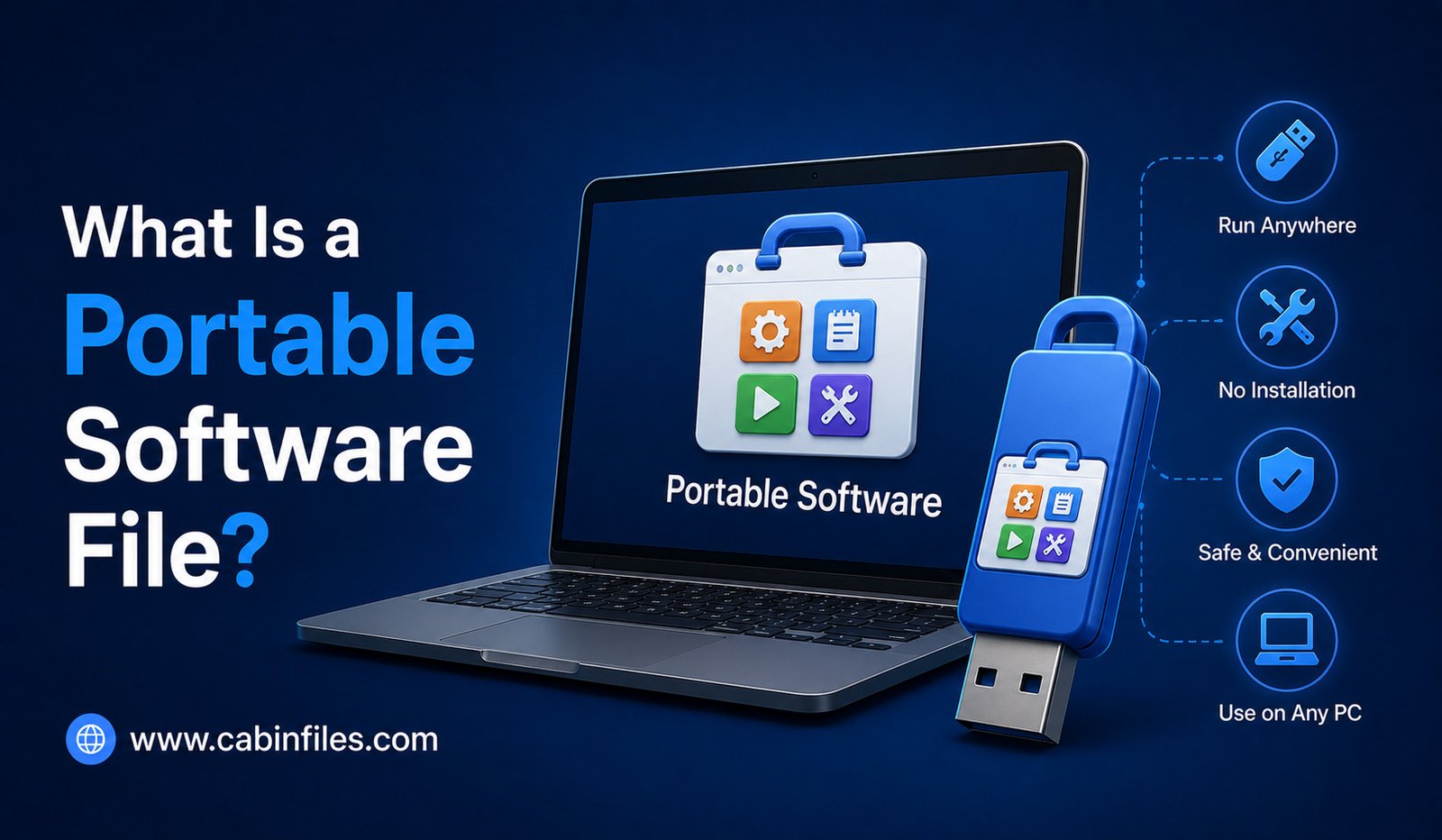
What Is a Portable Software File? A Complete Guide for Beginners
If you have ever downloaded a Windows application and noticed that it runs without going through a traditional installation process, you may have encountered portable software. Unlike conventional programs that install files across your computer and make changes to Windows settings, portable applications can often run directly from a folder, USB drive, or external storage device.
But what exactly is a portable software file, how does it work, and when should you use one?
Understanding portable software can help you choose convenient applications while also knowing the limitations and security considerations involved.
What Is a Portable Software File?
A portable software file is a program designed to run without requiring a traditional installation process on the computer.
In many cases, portable software is distributed as an executable file, such as an .exe, along with supporting files stored in the same folder. You can download the application, extract it if necessary, and launch it without using a conventional setup wizard.
The term “portable” refers to the ability to move the application between compatible computers while keeping the program’s required files together.
For example, you might keep a portable utility on a USB drive and run it on different Windows computers without installing it on each machine.
However, portability is not absolute. Some applications still depend on specific Windows components, permissions, drivers, or hardware features.
How Does Portable Software Work?
Traditional software installation typically places files in several locations on your computer. It may create shortcuts, add registry entries, install services, configure file associations, and store application data in system or user folders.
Portable applications are generally designed to minimize these installation requirements.
A portable application may keep its executable, configuration files, libraries, and other resources inside one main folder. When you launch the program, it reads the required files from that location.
Some portable applications store settings in files alongside the program instead of placing them in the Windows registry or user profile.
This makes the application easier to move, back up, or remove.
However, not every portable application works exactly this way. Some programs may still create temporary files or store information elsewhere on the computer.
Portable Software vs Installed Software
The biggest difference between portable and traditionally installed software is the way the application is deployed.
An installed application normally uses a setup process that integrates the program with Windows. The installer may create shortcuts, register file associations, install dependencies, and configure other components.
Portable software generally attempts to work without this traditional installation process.
For example, with a conventional application, you might download setup.exe, run the installer, choose a folder, and wait for the installation to complete.
With a portable application, you might download an archive, extract it, and launch the program’s executable directly.
This difference can make portable software particularly convenient for temporary use or situations where you do not have permission to install applications.
Can You Run Portable Software From a USB Drive?
Yes, many portable applications can be stored and run from a USB flash drive.
You could keep a collection of useful utilities on a USB drive and use them on compatible computers.
This can be helpful when traveling, working across multiple computers, or maintaining systems without wanting to install every utility permanently.
However, running software from a USB drive can be slower than running it from an internal SSD, particularly when the application frequently reads and writes data.
USB drives can also be lost or damaged, so important application settings or personal data should be backed up.
Advantages of Portable Software
One major advantage of portable software is convenience.
You can often download or extract the application and start using it without going through a lengthy installation process. This can save time when you only need the software temporarily.
Portable applications can also make it easier to move software between computers. Instead of reinstalling and configuring the application from scratch, you may simply copy its folder to another compatible computer.
Another benefit is easier removal. In many cases, you can stop using a portable application by deleting its folder. However, you should not assume that every portable application leaves absolutely no traces behind.
Portable software can also be useful when you do not have administrator privileges. If the application does not require system-level changes, it may run under a standard user account.
Limitations of Portable Software
Portable applications are not perfect.
Some software simply cannot be made fully portable because it requires drivers, Windows services, system-level components, or deep operating-system integration.
Professional applications, hardware utilities, security tools, and some business software often require traditional installation.
Portable software may also have limited automatic update functionality. You may need to manually download newer versions and replace the existing files.
Another issue is configuration. If an application stores settings locally, copying the application folder may also copy personal preferences or cached information. This can be convenient but may also expose private data if the folder is shared.
Is Portable Software Safe?
Portable software is not automatically safer simply because it does not require installation.
A portable application can still contain malware, spyware, or other unwanted software. The executable can perform many of the same actions as a traditionally installed program when you run it.
The most important factor is where the software came from.
Download portable applications from the official developer or a reputable distribution source. Be cautious about modified versions, pirated software, and unknown websites offering supposedly portable copies of commercial applications.
Before running unfamiliar portable software, scan it with updated security software.
Does Portable Software Leave Files Behind?
The word “portable” can sometimes create the impression that an application leaves absolutely no trace on a computer.
That is not always true.
A portable program may create temporary files, cache data, logs, recent-file entries, or other information. Some applications may also use Windows system locations even though they do not require a traditional installer.
If privacy is important, check the application’s documentation to understand where it stores configuration and temporary data.
Portable does not necessarily mean completely invisible.
Portable EXE Files and ZIP Archives
Portable applications are commonly distributed in two forms.
One possibility is a standalone executable that can be launched directly.
Another is a compressed archive, such as a ZIP file, containing the executable and supporting files.
For example, you might download:
application-portable.zip
After extracting it, you may find a folder containing an executable and several supporting files.
The ZIP file itself is not the application. It is simply a container holding the files needed by the portable program.
Portable Software and Windows Permissions
One reason portable applications can be convenient is that some do not require administrator privileges.
If a program only needs access to your user account and its own files, Windows may allow it to run without requesting administrator approval.
However, this depends on the application.
A portable program that needs to install drivers, modify protected system settings, create system services, or access restricted resources may still require elevated permissions.
Never assume that a portable application is automatically allowed to do everything without Windows security restrictions.
When Should You Use Portable Software?
Portable software can be a good choice when you need a lightweight application temporarily, frequently switch between computers, or want to test a program without performing a traditional installation.
It can also be useful for troubleshooting and technical work, particularly when certain utilities are needed on multiple machines.
For everyday applications that require automatic updates, deep Windows integration, cloud synchronization, background services, or system-level features, a traditional installation may be more appropriate.
How to Use Portable Software Safely
The safest approach is to treat portable applications just like installed software from a security perspective.
Download them from trusted sources. Check the publisher and release version. Scan unfamiliar files before launching them, and keep Windows security features enabled.
If you store portable applications on a USB drive, protect the drive from unauthorized access and keep backup copies of important configuration files.
Avoid running unknown portable executables simply because they do not require installation.
Final Thoughts
So, what is a portable software file?
It is a program designed to run with little or no traditional installation, often by keeping its executable and supporting files together in a portable folder. Depending on the application, you may be able to run it directly from your computer, USB drive, or external storage.
Portable software offers convenience, flexibility, and easier deployment, but it is not completely independent of the operating system. Some applications still require specific Windows components, permissions, or system resources.
Most importantly, portability does not automatically make software safe. Always verify the source and scan unfamiliar applications before running them.
For users who want convenient tools without repeatedly installing software, portable applications can be a practical solution—provided their limitations and security risks are understood.
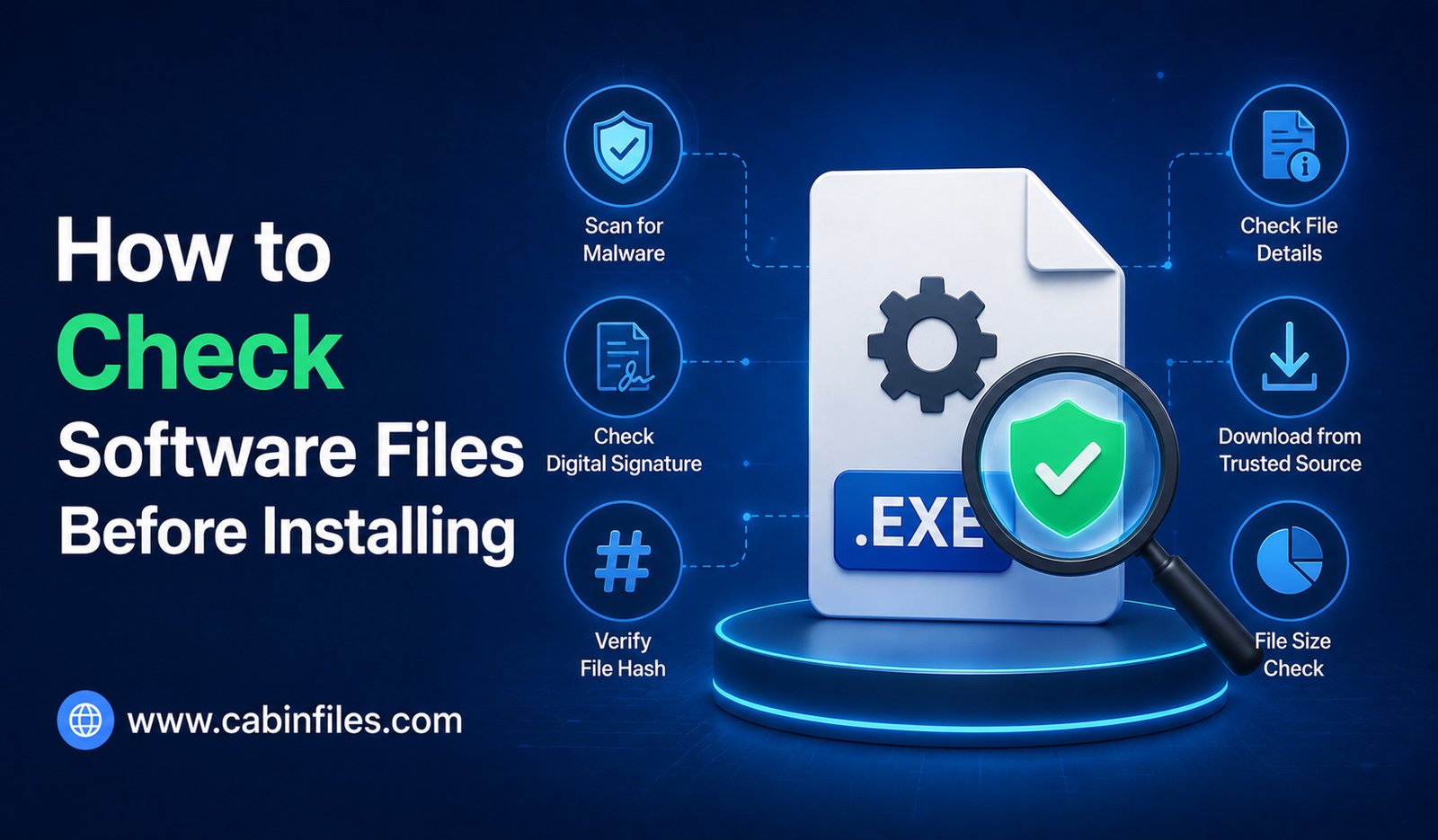
How to Check Software Files Before Installing
Downloading software has become a normal part of using a computer, but clicking an installer without checking it first can create unnecessary security risks. A file may look legitimate while containing malware, unwanted programs, outdated components, or even a fake version of the software you intended to install.
The good news is that you do not need to be a cybersecurity expert to perform basic checks. By verifying where a file came from, checking its digital signature, scanning it for threats, and understanding what the installer is asking you to do, you can significantly reduce the risk of installing something harmful.
This guide explains how to check software files before installing them on a Windows computer and what warning signs you should look for.
Download Software From a Trusted Source
The first security check should happen before the file even reaches your computer.
Whenever possible, download software directly from the official website of the developer or publisher. If the application is distributed through a reputable app store or software platform, use the verified listing rather than an unknown download page.
Be cautious with websites offering modified, cracked, pirated, or “premium unlocked” software. These files may contain malicious code or unwanted programs.
A familiar application name does not guarantee that the installer is genuine. Attackers can create websites and files designed to look almost identical to legitimate software.
Check the Complete File Name
Before running an installer, examine its complete filename.
Windows may hide file extensions by default, so enable File name extensions in File Explorer under View > Show.
This lets you see whether the file is actually an executable installer.
For example, a filename such as:
software-update.exe
is clearly an executable file.
Be particularly cautious about deceptive names such as:
document.pdf.exe
The file is an executable because the final extension is .exe, even though the filename is designed to make it appear like a PDF.
Check the File Location
Where the installer is stored can also provide useful information.
A file downloaded from your browser’s normal Downloads folder is not automatically safe, but it gives you context about where the file came from.
Be more cautious if an unfamiliar installer suddenly appears in a temporary folder, email attachment directory, removable drive, or another unexpected location.
If you do not remember downloading the file, investigate its origin before opening it.
Scan the File With Security Software
One of the easiest steps is to scan the installer using your computer’s security software.
Windows includes built-in security features that can scan suspicious files for known threats. Updated antivirus software can detect many forms of malware and potentially unwanted software.
Do not ignore security warnings simply because the installer looks professional.
At the same time, remember that a clean scan is not an absolute guarantee that a file is safe. New or sophisticated threats may not immediately be detected.
Security scanning should therefore be treated as one layer of protection rather than the only check.
Check the Digital Signature
A digital signature can help you determine whether an executable was signed by a particular publisher and whether the file has been altered after signing.
To check a Windows executable, right-click the file, select Properties, and look for a Digital Signatures tab when available.
A valid signature from the expected software publisher can provide useful evidence about the file’s authenticity.
However, a digital signature does not automatically mean the software is safe. A legitimate publisher could sign software that later develops a vulnerability, and a malicious developer could potentially sign its own software.
Use the signature as one part of your overall verification process.
Compare the Publisher With the Developer
When checking a digital signature or installer information, compare the publisher name with the company that supposedly created the application.
If you downloaded a well-known application but the installer is signed by an unrelated organization, stop and investigate.
Likewise, be cautious when a supposedly official installer has no recognizable publisher information.
Small independent developers may legitimately use different legal or signing names, so an unfamiliar publisher is not automatically malicious. It simply deserves additional verification.
Check the File Size
File size can sometimes provide another useful clue.
If the official developer says an installer should be several hundred megabytes but your downloaded file is only a few kilobytes, something may be wrong.
However, file size alone cannot prove whether an installer is safe. Different versions, architectures, compression methods, and online installers can have very different sizes.
Use size as a supporting clue rather than a security test.
Verify a Checksum or Hash When Available
Some software developers publish a cryptographic hash for their downloadable files.
A hash is a unique-looking string generated from the contents of a file. If the downloaded file produces the same hash as the value published by the developer, you have stronger evidence that the file has not been modified or corrupted.
Common hash algorithms include SHA-256.
You can calculate a file’s hash using Windows tools or reputable verification utilities and compare the result with the developer’s official value.
This method is especially useful for software distributed through mirrors or other download locations.
Read the Installation Options Carefully
Even a legitimate installer can attempt to install more than you expected.
During setup, pay attention to each screen instead of repeatedly clicking Next.
Some installers may offer optional browser extensions, additional utilities, background services, or other components.
Read the available options and deselect anything you do not need.
Be particularly cautious if an installer tries to change your browser settings, install unrelated software, or enable features that were not part of your original request.
Watch for Suspicious Permission Requests
Software often needs permissions to install correctly, so a permission request is not automatically suspicious.
However, consider whether the requested access makes sense.
For example, a simple media player may reasonably need access to files and system components required for installation. A small utility requesting unusual permissions or attempting to modify unrelated settings deserves closer inspection.
If an installer requests administrator access, verify that you trust the software and downloaded it from a legitimate source before approving the request.
Check the Developer’s Website for Warnings
Before installing unfamiliar software, visit the developer’s official website.
Look for download instructions, security announcements, release notes, supported versions, and known issues.
If users have reported fake installers or malicious copies circulating online, the developer may publish warnings about them.
This is another reason official sources are valuable: you can compare the file you downloaded with the version the developer actually distributes.
Be Careful With Email Attachments
Unexpected software installers sent through email deserve extra caution.
A message may claim that an attached executable is an invoice viewer, security update, document reader, or other useful program. However, opening the attachment could execute malicious code.
If someone sends you software unexpectedly, verify it through another trusted communication method.
Do not rely solely on the email address or appearance of the message because attackers can impersonate legitimate organizations.
Be Suspicious of Urgency and Pressure
Scammers often use urgency to encourage users to install software without thinking.
Messages such as “install this update immediately,” “your computer is infected,” or “you must open this file now” should make you slow down rather than click faster.
Legitimate software updates can be important, but you should still obtain them through the application’s official update mechanism or developer website.
Never allow fear or urgency to override basic security checks.
Avoid Disabling Security Features to Install a File
One of the biggest warning signs is an installer that tells you to disable Windows security or antivirus protection before proceeding.
There can be legitimate troubleshooting situations where security software causes compatibility problems, but ordinary users should not casually disable protection for an unknown installer.
If a trusted application is being blocked, investigate the specific detection and consult the developer’s documentation.
If an unknown website tells you to turn off security protections so its software can run, consider that a major warning sign.
What If the File Looks Suspicious?
You do not have to install every file you download.
If you cannot verify the source, the publisher, or the purpose of the software, leave the file unopened.
If the file came from an unexpected message or suspicious website, deleting it may be the safest option.
For highly suspicious files that need to be investigated, security professionals can use isolated analysis environments. Ordinary users should avoid experimenting with suspicious executables on their primary computer.
A Simple Pre-Installation Security Checklist
Before installing software, ask yourself a few basic questions:
Did I download it from the official developer or another trusted source?
Do I recognize the complete filename and extension?
Has the file been scanned for malware?
Does the publisher or digital signature match expectations?
Does the file size and version make sense?
Does the installer request permissions that are reasonable?
Are there optional components I should decline?
Does the developer provide a checksum or other verification method?
If the answers look reasonable, the software is more likely to be legitimate. If several answers raise concerns, investigate further before continuing.
Final Thoughts
Learning how to check software files before installing is one of the simplest ways to improve computer security.
Start with the source. Download software from trusted developers, inspect the complete filename, scan the installer, check digital signatures when available, and verify hashes when the developer provides them.
During installation, read the options carefully and pay attention to unexpected permissions, bundled applications, and requests to disable security tools.
No single check can guarantee that an installer is completely safe. However, combining several basic checks makes it much harder for suspicious software to slip onto your computer unnoticed.
The most important habit is simple: do not install software just because you downloaded it. Verify it first.
Why Some Software Files Fail to Install
Installing software on a computer usually seems simple. You download an installer, open it, follow a few instructions, and wait for the application to finish installing. However, sometimes the process stops unexpectedly with an error message, freezes halfway through, or refuses to start at all.
If you have experienced this, you may wonder why some software files fail to install even when the download appears complete. The problem can have several causes, including incompatible operating systems, corrupted downloads, insufficient storage, missing permissions, security software, damaged installer files, or conflicts with existing applications.
Understanding these common causes can make troubleshooting much easier. Instead of repeatedly downloading the same installer, you can identify the underlying problem and choose the appropriate solution.
The Installer File May Be Corrupted
One of the most common reasons software fails to install is a corrupted or incomplete installer.
When you download an installer, the file must be transferred correctly from the server to your computer. If the connection is interrupted or the download is incomplete, the resulting file may not contain everything required for installation.
You might be able to open the file, but the installation could stop halfway through or display an error.
If you suspect a corrupted download, delete the existing installer and download it again from the software developer’s official website. Avoid repeatedly using a file that has already produced errors.
For important software, some developers also provide checksums or hashes that can be used to verify whether the downloaded file matches the original.
Your Operating System May Not Be Compatible
Software is usually designed for specific operating systems and versions.
A program created for Windows may not install directly on macOS or Linux. Similarly, an application designed for a newer version of Windows may have compatibility problems on an older system.
Architecture can also matter. Some applications are designed for 64-bit systems, while others may support older 32-bit environments.
Before installing software, check the developer’s system requirements. Confirm the supported operating system, processor architecture, minimum memory, available storage, and other requirements.
Trying to force incompatible software to install can lead to errors or unstable behavior.
You May Not Have Enough Storage Space
Software installations often require more storage than the size of the downloaded installer.
For example, an installer might be a few hundred megabytes but require several gigabytes of free space after the application is unpacked and installed.
Temporary installation files can also consume additional storage.
If your drive is almost full, the installer may fail even though the download itself completed successfully.
Check the available storage on your system drive before attempting the installation again. Removing unnecessary files or moving large personal files to another location may provide enough space.
Administrator Permissions Can Cause Problems
Some software needs permission to make changes to Windows system folders, install services, modify registry settings, or configure other system components.
If your account does not have sufficient permissions, installation may fail.
Windows may display a User Account Control prompt asking whether you want to allow the installer to make changes. If the installer is legitimate and you trust its source, following the appropriate permission prompts may allow the installation to continue.
In managed workplace computers, administrators may intentionally restrict software installation. In that situation, you may need assistance from your organization’s IT administrator rather than trying to bypass the restrictions.
Antivirus Software Can Block an Installer
Security software is designed to prevent potentially dangerous programs from running. Sometimes it may block an installer because the file appears suspicious, has unusual behavior, or matches a known threat.
This does not necessarily mean the installer is malicious. Security software can occasionally produce false positives.
However, you should not immediately disable your antivirus protection just because an installer is blocked.
First verify that you downloaded the installer from the official developer and that the file is legitimate. Check whether the developer has published information about the detection or provides a digitally signed installer.
If security software continues to block a suspicious file, it is safer to investigate the issue than to disable your protection.
The Installer May Require Additional Components
Some applications depend on other software components.
An application might require a particular runtime, framework, driver, system library, or supporting service before it can install or operate correctly.
Well-designed installers may detect and install required components automatically. Others may expect you to install them separately.
If an installer reports that a dependency is missing, check the developer’s official documentation for the required component and supported version.
Avoid downloading system components from random websites. Use official sources whenever possible.
Another Version of the Software Is Already Installed
Installation problems can occur when an older or newer version of the same application is already present.
Some installers can automatically upgrade an existing installation, while others expect you to remove the previous version first.
Conflicts can also occur when remnants of an earlier installation remain on the computer after an incomplete uninstall.
If the software is already installed, check whether the developer recommends upgrading, repairing, or uninstalling the existing version before installing again.
Do not manually delete program folders or registry entries unless you understand exactly what you are doing or the developer specifically recommends it.
The Installer Itself May Have a Problem
Sometimes the issue is not your computer at all.
A developer may accidentally release an installer containing a bug, incorrect configuration, missing dependency, or compatibility problem.
This can happen especially with newly released software or applications that have not been thoroughly tested across different Windows configurations.
If other users are reporting the same installation error, the developer may already be working on a fix.
Check the software’s official support page, release notes, documentation, or known-issues section before spending hours troubleshooting your computer.
Internet Connection Problems
Some installers are not completely self-contained.
Instead of including every required component, they download additional files during installation. These are sometimes called web installers or online installers.
If your internet connection is unstable, restricted, or interrupted, the installer may fail while downloading the required components.
Corporate networks can also block certain downloads or connections used by installers.
If the developer offers a complete offline installer, it may be useful when network-related problems are suspected.
File Paths and Special Characters Can Sometimes Matter
Certain older installers can have problems with unusual folder paths, permissions, or special characters.
For example, an installer might behave differently when launched from a deeply nested folder or a location with unusual characters.
This is not a problem with most modern software, but it can occur with older or poorly designed installers.
If an installer fails unexpectedly, moving the installer to a simple local folder and trying again can sometimes help. However, do not move system files or modify protected folders simply as an experiment.
Windows or System Components May Need Updating
An outdated operating system can cause compatibility problems.
Software developers often build applications against newer system components and security libraries. If your Windows installation is significantly outdated, the installer may fail because required functionality is unavailable.
Check for available Windows updates and install legitimate updates before trying again.
Also make sure the required drivers or runtime components are supported by the application.
The File May Not Actually Be an Installer
Not every file downloaded from a software website is an installer.
You might download a portable application, compressed archive, documentation file, update package, or another component instead.
For example, a .zip file may contain the program files but not include a traditional installation wizard.
Before troubleshooting an installation failure, confirm that you actually downloaded the correct package for your operating system.
Malware Can Also Be a Cause
A suspicious software installer can fail because it is incomplete, damaged, blocked by security software, or intentionally designed to behave unpredictably.
Malicious software can also disguise itself as legitimate installation software.
This is why downloading applications from unofficial sources can be risky. Avoid pirated applications, modified installers, unknown “cracked” software, and suspicious download links.
If an installer unexpectedly asks you to disable security software, provide unusual permissions, or install unrelated programs, stop and investigate before continuing.
A Practical Way to Troubleshoot Installation Problems
When software refuses to install, start with the basics.
Confirm that the installer came from a trustworthy source. Check that your operating system meets the developer’s requirements and that you have enough free storage. Make sure you downloaded the correct version and that the file is not corrupted.
Then check the exact error message. Search the wording using the software’s name and look for solutions in the developer’s official documentation or support channels.
Avoid changing multiple system settings at once. If you make several changes simultaneously, it becomes harder to determine what actually solved the problem.
Final Thoughts
There are many reasons why software files fail to install, and the problem is not always caused by a faulty computer.
A corrupted download, incompatible operating system, lack of storage, missing permissions, security software, outdated components, conflicting software, or a defective installer can all prevent successful installation.
The safest approach is to troubleshoot systematically. Start by verifying the source and integrity of the installer, check the software’s system requirements, review available storage and permissions, and carefully examine any error message.
Most importantly, avoid risky shortcuts such as disabling security software or downloading unknown replacement installers. A few minutes of careful troubleshooting can often identify the real problem while keeping your computer secure.
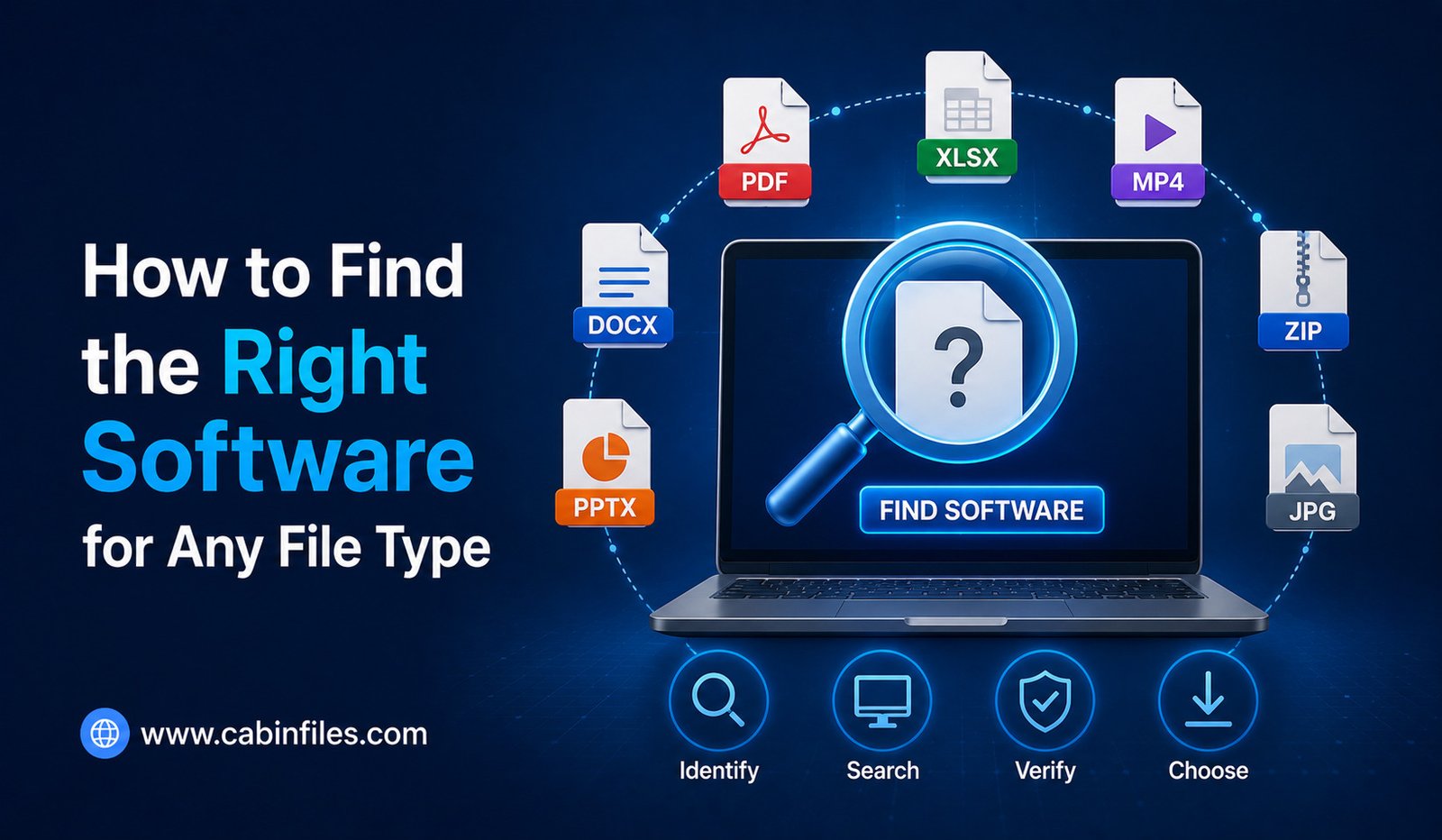
How to Find the Right Software for Any File Type
Finding an unfamiliar file on your computer can be confusing, especially when Windows does not know which application should open it. You might see an unusual extension such as .dat, .bin, .cfg, .bak, or a specialized format created by professional software. The natural question is: Which program should I use to open this file?
The good news is that you rarely need to guess. By identifying the file extension, checking its origin, understanding how the format is used, and choosing trusted software, you can usually determine the right application without putting your computer at unnecessary risk.
This guide explains how to find the right software for any file type, including unknown extensions, files without extensions, specialized formats, and files that Windows cannot open.
Start by Identifying the File Extension
The file extension is usually the fastest way to determine what type of file you are dealing with.
It appears at the end of a filename after the final period. For example, a Word document may end with .docx, an image may use .png, a video may use .mp4, and a compressed archive may use .zip.
Windows can sometimes hide known file extensions. To see them, open File Explorer and go to View > Show > File name extensions.
Once extensions are visible, you can see the complete filename and begin researching the format.
However, remember that an extension is only a clue. It does not guarantee that the file is legitimate or that its contents actually match the extension.
Find Out Where the File Came From
The file’s origin can provide valuable information about which software you need.
For example, if you received a file from a graphic designer, it may have been created using a design application. A file generated by an accounting platform may require that particular accounting software. A file inside a game’s installation folder may be a proprietary data file that users are not expected to open manually.
Think about the circumstances in which the file appeared.
Was it downloaded from a website? Was it created by an application you already use? Did someone send it to you? Did it appear after installing a new program?
Knowing the source can often narrow down the possible applications significantly.
Search the Exact File Extension
If you do not recognize the extension, search for it online.
Use a query such as:
“What is .xyz file?”
or
“.xyz file extension software”
Look for reliable sources that explain the format and identify applications capable of opening it.
The best information often comes from the developer that created the format. Technical documentation, official support pages, and established software resources can help you understand whether the file is a document, media file, archive, configuration file, executable component, or something else.
Avoid immediately downloading the first application that appears in search results.
Use Windows’ Open With Feature
Windows includes an Open with option that can help you find compatible applications already installed on your computer.
Right-click the file and select Open with. Windows may display applications that can potentially handle the file.
If the correct application is already installed, selecting it may solve the problem immediately.
However, Windows’ suggestions are not always perfect. An application appearing in the list does not necessarily mean it fully supports the format.
If no suitable program appears, research the file type before installing anything new.
Check the Software Developer’s Website
For specialized formats, the original software developer is usually the most reliable source.
Suppose you have a file created by a professional design, engineering, video-editing, accounting, or database application. Visit the developer’s official website and search for the extension.
The documentation may tell you exactly which application and version are required.
It may also explain whether the file can be opened with a free viewer, exported to another format, or converted using a separate utility.
This is safer and more reliable than downloading an unknown “file opener” from a third-party website.
Decide Whether You Need a Viewer or an Editor
Finding the right software also depends on what you want to do with the file.
If you only need to view a document, image, video, or design, you may not need the full professional application. A dedicated viewer may be enough.
If you need to modify the contents, however, you may require the original application or a compatible editor.
For example, a specialized project file may open in a free viewer but require paid software for editing.
Understanding this difference can save money and prevent you from installing unnecessarily large applications.
Check Compatibility With Your Operating System
Before downloading software, confirm that it supports your operating system.
A file may be designed for Windows, macOS, Linux, Android, or another platform. Even when software exists for multiple platforms, the supported file formats may differ.
You should also check whether the software supports your version of the operating system.
Some older applications may not work properly on modern systems, while newer applications may no longer support older versions of Windows or other platforms.
Pay Attention to Software Versions
File compatibility can also depend on the version of the application.
A project created in a newer version of a program may not open correctly in an older release. Conversely, many modern applications maintain compatibility with older file formats.
If you are working with a specialized file, check the developer’s compatibility documentation.
Sometimes the creator can save or export the file in an older format so that users with previous software versions can open it.
Do Not Trust Every “Universal File Opener”
You may encounter websites or applications claiming to open almost every possible file format.
Be cautious with these tools.
There is no single application that can properly understand every file format ever created. Many specialized formats require specific software because they contain proprietary data or application-specific information.
Some unknown file-opening programs may also include unwanted software or aggressive advertising.
Instead of searching for a universal opener, identify the actual format and find reputable software that specifically supports it.
Be Careful With Online File Converters
Online file converters can be useful when you need to change a file into a more common format.
For example, you may want to convert a document into PDF or transform an image into another format.
However, think carefully before uploading files containing sensitive information.
Personal documents, financial records, business files, contracts, photographs, and other private information should not automatically be uploaded to an unfamiliar website.
If the file is confidential, look for a trusted offline application that can perform the conversion locally.
What If the File Has No Extension?
Some files do not have extensions at all.
This can happen with files created by specialized applications, system files, temporary data, or files whose extensions have been removed.
If there is no extension, look at the file’s location and surrounding files. The folder structure can provide clues about which program created it.
You can also examine the file’s properties or use reputable file-identification utilities that analyze its internal signature.
Do not simply rename a file to .pdf, .jpg, or another familiar extension. Renaming changes the filename, not the underlying format.
Be Extra Careful With Executable Files
Some file types can execute instructions on your computer.
Examples include .exe, .msi, .bat, .cmd, and various script formats.
If you encounter an unfamiliar executable, identify its source before opening it. Scan it with updated security software and avoid running it with administrator privileges unless there is a legitimate reason and you trust the software.
A familiar-looking filename does not guarantee that a file is safe.
Check the File for Security Risks
Finding compatible software is only half the job. You should also determine whether the file itself is trustworthy.
If the file came from an unexpected email, unknown website, or suspicious download, do not open it simply because you found a program that supports the extension.
Scan suspicious files using your security software and verify the source whenever possible.
For applications and installers, downloading directly from the official developer is generally safer than using unknown third-party download sites.
What If the File Still Will Not Open?
Sometimes you find the correct application but the file still fails to open.
The file could be corrupted, incomplete, encrypted, created by a different version of the software, or damaged during transfer.
Check whether the application displays an error message. Search the exact error along with the file extension and application name.
If the file was sent to you by someone else, ask them to resend it or export it into a more widely supported format.
If the file is important, avoid repeatedly modifying it while troubleshooting. Make a backup copy before attempting repairs or conversions.
A Simple Method to Find the Right Software
When you encounter an unknown file, follow a straightforward process.
First, identify the extension. Then determine where the file came from and what application may have created it. Search for reliable information about the format and check the original developer’s documentation.
Next, determine whether you need a viewer, editor, or converter. Check operating system and version compatibility before installing software.
Finally, verify that both the software and the file come from trustworthy sources.
This process is much safer than installing several random programs until something works.
Final Thoughts
Knowing how to find the right software for any file type does not require advanced technical knowledge. In most cases, the file extension and its source provide enough information to begin your search.
The most reliable approach is to identify the format, research it through trustworthy sources, check the original developer’s recommendations, and choose software that is compatible with your system.
Avoid questionable file-opening utilities, be careful with online converters, and never assume that changing a file’s extension changes its actual format.
Most importantly, remember that opening a file is not always necessary. If you cannot identify an unfamiliar file or verify its source, leaving it unopened may be the safest decision.
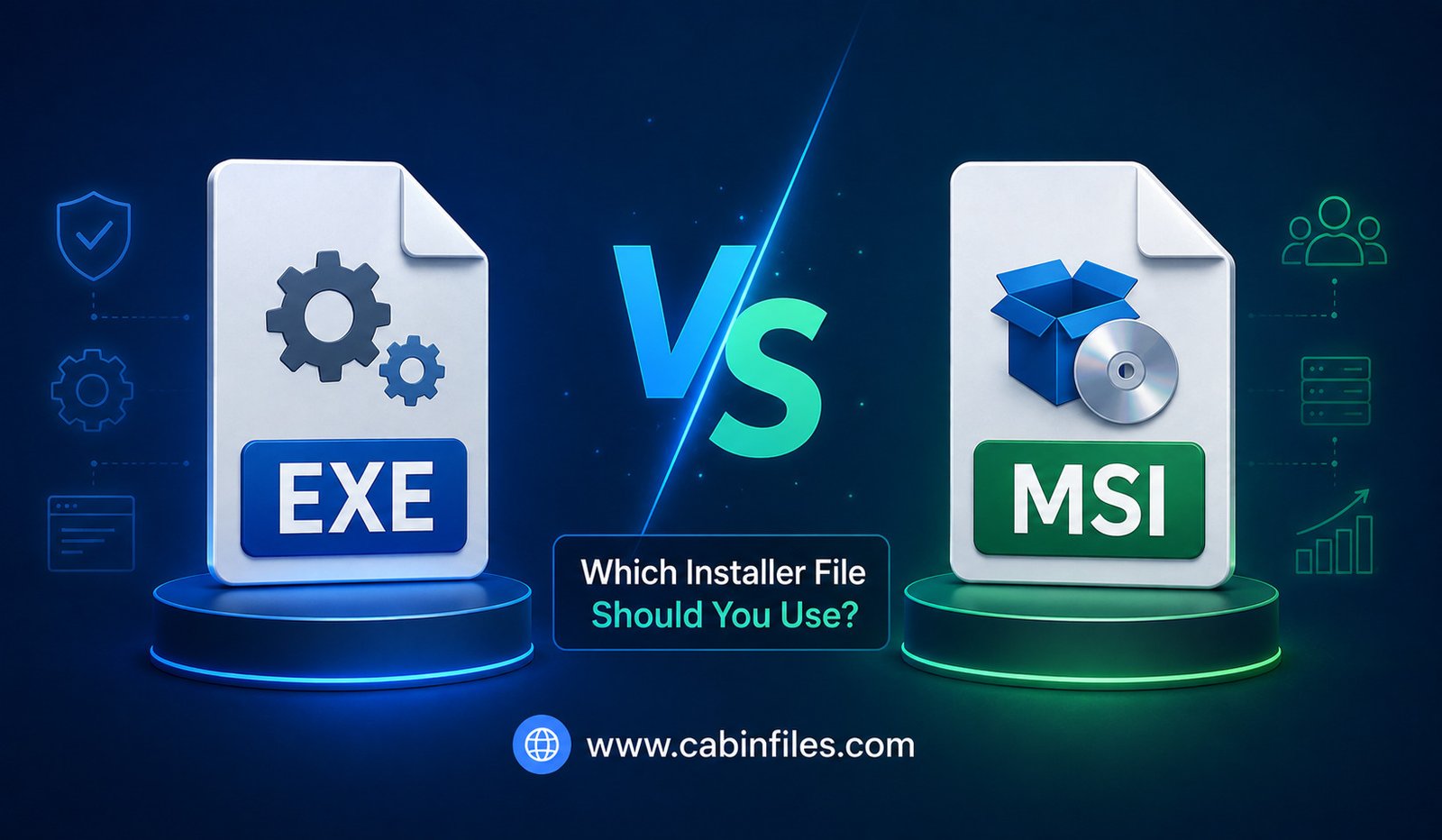
EXE vs MSI: Which Installer File Should You Use?
When you download software for a Windows PC, you may encounter different installer formats, with EXE and MSI being two of the most common. Both can be used to install applications, but they work differently and are designed for somewhat different installation scenarios.
For everyday users, choosing between an EXE and MSI installer may seem confusing. One website might offer setup.exe, while another provides something like software.msi. In many cases, either option can install the same application, but the installation experience, flexibility, and management capabilities can vary.
Understanding the difference between EXE vs MSI can help you choose the right installer for personal computers, business environments, and automated software deployments.
What Is an EXE Installer?
An EXE installer is an executable Windows file that can contain an application’s installation program.
When you double-click a typical setup.exe, it starts an installation wizard. The installer may ask you to select an installation folder, accept a license agreement, choose optional components, create shortcuts, or configure additional settings.
EXE installers are not restricted to one standardized installation mechanism. Developers can build them using different installer technologies or create their own installation logic.
This gives developers considerable flexibility.
For example, an EXE installer can perform custom checks before installation, download additional components from the internet, install prerequisites, display a customized interface, or execute additional configuration tasks.
Because of this flexibility, EXE installers are extremely common in consumer software.
What Is an MSI Installer?
MSI stands for Microsoft Installer, although the technology is commonly referred to as Windows Installer.
An .msi file follows Microsoft’s Windows Installer package format. Instead of relying entirely on custom installation code, MSI packages use a standardized structure that Windows Installer can process.
An MSI package can contain information about the application’s files, shortcuts, registry entries, features, installation requirements, and other resources.
This standardized approach makes MSI particularly useful in managed environments where administrators need consistent installation and maintenance processes across multiple computers.
MSI packages can also support operations such as installation, repair, modification, updating, and removal through Windows Installer.
EXE vs MSI: The Main Difference
The biggest difference between EXE and MSI is how the installation process is designed and managed.
An EXE is an executable program, so the developer has broad control over what happens when it runs. The installer can contain custom logic and perform multiple tasks before, during, or after installation.
An MSI is a structured installation package designed to work with the Windows Installer service. This provides a more standardized installation framework.
In simple terms, an EXE is generally more flexible, while MSI is generally more structured and easier to manage in many enterprise environments.
However, this does not mean that every EXE is better for home users or every MSI is better for businesses. The right choice depends on the software and your requirements.
Which Is Easier for Regular Users?
For most everyday Windows users, an EXE installer is often the simplest choice.
You normally download the installer, double-click it, follow the instructions, and allow the application to install.
Many consumer applications are distributed primarily through EXE installers because developers can create a customized installation experience.
The installer can also detect your Windows version, check for missing dependencies, download required components, and guide you through configuration.
An MSI can also be easy to install. In fact, you may simply double-click it and follow a familiar installation process. The difference is mainly in how the installation package is structured behind the scenes.
Which Is Better for IT Administrators?
For IT administrators managing many Windows computers, MSI often provides important advantages.
Windows Installer supports standardized installation and management operations. Organizations can use administrative tools and deployment systems to distribute MSI packages across multiple devices.
For example, an IT department may need to install the same application on hundreds of computers. Manually opening an installer on every machine would be inefficient.
MSI packages can be suitable for automated or centrally managed deployments because they provide installation information in a format that many Windows management systems understand.
That does not mean EXE installers cannot be deployed in businesses. Many enterprise applications are distributed as EXE files, and IT teams can use deployment tools or vendor-specific command-line options to automate them.
Silent Installation: EXE vs MSI
Another important difference involves silent or unattended installation.
A silent installation runs without requiring users to interact with every step of the installation wizard. This is particularly useful for organizations deploying software to many computers.
MSI has standardized command-line options for Windows Installer operations. Administrators can use these capabilities to install, repair, or remove applications with minimal user interaction.
EXE installers may also support silent installation, but the available command-line options depend on the installer technology used by the developer.
For example, one EXE installer might use one set of command-line switches while another uses completely different options.
Therefore, MSI can offer greater consistency, while EXE automation depends more heavily on the specific installer.
EXE and MSI Installation Dependencies
Some applications require additional software before they can run. These dependencies might include runtime libraries, frameworks, drivers, or other components.
An EXE installer can be designed to check whether those components exist and install them automatically if necessary.
This is one reason EXE installers are popular for consumer software. The installer can attempt to handle much of the setup process for the user.
An MSI package can also install dependencies, but developers may use additional mechanisms or bootstrapper programs to handle prerequisites.
In some cases, you may see an EXE file that acts as a bootstrapper and then launches one or more MSI packages during installation.
Can an EXE Contain an MSI?
Yes. In fact, this is fairly common.
A software vendor might provide a setup.exe file that serves as the main installation launcher while an MSI package contains the actual application installation information.
The EXE can perform prerequisite checks and other custom tasks before starting the MSI installation.
This approach combines the flexibility of an executable bootstrapper with the standardized installation capabilities of Windows Installer.
As a result, simply seeing an EXE does not necessarily mean that the software does not use MSI internally.
EXE vs MSI for Software Removal
MSI-based installations can provide structured support for uninstalling applications.
When an MSI-installed application is removed through Windows settings or another management tool, Windows Installer can use the package’s installation information to determine what needs to be removed.
EXE-installed software can also have a proper uninstaller. However, the exact process depends on how the developer created the application and installer.
Some applications provide uninstallers that are separate executable files, while others integrate their removal process into Windows’ installed-app management.
Therefore, the file extension alone does not determine how cleanly an application can be removed.
Which Installer Is More Secure?
Neither EXE nor MSI should automatically be considered safer simply because of its file extension.
Both formats can be used to distribute legitimate software, and both can potentially be abused to distribute malicious software.
The most important factor is where the installer came from.
Download software from the official developer or a reputable distribution platform whenever possible. Be cautious with installers received unexpectedly through email, messaging apps, file-sharing websites, or suspicious download pages.
Keep your security software enabled and scan unfamiliar files before running them.
An MSI file is not automatically safe, and an EXE file is not automatically dangerous.
EXE vs MSI: Which One Should You Choose?
For personal users, choose the official installer recommended by the software developer. If the developer provides an EXE installer and an MSI specifically for administrators, the EXE is usually the more convenient option for normal installation.
For IT administrators, an MSI package can be attractive when centralized deployment, standardized installation, and management are important. However, an EXE may still be the correct choice when the vendor’s software requires a custom installer or provides enterprise deployment options through an executable.
For automated deployments, check the software vendor’s documentation rather than assuming MSI is always superior. A well-designed EXE may provide excellent silent-installation support.
EXE vs MSI Comparison in Simple Terms
The easiest way to remember the difference is this:
EXE = flexible installer program.
MSI = standardized Windows Installer package.
EXE gives developers more freedom to customize installation behavior. MSI follows a structured installation model that can be particularly useful for enterprise software management.
Neither format is universally better. The best option depends on who is installing the software, how many computers are involved, and what level of control is required.
Final Verdict
So, EXE vs MSI: which installer file should you use?
If you are a typical Windows user installing an application on your own computer, use the installer officially recommended by the software developer. In many cases, this will be an EXE because it can provide a straightforward setup experience and automatically handle prerequisites.
If you are an IT administrator managing software across multiple Windows machines, an MSI package may be preferable because its standardized structure works well with many deployment and management systems.
Ultimately, the extension is only part of the story. The source of the installer, the vendor’s instructions, your installation requirements, and your security practices matter more than simply choosing EXE over MSI.
How to Open Unknown File Extensions Safely
Have you ever downloaded a file and noticed that Windows does not recognize its extension? You might see something like .xyz, .dat, .bin, .tmp, or another unfamiliar ending and wonder what the file actually contains. Opening an unknown file without checking it first can sometimes expose your computer to malware, corrupted data, or unwanted software.
The good news is that you do not have to open an unfamiliar file immediately. By identifying the file type, checking its source, scanning it for threats, and using a safe environment when necessary, you can investigate unknown file extensions without unnecessarily putting your device at risk.
This guide explains how to open unknown file extensions safely, what an extension tells you, which mistakes to avoid, and what to do when Windows cannot identify a file.
What Is a File Extension?
A file extension is the group of characters that appears after the final period in a filename. For example, a document might be called report.pdf, an image could be photo.jpg, and a program might use an .exe extension.
The extension usually gives the operating system and applications an indication of what type of data the file contains. Windows can then associate that extension with an appropriate program.
However, an extension alone does not guarantee that a file is safe or that its contents match its name. Someone could rename a file or deliberately disguise it to make it appear harmless.
This is why you should investigate an unfamiliar extension before opening the file.
Why Unknown File Extensions Can Be Dangerous
The biggest concern with an unknown file is not necessarily the extension itself. The concern is what happens when the file is opened.
Some file formats are simply containers for data and may not execute code directly. Others can contain scripts, macros, executable instructions, or components that interact with installed software.
A malicious file could also exploit a vulnerability in the application used to open it. For example, a specially crafted document might attempt to take advantage of an outdated software application.
That does not mean every unknown file is dangerous. It simply means that you should treat unfamiliar files cautiously until you understand their origin and purpose.
Step 1: Do Not Open the File Immediately
The safest first step is simple: don’t double-click it.
Instead, look at the complete filename, extension, file size, location, and date. Think about where the file came from.
If you received it unexpectedly through email or a messaging service, contact the sender and confirm that they actually sent it. If it came from a website, consider whether the website is trustworthy and whether you intentionally downloaded the file.
A little investigation before opening the file can prevent unnecessary problems.
Step 2: Show File Extensions in Windows
Windows can hide extensions for known file types. This can make it difficult to determine what a file really is.
To make extensions visible, open File Explorer and select the option for showing file extensions. In current versions of Windows, you can usually find this under View > Show > File name extensions.
Once enabled, you can see the full filename, such as:
example.pdf
rather than simply:
example
This is particularly useful for spotting deceptive filenames.
For example, a file named something like invoice.pdf.exe is an executable file, not an ordinary PDF. Seeing the complete extension can help you recognize such tricks.
Step 3: Identify Where the File Came From
The source of a file is one of the most useful clues when assessing an unknown extension.
A file created by software already installed on your computer may be legitimate. For example, specialized applications sometimes generate unusual data files that ordinary users never need to open manually.
On the other hand, an unfamiliar executable received from an unknown person deserves much more caution.
Ask yourself whether you expected the file, whether you trust the sender, and whether the download came from the application’s official website.
If you cannot explain why the file exists on your computer, avoid opening it until you have identified it.
Step 4: Scan the File for Malware
Before opening an unknown file, scan it using your computer’s security software.
On Windows, you can use the built-in security features to scan suspicious files. Updated antivirus software may identify known malware, potentially unwanted programs, or other threats.
Remember that a clean scan does not guarantee that a file is completely safe. Security tools can miss new or highly sophisticated threats. However, scanning is still an important layer of protection.
Keep your operating system and security software updated so that they have access to the latest security improvements and threat information.
Step 5: Research the File Extension
Once you have the extension, research what it is normally used for.
Search for the exact extension along with terms such as “file format” or “Windows file extension.” Look for reliable technical documentation or information from the software developer associated with the format.
For example, discovering that an unfamiliar extension belongs to a specific video-editing application gives you a useful clue about which program created the file.
Do not assume that the first search result is trustworthy. Avoid downloading unknown programs simply because a website claims they can open the file.
Step 6: Check the File Properties
Windows allows you to inspect basic information about many files through their properties.
Right-click the file and select Properties. Depending on the file type, you may see details such as its size, creation or modification information, location, and security information.
For executable files, Windows may also provide information about the publisher or digital signature.
A valid digital signature from a recognized software publisher can provide useful evidence about the file’s origin. An unknown or unsigned file is not automatically malicious, but it deserves additional caution.
Step 7: Avoid Random File-Opening Software
One common mistake is installing a random application advertised as an “universal file opener.”
Some of these programs may be legitimate, but others could contain unwanted software, excessive advertisements, tracking components, or malware.
Instead, identify the actual format first. Then find the official application or a reputable program designed to work with that format.
If the file belongs to specialized software, the developer’s documentation is usually a better starting point than an unknown download website.
Step 8: Use a Safe Environment for Suspicious Files
If you need to investigate a file but are not confident that it is safe, consider using an isolated environment rather than opening it directly on your primary computer.
A virtual machine, for example, can provide a separate operating environment for testing certain files. Security professionals may also use sandboxing technologies to analyze suspicious files.
However, isolation is not a perfect guarantee of safety. Sophisticated malware can sometimes detect virtualized or sandboxed environments, and poorly configured systems can create security risks.
For ordinary users, the safest option may simply be to avoid opening a suspicious file altogether.
Be Careful With File Conversion Websites
You may find online services that claim to convert almost any unknown file into a familiar format.
These services can be useful for legitimate files, but you should be careful about uploading sensitive information. A file may contain personal documents, business data, financial information, passwords, or confidential material.
Before uploading anything, check what the service does with uploaded files and whether you trust the provider.
For confidential files, using a trusted offline application is generally preferable when possible.
Do Not Simply Rename the Extension
Changing an extension does not normally convert the actual contents of a file.
For example, renaming example.xyz to example.pdf does not magically transform it into a PDF. The underlying data remains the same.
In some situations, a file may have an incorrect extension and renaming it could help an application recognize it. However, you should identify the actual format before making such changes.
Never rename an unknown executable to a familiar extension just because you want to open it.
What If Windows Says It Cannot Open the File?
If Windows displays a message saying it does not know which application should open the file, don’t immediately search for any program that claims to support it.
First identify the extension and determine which application created the file.
If the file came from a particular program, try opening it from within that program instead of double-clicking it. The software may have an Open option that recognizes its own file format.
If you still cannot identify the file, leaving it unopened is often safer than experimenting with unfamiliar software.
Common Mistakes to Avoid
Several habits can make dealing with unknown files unnecessarily risky.
Do not open unexpected attachments simply because the filename looks interesting. Do not disable antivirus protection to make an unknown file run. Avoid downloading “crack,” pirated, or modified software from questionable websites. Also avoid running unknown executable files with administrator privileges.
You should be especially cautious when a file asks you to disable security features, enable macros, install additional software, or provide administrator permission without a clear reason.
Final Thoughts
Learning how to open unknown file extensions safely is mostly about slowing down before clicking.
Start by displaying the complete filename, identifying the extension, checking where the file came from, and scanning it with trusted security software. Research the format before installing anything, and avoid random file-opening tools.
If the file remains suspicious or you cannot determine its purpose, you do not have to open it. Deleting an unnecessary unknown file is often much safer than experimenting with it.
The most important rule is simple: identify first, verify the source, scan the file, and only then consider opening it. A few minutes of caution can help protect your files, privacy, and Windows computer from unnecessary security risks.
What Is an EXE File and How Does It Work?
If you have ever installed software on a Windows computer, you have probably seen files ending in .exe. You may have clicked files such as setup.exe, chrome.exe, or program.exe without thinking much about what happens behind the scenes. But what exactly is an EXE file, and how does it work?
An EXE file is an executable file designed to contain instructions that a computer can run. On Windows, EXE files are commonly used to launch applications, install programs, perform system tasks, and start specific processes. Understanding how they work can help you use Windows more safely and recognize potentially dangerous files.
What Is an EXE File?
EXE stands for executable. An EXE file is a type of computer file that contains machine instructions and other information required for Windows to execute a program.
The .exe extension tells Windows that the file is intended to be executed rather than simply opened as a document or image. When you double-click an EXE file, Windows loads the program into memory and begins executing its instructions.
For example, when you install a desktop application, you may download a file named setup.exe. Running this file can start an installation program that copies the required files to your computer and creates shortcuts or other system settings.
Many everyday Windows applications also use EXE files. A browser, media player, text editor, game, or utility may have an executable file that starts the application.
How Does an EXE File Work?
An EXE file works by providing Windows with executable instructions and information about how those instructions should be loaded.
When you double-click an EXE file, Windows first checks whether it can execute the file. The operating system then creates a process and loads the necessary program components into memory.
The processor begins following the instructions contained in the executable. Depending on the application, the program may display a graphical interface, open a window, access files, communicate with the internet, or perform other tasks.
Modern Windows executable files commonly use the Portable Executable (PE) format. The PE format provides information Windows needs to understand how to load and execute the program. It can contain the program’s machine code, metadata, resources, and references to libraries required by the application.
This process happens extremely quickly, which is why clicking an application can make it appear almost instantly.
What Is Inside an EXE File?
An EXE file is more than a simple collection of instructions. It can contain several important components that help Windows run the application.
One major component is the machine code, which contains instructions that the processor can execute. The file can also contain information about the program’s structure, memory requirements, resources, and external libraries.
Some EXE files contain graphical resources such as icons, menus, dialog boxes, images, or other elements used by the application.
An executable may also specify dependencies, meaning additional files or libraries that it needs to function correctly. For example, a Windows application may rely on system libraries or runtime components installed separately on the computer.
Because of this structure, an EXE file can act as the main starting point for a much larger software application.
EXE Files and Software Installation
One of the most common uses of EXE files is installing software.
When you download a Windows program from a developer’s website, you may receive an installer such as software-setup.exe. Running it launches the installation process.
The installer may ask you to accept a license agreement, choose an installation folder, select optional features, and create shortcuts. It then copies the necessary program files to your computer and may make appropriate Windows configuration changes.
It is important to understand that the installer itself may not be the application you ultimately use. Instead, it is an executable program whose purpose is to install another program.
Some applications use an EXE file as their primary program file, while others may use multiple executables for different components or functions.
EXE vs Other Common File Types
Windows supports many different file types, and they serve different purposes.
An EXE file is executable, meaning Windows can run the instructions inside it. A .txt file primarily contains plain text, while a .jpg file contains an image. A .mp4 file stores video, and a .zip file generally contains compressed files.
The important difference is that an EXE can directly instruct the computer to perform operations when executed.
However, an EXE file does not necessarily need to have an obvious name. A malicious file could be given a name designed to look harmless, which is why users should pay attention to where executable files come from.
Are EXE Files Safe?
An EXE file is not automatically dangerous simply because it has an .exe extension. Millions of legitimate Windows applications use executable files every day.
However, an EXE file can contain instructions that perform harmful actions. Malware, spyware, ransomware, and other malicious programs can be distributed through executable files.
For example, an attacker might disguise a malicious executable as a useful application, document, game, or software update. Once executed, it could attempt to modify files, steal information, install additional malware, or perform other unauthorized activities.
This is why you should be cautious before running an EXE file received through an unexpected email, unknown website, messaging platform, or suspicious download.
How to Check an EXE File Before Opening It
Before running an unfamiliar EXE file, consider its source first. Software downloaded directly from the official website of a trusted developer is generally preferable to an executable obtained from an unknown file-sharing site.
You should also check the file’s name and location. Windows can hide known file extensions, which can sometimes make deceptive filenames harder to recognize.
Keeping Windows Security or another reputable security solution enabled is another important precaution. Security software can scan files and may warn you when it detects potentially malicious behavior.
For important software, checking whether the developer provides a digital signature can also provide additional information about the file’s publisher and whether the file has been modified since it was signed.
Why Windows Uses EXE Files
EXE files are an important part of the Windows software ecosystem because they provide a standard way for applications to be launched.
Developers compile their software into formats that Windows can execute. When users start those applications, Windows handles important tasks such as creating processes, allocating memory, loading required components, and managing access to system resources.
The operating system also applies security controls to processes. Depending on what a program attempts to do, Windows may require administrator permission or display a security warning.
This system allows applications to interact with the operating system while maintaining certain boundaries around system resources.
Can You Open an EXE File on Mac or Linux?
EXE files are primarily associated with Windows and are not normally designed to run directly on macOS or Linux.
That does not necessarily mean an EXE file can never run on another operating system. Compatibility layers, virtual machines, and other software can sometimes allow Windows applications to operate in different environments.
However, compatibility is not guaranteed. A Windows application may depend on specific Windows libraries, drivers, or system features that are unavailable on another operating system.
For ordinary Windows users, the simplest approach is to use EXE files with compatible Windows systems unless the application’s developer provides another version.
EXE Files and Windows Security
Because EXE files can execute instructions, they deserve more attention than ordinary documents or images.
A useful security habit is to avoid running unexpected executable attachments. If someone sends you an EXE file claiming it is an important document or software update, verify the sender and the source before opening it.
You should also keep Windows and your security software updated. Software updates frequently include security improvements that can help protect your system against known threats.
Downloading applications from reputable sources and avoiding pirated or suspicious software can significantly reduce unnecessary security risks.
Final Thoughts
An EXE file is a Windows executable file that contains instructions a computer can run. It can serve as the main program file for an application, launch an installer, or perform a specific software function.
When you double-click an EXE file, Windows creates a process, loads the executable and its required components into memory, and allows the processor to execute its instructions. Behind the simple .exe extension is a structured file format designed to communicate with the Windows operating system.
EXE files are essential to everyday Windows computing, but their ability to execute instructions also makes them a potential security risk when they come from unknown sources. Understanding what EXE files are and how they work can help you use Windows applications more confidently while making safer decisions about unfamiliar downloads.