

How Context.dev Can Provide Web Data for AI Agents
AI agents are becoming more capable of performing tasks independently. They can research topics, compare products, monitor websites, answer customer questions, analyze companies, and support business workflows. But there is one major limitation: an AI agent is only as useful as the information it can access.
Large language models have knowledge based on their training data, but that knowledge may not reflect what is currently published on the web. Websites change, prices are updated, products are launched, documentation is modified, and companies publish new information every day.
This creates a need for reliable ways to connect AI agents with live web information. Context.dev is designed to address this problem by providing APIs that turn web pages and company information into structured, AI-ready data.
What Is Context.dev?
Context.dev is a web data and context API platform designed for AI agents, applications, and LLM-powered products. Instead of requiring developers to build their own complete web-scraping infrastructure, the platform provides APIs for retrieving and processing information from websites.
Its capabilities include scraping webpages as Markdown or HTML, crawling websites, extracting images, discovering sitemaps, and extracting structured information from web content. It also provides company and brand-related data such as logos, colors, fonts, social profiles, and other information.
The basic idea is straightforward: give an AI system cleaner and more useful context from the live web so it can make better-informed decisions.
Why AI Agents Need Web Data
A traditional chatbot can answer questions using information available to its underlying model. An AI agent, however, often needs to perform actions based on information that changes frequently.
Imagine an AI sales assistant researching a potential customer. It might need to understand the company’s website, products, pricing, industry, and current messaging.
Similarly, a shopping assistant may need current product information, while a competitive-intelligence agent could need to monitor changes to competitor websites.
Without access to current information, the agent may rely on outdated knowledge or simply lack the information required to complete the task.
Context.dev provides an infrastructure layer that can retrieve this web information and make it easier for AI systems to consume.
Turning Websites Into AI-Ready Markdown
One of the most useful capabilities is converting webpages into clean Markdown.
Raw HTML contains much more than the actual information a person wants to read. A webpage can contain navigation elements, scripts, tracking code, styling information, advertisements, and other structural content.
Sending all of that directly to an AI model can waste context and make processing more complicated.
Context.dev’s Markdown endpoint is designed to return cleaner, semantically structured content that can be passed into an LLM. The company specifically positions this capability for RAG pipelines, knowledge bases, and AI agents.
For example, an agent could request a company’s pricing page, receive the page as Markdown, and then use that information when answering a user’s question.
Crawling Entire Websites
Sometimes one webpage is not enough.
An AI agent researching a company may need information from the homepage, product pages, documentation, pricing pages, and other sections of a website.
Context.dev provides a website crawling endpoint that can follow links within a domain and return pages as Markdown. This allows developers to gather information from multiple pages without building a complete crawler themselves.
This can be useful for building website-based knowledge systems. A company could, for example, crawl its documentation site and use the resulting content as a source for an AI support assistant.
Extracting Specific Information With AI
Sometimes an agent does not need an entire webpage. It needs a few specific fields.
For example, a developer might want to extract:
- Company name
- Industry
- Pricing model
- Free-trial availability
- Product categories
- Contact information
- Specific features
Context.dev provides an AI-powered website data extraction endpoint where developers define the information they want and receive extracted values from the website.
This is particularly useful when raw webpage content is too broad.
Instead of giving an AI model an entire website and asking it to find information itself, developers can request specific data points in a structured format.
Structured Data for AI Agents
Structured data is important because AI agents often need to do something with the information they receive.
A paragraph can be useful to a human, but software usually works better with predictable fields.
Context.dev’s extraction API allows developers to define a schema for the information they want. The response can then return data that follows that structure, along with the URLs analyzed.
For example, an application comparing competitors could define fields for product name, price, billing frequency, trial availability, and plan limitations.
The resulting information can then be stored in a database or passed to another part of the application.
This makes structured web extraction particularly valuable for automated workflows.
Helping AI Agents Research Competitors
Competitive intelligence is one practical use case.
Suppose a business wants an AI agent to monitor five competitors. The agent could retrieve relevant webpages from each company’s website and extract information about pricing, products, features, and messaging.
Instead of building separate scrapers for every competitor, developers can use a common API workflow.
Context.dev specifically describes competitor pricing and product monitoring as a use case for its extraction capabilities.
The resulting data can be compared over time, helping businesses identify changes that might otherwise be missed.
Supporting RAG Applications
Retrieval-augmented generation, or RAG, allows an AI model to use external information alongside its existing capabilities.
A basic RAG workflow might involve collecting documents, cleaning them, converting them into usable text, storing them in a searchable system, and retrieving relevant content when a user asks a question.
Context.dev can fit into the information-ingestion stage by providing web content in formats suitable for AI processing. Its platform specifically highlights Markdown, crawling, and extraction APIs for RAG systems.
This can help developers build systems that reference current website information instead of relying entirely on static model knowledge.
Images and Multimodal AI
Modern AI agents are not limited to text.
Vision-capable models can analyze images, screenshots, product photographs, diagrams, and other visual material.
Context.dev provides an image-scraping endpoint that can extract images from webpages, including different image formats and image sources.
This can be useful for multimodal applications.
For example, an AI shopping assistant could potentially use product-page text alongside product images when analyzing an item.
A website-monitoring system could also use screenshots or extracted visual assets as part of its analysis.
Company and Brand Context
Web data is not limited to page content.
An AI agent interacting with a company may also need to understand its identity. Context.dev provides APIs for company and brand information, including logos, colors, fonts, social links, descriptions, and industry classifications.
This can be useful for AI-powered onboarding, sales tools, dashboards, research applications, and automated reporting.
For example, an application could receive a customer’s domain and use the available company information to personalize an interface automatically.
Reducing the Need for Custom Scraping Infrastructure
Building a web-data pipeline from scratch can involve several components.
Developers may need a crawler, browser-rendering system, HTML parser, proxy infrastructure, extraction logic, validation processes, and monitoring.
Context.dev aims to consolidate many of these requirements into a unified API layer. Its current extraction documentation describes crawling, rendering, AI-based extraction, schema matching, and provenance information as part of the process.
This can allow development teams to spend more time building their AI application rather than maintaining scraping infrastructure.
Important Considerations
Although Context.dev can simplify access to web information, developers still need to think about data quality and responsible use.
Not every website contains accurate information. AI extraction can also misunderstand content, particularly when pages are ambiguous or information is presented in unusual ways.
For important applications, developers should validate extracted information and retain source URLs where possible. Context.dev’s extraction response includes the pages analyzed, which can help with traceability.
Legal and technical considerations also matter. Developers should respect applicable laws, website terms, robots.txt instructions, rate limits, and data-protection requirements when collecting public web information. Context.dev itself notes that responsibility for how its APIs are used rests with the developer.
Final Thoughts
AI agents need access to more than the static knowledge contained in a language model. To perform useful real-world tasks, they often need current information from websites, documentation, company pages, product catalogs, and other online sources.
Context.dev provides APIs designed to bridge that gap. It can scrape webpages into AI-friendly Markdown, crawl websites, extract specific data, provide images and screenshots, discover sitemaps, and supply company and brand context.
For developers building AI agents, RAG systems, research applications, competitive-intelligence tools, or other LLM-powered products, this approach can reduce the amount of custom web-data infrastructure required.
The larger idea is simple: AI agents become more useful when they can access relevant, current, structured context. By providing an API layer between the web and AI applications, Context.dev can help developers turn the constantly changing internet into information their agents can actually use.
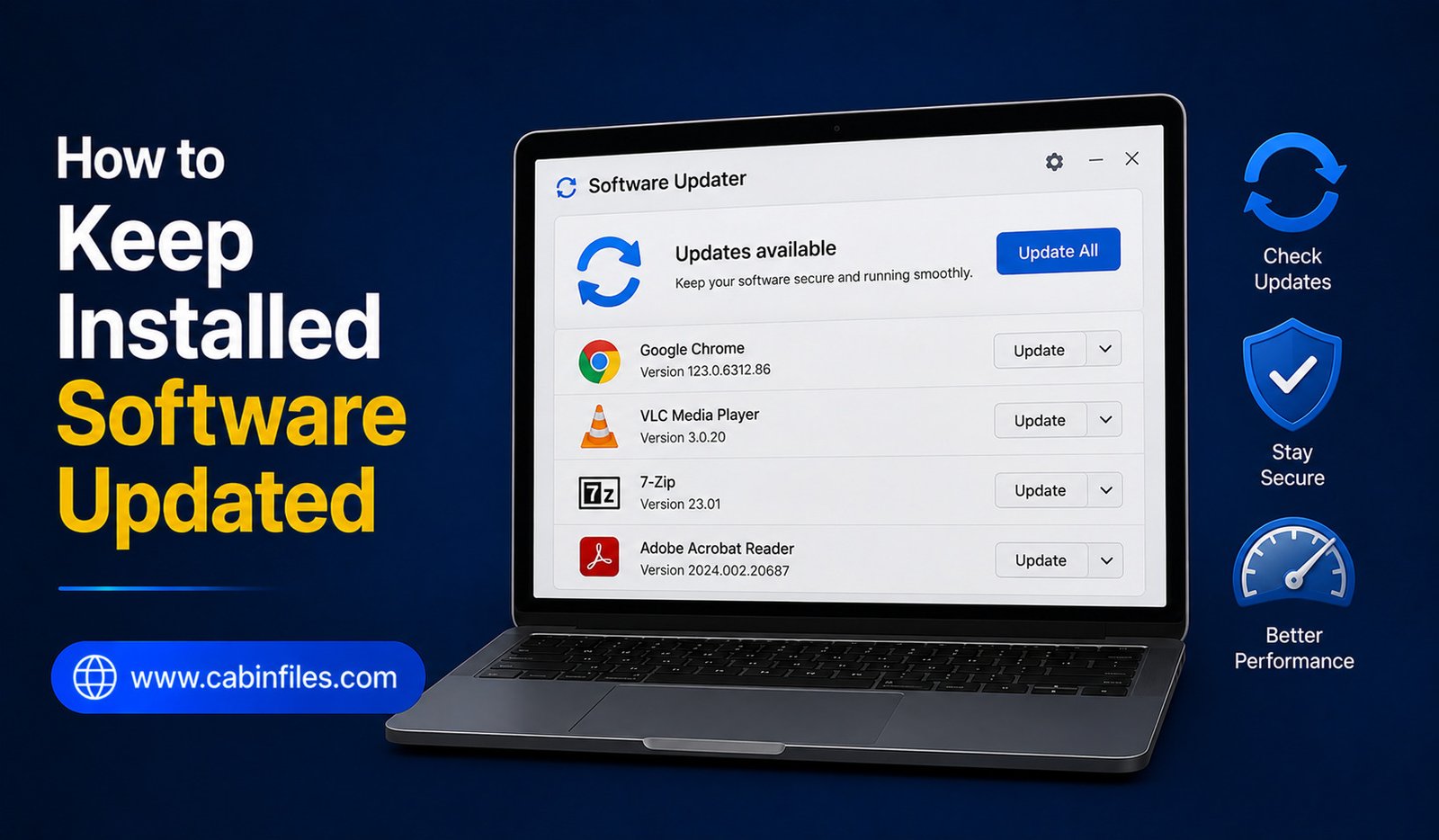
How to Keep Installed Software Updated: A Complete Windows Guide
Keeping installed software updated is an important part of maintaining a secure, stable, and efficient Windows PC. Developers regularly release updates to fix bugs, patch security vulnerabilities, improve performance, add features, and maintain compatibility with newer versions of Windows.
However, managing updates can become difficult when you have dozens of applications installed. Some programs update automatically, while others require you to check manually.
In this guide, we will explain how to keep installed software updated on Windows, how to identify outdated applications, and what habits can make software maintenance easier.
Why Should You Keep Software Updated?
Software updates are not only about getting new features. Many updates fix security vulnerabilities that could potentially be exploited by malicious software.
Updates can also resolve crashes, installation problems, compatibility issues, and performance bugs.
For example, an application that worked correctly several months ago might begin experiencing problems after a Windows update. Installing the latest version may include the compatibility fixes needed to restore normal operation.
Keeping software updated can therefore improve both security and reliability.
1. Use Automatic Updates When Available
The easiest way to keep software current is to enable automatic updates.
Many modern applications include an automatic update feature that periodically checks for new versions and installs them.
Look through the application’s settings for options such as:
Automatic updates
Check for updates automatically
or
Keep application updated
If the software comes from a trusted developer, automatic updates are generally convenient because you do not need to remember to check manually.
However, automatic updates do not mean every application on your computer will always be current. Some older programs still require manual updates.
2. Check Microsoft Store Apps
Applications installed through the Microsoft Store can often be updated through the Store itself.
Open the Microsoft Store and look for its application update section. Depending on your Windows version, you may find an option to check for available updates.
Keeping Store applications updated ensures that you receive the latest fixes and improvements provided by their developers.
If you regularly install software through the Store, check its update settings to determine whether automatic updates are enabled.
3. Update Traditional Desktop Programs
Not every Windows application is distributed through the Microsoft Store.
Traditional desktop applications may have their own update systems.
Open the application and look under menus such as:
Help > Check for Updates
Settings > Updates
or
About > Check for Updates
The exact location varies between applications.
If the program does not provide an update feature, visit the developer’s official website and check whether a newer version is available.
Always download updates from trusted sources whenever possible.
4. Keep Your Web Browser Updated
Web browsers are among the most important applications to keep current.
Browsers frequently receive security updates because they interact directly with websites, downloads, online accounts, and web-based applications.
Most popular browsers include automatic updating, but you can still manually check their version and update status through the browser’s settings or About page.
Do not ignore browser update notifications for long periods.
An outdated browser can expose your computer to security problems and may also cause websites to stop working correctly.
5. Update Graphics and Other Hardware Software
Some software depends heavily on hardware drivers.
Graphics drivers are particularly important for games, video editing, 3D applications, and other demanding programs.
If you experience crashes, display problems, or poor performance, check whether a newer driver is available for your hardware.
Obtain drivers from the hardware manufacturer’s official website or a trusted update mechanism.
Do not install random driver packages from unknown websites simply because they promise to update everything automatically.
6. Check for Updates Before Troubleshooting Problems
If an application suddenly starts crashing or displaying errors, check for an update before spending hours changing system settings.
Developers may already have released a patch for the problem.
This is especially useful after a major Windows update. A new Windows version can expose compatibility issues in older applications, and software developers may release updates specifically to address them.
Updating the application first can sometimes solve the problem immediately.
7. Review Your Installed Programs Regularly
It is difficult to keep software updated if you do not know what is installed.
Open:
Settings > Apps > Installed apps
Review the applications listed on your computer.
Remove programs you no longer use, but research unfamiliar applications before uninstalling them. Some may be required components for other software or hardware.
Keeping your installed-program list under control also reduces the number of applications you need to maintain.
8. Use a Trusted Software Update Tool Carefully
Some users prefer software-update utilities that scan a computer and identify outdated applications.
These tools can be convenient, particularly if you have many programs installed.
However, be selective.
Avoid utilities that aggressively advertise themselves, install additional programs, change browser settings, or encourage you to purchase unnecessary services.
If you use an update manager, choose a reputable solution and review what it wants to install before accepting changes.
For important or sensitive applications, checking the developer’s official update channel is often the safest approach.
9. Back Up Important Data Before Major Updates
Most software updates are routine and safe, but major version upgrades can sometimes change settings, file formats, or application behavior.
Before updating important professional software, make sure critical documents and projects are backed up.
This is particularly important for applications used for accounting, business operations, creative projects, databases, or other valuable work.
A backup gives you a recovery option if an update causes unexpected problems.
10. Don’t Install Every Update Blindly
Keeping software updated does not mean accepting every update without reading anything.
When an update is available, check what it contains when release notes are provided.
For normal security and bug-fix updates, installing promptly is usually sensible.
For major upgrades, you may want to confirm that your existing files, plugins, extensions, and hardware are supported.
This is particularly important for professional applications where compatibility with third-party tools matters.
11. Be Careful With Fake Update Notifications
One major risk is fake software-update messages.
A website may display a warning claiming that your browser, media player, PDF reader, or another application is outdated. Clicking the message may download unwanted or malicious software.
Legitimate updates should generally come through the application’s built-in update system, Microsoft Store, Windows Update, or the developer’s official website.
If a random website suddenly tells you to install an update, close the message and verify the update through the application’s normal update process.
12. Keep Windows Updated Too
Your applications are only one part of the software environment.
Windows itself should also be maintained through Windows Update.
Open Settings > Windows Update and check for available updates.
Windows updates can provide security fixes, hardware compatibility improvements, stability enhancements, and other system changes that applications depend on.
Keeping both Windows and your applications current can reduce compatibility problems.
13. Create a Simple Update Routine
You do not need to spend hours every week checking every application manually.
A simple routine can work well.
For example, periodically review Windows Update, Microsoft Store updates, browser updates, and the update notifications provided by applications you use regularly.
For less frequently used software, check for updates when you launch it or before starting an important project.
The goal is consistency rather than constantly monitoring your computer.
What If an Update Breaks the Software?
Occasionally, an update can introduce a new bug or compatibility problem.
If an application stops working immediately after an update, check the developer’s support page or release notes to see whether the issue is known.
Avoid immediately downloading an unofficial older version from an unknown website.
If the developer officially provides an earlier version or rollback option, follow its instructions.
For important applications, keeping backups of your data and configurations can make recovery much easier.
Best Practices for Software Updates
A few simple habits can make software maintenance safer:
- Keep automatic updates enabled for trusted applications when practical.
- Download updates from official sources.
- Keep Windows and web browsers updated.
- Review major updates before installing them.
- Back up important data before major software upgrades.
- Remove applications you no longer use.
- Avoid suspicious “update required” pop-ups.
- Restart your PC when an update requires it.
- Check application compatibility after major Windows updates.
- Keep track of critical software used for work or important projects.
Final Thoughts
Learning how to keep installed software updated does not require complicated maintenance. Automatic updates, Microsoft Store updates, application-specific update tools, and official developer websites can cover most of your software.
The most important rule is to update from trustworthy sources. Avoid random download sites and suspicious pop-ups that claim your software is outdated.
Regular updates can improve security, fix bugs, enhance performance, and prevent compatibility problems. Combined with good backups and occasional cleanup of unused applications, a simple update routine can help keep your Windows PC safer and more reliable over time.