
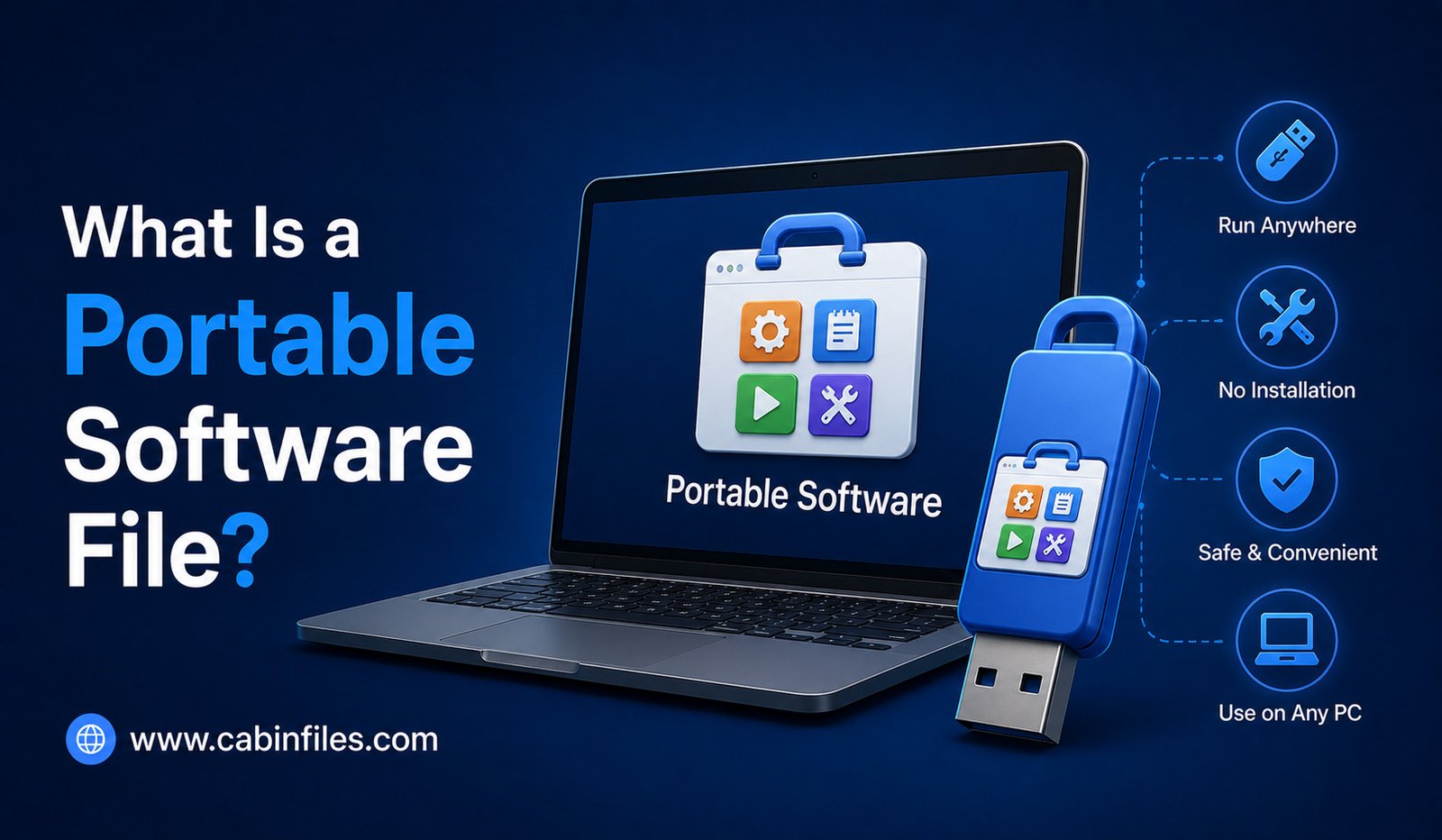
If you have ever downloaded a Windows application and noticed that it runs without going through a traditional installation process, you may have encountered portable software. Unlike conventional programs that install files across your computer and make changes to Windows settings, portable applications can often run directly from a folder, USB drive, or external storage device.
But what exactly is a portable software file, how does it work, and when should you use one?
Understanding portable software can help you choose convenient applications while also knowing the limitations and security considerations involved.
What Is a Portable Software File?
A portable software file is a program designed to run without requiring a traditional installation process on the computer.
In many cases, portable software is distributed as an executable file, such as an .exe, along with supporting files stored in the same folder. You can download the application, extract it if necessary, and launch it without using a conventional setup wizard.
The term “portable” refers to the ability to move the application between compatible computers while keeping the program’s required files together.
For example, you might keep a portable utility on a USB drive and run it on different Windows computers without installing it on each machine.
However, portability is not absolute. Some applications still depend on specific Windows components, permissions, drivers, or hardware features.
How Does Portable Software Work?
Traditional software installation typically places files in several locations on your computer. It may create shortcuts, add registry entries, install services, configure file associations, and store application data in system or user folders.
Portable applications are generally designed to minimize these installation requirements.
A portable application may keep its executable, configuration files, libraries, and other resources inside one main folder. When you launch the program, it reads the required files from that location.
Some portable applications store settings in files alongside the program instead of placing them in the Windows registry or user profile.
This makes the application easier to move, back up, or remove.
However, not every portable application works exactly this way. Some programs may still create temporary files or store information elsewhere on the computer.
Portable Software vs Installed Software
The biggest difference between portable and traditionally installed software is the way the application is deployed.
An installed application normally uses a setup process that integrates the program with Windows. The installer may create shortcuts, register file associations, install dependencies, and configure other components.
Portable software generally attempts to work without this traditional installation process.
For example, with a conventional application, you might download setup.exe, run the installer, choose a folder, and wait for the installation to complete.
With a portable application, you might download an archive, extract it, and launch the program’s executable directly.
This difference can make portable software particularly convenient for temporary use or situations where you do not have permission to install applications.
Can You Run Portable Software From a USB Drive?
Yes, many portable applications can be stored and run from a USB flash drive.
You could keep a collection of useful utilities on a USB drive and use them on compatible computers.
This can be helpful when traveling, working across multiple computers, or maintaining systems without wanting to install every utility permanently.
However, running software from a USB drive can be slower than running it from an internal SSD, particularly when the application frequently reads and writes data.
USB drives can also be lost or damaged, so important application settings or personal data should be backed up.
Advantages of Portable Software
One major advantage of portable software is convenience.
You can often download or extract the application and start using it without going through a lengthy installation process. This can save time when you only need the software temporarily.
Portable applications can also make it easier to move software between computers. Instead of reinstalling and configuring the application from scratch, you may simply copy its folder to another compatible computer.
Another benefit is easier removal. In many cases, you can stop using a portable application by deleting its folder. However, you should not assume that every portable application leaves absolutely no traces behind.
Portable software can also be useful when you do not have administrator privileges. If the application does not require system-level changes, it may run under a standard user account.
Limitations of Portable Software
Portable applications are not perfect.
Some software simply cannot be made fully portable because it requires drivers, Windows services, system-level components, or deep operating-system integration.
Professional applications, hardware utilities, security tools, and some business software often require traditional installation.
Portable software may also have limited automatic update functionality. You may need to manually download newer versions and replace the existing files.
Another issue is configuration. If an application stores settings locally, copying the application folder may also copy personal preferences or cached information. This can be convenient but may also expose private data if the folder is shared.
Is Portable Software Safe?
Portable software is not automatically safer simply because it does not require installation.
A portable application can still contain malware, spyware, or other unwanted software. The executable can perform many of the same actions as a traditionally installed program when you run it.
The most important factor is where the software came from.
Download portable applications from the official developer or a reputable distribution source. Be cautious about modified versions, pirated software, and unknown websites offering supposedly portable copies of commercial applications.
Before running unfamiliar portable software, scan it with updated security software.
Does Portable Software Leave Files Behind?
The word “portable” can sometimes create the impression that an application leaves absolutely no trace on a computer.
That is not always true.
A portable program may create temporary files, cache data, logs, recent-file entries, or other information. Some applications may also use Windows system locations even though they do not require a traditional installer.
If privacy is important, check the application’s documentation to understand where it stores configuration and temporary data.
Portable does not necessarily mean completely invisible.
Portable EXE Files and ZIP Archives
Portable applications are commonly distributed in two forms.
One possibility is a standalone executable that can be launched directly.
Another is a compressed archive, such as a ZIP file, containing the executable and supporting files.
For example, you might download:
application-portable.zip
After extracting it, you may find a folder containing an executable and several supporting files.
The ZIP file itself is not the application. It is simply a container holding the files needed by the portable program.
Portable Software and Windows Permissions
One reason portable applications can be convenient is that some do not require administrator privileges.
If a program only needs access to your user account and its own files, Windows may allow it to run without requesting administrator approval.
However, this depends on the application.
A portable program that needs to install drivers, modify protected system settings, create system services, or access restricted resources may still require elevated permissions.
Never assume that a portable application is automatically allowed to do everything without Windows security restrictions.
When Should You Use Portable Software?
Portable software can be a good choice when you need a lightweight application temporarily, frequently switch between computers, or want to test a program without performing a traditional installation.
It can also be useful for troubleshooting and technical work, particularly when certain utilities are needed on multiple machines.
For everyday applications that require automatic updates, deep Windows integration, cloud synchronization, background services, or system-level features, a traditional installation may be more appropriate.
How to Use Portable Software Safely
The safest approach is to treat portable applications just like installed software from a security perspective.
Download them from trusted sources. Check the publisher and release version. Scan unfamiliar files before launching them, and keep Windows security features enabled.
If you store portable applications on a USB drive, protect the drive from unauthorized access and keep backup copies of important configuration files.
Avoid running unknown portable executables simply because they do not require installation.
Final Thoughts
So, what is a portable software file?
It is a program designed to run with little or no traditional installation, often by keeping its executable and supporting files together in a portable folder. Depending on the application, you may be able to run it directly from your computer, USB drive, or external storage.
Portable software offers convenience, flexibility, and easier deployment, but it is not completely independent of the operating system. Some applications still require specific Windows components, permissions, or system resources.
Most importantly, portability does not automatically make software safe. Always verify the source and scan unfamiliar applications before running them.
For users who want convenient tools without repeatedly installing software, portable applications can be a practical solution—provided their limitations and security risks are understood.