
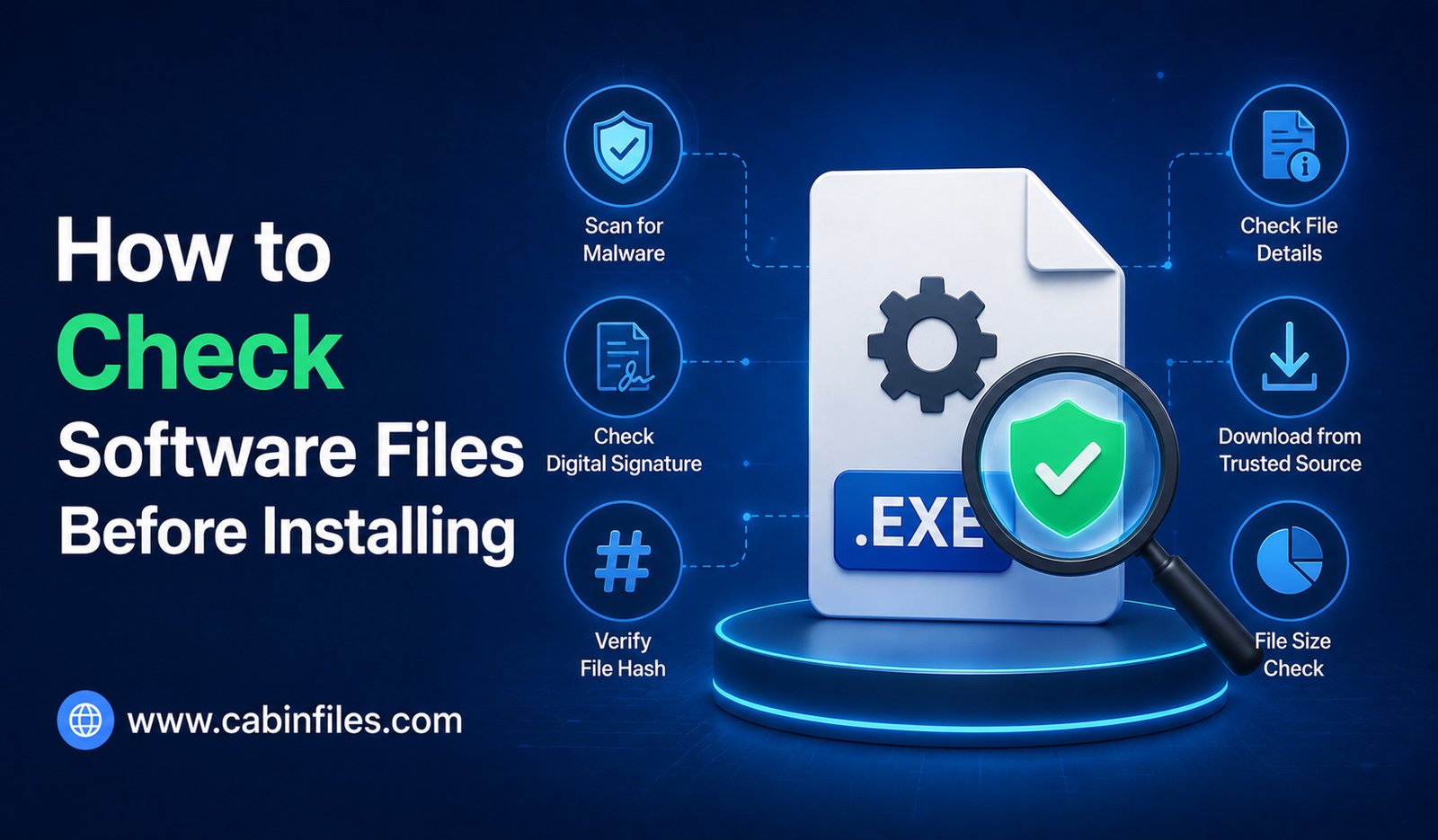
Downloading software has become a normal part of using a computer, but clicking an installer without checking it first can create unnecessary security risks. A file may look legitimate while containing malware, unwanted programs, outdated components, or even a fake version of the software you intended to install.
The good news is that you do not need to be a cybersecurity expert to perform basic checks. By verifying where a file came from, checking its digital signature, scanning it for threats, and understanding what the installer is asking you to do, you can significantly reduce the risk of installing something harmful.
This guide explains how to check software files before installing them on a Windows computer and what warning signs you should look for.
Download Software From a Trusted Source
The first security check should happen before the file even reaches your computer.
Whenever possible, download software directly from the official website of the developer or publisher. If the application is distributed through a reputable app store or software platform, use the verified listing rather than an unknown download page.
Be cautious with websites offering modified, cracked, pirated, or “premium unlocked” software. These files may contain malicious code or unwanted programs.
A familiar application name does not guarantee that the installer is genuine. Attackers can create websites and files designed to look almost identical to legitimate software.
Check the Complete File Name
Before running an installer, examine its complete filename.
Windows may hide file extensions by default, so enable File name extensions in File Explorer under View > Show.
This lets you see whether the file is actually an executable installer.
For example, a filename such as:
software-update.exe
is clearly an executable file.
Be particularly cautious about deceptive names such as:
document.pdf.exe
The file is an executable because the final extension is .exe, even though the filename is designed to make it appear like a PDF.
Check the File Location
Where the installer is stored can also provide useful information.
A file downloaded from your browser’s normal Downloads folder is not automatically safe, but it gives you context about where the file came from.
Be more cautious if an unfamiliar installer suddenly appears in a temporary folder, email attachment directory, removable drive, or another unexpected location.
If you do not remember downloading the file, investigate its origin before opening it.
Scan the File With Security Software
One of the easiest steps is to scan the installer using your computer’s security software.
Windows includes built-in security features that can scan suspicious files for known threats. Updated antivirus software can detect many forms of malware and potentially unwanted software.
Do not ignore security warnings simply because the installer looks professional.
At the same time, remember that a clean scan is not an absolute guarantee that a file is safe. New or sophisticated threats may not immediately be detected.
Security scanning should therefore be treated as one layer of protection rather than the only check.
Check the Digital Signature
A digital signature can help you determine whether an executable was signed by a particular publisher and whether the file has been altered after signing.
To check a Windows executable, right-click the file, select Properties, and look for a Digital Signatures tab when available.
A valid signature from the expected software publisher can provide useful evidence about the file’s authenticity.
However, a digital signature does not automatically mean the software is safe. A legitimate publisher could sign software that later develops a vulnerability, and a malicious developer could potentially sign its own software.
Use the signature as one part of your overall verification process.
Compare the Publisher With the Developer
When checking a digital signature or installer information, compare the publisher name with the company that supposedly created the application.
If you downloaded a well-known application but the installer is signed by an unrelated organization, stop and investigate.
Likewise, be cautious when a supposedly official installer has no recognizable publisher information.
Small independent developers may legitimately use different legal or signing names, so an unfamiliar publisher is not automatically malicious. It simply deserves additional verification.
Check the File Size
File size can sometimes provide another useful clue.
If the official developer says an installer should be several hundred megabytes but your downloaded file is only a few kilobytes, something may be wrong.
However, file size alone cannot prove whether an installer is safe. Different versions, architectures, compression methods, and online installers can have very different sizes.
Use size as a supporting clue rather than a security test.
Verify a Checksum or Hash When Available
Some software developers publish a cryptographic hash for their downloadable files.
A hash is a unique-looking string generated from the contents of a file. If the downloaded file produces the same hash as the value published by the developer, you have stronger evidence that the file has not been modified or corrupted.
Common hash algorithms include SHA-256.
You can calculate a file’s hash using Windows tools or reputable verification utilities and compare the result with the developer’s official value.
This method is especially useful for software distributed through mirrors or other download locations.
Read the Installation Options Carefully
Even a legitimate installer can attempt to install more than you expected.
During setup, pay attention to each screen instead of repeatedly clicking Next.
Some installers may offer optional browser extensions, additional utilities, background services, or other components.
Read the available options and deselect anything you do not need.
Be particularly cautious if an installer tries to change your browser settings, install unrelated software, or enable features that were not part of your original request.
Watch for Suspicious Permission Requests
Software often needs permissions to install correctly, so a permission request is not automatically suspicious.
However, consider whether the requested access makes sense.
For example, a simple media player may reasonably need access to files and system components required for installation. A small utility requesting unusual permissions or attempting to modify unrelated settings deserves closer inspection.
If an installer requests administrator access, verify that you trust the software and downloaded it from a legitimate source before approving the request.
Check the Developer’s Website for Warnings
Before installing unfamiliar software, visit the developer’s official website.
Look for download instructions, security announcements, release notes, supported versions, and known issues.
If users have reported fake installers or malicious copies circulating online, the developer may publish warnings about them.
This is another reason official sources are valuable: you can compare the file you downloaded with the version the developer actually distributes.
Be Careful With Email Attachments
Unexpected software installers sent through email deserve extra caution.
A message may claim that an attached executable is an invoice viewer, security update, document reader, or other useful program. However, opening the attachment could execute malicious code.
If someone sends you software unexpectedly, verify it through another trusted communication method.
Do not rely solely on the email address or appearance of the message because attackers can impersonate legitimate organizations.
Be Suspicious of Urgency and Pressure
Scammers often use urgency to encourage users to install software without thinking.
Messages such as “install this update immediately,” “your computer is infected,” or “you must open this file now” should make you slow down rather than click faster.
Legitimate software updates can be important, but you should still obtain them through the application’s official update mechanism or developer website.
Never allow fear or urgency to override basic security checks.
Avoid Disabling Security Features to Install a File
One of the biggest warning signs is an installer that tells you to disable Windows security or antivirus protection before proceeding.
There can be legitimate troubleshooting situations where security software causes compatibility problems, but ordinary users should not casually disable protection for an unknown installer.
If a trusted application is being blocked, investigate the specific detection and consult the developer’s documentation.
If an unknown website tells you to turn off security protections so its software can run, consider that a major warning sign.
What If the File Looks Suspicious?
You do not have to install every file you download.
If you cannot verify the source, the publisher, or the purpose of the software, leave the file unopened.
If the file came from an unexpected message or suspicious website, deleting it may be the safest option.
For highly suspicious files that need to be investigated, security professionals can use isolated analysis environments. Ordinary users should avoid experimenting with suspicious executables on their primary computer.
A Simple Pre-Installation Security Checklist
Before installing software, ask yourself a few basic questions:
Did I download it from the official developer or another trusted source?
Do I recognize the complete filename and extension?
Has the file been scanned for malware?
Does the publisher or digital signature match expectations?
Does the file size and version make sense?
Does the installer request permissions that are reasonable?
Are there optional components I should decline?
Does the developer provide a checksum or other verification method?
If the answers look reasonable, the software is more likely to be legitimate. If several answers raise concerns, investigate further before continuing.
Final Thoughts
Learning how to check software files before installing is one of the simplest ways to improve computer security.
Start with the source. Download software from trusted developers, inspect the complete filename, scan the installer, check digital signatures when available, and verify hashes when the developer provides them.
During installation, read the options carefully and pay attention to unexpected permissions, bundled applications, and requests to disable security tools.
No single check can guarantee that an installer is completely safe. However, combining several basic checks makes it much harder for suspicious software to slip onto your computer unnoticed.
The most important habit is simple: do not install software just because you downloaded it. Verify it first.