
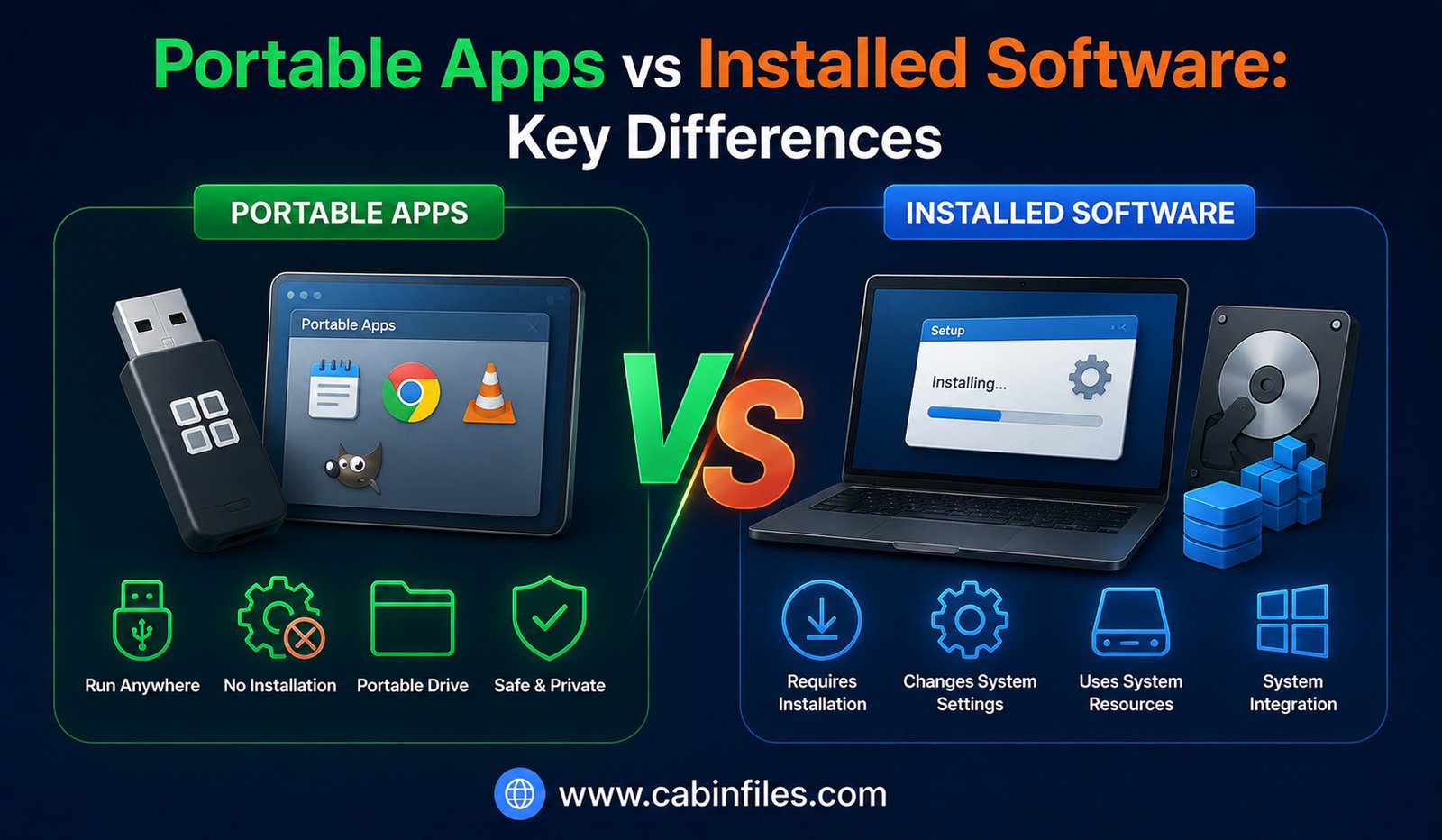
When you need to use a new application on a Windows computer, you may have two choices: install it normally or use a portable version. Both approaches can provide access to the same type of software, but the way the application is stored, configured, updated, and removed can be very different.
Traditional installed software is deeply integrated with the operating system. Portable apps, on the other hand, are designed to run from a folder or external storage with little or no conventional installation.
So, which option is better?
The answer depends on how you use the software, whether you need system integration, how frequently you switch computers, and how important easy deployment is to you. Here is a detailed look at portable apps vs installed software and the key differences you should know.
What Are Portable Apps?
Portable apps are programs designed to run without a traditional installation process.
Instead of using a setup wizard that copies files into multiple Windows directories and modifies system settings, a portable application generally keeps its executable and supporting files together in a dedicated folder.
You may download a ZIP archive, extract it, and launch the application’s executable.
Some portable apps can also be stored on a USB flash drive or external storage and used on multiple compatible computers.
However, “portable” does not mean that an application is completely independent of Windows. Some portable programs still rely on operating-system components and may create temporary files or other data outside their main folder.
What Is Installed Software?
Installed software uses a conventional installation process to integrate an application with the operating system.
When you install a typical Windows application, the installer may copy program files to specific folders, create Start Menu entries and desktop shortcuts, register file associations, add configuration information, and install supporting components.
Some applications also install background services, drivers, update tools, or other system components.
This deeper integration can provide a more complete experience, especially for applications that need to work closely with Windows.
Installation Process
The most obvious difference between the two is how they are installed.
A traditional application usually requires you to run an installer such as an EXE or MSI package. You may need to accept a license agreement, select options, choose an installation location, and allow Windows to make changes.
A portable application may simply require you to extract its files and launch the executable.
This makes portable apps attractive when you want to start using a program quickly without going through a full installation process.
Portability
As the name suggests, portability is one of the biggest advantages of portable applications.
You can often copy a portable application’s folder to another compatible computer and run it there.
This can be particularly useful if you regularly work across multiple computers or want to keep certain utilities on a USB drive.
Installed software is generally tied more closely to the computer on which it was installed. Moving it to another computer normally requires another installation.
However, portable applications are not guaranteed to work everywhere. The destination computer still needs to meet the application’s operating-system and hardware requirements.
System Integration
Installed applications usually have an advantage when it comes to Windows integration.
For example, an installed application can register itself as the default program for a particular file type. It can create Start Menu shortcuts, add context-menu options, install system services, or integrate with other Windows features.
Portable apps generally avoid many of these changes.
This can be beneficial if you want to keep your system uncluttered, but it can also mean that the application feels less integrated into Windows.
Storage and File Organization
Portable software typically keeps most of its files together in one folder.
This makes it easier to copy, back up, or remove the application.
Installed software may distribute files across multiple locations, including program directories, user profile folders, temporary directories, and system configuration areas.
This is not necessarily a disadvantage. The additional files may be required for proper operation, automatic updates, shared components, or Windows integration.
The key difference is that portable applications generally aim for a self-contained structure.
Updates
Installed software often provides a smoother update experience.
Many modern applications include automatic update systems that periodically check for new versions and install them with minimal user involvement.
Portable apps may or may not support automatic updates. In many cases, users need to download a newer version manually and replace the old application files.
This can be less convenient if the software receives frequent security or feature updates.
For applications that must remain continuously updated, the traditional installed version may be the better choice.
Uninstallation
Removing installed software normally involves using Windows’ installed-app settings or the application’s uninstaller.
The uninstallation process attempts to remove the files and system components associated with the application.
Portable apps often do not have a traditional uninstaller. You may simply close the program and delete its folder.
However, portable software is not guaranteed to leave absolutely no traces. Some programs may create temporary files, caches, logs, or other information elsewhere on the computer.
Therefore, portable does not always mean “zero traces.”
Administrator Permissions
Portable applications can sometimes be useful when you do not have administrator access.
If the application does not need to modify protected system areas, it may run under a standard Windows user account.
Traditional software installation often requires administrator approval because the installer may need to write to protected directories or make system-level changes.
However, portability does not automatically eliminate permission requirements. A portable application that needs drivers, services, or restricted system resources may still require elevated permissions.
Performance
There is no universal rule that portable applications are faster or slower than installed applications.
If both versions contain essentially the same program code, their basic performance may be very similar.
However, portable applications running from slow external storage can feel less responsive than applications installed on a fast internal SSD.
Performance also depends on the software itself, the computer’s hardware, and how the application reads and writes data.
The portable format alone does not determine application speed.
Security
Neither portable nor installed software is automatically safer.
Both types can contain legitimate software or malware.
The biggest security factor is where the software came from and whether the application is trustworthy.
Download software from official developer websites or reputable sources. Keep security software enabled and scan unfamiliar applications before running them.
Be especially careful with modified or pirated portable applications. Because portable programs can often be launched without a traditional installation process, users may mistakenly assume they are inherently safer.
They are not.
Privacy
Portable applications can sometimes provide privacy advantages because they may keep configuration and user data inside their own folder.
This can make it easier to carry a customized environment between computers.
However, not every portable application behaves this way. Some applications still create temporary files, cache data, or use Windows user directories.
If privacy is important, check the application’s documentation to understand where it stores information.
Also remember that carrying software and personal data on a USB drive creates another security consideration: the drive itself can be lost or stolen.
Software Dependencies
Installed applications can use system-wide components and dependencies that are installed during setup.
Portable applications often attempt to include the components they need in their own directory or rely on components already available in Windows.
However, some applications cannot realistically be made fully portable. Programs requiring hardware drivers, Windows services, system integrations, or specialized runtimes may need traditional installation.
This is one reason why professional software and system utilities often work better as conventional installations.
Portable Apps vs Installed Software: Which Is Better?
There is no universal winner.
Portable apps are generally better when you want:
- Easy deployment without traditional installation
- Software that can be moved between compatible computers
- A self-contained application folder
- Temporary use of a program
- Convenient utilities stored on external media
Installed software is generally better when you need:
- Deep Windows integration
- Automatic updates
- File associations and system shortcuts
- Background services or drivers
- Advanced system-level functionality
- A more traditional user experience
Your choice should depend on what the application needs to do rather than simply choosing one format for everything.
When Should You Choose a Portable App?
A portable application can be a good option when you need a utility temporarily or want to carry the same application between several compatible computers.
For example, a technician might keep certain troubleshooting tools on a USB drive. A user might also prefer portable software for lightweight utilities that do not need deep Windows integration.
Portable apps can be especially convenient for testing a program before deciding whether you want a permanent installation.
When Should You Choose Installed Software?
Traditional installation is usually preferable for applications you use every day and those that require operating-system integration.
Office suites, professional creative applications, development environments, security tools, drivers, and other complex software often benefit from conventional installation.
Installed software is also generally more convenient when automatic updates and system integration are important.
Final Thoughts
The debate between portable apps vs installed software is not really about which format is universally better. It is about choosing the approach that matches your needs.
Portable apps offer convenience, flexibility, and easy movement between compatible computers. They can be useful for temporary applications and lightweight utilities.
Installed software provides stronger Windows integration, easier automated updates, and support for applications that need system-level components.
For simple utilities, portable software can be an excellent choice. For applications that need regular updates, deep system integration, or additional components, traditional installation is usually more practical.
Whichever option you choose, download software from trusted sources and keep your security protections enabled. The most important decision is not simply whether an application is portable or installed—it is whether the software is legitimate, compatible, and appropriate for your needs.