
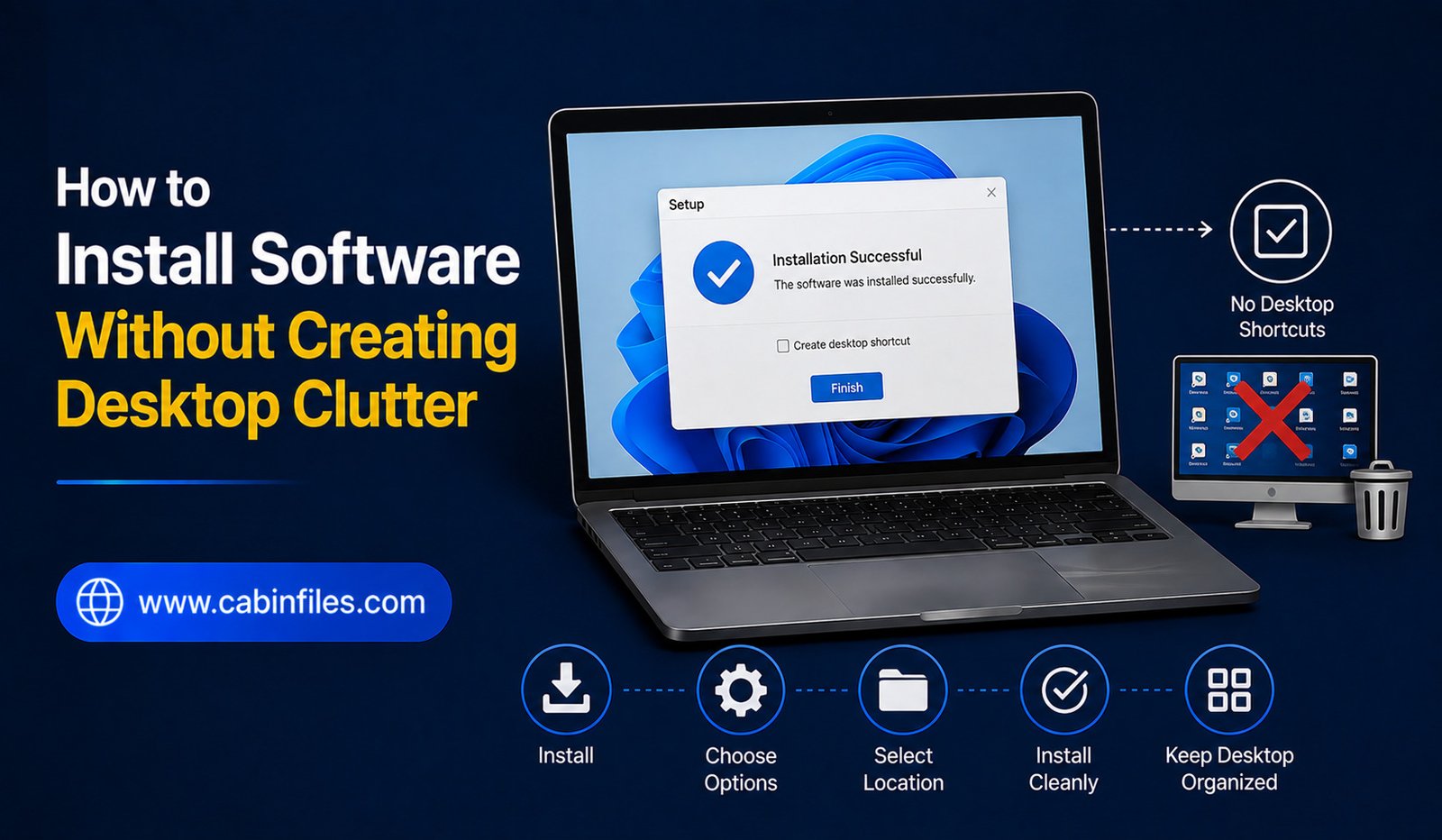
Installing new software should make your computer more useful, not turn your desktop into a crowded collection of icons and shortcuts. Many applications automatically create desktop shortcuts, add entries to the Start menu, enable background processes, or place extra files in commonly used folders.
Over time, these shortcuts and unnecessary files can make your Windows desktop difficult to navigate. The good news is that you can install software without creating desktop clutter by paying attention to installation options and organizing applications properly.
This guide explains practical ways to keep your Windows PC clean while still installing the programs you need.
Why Does Software Create Desktop Clutter?
Many Windows applications create a desktop shortcut during installation so users can launch them quickly. While this can be convenient, installing dozens of programs can quickly fill the desktop.
Some software may also add shortcuts to the Start menu, taskbar, system tray, or startup list. Others create folders containing installers, temporary files, logs, or downloaded content.
Not all of these files are harmful or unnecessary, but you do not need every shortcut visible on your desktop.
A clean installation starts with understanding what the installer is actually offering.
1. Choose Custom Installation When Available
When installing desktop software, look carefully for installation options such as Custom, Advanced, or Customize.
The default installation may automatically enable several options, including:
- Create a desktop shortcut
- Add a Start menu shortcut
- Launch the application when Windows starts
- Install additional components
- Set the program as a default application
You do not necessarily need to accept every option.
Choosing a custom installation gives you more control over what gets installed and which shortcuts are created.
2. Uncheck the Desktop Shortcut Option
One of the simplest ways to prevent desktop clutter is to disable the shortcut option during installation.
Look for wording such as:
Create a desktop shortcut
or
Add shortcut to desktop
If you already know where you will launch the application from, you can leave this option unchecked.
The program will still be installed normally. You can launch it through the Start menu, Windows Search, or another shortcut you choose later.
Be careful, however, not to uncheck essential installation components simply because they look unfamiliar. Focus on optional shortcuts and promotional additions.
3. Use the Start Menu Instead
You do not need a desktop shortcut for every application.
Press the Windows key and search for the software by name. Windows Search can usually locate installed applications quickly.
You can also browse the Start menu to find your installed programs.
This approach keeps your desktop free while still giving you convenient access to your applications.
For software you use frequently, you can consider pinning it to Start or the taskbar instead of creating another desktop icon.
4. Pin Only Your Most-Used Apps
If you regularly use a particular application, consider pinning it rather than creating multiple shortcuts.
Right-click an application and use the available Pin to Start or Pin to taskbar option.
This gives you quick access without filling the desktop with icons.
Try to reserve your taskbar for applications you use frequently. Keeping it organized can make Windows easier to navigate.
5. Create a Dedicated Folder for Desktop Shortcuts
Sometimes you may actually need shortcuts for several applications.
Instead of placing all of them directly on the desktop, create a folder such as:
My Apps
or
Software Shortcuts
You can then move less frequently used shortcuts into that folder.
Your desktop will contain only one folder instead of many individual icons.
You can create additional folders based on your needs, such as Work, Editing, Utilities, or Games.
Avoid creating too many categories, though. The purpose is to make applications easier to find, not create another complicated filing system.
6. Remove Unwanted Shortcuts After Installation
If you accidentally installed software with a desktop shortcut, you do not have to uninstall the application.
Simply delete the shortcut from the desktop.
In most cases, deleting a desktop shortcut does not remove the actual application. It only removes the convenient link used to launch it.
Before deleting anything, make sure you are removing a shortcut rather than an important program file or folder.
You can usually identify shortcuts by their icon and shortcut characteristics.
7. Be Careful With Additional Software
Some installers offer optional applications, browser extensions, utilities, or promotional software.
Read each installation screen carefully.
If an installer offers software you did not intend to install, look for an option to decline it.
This is one of the most important ways to avoid unnecessary clutter. Installing unwanted programs can create additional shortcuts, background processes, notifications, and startup entries.
Whenever possible, download applications from their official websites or trusted software stores.
8. Avoid Saving Installers on the Desktop
Another common source of clutter is downloaded installation files.
For example, you may download files such as:
setup.exe
installer.exe
application-installer.msi
After successfully installing the program, the installer usually does not need to remain on the desktop.
Instead, use the Downloads folder for installation files. After confirming that the application works correctly, you can delete installers you no longer need.
Do not delete files if you are unsure whether they are required by the installed application.
9. Organize Your Downloads Folder
Desktop clutter often happens because users save everything to the desktop for convenience.
Instead, create a simple structure inside your personal folders.
For example, you might use:
Downloads > Software Installers
for installation packages you want to keep temporarily.
You can also create folders for documents, images, projects, and other types of files.
This makes it easier to locate files without relying on the desktop as a storage area.
10. Consider Portable Applications
Some applications are available in portable versions. A portable application can often run from a folder without going through a traditional installation process.
This can be useful when you want to keep a particular utility separate from your main Windows installation.
However, portable software is not automatically better. Some applications require proper installation because they depend on Windows services, drivers, system integrations, or file associations.
Only use a portable version when it comes from a trustworthy source and is officially supported.
11. Review Startup Options During Installation
Desktop clutter is not the only issue caused by careless software installation.
Some applications automatically configure themselves to start whenever Windows starts.
If you do not need a program running in the background, look for an option such as:
Launch at startup
or
Start with Windows
You can usually disable unnecessary startup behavior during installation or manage it later through Windows Settings or Task Manager.
Reducing unnecessary startup applications can also help keep your system organized and responsive.
12. Uninstall Software You No Longer Use
A clean desktop is useful, but your computer can also become cluttered internally with applications you no longer use.
Periodically review your installed programs through Settings > Apps > Installed apps.
If you have not used an application for a long time and no longer need it, consider uninstalling it.
Do not remove programs simply because their names look unfamiliar. Some applications are components required by other software or hardware.
If you are unsure about a program, research its purpose before uninstalling it.
Best Practices for a Clean Software Installation
A few simple habits can make a significant difference:
- Download software from trusted sources.
- Choose Custom or Advanced installation when available.
- Decline optional software you do not need.
- Uncheck unnecessary desktop shortcut options.
- Use the Start menu or taskbar for frequently used applications.
- Store installation files in Downloads instead of the desktop.
- Delete unnecessary installers after confirming the software works.
- Review startup permissions for newly installed applications.
- Organize shortcuts into folders when necessary.
- Uninstall programs you genuinely no longer need.
Final Thoughts
You do not need a desktop full of icons to have a well-equipped Windows PC. By paying attention during installation, choosing only the options you need, and using the Start menu or taskbar for quick access, you can install software without creating desktop clutter.
The most important habit is to avoid treating the desktop as a permanent storage location. Use it as a workspace for the things you need immediately, while keeping applications, installers, and personal files organized elsewhere.
A few extra seconds during each software installation can save you a lot of cleanup later and keep your Windows desktop simple, organized, and easier to use.