
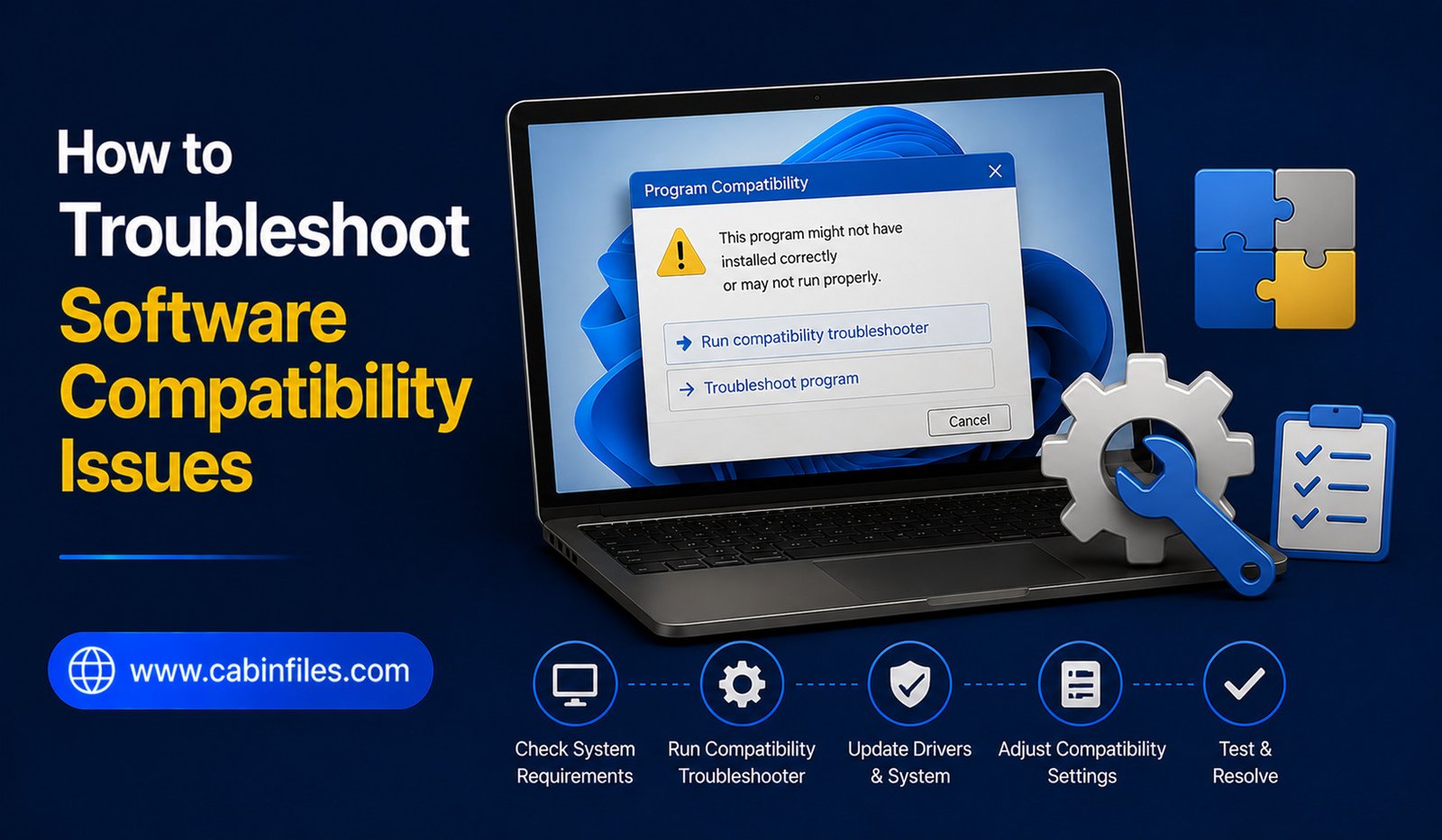
Software compatibility problems can be frustrating. An application may refuse to install, crash when opened, display strange errors, or work correctly on one computer but fail on another. These issues can happen after a Windows update, when using older software, or when an application requires hardware or system components that your PC does not have.
Fortunately, many software compatibility issues on Windows can be diagnosed and fixed without replacing your computer or reinstalling the entire operating system.
This guide explains practical ways to identify compatibility problems and get troublesome programs working again.
What Is a Software Compatibility Issue?
A compatibility issue occurs when software cannot work properly with your current operating system, hardware, drivers, settings, or other installed applications.
For example, an older application designed for an earlier Windows version may not function correctly on a newer release. A program may also require a specific version of .NET, Visual C++ runtime, graphics driver, processor architecture, or other system component.
Compatibility problems can produce different symptoms, including:
- The application will not install.
- The program crashes immediately.
- Features do not work correctly.
- The software displays an error message.
- The application runs extremely slowly.
- Graphics or interface elements appear incorrectly.
- Windows reports that the program cannot run on your PC.
Identifying the exact cause is the first step toward fixing the problem.
1. Restart Windows First
Before changing compatibility settings, restart your computer.
A temporary Windows process, memory issue, or software conflict can sometimes prevent an application from starting correctly.
After restarting, open the program again. If the problem disappears, you may have been dealing with a temporary issue rather than a serious compatibility problem.
If the error returns, continue with the following troubleshooting steps.
2. Check the Software’s System Requirements
Start by checking whether your computer meets the application’s requirements.
Look at the software developer’s official documentation for information about supported Windows versions, processor architecture, memory, storage, graphics hardware, and required system components.
Pay particular attention to whether the program supports your current version of Windows.
Older applications may have been designed for previous Windows releases and may not officially support newer versions.
If your computer does not meet a minimum requirement, changing compatibility settings may not solve the problem.
3. Update the Application
An outdated application can experience compatibility problems with newer versions of Windows.
Check whether the developer has released a newer version.
Updates may include fixes for Windows compatibility, security problems, graphics issues, and hardware changes.
If the application has an automatic updater, use it when possible. Otherwise, download the current version from the developer’s official website.
Avoid downloading unofficial modified versions simply because they claim to solve compatibility problems.
4. Run the Program as Administrator
Some applications require permissions to access particular folders, system settings, or resources.
If an application previously worked but now displays an access-related error, try running it as an administrator.
Right-click the application’s shortcut or executable file and select Run as administrator.
If the program works correctly this way, permissions may be contributing to the problem.
However, do not automatically configure every application to run as administrator. Elevated permissions should be used only when necessary.
5. Use Windows Compatibility Troubleshooter
Windows includes compatibility troubleshooting features designed to help older applications work on newer versions of the operating system.
Right-click the application’s executable or shortcut and look for Properties. Depending on your Windows version and configuration, you may find compatibility settings under the Compatibility tab.
Windows may also provide a compatibility troubleshooter that can recommend settings based on the application’s behavior.
Follow the suggested options and test the application after each change.
6. Try Compatibility Mode for Older Programs
If an older application was designed for an earlier Windows release, Compatibility Mode may help.
Open the application’s Properties and go to the Compatibility tab.
You may see an option to run the program in compatibility mode for an earlier version of Windows.
Select an appropriate version and apply the change.
Then launch the program again.
Compatibility Mode does not guarantee that old software will work. Programs that depend on obsolete drivers, hardware, security systems, or discontinued components may still fail.
7. Update Your Windows Drivers
Hardware drivers can also cause software compatibility problems.
Graphics-intensive applications, games, video editors, and professional software are particularly sensitive to driver issues.
Check whether your graphics, chipset, audio, and other relevant drivers are up to date.
For graphics drivers, it is generally best to obtain the latest compatible version directly from the hardware manufacturer’s official source.
If the problem started immediately after a driver update, the new driver itself could be responsible. In that situation, checking for a newer update or using an appropriate rollback option may help.
8. Install Required Runtime Components
Some Windows programs depend on additional software components.
Common examples include certain versions of:
- Microsoft .NET
- Microsoft Visual C++ Redistributable
- DirectX components
- Other application-specific runtimes
If an application reports that a DLL or runtime component is missing, do not download individual DLL files from random websites.
Instead, identify which official runtime package the application requires and obtain it from a trusted source.
Installing the correct dependency is safer and more reliable than manually replacing system files.
9. Check Whether Security Software Is Blocking the Program
Security software can sometimes interfere with applications, particularly programs that access protected folders, networks, or system resources.
If Windows Security or another trusted security application reports that it has blocked or quarantined something, review the warning carefully.
Do not disable security protection simply to make an unknown application run.
If you downloaded the software from an official and trustworthy source and believe it was incorrectly blocked, investigate the detection before making an exception.
Adding exclusions for suspicious programs can expose your computer to unnecessary risk.
10. Look for Conflicting Applications
Two programs may sometimes interfere with each other.
This can happen with applications that use the same hardware resources, background services, overlays, virtualization features, or system-level components.
If the compatibility problem began after installing another program, consider whether the new software could be involved.
Temporarily closing unnecessary background applications can also help determine whether there is a conflict.
Task Manager can help you identify programs and processes currently running.
11. Repair or Reinstall the Application
If compatibility problems continue, the application’s installation may be damaged.
If Windows provides a Repair option for the application, try it first.
If Repair does not work, uninstall the software and install a fresh version.
Before uninstalling, check whether the application stores important projects, saved games, configuration files, licenses, or other personal data locally.
A clean installation can replace damaged files and restore missing components.
12. Check for Windows Updates
Windows updates can fix compatibility problems by improving system components, drivers, and security features.
Open Settings > Windows Update and check for available updates.
Install appropriate updates and restart the computer when required.
However, if the problem appeared immediately after a particular Windows update, investigate whether the software developer has released a compatibility patch or whether Microsoft has acknowledged the issue.
Avoid randomly removing system updates without understanding the consequences.
13. Test the Software After Every Change
One of the most important troubleshooting habits is to make one major change at a time.
For example, do not simultaneously change compatibility mode, install several drivers, modify security settings, and reinstall the program.
If you change everything at once, it becomes difficult to determine what actually fixed the problem.
Instead, change one setting, restart if necessary, and test the application.
Once you identify the solution, you will also know what to do if the problem returns later.
When Older Software Cannot Be Made Compatible
Some applications are simply too old to work reliably on modern Windows.
A program may depend on discontinued technologies, obsolete drivers, outdated copy-protection systems, or hardware that modern computers no longer support.
In such cases, forcing compatibility settings may not be enough.
Depending on the software’s importance, you might consider a newer version, an officially supported alternative, or an appropriate virtualized environment.
For business-critical software, check the developer’s support documentation before making major system changes.
Final Thoughts
Troubleshooting software compatibility issues is usually a process of identifying where the conflict occurs. Start by checking system requirements, updating the application and Windows, and verifying that required drivers and runtime components are installed.
For older programs, Compatibility Mode may help. If the problem involves permissions, try running the application as an administrator, but only when necessary. You should also investigate security software and possible conflicts with other applications.
If none of these solutions work, repairing or reinstalling the program may be the best option. When software is extremely old, however, replacing it with a supported version may be safer and more reliable than trying to force it to run.
With a systematic approach, many Windows compatibility problems can be resolved without resorting to drastic measures.