
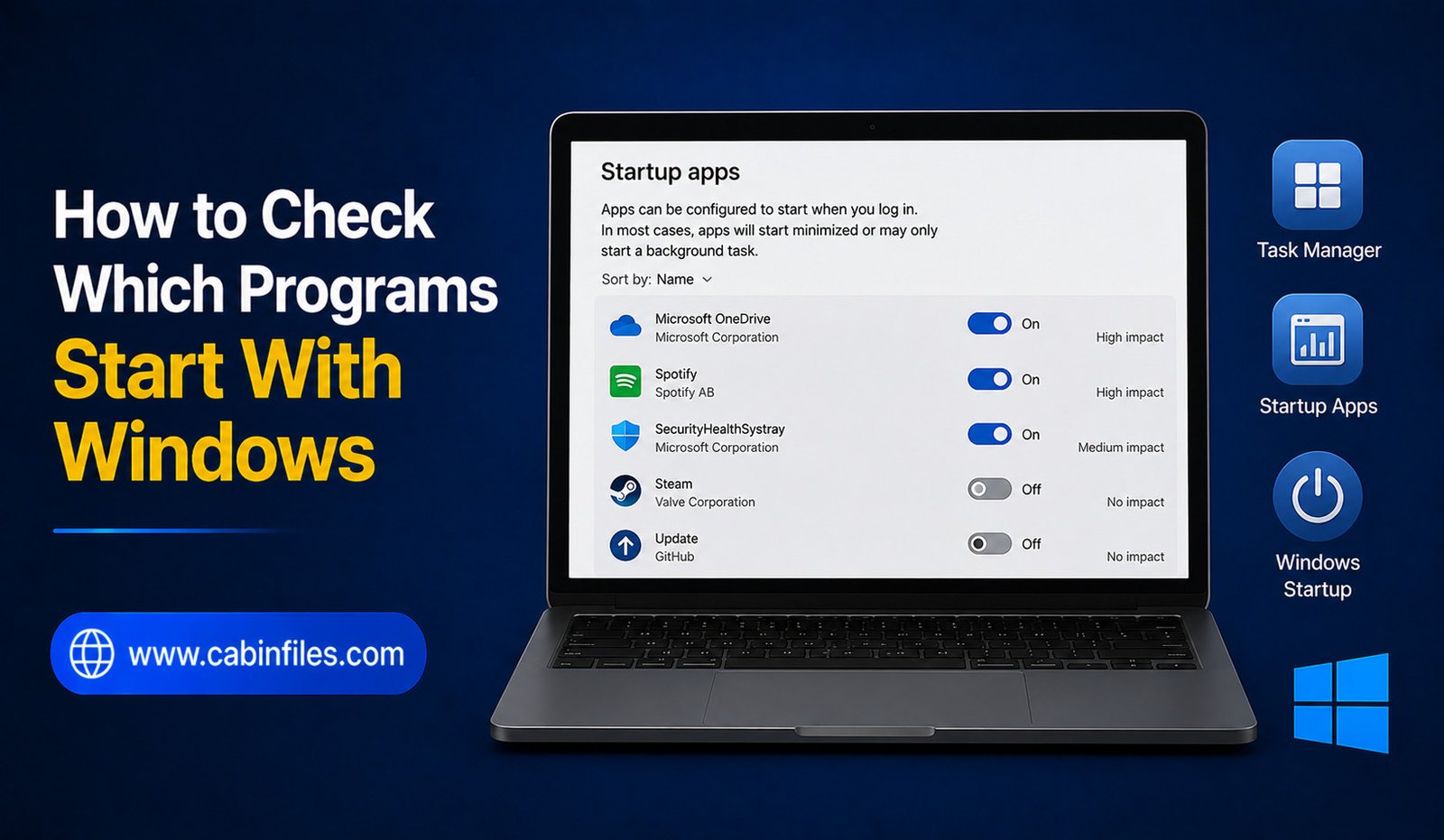
When you turn on your Windows PC, you may notice that some applications open automatically in the background. While a few startup programs are useful, having too many can slow down the boot process, consume memory, and make your computer feel sluggish.
Fortunately, Windows provides several built-in ways to check which programs start with Windows. You can view startup applications, check their impact on system performance, and disable unnecessary programs without uninstalling them.
This guide explains the easiest ways to see and manage Windows startup programs safely.
What Are Startup Programs?
Startup programs are applications or background services that Windows launches automatically when you sign in to your computer.
Some startup programs are useful. For example, security software, cloud storage applications, or hardware utilities may need to start with Windows.
Other programs may not need to launch immediately. Messaging apps, game launchers, media applications, and software update tools can sometimes run automatically even when you do not need them.
Having too many startup applications can increase boot time and use system resources.
1. Check Startup Programs in Task Manager
The easiest way to check startup applications is through Task Manager.
Press Ctrl + Shift + Esc on your keyboard to open Task Manager. If you see the simplified interface, select More details.
Then select the Startup apps section.
Here you will see applications that are configured to launch when you sign in to Windows. The list can include the application name, publisher, status, and startup impact.
The Status column shows whether an application is enabled or disabled.
The Startup impact column can help you identify applications that may have a noticeable effect on startup performance.
If you want to stop an unnecessary application from launching automatically, right-click it and select Disable.
Disabling a startup application does not uninstall the program. It simply prevents Windows from automatically launching it during startup.
2. Use Windows Settings
Windows also provides startup controls through the Settings application.
Open Settings and select:
Apps > Startup
You will see a list of applications that can start automatically when you sign in.
Each application has an on/off control. Turn off applications that you do not need to launch automatically.
This method is particularly convenient if you want a quick overview without opening Task Manager.
However, Task Manager generally provides more information about startup performance, so it is useful when you are trying to identify applications that are slowing down your PC.
3. Check the Startup Folder
Some applications can be configured through the Windows Startup folder.
Press Windows + R to open the Run dialog.
Enter:
shell:startup
and press Enter.
Windows will open the Startup folder associated with your user account.
You may find shortcuts to applications that Windows launches automatically after you sign in.
There is also a startup folder that can apply to all users. You can access it with:
shell:common startup
Be careful when deleting items from these folders. If you do not recognize a shortcut, investigate the associated program before removing it.
4. Check Startup Apps in Task Manager More Carefully
If your computer takes a long time to start, Task Manager can help you determine which applications deserve attention.
Look at the Startup impact column and identify applications marked with a higher impact.
However, do not automatically disable every application with high startup impact.
Some programs may be important for security, hardware functionality, cloud synchronization, or other services you rely on.
Instead, consider whether you actually need the application to launch immediately after signing in.
For example, a program that you use only occasionally may not need to run every time Windows starts.
5. Check Which Programs Are Running After Startup
Startup programs are not the only applications consuming resources after Windows loads.
Open Task Manager and select the Processes tab.
You can view applications and background processes currently running on your computer. Task Manager also shows resource usage such as CPU, memory, disk, and network activity.
This can help you distinguish between applications that start automatically and programs that are simply running later because another application or Windows service launched them.
If you find an unfamiliar process, do not immediately terminate or uninstall it. Search for its publisher and file location first.
6. Use System Configuration for Older Startup Entries
Windows includes the System Configuration utility, commonly known as MSConfig.
Press Windows + R, type:
msconfig
and press Enter.
The System Configuration window provides options related to Windows startup and services.
On modern versions of Windows, startup application management is generally handled through Task Manager rather than directly through MSConfig.
However, MSConfig can still be useful for troubleshooting certain startup and service-related problems.
Avoid changing services randomly. Disabling essential Windows services can cause unexpected problems.
7. Check for Suspicious Startup Programs
If you notice an unfamiliar application starting with Windows, investigate it before disabling or deleting anything.
Right-click the application in Task Manager and look for options such as opening its file location or searching for information about the process.
Pay attention to the publisher and installation location.
A legitimate program usually has recognizable information, while an unknown executable stored in an unusual location deserves additional investigation.
You can also run a security scan using Windows Security if you suspect that an unfamiliar startup item could be malicious.
8. Should You Disable Startup Programs?
Disabling unnecessary startup applications can improve the time it takes to reach a usable desktop and may reduce background resource usage.
However, the goal should not be to disable everything.
Consider keeping applications enabled when they provide services you need immediately after signing in. Examples can include security tools, essential hardware utilities, or synchronization software that you depend on.
For applications you rarely use, disabling automatic startup may make more sense.
You can still open the application manually whenever you need it.
9. What Happens When You Disable a Startup App?
When you disable a startup application, Windows generally stops launching it automatically when you sign in.
The application remains installed on your computer.
For example, if you disable a music application from startup, you can still open it from the Start menu whenever you want.
If you notice that a required feature stops working after disabling an application, you can return to the Startup settings or Task Manager and enable it again.
This makes startup management relatively safe as long as you avoid disabling essential system components without understanding their purpose.
10. Keep Your Startup List Under Control
Your startup list can grow over time as you install more applications.
Instead of waiting until your PC becomes slow, review startup applications occasionally.
When installing new software, pay attention to options related to automatically starting the program with Windows. Some installers may enable this feature by default.
Removing unnecessary startup applications can help keep your Windows environment cleaner and more responsive.
Final Thoughts
Knowing how to check which programs start with Windows can help you troubleshoot slow boot times and reduce unnecessary background activity.
For most users, Task Manager > Startup apps is the easiest place to begin. Windows Settings provides another simple way to enable or disable startup applications, while the Startup folder and MSConfig can help with more specific situations.
Remember that disabling a startup program is different from uninstalling it. If you are unsure about an unfamiliar application, investigate it before making changes.
A carefully managed startup list can help your PC start more efficiently without removing software you may still need.