
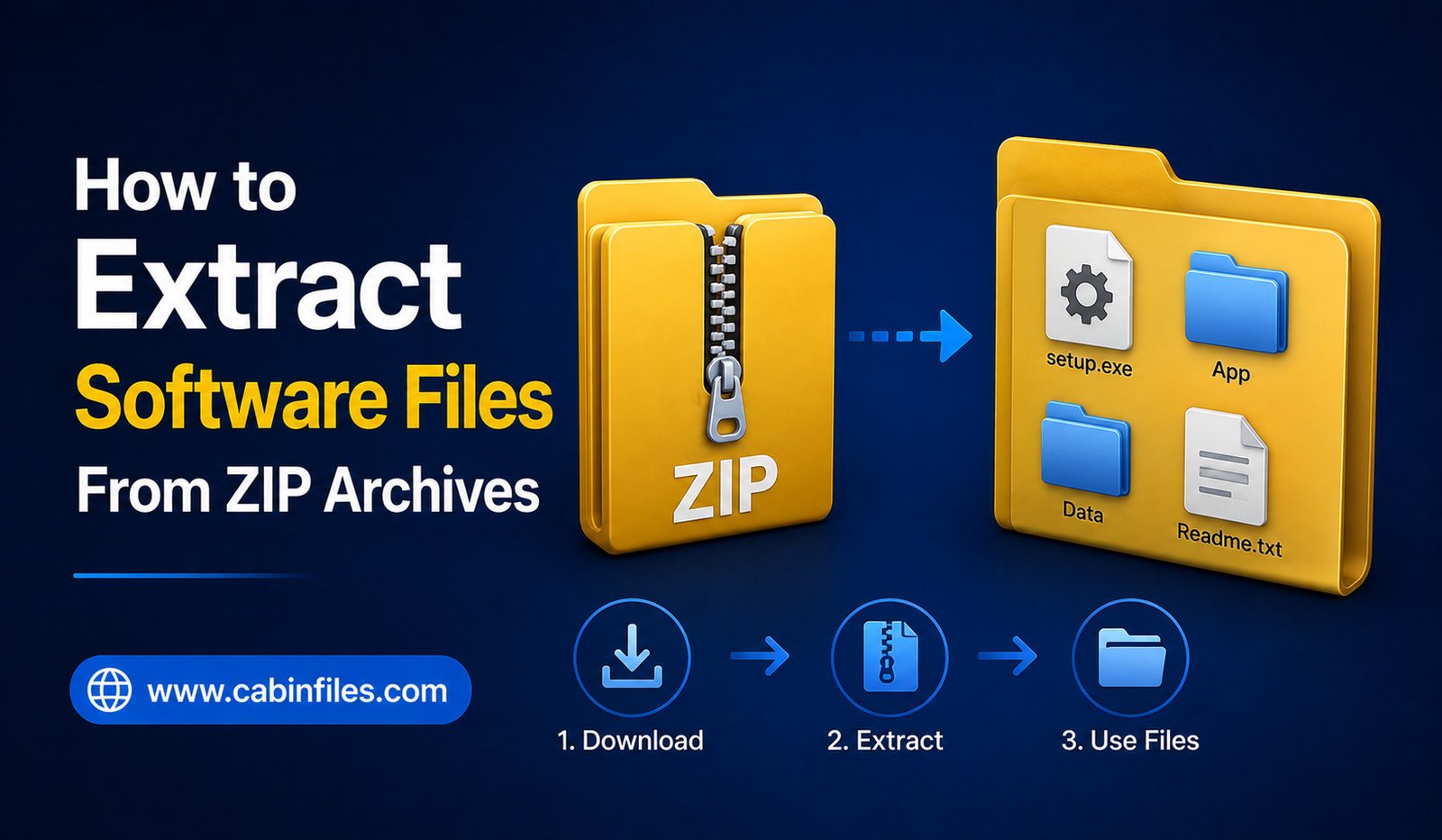
Downloading software from the internet often means receiving the program inside a ZIP archive. Instead of seeing an application file immediately, you may find a file ending in .zip that contains installers, executable files, folders, documentation, or supporting components.
ZIP archives are useful because they package multiple files into a single downloadable file and may reduce the amount of storage space required. However, beginners sometimes try to run software directly from the ZIP archive or extract only part of its contents, which can cause installation or startup problems.
Learning how to extract software files from ZIP archives is therefore an important basic computer skill. The process is usually simple, but it is worth understanding what extraction does, where the files should go, and how to handle downloaded software safely.
What Is a ZIP Software Archive?
A ZIP archive is a container that can hold one or more files and folders. Software developers commonly use ZIP files to distribute applications because they can package everything required by a program into one download.
A ZIP archive might contain an .exe installer, a portable application, configuration files, libraries, documentation, and other folders. Some software may also be distributed without an installer, meaning the extracted folder itself contains everything needed to run the application.
The important point is that a ZIP file is usually not the software itself. It is a package containing the software and its related files.
Before using the program, you normally need to extract the archive.
Why Do Software Developers Use ZIP Files?
ZIP archives provide a convenient way to distribute groups of files.
Instead of asking users to download dozens of individual files, a developer can package them into one archive. This also helps preserve the folder structure required by some applications.
ZIP files can be especially useful for portable applications. A portable program may not require a traditional installation process. Instead, you extract the archive and launch the appropriate executable file from the extracted folder.
Software distributed as ZIP files can also be useful when developers want users to have more control over where the program is stored.
How to Extract a ZIP File in Windows
Windows includes built-in support for basic ZIP archives, so you usually do not need additional software.
First, locate the downloaded ZIP file. It may be in your Downloads folder unless you selected another location.
Right-click the ZIP file and look for the option to extract its contents. Choose the extraction option, select a destination if required, and allow Windows to create the extracted folder.
Once the process finishes, open the new folder and examine its contents.
You may find an installer such as setup.exe, an application file ending in .exe, or a folder containing several supporting files.
Do not delete files from the extracted software folder unless you know they are unnecessary. Some applications depend on files stored alongside the main executable.
How to Extract Software From a ZIP on macOS
macOS also provides built-in support for ZIP archives.
Locate the downloaded ZIP file in Finder and double-click it. The system will normally extract the archive and create a new folder containing its contents.
Open the extracted folder and look for the application’s instructions or the appropriate application file.
If the software requires installation, follow the instructions supplied by the developer. If it is a portable-style application, you may be able to launch it directly after extraction.
How to Extract ZIP Software on Android
Android devices can also handle ZIP archives, although the exact steps depend on the phone and file-management application.
Open your file manager and navigate to the location where the ZIP archive was downloaded. Select the archive and look for an option such as Extract, Unzip, or Extract here.
Choose a destination folder and wait for the extraction to finish.
However, be careful when downloading software intended for computers. An Android phone may be able to store a ZIP archive containing Windows software, but that does not mean the software can run on Android.
What Happens During Extraction?
When you extract a ZIP archive, the files inside it are copied out into a normal folder structure.
For example, a software archive might contain:
Software.zip
After extraction, you could see:
Software/
Inside that folder might be:
Software.exe
along with folders containing libraries, configuration files, images, or documentation.
The ZIP archive remains unchanged unless you delete it manually. This means you may temporarily have both the original compressed archive and the extracted files.
After confirming that the software works correctly, you can usually delete the ZIP archive if you no longer need it.
How to Know Which File Runs the Software
Finding the correct file after extraction can sometimes be confusing.
Windows software commonly uses the .exe extension for executable programs. You might see names such as setup.exe, install.exe, or the actual application name followed by .exe.
A file named setup.exe or install.exe often indicates that the software has a traditional installation process.
If the archive contains an application executable without an installer, the program may be designed to run directly from the extracted folder.
Read any included README, installation guide, or documentation before launching unfamiliar files. The developer may provide specific instructions about where the program should be installed or which executable should be opened.
Should You Run Software Directly From a ZIP File?
It is generally better to extract software before running it, especially when the archive contains multiple files.
Some programs require access to supporting files located in the same folder or in subfolders. Running an executable while it is still inside a compressed archive can cause unexpected behavior or make it difficult for the program to access everything it needs.
Extracting the complete archive preserves its folder structure and gives the application normal access to its files.
For this reason, create a dedicated folder and extract the entire archive before trying to use the software.
Check the ZIP File Before Opening It
Software downloaded from the internet should be treated carefully, particularly when it comes from an unfamiliar website.
A ZIP archive can contain executable files, scripts, or other potentially harmful content. The fact that a file is compressed does not make it safe.
Before extracting and launching unfamiliar software, consider whether you trust the source. Download applications from the developer’s official website or another reputable distribution platform whenever possible.
It is also a good idea to keep your operating system and security software updated.
If your antivirus program warns you about a file inside the archive, do not simply ignore the warning. Investigate the detection and verify that the software came from a legitimate source before continuing.
What If the ZIP File Will Not Extract?
Sometimes a ZIP archive may produce an error during extraction.
One common reason is an incomplete download. If the download was interrupted or the file became corrupted, the archive may not contain all the required data.
Try downloading the file again from the original trusted source.
Another possibility is that the archive uses features that your operating system’s built-in extractor does not support. In that situation, a reputable archive utility may be able to handle the file.
You should also check whether your computer has enough free storage space. Extraction can require considerably more space than the compressed archive itself.
What If the Extracted Software Does Not Work?
Successful extraction does not guarantee that the program will run.
The software may require additional components, a specific operating system version, certain system libraries, or administrator permissions.
Check the developer’s documentation for system requirements and installation instructions.
If the program displays a missing DLL error, compatibility warning, or another startup message, avoid downloading random replacement files from unknown websites. Instead, identify the software’s official requirements and obtain required components from trustworthy sources.
ZIP Extraction vs Installation
One of the most important things to understand is that extracting software is not necessarily the same as installing it.
Extraction simply removes the files from the compressed archive.
Installation may involve copying files to specific system locations, creating shortcuts, registering components, setting permissions, or making configuration changes.
Some portable applications do not require a traditional installation. Others need you to run an installer after extraction.
Always check what type of software you downloaded before assuming that extraction alone completes the installation.
Best Practices for Extracting Software ZIP Files
For a smooth and safer experience, download software from a trustworthy source and extract the complete archive into a dedicated folder. Avoid deleting individual files from the extracted directory unless the developer says they are unnecessary.
Keep the original ZIP file until you have confirmed that the extracted software works correctly. If you need to reinstall the application later, the archive can save you from downloading it again.
It is also useful to keep software organized rather than extracting random applications directly onto the desktop or into system folders.
Final Thoughts
Learning how to extract software files from ZIP archives is straightforward once you understand the difference between an archive and the software inside it.
A ZIP file is simply a package that stores compressed files and folders. Extracting it creates a normal folder containing the software and its supporting components. Depending on the application, you may then need to run an installer or launch a portable executable.
The safest approach is to download software from a trusted source, extract the complete archive, read the developer’s instructions, and scan unfamiliar files when appropriate. By following these basic steps, you can avoid many common problems and handle ZIP-based software downloads with confidence.