
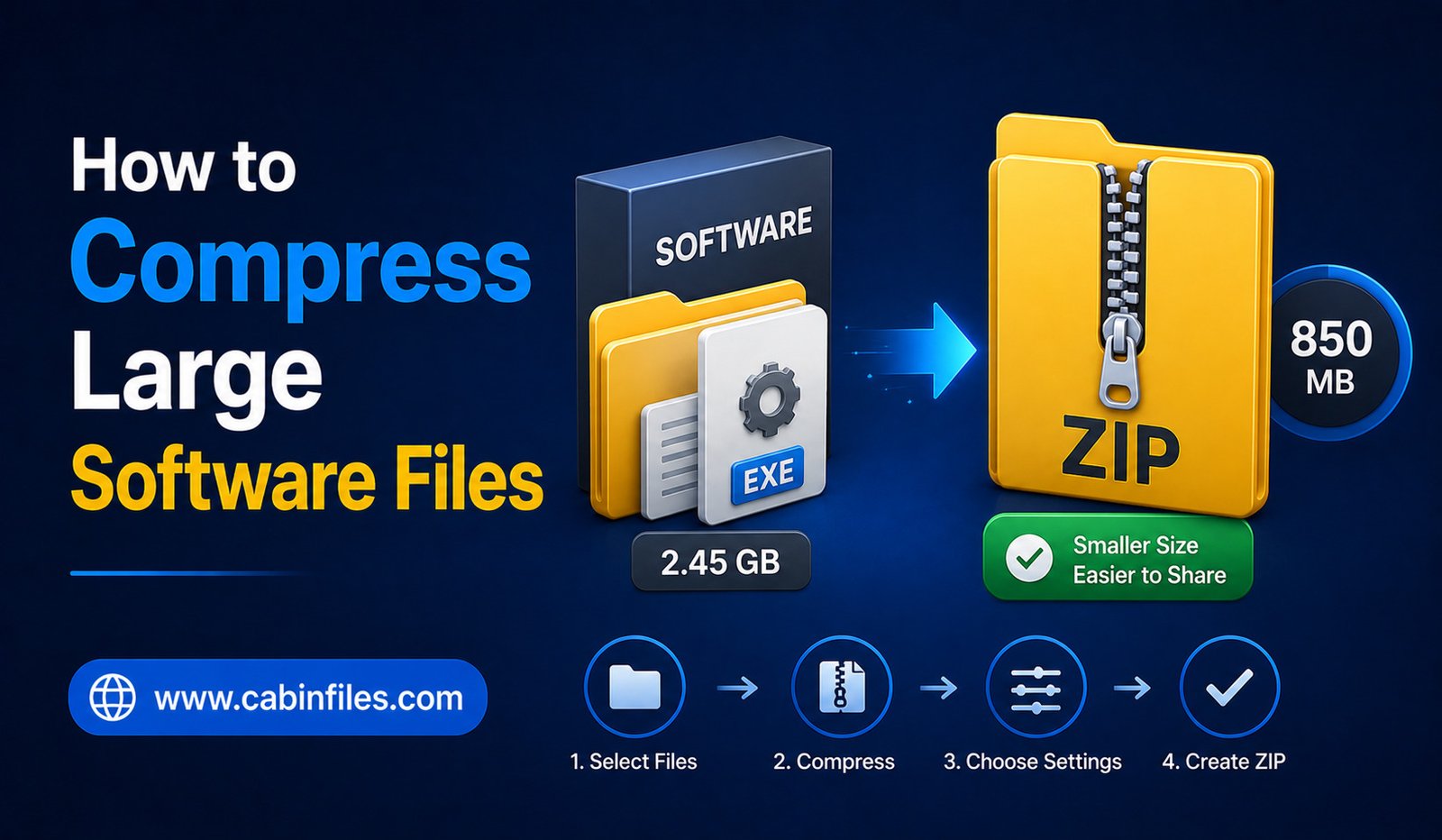
Large software files can take up considerable storage space and may be difficult to transfer through email, cloud services, messaging platforms, or websites with upload limits. Compressing these files can make them easier to organize, store, and share.
Whether you are dealing with an application folder, software backup, installation package, or collection of program files, archive formats such as ZIP can package multiple files into a single container. Depending on the type of software, compression may also reduce the total file size.
However, not every software file can be compressed significantly. Many modern applications already contain compressed images, videos, libraries, and other data. Understanding how compression works and choosing the right method can help you achieve better results.
This guide explains how to compress large software files, which formats to consider, how to split large archives, and what precautions to take before sharing compressed software.
What Does Software Compression Mean?
Software compression involves using an archive program to reduce the size of files or package multiple files into a single archive.
For example, suppose you have a software folder containing dozens of files and several subfolders. Instead of storing or sending the folder as separate items, you can create a ZIP or another compressed archive.
The compression software analyzes the data and attempts to represent repeated patterns more efficiently. When the archive is extracted, the original files are reconstructed.
Most common archive compression is lossless, meaning the process does not intentionally remove information from the original software files.
Why Compress Large Software Files?
There are several reasons to compress software files.
The first is convenience. A software project containing hundreds of files can be packaged into one archive, making it easier to move or upload.
Compression can also reduce storage requirements when the files contain data that compresses well. This can be useful when creating backups of software installers, development projects, or application resources.
Another advantage is organization. Instead of having a folder containing many individual files, you can maintain a single archive with the complete directory structure.
However, compression should not be expected to dramatically shrink every application. The results depend on the data inside the software package.
ZIP: The Simplest Option
ZIP is usually the easiest format for compressing software files because it is widely supported.
Windows and macOS can handle standard ZIP archives without requiring specialized software for basic tasks. This makes ZIP a practical choice when you plan to send the compressed software to another person.
To compress a software folder on Windows, locate the folder, right-click it, and use the operating system’s option for creating a compressed or ZIP folder.
Windows will create a new ZIP archive containing the folder and its files.
For large software packages, the resulting archive may still be quite large. In that case, you may need to use a dedicated archive utility with additional compression options.
Choosing the Right Compression Format
ZIP is not the only option.
Other archive formats can provide different combinations of compression efficiency, speed, encryption, and file-splitting capabilities.
RAR is commonly used for advanced archive management and can be useful when working with large collections of files. 7Z is another popular format that can provide strong compression with suitable data.
The best format depends on your requirements.
If compatibility is the priority, ZIP is usually a convenient choice. If you are more concerned about achieving a smaller archive and the recipient has compatible software, other formats may be worth considering.
Use the Correct Compression Level
Many compression utilities offer different compression levels.
A faster setting generally uses less processing power and completes more quickly. A higher compression setting may produce a smaller archive but can take longer and use more system resources.
For very large software folders, maximum compression is not always the best option.
If the software is already heavily compressed, increasing the compression level may provide little benefit while significantly increasing the time required to create the archive.
A balanced compression setting is often a practical choice for everyday file management.
Why Some Software Files Barely Shrink
One of the most common misconceptions is that every large file can become dramatically smaller after compression.
This is not true.
Many software packages already contain compressed resources. Images may use formats such as JPEG or WebP, while videos and audio frequently use highly compressed codecs. Some installers and application packages are also already compressed.
Trying to compress such files again may produce only a small reduction.
For example, a 5 GB software folder does not necessarily become a 1 GB archive. The final size could remain close to the original depending on what the folder contains.
Compression works best when there is redundant or efficiently compressible data.
Compress the Complete Software Folder
If software depends on multiple files, avoid selecting only the main executable when creating an archive.
Many applications require supporting libraries, configuration files, resource folders, or other components.
Instead, compress the complete software folder while preserving its directory structure.
This makes the archive easier to extract later and reduces the risk of missing files.
If the developer provides a specific folder structure, preserve it rather than rearranging individual files.
How to Compress Large Software Files on Windows
Windows provides a basic built-in ZIP option.
Start by locating the software folder you want to archive. Right-click the folder and choose the option for creating a compressed ZIP folder.
Windows will create an archive in the same general location. You can rename it to something descriptive, such as:
Software_Backup.zip
For larger archives or more advanced settings, dedicated archive software may provide additional options such as compression levels, encryption, and archive splitting.
Before deleting the original software folder, extract the archive somewhere else and verify that the files are intact.
How to Compress Software on macOS
On macOS, you can create a ZIP archive directly through Finder.
Select the software folder, open the context menu, and choose the compression option. macOS will generate a ZIP archive containing the selected folder.
As with Windows, keep the original files until you have verified that the archive works correctly.
For advanced compression formats or settings, you may need dedicated archive software.
How to Compress Software Using 7Z or RAR
If you need more control over compression, specialized archive applications can provide additional formats and settings.
A typical workflow is to select the software folder, choose an archive format, select an appropriate compression level, and start the process.
Higher compression settings can take significantly longer, especially when processing several gigabytes of data.
For very large archives, monitor available storage and system resources during compression. The software may need temporary working space in addition to the size of the final archive.
Splitting a Large Software Archive Into Parts
Sometimes the compressed archive is still too large to upload or transfer as a single file.
Some archive tools allow you to split an archive into multiple parts. For example, a large software archive could be divided into several smaller volumes.
This can be useful when a service has an individual file-size limit.
When splitting an archive, keep all parts together. Missing even one required part may prevent the complete archive from being extracted.
Use clear filenames and explain to the recipient that the parts belong to the same archive.
Password-Protecting Compressed Software
If the software package contains confidential files, some archive tools allow you to protect the archive with a password.
Password protection can be useful when transferring private development projects, proprietary software, or other sensitive information.
Choose a strong password and share it through a separate secure communication method when appropriate.
Remember that the security of an archive depends on the encryption method and software being used. Older or weak encryption options should not be relied upon for highly sensitive information.
Is Compressing Software Safe?
Compressing software does not normally change the program’s functionality, but you should be careful about where the software came from.
If you are downloading an application from the internet, verify that it comes from the official developer or another trustworthy source.
Compressed archives can contain executable files, scripts, and other potentially dangerous content. An archive extension such as .zip, .rar, or .7z does not guarantee that its contents are safe.
Before extracting unfamiliar software, use appropriate security tools and avoid running files from suspicious sources.
Common Problems When Compressing Software
Large software archives can sometimes cause errors.
Insufficient disk space is one common problem. The computer may need additional temporary storage during the compression process.
Another problem is corrupted or incomplete source files. If the original software folder contains damaged files, compressing it will not repair them.
Very large archives can also take considerable time to create, especially when using high compression settings.
If an archive fails, check available storage, verify the original files, and try creating the archive again using a different compression setting or reputable archive application.
Should You Delete the Original Files?
Do not immediately delete the original software folder after creating an archive.
First, test the archive. Extract it to another location and verify that important files are present and readable.
Once you are confident that the archive is complete, you can decide whether the original folder is still necessary.
If the archive is intended as a backup, keeping only one copy is not ideal. A backup should ideally exist in another storage location as protection against hardware failure or accidental deletion.
Final Thoughts
Knowing how to compress large software files can make file storage, backups, and transfers much easier. ZIP is generally the simplest option because of its broad compatibility, while formats such as RAR and 7Z can provide additional features and compression options.
The most important thing to remember is that compression results depend on the type of software. Already-compressed files may not become much smaller, while folders containing text, source code, and other highly compressible data can often benefit more.
For large software packages, compress the complete folder, choose a sensible compression level, consider splitting very large archives when necessary, and verify the resulting archive before deleting the original files. With these practices, you can manage large software collections more efficiently without risking missing or damaged files.