
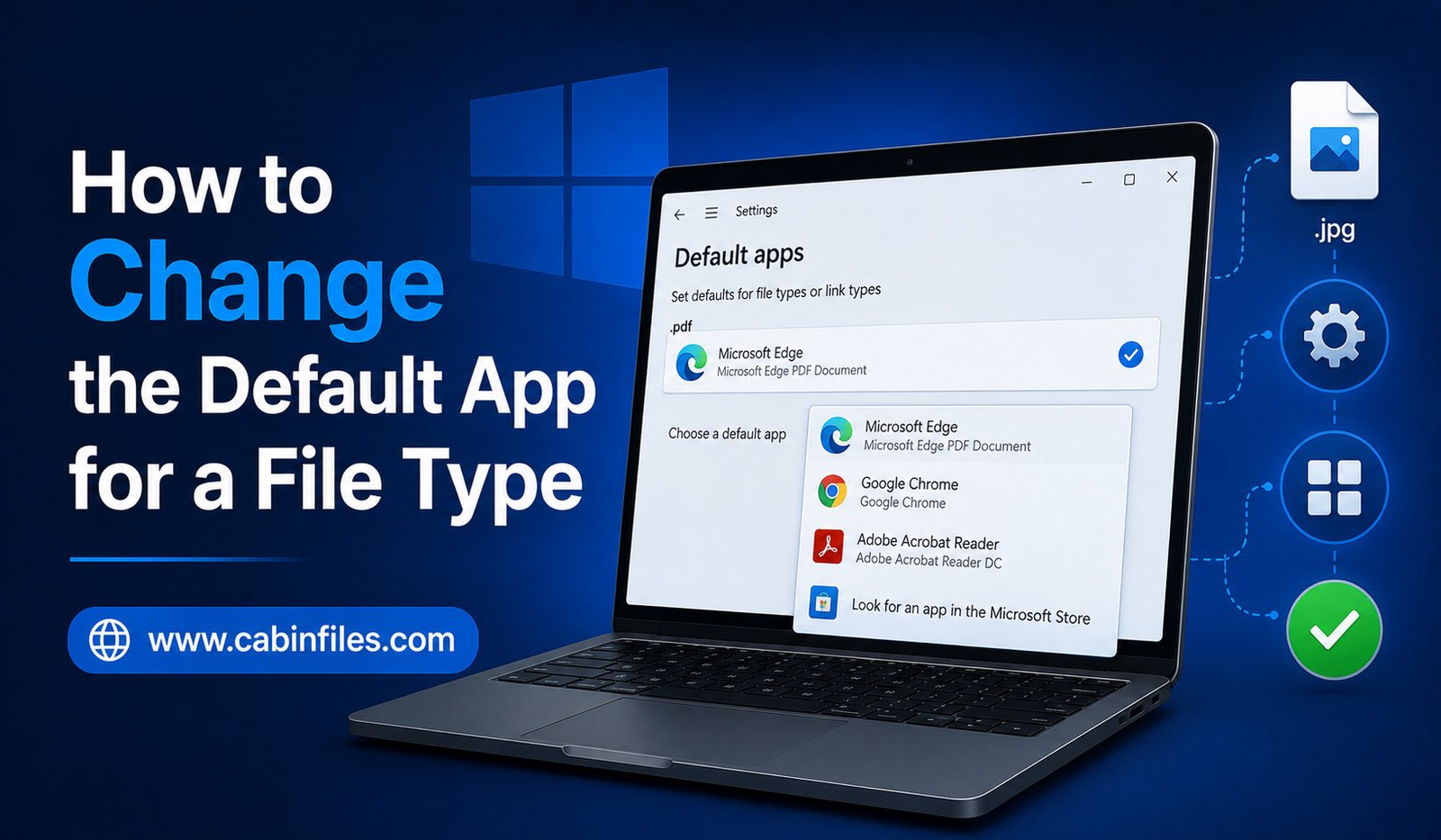
Have you ever double-clicked a file and watched Windows open it in the wrong application? Perhaps your images keep opening in one photo viewer when you prefer another, or a document launches in a program you rarely use.
Windows allows you to change the default app for a file type, so files with a particular extension automatically open with the application you choose. This can make everyday tasks faster and give you more control over how different files are handled.
The process is straightforward, although the exact menus can vary slightly between Windows versions. In this guide, you will learn several ways to change default applications safely and understand what happens when you modify a file association.
What Is a Default App?
A default app is the program Windows automatically uses when you open a particular type of file.
For example, Windows may associate .jpg files with a photo application. When you double-click a JPG image, Windows checks that association and launches the selected program.
The same principle applies to documents, videos, audio files, archives, web pages, and many other formats.
Changing the default app does not change the file itself. It only tells Windows which compatible application should be used when you open that type of file.
Why Change the Default App?
There are several reasons you might want to change a file association.
You may prefer a different application because it loads faster, offers more features, or has a better interface. You may also install a new application that you want to use instead of the existing default.
Sometimes software installation automatically changes file associations. After installing a new browser, media player, image editor, or document application, you may notice that certain files open differently.
Changing the default app lets you restore your preferred behavior.
Method 1: Change the Default App From a File
One of the quickest methods is to change the association directly from a file.
Find a file with the extension you want to change. For example, if you want to change how .pdf files open, locate any PDF file.
Right-click the file and select Open with.
Windows may display a list of suggested applications. If the application you want appears, select it.
Look for the option that allows you to choose another app and, when available, select the option to always use that application for files of this type.
After confirming your choice, Windows will associate that extension with the selected application.
From that point forward, double-clicking files with the same extension should open them using your chosen program.
Method 2: Use Windows Settings
Windows also provides a centralized area for managing default applications.
Open Settings and go to Apps > Default apps.
You can search for an application or look for a specific file extension.
If you search for an extension such as .jpg, Windows will show the application currently associated with that file type.
Select the current application and choose another compatible program from the available options.
This method is particularly useful when you want to manage several file associations or cannot easily find a suitable file to right-click.
Change Defaults by Application
Windows also allows you to view the file types associated with a particular application.
Open Settings > Apps > Default apps and search for the application you want to configure.
Depending on your Windows version, you may see the file extensions and protocols associated with that application.
You can then change individual associations.
This approach is useful when you have installed a new application and want to make it the preferred program for several supported file types.
How to Change the Default PDF App
PDF files are a common example.
If PDFs are opening in an application you do not want to use, right-click a PDF file and select Open with.
Choose your preferred PDF application and select the option to always use it for PDF files.
You can also manage the association through Windows Settings by searching for .pdf under Default apps.
After changing the association, double-clicking a PDF should launch your selected application.
How to Change the Default Image App
The same process works for image formats.
Common image extensions include .jpg, .jpeg, .png, .gif, and .webp.
You can change each extension individually if you want different applications to handle different image formats.
For example, you might prefer one application for viewing images and another for editing them.
Remember that changing the default app for .jpg does not automatically change the default for every other image format.
How to Change the Default Video or Audio App
Windows also allows you to choose applications for media formats.
You might want your .mp4 files to open in a particular video player or your .mp3 files to open in a preferred music application.
Open Settings > Apps > Default apps and search for the relevant extension.
Select the current application and choose the media player you want to use.
If your preferred player does not appear, make sure it is properly installed and supports the file format.
What If Your Preferred App Does Not Appear?
Sometimes the application you want does not appear in Windows’ list of available programs.
First, make sure the application is installed correctly.
If it is installed but still does not appear, you may be able to browse to the application’s executable file manually.
However, be careful when selecting executable files. Only choose a program you recognize and trust.
You should not select an unknown .exe file simply because it claims to support the file extension.
Can You Have Different Apps for Different File Extensions?
Yes.
You can assign different applications to different file types.
For example, you could configure one application to open .jpg files, another to handle .png files, and a separate editor for .psd files.
This gives you fine control over how Windows handles different formats.
You can also change these associations later without modifying the files themselves.
Changing a Default App Does Not Convert Files
It is important to understand that changing a file association does not change the file format.
If you tell Windows to open .txt files with a word processor instead of Notepad, the files are still plain-text files.
Similarly, selecting a different PDF reader does not convert PDFs into another format.
The association only determines which application Windows launches when you open the file.
What Happens When You Uninstall the Default App?
If you uninstall an application that was associated with a particular file type, Windows may automatically assign another application or ask you to choose a new default.
If files suddenly stop opening after uninstalling software, check the Default apps settings and select another compatible application.
Installing a new program can also modify file associations, so it is worth checking your defaults whenever you notice unexpected changes.
How to Restore the Original Default Apps
If you change several associations and later want to return to Windows’ recommended settings, you can use the reset option in the Default apps section of Windows Settings.
Depending on your Windows version, this can restore Microsoft’s recommended applications for common file types.
You can also manually change individual associations instead of resetting everything.
This is useful if only one or two file types are causing problems.
Common Mistakes to Avoid
One common mistake is selecting an application that does not actually support the file format.
Windows may allow you to associate a file extension with a program, but that does not mean the program can correctly read the file.
Another mistake is choosing an unknown executable when browsing for an application.
Always use trusted software and confirm that the application officially supports the file type you are trying to open.
You should also avoid downloading random programs just because a website claims they can open a particular file.
What If Windows Keeps Changing the Default App?
In some cases, a software update or new installation may attempt to change file associations.
If your preferred application keeps getting replaced, check its settings for options related to default file associations.
You may also need to revisit Windows Default apps after major software updates.
Keeping your preferred application updated can help reduce compatibility issues.
Final Thoughts
Knowing how to change the default app for a file type gives you greater control over your Windows experience.
The easiest method is often to right-click a file, choose Open with, and select your preferred application. For more control, use Settings > Apps > Default apps, where you can manage associations by file extension or application.
Remember that changing a default app does not modify or convert the file itself. It simply tells Windows which compatible program should open it.
If you regularly work with different file formats, setting the right default applications can save time and make your computer much easier to use.