
Software changes constantly. Developers release updates to fix security vulnerabilities, improve performance, add features, and maintain compatibility with newer operating systems. But if you have several programs installed on your computer, it can be difficult to know which ones are outdated.
An old software version may continue working normally, so you might not realize that an update is available. In some cases, however, outdated software can cause compatibility problems, security risks, crashes, or missing-feature issues.
The good news is that checking software versions is usually simple. You can identify the installed version, compare it with the latest release, and decide whether an update is necessary.
This guide explains how to identify old software versions on Windows and what you should check before updating an application.
What Does an Old Software Version Mean?
An old software version is a release that is no longer the newest version available from its developer.
For example, a program might currently be available as version 8.5 while your computer has version 7.2 installed. The older release may still work, but it could lack recent security patches, features, bug fixes, or compatibility improvements.
Being old does not automatically mean that software is unsafe. Some applications remain supported for years, while others stop receiving updates relatively quickly.
The important question is whether the developer still supports the version you are using.
Check the Software’s Version Number
The easiest way to identify an old application is to check its version number.
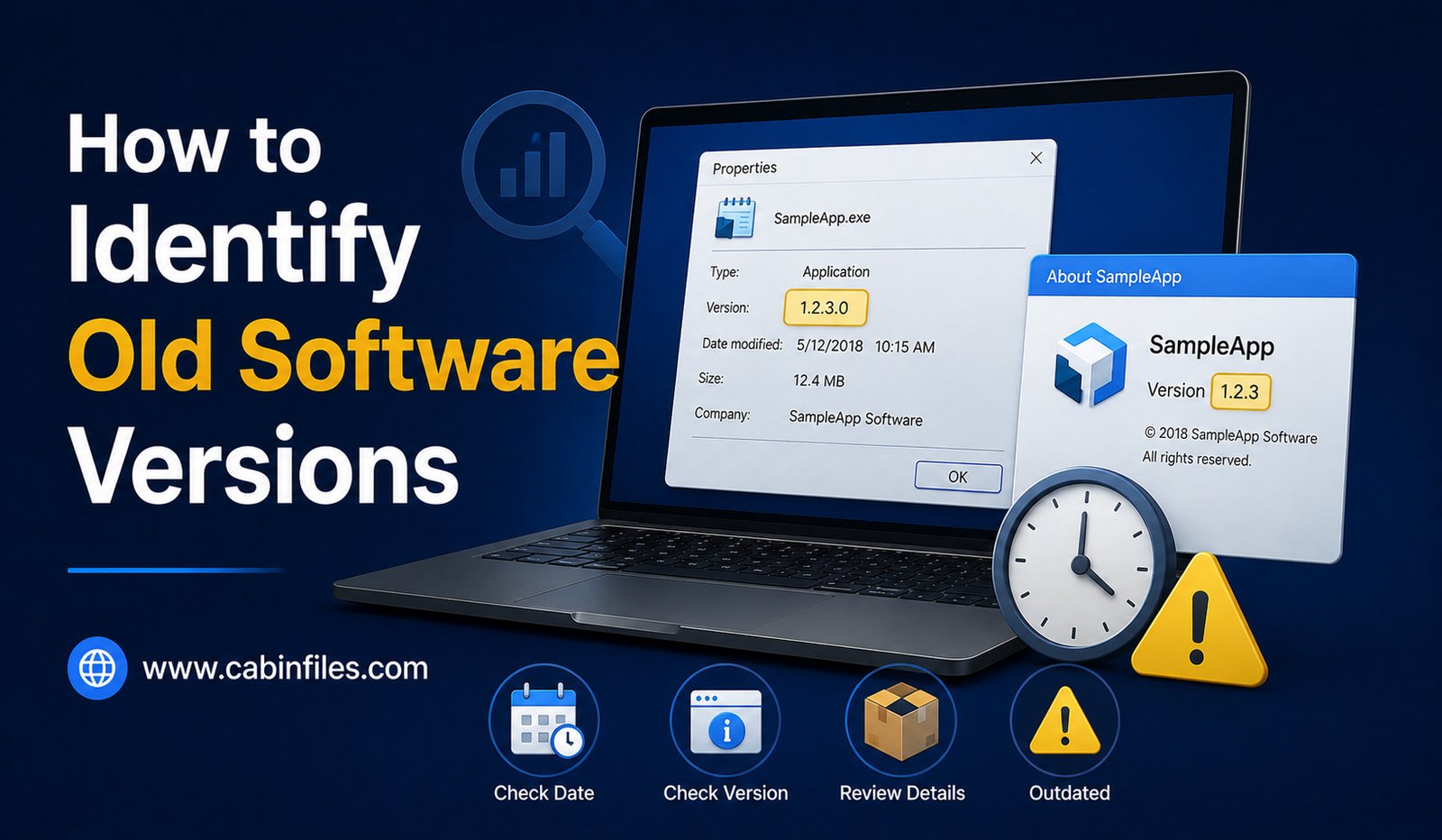
Open the program and look through menus such as Help, About, or Settings. Many Windows applications display their version information in an About window.
You might see a number such as:
Version 5.4.2
Version numbers are commonly divided into major, minor, and patch releases.
For example, in 5.4.2, the first number may represent a major release, the second a feature release, and the final number a smaller bug-fix update. However, developers use different versioning systems, so the numbering pattern is not universal.
Look for an About Page
Most desktop applications provide an About section containing useful information.
It may show the exact version, build number, publisher, copyright information, and sometimes the release date.
For example, an application might display:
Version: 4.7.1
Build: 8923
The build number can be particularly useful when contacting technical support because two installations may have the same general version but different builds.
If you are trying to determine whether software is outdated, record the complete version and build number rather than only the first number.
Check Windows Settings
Windows can also provide information about installed applications.
Open Settings > Apps > Installed apps and find the application you want to inspect.
Depending on the application and Windows version, its installed version may be displayed in the application information.
This is useful when you have many programs installed and do not want to open each one individually.
However, Windows may not always show complete version information for every application. In those cases, the application’s own About section is usually more useful.
Check the Software’s Official Website
Knowing your installed version is only half the process.
You also need to determine what the current version is.
Visit the software developer’s official website and look for sections such as Downloads, Release Notes, What’s New, Changelog, or Version History.
Compare your installed version with the latest version listed by the developer.
For example, if you have version 3.8 installed and the developer currently lists version 4.2, your software is behind the latest release.
Avoid relying entirely on third-party websites for version information. The official developer is usually the best source for current releases and support information.
Check the Software’s Built-In Update Feature
Many modern applications include automatic update functionality.
Look under menus such as Help, Settings, or About for an option like Check for Updates.
The application may connect to the developer’s servers and determine whether a newer version is available.
This can be more convenient than manually comparing version numbers.
If an update is available, read the release information before installing it, especially if the software is critical to your work.
Look at the Release Date
Version numbers are useful, but the release date provides additional context.
Suppose you have an application that has not been updated for several years. Even if the version number does not look obviously old, the release date may reveal that you are using an outdated build.
Check the developer’s release history to see how frequently the software receives updates.
A program that has not received updates for a long time may be discontinued or approaching the end of its support period.
Check Whether Your Version Is Still Supported
One of the most important questions is not simply “Is my software old?” but “Is my version still supported?”
Developers sometimes support several versions simultaneously. Other companies stop supporting older releases after a major upgrade.
If your version is no longer receiving security fixes, continuing to use it may carry unnecessary risks, particularly if the application connects to the internet or handles sensitive information.
Look for the developer’s official support policy or product lifecycle information.
Watch for Update Notifications
Some applications automatically notify users when updates are available.
You might see a notification saying that a new version has been released or that a security update is required.
Do not automatically dismiss these messages.
However, you should also be careful with unexpected update notifications, particularly if they appear inside a browser or come from an unfamiliar source.
If you are unsure whether an update notification is legitimate, open the application yourself and use its built-in update function or visit the official developer website.
Check File Properties
For Windows executable files, you can sometimes find version information without opening the application.
Right-click the program’s .exe file, select Properties, and look for the Details tab.
Depending on the software, you may see information such as:
- File version
- Product version
- Product name
- Company name
- Copyright information
This can be useful when an application does not provide an obvious About section.
Keep in mind that file version information may not always match the application’s overall product version.
Be Careful With Very Old Software
Old applications can create problems beyond missing features.
They may depend on outdated system components, use unsupported security technologies, or behave incorrectly on newer versions of Windows.
Some older software may also have compatibility problems with modern hardware.
If an application is no longer maintained, consider whether there is a current alternative from the same developer or another reputable provider.
Check Browser Extensions and Other Add-Ons
Software versions are not limited to traditional desktop applications.
Browser extensions, plugins, media codecs, drivers, and other add-ons can also become outdated.
For browser extensions, check the browser’s extension management page and look for update information.
For drivers and hardware utilities, use the manufacturer’s official support page when checking for newer versions.
Avoid downloading drivers or software updates from random websites simply because they claim to have the newest version.
Use Software Inventory Tools Carefully
If you manage many applications, software inventory tools can help identify installed versions across a computer or organization.
These tools can be useful for businesses and IT administrators because manually checking dozens or hundreds of applications is impractical.
However, ordinary users should be cautious about installing unknown “software updater” utilities that promise to update every program automatically.
Some third-party updater applications may bundle unwanted software or recommend unnecessary programs.
When possible, use trusted operating-system features or official application update mechanisms.
Why You Should Not Update Everything Immediately
Finding an outdated version does not always mean you should update it instantly.
Major software updates can sometimes change features, system requirements, interfaces, or compatibility.
If the application is essential to your work, check the release notes before updating.
You may also want to create a backup of important project files and settings.
For business environments, testing major updates before deploying them across multiple computers can prevent unexpected compatibility problems.
What If the Software Is No Longer Available?
Sometimes you may discover that the software installed on your computer has been discontinued.
In this situation, searching random websites for an old installer can be risky.
If the application handles sensitive information or connects to online services, consider replacing it with a currently supported alternative.
If you absolutely need an older application for compatibility reasons, research its security implications carefully and obtain the software only from a trustworthy source.
Final Thoughts
Learning how to identify old software versions is an important part of maintaining a healthy computer.
Start by checking the application’s About section, Windows Installed Apps settings, or the executable’s file properties. Then compare the installed version with the current release listed on the developer’s official website.
More importantly, find out whether your version is still supported. A program does not become dangerous simply because a newer version exists, but unsupported software can become increasingly risky over time.
Keep important applications updated, pay attention to security releases, and avoid questionable third-party download sites. For major updates, read the release notes first and make sure your important files are backed up.
A few minutes spent checking software versions can help you avoid compatibility problems, security issues, and unnecessary troubleshooting later.