
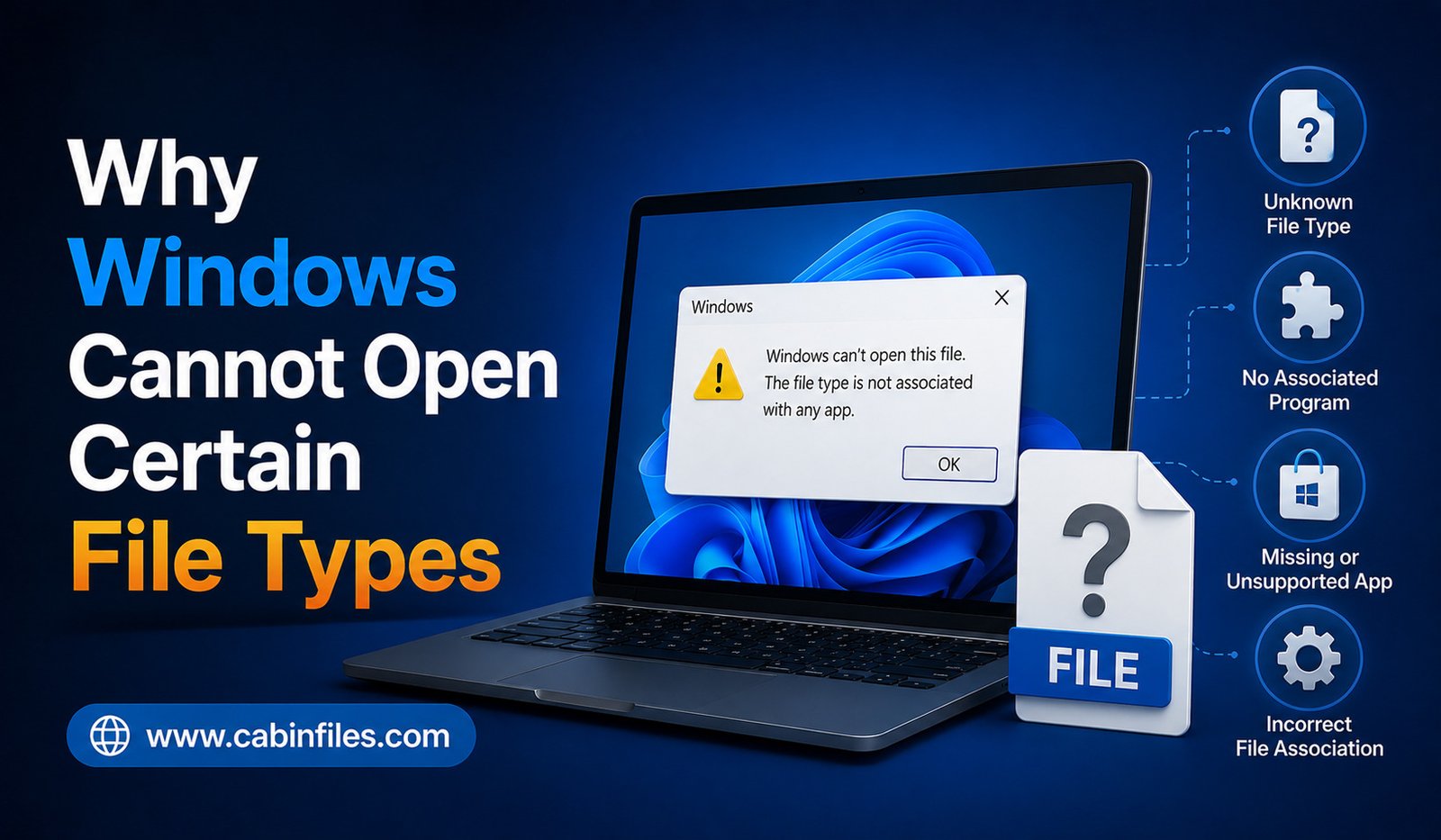
Have you ever double-clicked a file in Windows only to see a message saying “How do you want to open this file?” or “Windows cannot open this file”? This usually means Windows does not know which application is capable of handling the file.
Although the problem can seem complicated, there are several common reasons why Windows cannot open certain file types. The required application may not be installed, the file extension may be unfamiliar, the file could be corrupted, or the format may not be compatible with your version of Windows or the software you are using.
Understanding these causes can help you identify the right solution without downloading unnecessary or potentially unsafe software.
Windows Does Not Have a Matching Application
One of the most common reasons Windows cannot open a file is that there is no compatible application installed.
Windows uses file extensions to associate files with programs. For example, a .docx file is commonly associated with word-processing software, while .jpg files are generally associated with image viewers.
If Windows encounters an extension for which there is no registered application, it may display an error or ask you to choose a program.
This does not necessarily mean that the file is damaged. You may simply need to install software that supports the format.
The File Extension Is Unfamiliar
Some file extensions are widely recognized, while others belong to specialized applications.
You may encounter unusual extensions used by accounting programs, engineering software, games, development tools, databases, or proprietary applications.
If you do not recognize an extension, do not immediately download a random file opener.
Instead, research the extension and determine what type of file it represents. The software developer that created the format is often the best source of information.
The Correct Application Is Installed but Not Associated
Sometimes the required program is already installed, but Windows does not know that it should be used to open a particular file type.
This can happen after installing or uninstalling software, changing default applications, or updating a program.
In this situation, right-click the file and choose Open with. You can then select the appropriate application.
You can also change default applications in Windows settings so that compatible files automatically open with your preferred program.
The File May Require a Specialized Application
Some file types are designed for specific software.
For example, a professional design project may require the application that created it. A database file may need a particular database program. An engineering file may require specialized industry software.
In these situations, a general-purpose file viewer may not be enough.
If the file was sent to you by another person, ask which program they used to create it. This can often solve the mystery much faster than searching for the extension alone.
The File May Be Corrupted
Another possibility is that Windows cannot open the file because the file itself is damaged.
Files can become corrupted during downloading, copying, storage, or transfer.
For example, an interrupted download may produce an incomplete archive or document. A damaged storage device can also cause files to become unreadable.
If you know which application normally opens the file, try opening it through that application rather than double-clicking it.
Some programs also provide repair or recovery features for damaged files.
The File May Be Incomplete
An incomplete file can look perfectly normal in File Explorer while still being unusable.
This is particularly common with large downloads.
If you obtained the file from a website, consider downloading it again from the official source. If someone sent it to you, ask them to resend the original file.
Compare the file size with the size reported by the source when that information is available.
The File Format May Not Be Supported by Your Software Version
Even when you have the correct application, the software may not support the specific version of the file.
Modern applications often support older formats, but older software may not understand files created by newer versions.
This is common with specialized project files.
If you cannot open a file because of a version mismatch, check whether the developer provides a compatibility update or whether the file can be exported into an older or more widely supported format.
Windows May Be Blocking the File
Windows includes security features that can restrict files obtained from the internet or other potentially untrusted locations.
You may see a security warning when attempting to open certain downloaded files.
This does not automatically mean that the file is malicious, but you should verify the source before allowing it to run.
If you downloaded the file from a trusted developer, review its properties and security information before deciding what to do.
Never bypass a Windows security warning simply because you want the file to open.
The File Extension May Be Wrong
Sometimes a file has an incorrect extension.
A user may have renamed the file accidentally, or a program may have generated a file with an unusual naming convention.
Remember that changing a filename does not normally convert the actual file format.
For example, changing image.xyz to image.jpg does not transform the contents into a JPEG image.
If you suspect that the extension is incorrect, identify the actual format first rather than repeatedly renaming the file.
Hidden Extensions Can Cause Confusion
Windows can hide file extensions for known file types.
This can make it difficult to determine what a file actually is.
For example, what appears to be:
invoice.pdf
could potentially have a complete filename such as:
invoice.pdf.exe
if extensions are hidden.
To reduce this confusion, open File Explorer and enable View > Show > File name extensions.
Seeing the complete filename is particularly important when dealing with files received through email or downloaded from unfamiliar sources.
The File May Be an Executable or Script
Some file types can execute instructions rather than simply display information.
Examples include .exe, .msi, .bat, .cmd, and various script formats.
Windows may restrict or warn about these files because executing them can make changes to your computer.
If an unknown executable will not open, do not immediately try to bypass Windows protections.
First verify the source, scan the file with security software, and determine why the file needs to run.
Missing Dependencies Can Prevent a Program From Opening a File
Sometimes the file itself is perfectly healthy, but the application required to open it is missing a dependency.
A program might require a specific runtime, framework, library, codec, or supporting component.
This is especially common with older applications and specialized software.
If the application displays a message about a missing component, check the developer’s official documentation for the required dependency.
Avoid downloading individual system files from unknown websites.
The File Could Be Encrypted or Password Protected
Some files cannot be opened normally because they are encrypted or protected by a password.
A password-protected archive, encrypted document, or secured project file may require specific software and the correct credentials.
If you received the file from another person, ask them whether it has a password or special access requirements.
Trying random programs will not necessarily solve an encryption problem.
The File May Need to Be Extracted First
Compressed archives can contain other files inside them.
Formats such as ZIP and other archive types may need to be extracted before you can access the files they contain.
If you try to open an individual file inside an archive without properly extracting it, some applications may not function correctly.
Use a trusted archive utility that supports the specific format.
Security Software May Have Quarantined a File
If a file suddenly disappears or an application reports that a required file is missing, security software may have quarantined it.
Check your antivirus protection history to see whether the file was detected.
Do not restore a quarantined file simply because an application is complaining about it. First confirm that the software and file came from a legitimate source and investigate the detection.
How to Safely Open an Unknown File
If Windows cannot open a file, use a systematic approach.
First, identify the complete extension. Then determine where the file came from and which application created it. Research the format using reliable sources and check the developer’s documentation.
If you identify compatible software, install it only from a trusted source. Scan suspicious files before opening them and pay attention to Windows security warnings.
If the file remains unexplained or came from an untrusted source, it may be safer not to open it.
Final Thoughts
There are many reasons Windows cannot open certain file types, and the problem does not necessarily mean your computer is malfunctioning.
The required application may be missing, the file association may be incorrect, the file could be damaged, or the format may require specialized software. Version compatibility, security restrictions, missing dependencies, incorrect extensions, and encryption can also prevent a file from opening.
The safest approach is to identify the file before trying random solutions. Check its extension, source, format, and compatibility requirements. Use software from reputable sources and avoid disabling security protections simply to force an unfamiliar file to open.
Once you understand why Windows is refusing to open a particular file, finding the right solution becomes much easier and considerably safer.