
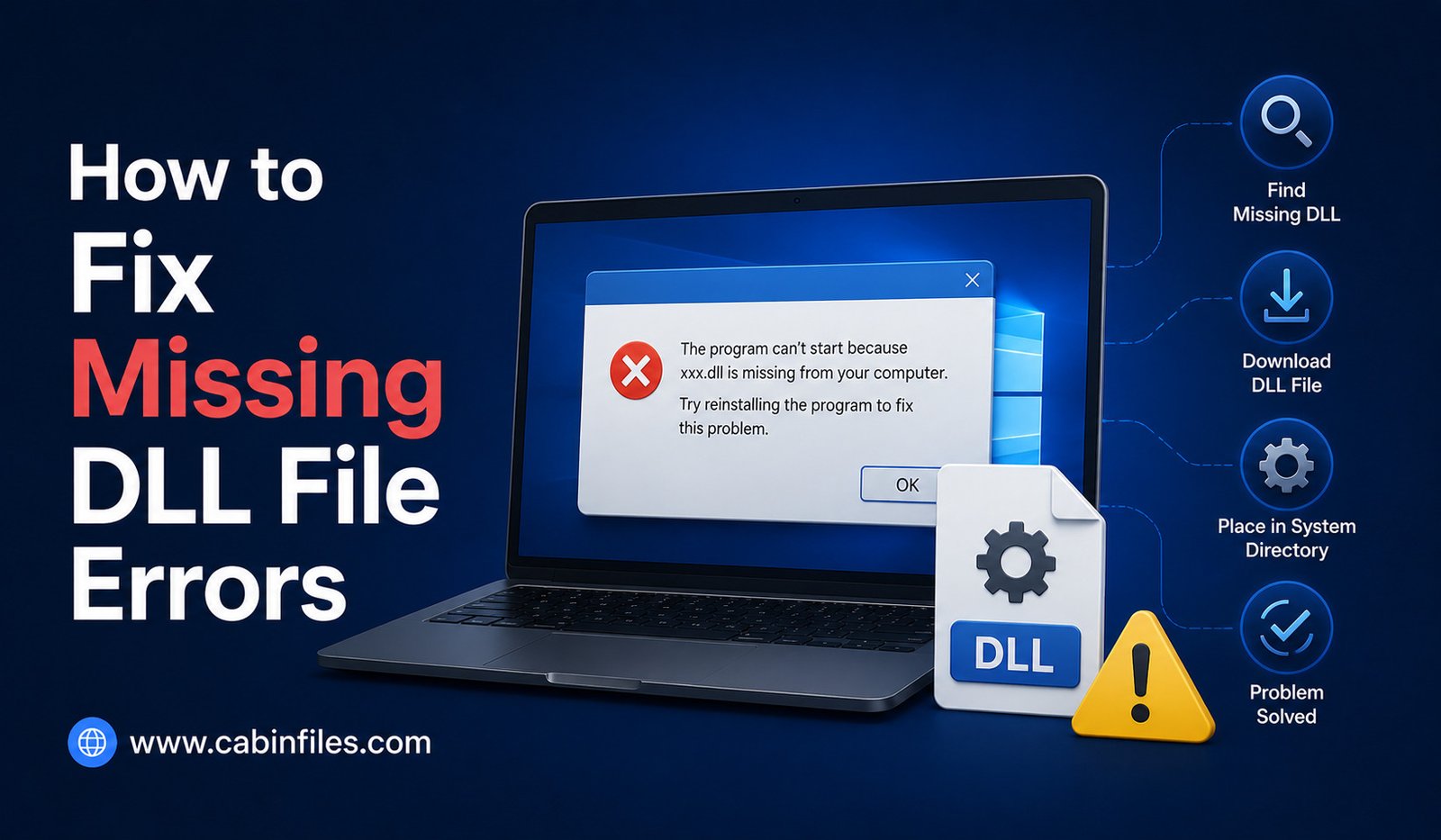
If you have ever tried to open a Windows application and received an error such as “The program can’t start because a DLL file is missing from your computer,” you are not alone. Missing DLL errors are common Windows problems that can prevent applications, games, and utilities from launching correctly.
A DLL, or Dynamic Link Library, contains code and resources that Windows programs can use. Instead of including every function inside the main application file, developers can place shared functionality in DLL files that multiple programs can access.
When a required DLL cannot be found, is damaged, or is incompatible with the application, Windows may display an error.
Fortunately, many missing DLL problems can be fixed without downloading random DLL files from the internet.
What Is a DLL File?
DLL stands for Dynamic Link Library.
A DLL file contains code, functions, resources, or other components that software applications can use while running. Multiple programs may share certain DLLs instead of storing separate copies of the same functionality.
For example, an application may depend on a particular Windows component or runtime library. If that required component is unavailable or damaged, the application may fail to start.
DLL files are commonly associated with Windows and often have the .dll file extension.
A missing DLL message may mention a specific filename, such as example.dll. However, the filename alone does not tell you why the file is missing.
Why Do Missing DLL Errors Happen?
There are several possible causes.
A DLL may have been accidentally deleted, damaged by a failed update, removed during software cleanup, or quarantined by security software.
Sometimes an application is installed incorrectly or incompletely. In other cases, the program may require a Microsoft runtime component that is not installed.
Compatibility problems can also occur when software expects a particular version of a library.
The important thing is to identify the cause instead of simply downloading a replacement DLL from an unknown website.
Restart Your Computer First
Before trying more complicated solutions, restart Windows.
A temporary system problem, incomplete update, or process that has not closed correctly can occasionally cause application errors.
After restarting, try opening the affected program again.
If the same DLL error appears, continue with the next troubleshooting steps.
Reinstall the Affected Application
If only one application is displaying the missing DLL message, reinstalling that application may be the simplest solution.
An incomplete or damaged installation can leave required files missing.
First, uninstall the affected application using Windows’ normal uninstall process. Then download the latest compatible version from the software developer’s official website and install it again.
Avoid downloading a separate DLL from an unknown website just because its filename matches the error message.
A proper application installer is designed to place the correct files and dependencies in the appropriate locations.
Check Windows Security and Antivirus Quarantine
Sometimes a security program removes or quarantines a DLL because it detects suspicious behavior.
If the error appeared immediately after an antivirus scan, update, or security event, check your security software’s protection history.
If you find that a legitimate file was incorrectly flagged, do not simply disable your antivirus protection and download another copy.
Instead, verify that the application came from a legitimate source and consult the security software’s documentation or the application’s developer for guidance.
Run Windows Update
Outdated Windows components can sometimes cause compatibility and library problems.
Open Windows Update and check whether updates are available. Installing current Windows updates can restore or update system components and resolve known compatibility issues.
After updating, restart your computer and test the application again.
You should avoid downloading system DLLs from random websites when the required component may actually be supplied through Windows Update or an official Microsoft package.
Repair Windows System Files
Windows includes built-in tools that can check and repair certain damaged system files.
One commonly used tool is System File Checker, or SFC.
To use it, open Command Prompt or Windows Terminal with administrator privileges and run:
sfc /scannow
Windows will scan protected system files and attempt to repair problems it finds.
The process may take some time. Do not close the window while the scan is running.
If SFC reports that it could not repair some files, additional Windows repair tools may be appropriate.
Use DISM When Windows Components Are Damaged
Another Windows tool called Deployment Image Servicing and Management (DISM) can help repair the Windows component store.
An administrator can run:
DISM /Online /Cleanup-Image /RestoreHealth
After DISM completes, running sfc /scannow again can be useful in some situations.
These tools are particularly relevant when the missing DLL is a Windows system component rather than a file belonging exclusively to one application.
Install the Required Microsoft Runtime
Some programs depend on Microsoft runtime packages.
For example, software created using certain versions of Microsoft Visual C++ may require a corresponding Visual C++ Redistributable package.
If an application’s documentation specifically states that a particular runtime is required, download that component from Microsoft’s official website rather than from an unofficial DLL download site.
The same principle applies to other frameworks and runtimes: identify the actual dependency and obtain it from the original developer or platform provider.
Check Whether You Installed the Correct Version
DLL problems can sometimes result from software architecture mismatches.
For example, a program may require a 64-bit component while you have installed an incompatible 32-bit version, or vice versa.
Check whether the application is designed for 32-bit or 64-bit Windows and whether the required dependency matches that architecture.
Do not randomly copy DLL files between different program folders in an attempt to fix architecture problems.
Do Not Download Random DLL Files
One of the most important rules when fixing missing DLL errors is:
Do not download individual DLL files from random websites.
Search results may lead you to websites offering downloadable copies of almost every DLL imaginable.
These files can be outdated, modified, incompatible, or malicious. Even if the downloaded DLL removes the original error, it may create a different problem later.
More importantly, a missing DLL message is often a symptom of a larger installation or dependency problem.
The safest solution is usually to reinstall the application or obtain the required runtime from its official source.
Check the Exact Error Message
Pay attention to the complete error message.
A message such as:
“The code execution cannot proceed because example.dll was not found.”
is different from an error saying:
“The procedure entry point was not found in example.dll.”
The second type can indicate that the DLL exists but does not contain the function the application expects.
This can happen when incompatible versions of a library are installed.
Therefore, copying any file with the same name may not solve the actual problem.
Consider Recent Software Changes
Think about what happened immediately before the DLL error appeared.
Did you install a new application? Remove another program? Update Windows? Install a driver? Run a system-cleaning tool?
If the error started immediately after a software change, that event may provide an important clue.
Some aggressive cleanup utilities can remove files they incorrectly identify as unnecessary. Similarly, an incomplete software update can leave an application in an inconsistent state.
Understanding what changed can make troubleshooting much faster.
Restore or Repair the Application
Some Windows applications provide a Repair option instead of requiring a complete uninstall.
If available, open Windows settings and check the application’s advanced options for Repair or Reset features.
Repairing an application can restore missing files while preserving some configuration and user data.
For third-party applications, check the developer’s support documentation for a repair option.
When Should You Use System Restore?
If a serious DLL problem appeared after a major system change, Windows System Restore may sometimes help return system configuration to an earlier state.
However, System Restore is not a universal solution and may not be available or appropriate on every computer.
Before using recovery options, make sure important personal files are backed up.
For workplace computers, consult your IT administrator before making major system changes.
Final Thoughts
Missing DLL errors can look complicated, but they are often caused by relatively straightforward problems such as incomplete installations, damaged system files, missing runtimes, outdated software, or incompatible versions.
The safest way to fix missing DLL file errors is to identify which application is affected and determine where the required DLL should come from.
Start by restarting Windows and reinstalling the affected application if appropriate. Check Windows Update, review security software alerts, and use Microsoft’s official runtime packages when a dependency is required.
For Windows system files, tools such as SFC and DISM can help repair damaged components.
Most importantly, avoid downloading individual DLL files from questionable websites. A missing DLL is often a symptom of a deeper problem, and replacing the file blindly can create additional security or compatibility issues.
With a systematic approach, many DLL errors can be resolved without risking the security or stability of your Windows computer.