
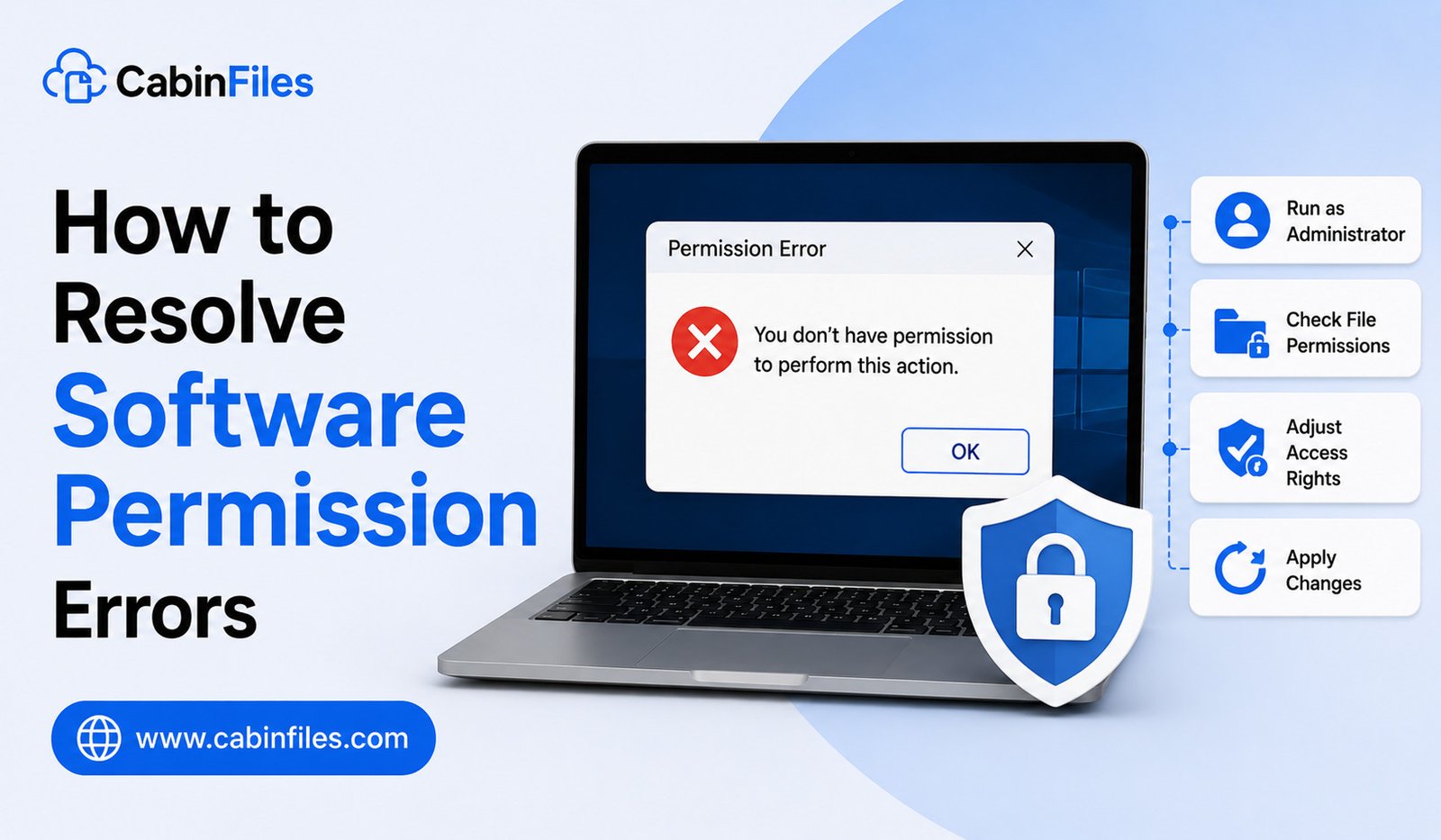
Software permission errors are common on Windows, especially when an application tries to access protected files, folders, system settings, or other resources. You may see messages such as “Access Denied,” “You need permission to perform this action,” “Permission denied,” or “Administrator privileges required.”
These errors do not always mean that the software is broken. In many cases, Windows is simply preventing an application or user account from accessing something it is not authorized to use.
Understanding how Windows permissions work can help you troubleshoot these problems safely. In this guide, we will explain how to resolve software permission errors, why they happen, and which solutions you should try before making advanced system changes.
What Are Software Permission Errors?
A software permission error occurs when an application does not have sufficient rights to perform an operation.
For example, a program may need to:
- Read a protected file
- Save information to a restricted folder
- Modify system settings
- Install additional components
- Access another user’s files
- Write to a protected Windows directory
- Connect to a restricted network resource
Windows uses permissions and security controls to prevent unauthorized changes. These protections are important because they can stop applications from modifying critical files without approval.
Why Do Permission Errors Happen?
Several situations can cause permission problems.
The application may require administrator privileges, the current Windows account may not have access to a particular folder, or the file may belong to another user.
Permission issues can also appear after moving files between computers, restoring backups, changing folder ownership, reinstalling Windows, or modifying security settings.
Security software and Windows features such as User Account Control (UAC) can also affect how applications access protected resources.
1. Restart the Application
Before changing permissions, close the application completely and open it again.
Temporary permission or authentication problems can sometimes disappear after restarting the software.
If the application is frozen, use Task Manager to end the process and then launch it again.
If the error continues, proceed with more targeted troubleshooting.
2. Run the Application as Administrator
One of the simplest ways to test whether insufficient privileges are causing the problem is to run the application with administrator rights.
Right-click the application’s shortcut or executable and select Run as administrator.
Windows may display a User Account Control prompt asking you to confirm the action.
If the application works correctly with administrator privileges, the problem may be related to its access requirements.
However, this should not automatically become your permanent solution. Running applications with elevated privileges gives them greater access to your system.
Only use administrator privileges when necessary and when you trust the application.
3. Check the File or Folder Permissions
If the error occurs while opening, editing, moving, or saving a specific file, check the permissions for that file or its parent folder.
Right-click the file or folder, select Properties, and open the Security tab.
You can see which users and groups have permissions such as:
- Read
- Write
- Modify
- Read & execute
- Full control
If your Windows account does not have the required access, the application may also be unable to perform the requested operation.
Do not change permissions randomly. Windows uses these settings to protect important data and system resources.
4. Check Whether the File Is Read-Only
Sometimes a program cannot save changes because the file or folder has been configured as read-only.
Right-click the relevant file and select Properties.
If the file has a read-only attribute that prevents the required operation, changing it may solve the problem.
However, read-only status is only one possible cause. If the error continues, investigate the folder permissions and application behavior.
5. Check the Folder Location
Some Windows folders are more restricted than others.
Applications may encounter permission errors when attempting to write directly to protected system directories.
If you are working with personal files, consider storing them in an appropriate user-accessible location rather than forcing an application to write to a protected system folder.
For example, applications may behave differently when working with files stored under a user’s Documents folder compared with protected Windows directories.
6. Check Your Windows Account
Your account type can affect what you are allowed to do.
A standard user account has fewer system privileges than an administrator account.
If a particular application requires administrative access, Windows may ask for administrator approval or credentials.
If you are using a work or school computer, you may not have permission to change system-level settings. In that situation, contacting the organization’s administrator may be the correct solution rather than attempting to bypass restrictions.
7. Check User Account Control Settings
Windows includes User Account Control, commonly known as UAC, to prevent applications from making important changes without user awareness.
You may see a UAC prompt when installing software, changing system settings, or launching certain applications.
Do not disable UAC simply because an application displays a permission error.
UAC is an important security feature. If a program repeatedly requires elevated privileges, check whether the application has an updated version or official guidance explaining its permission requirements.
8. Check Whether Another Program Is Using the File
A permission-like error can sometimes occur because another application is currently using a file.
For example, a document may be open in another program while you are attempting to rename, replace, or delete it.
Close applications that may be accessing the file and try again.
Background synchronization software, backup tools, and security applications can also temporarily access files.
Restarting Windows can help identify whether a temporary file lock is involved.
9. Check Antivirus and Security Software
Security software can restrict an application from accessing certain files or folders.
If a program suddenly loses access after a security update, check the security software’s protection history.
Do not immediately turn off antivirus protection. Instead, determine whether the software has been blocked or quarantined and follow the security product’s official procedure for handling legitimate applications.
If an application is unfamiliar or came from an unreliable source, a permission error may actually be protecting your computer from potentially unwanted activity.
10. Repair or Reinstall the Application
Sometimes an application has been installed incorrectly or its configuration has become corrupted.
If the program provides a Repair option, try repairing it first.
If repair does not work, uninstall and reinstall the application using an installer from the developer’s official source.
Before uninstalling software, back up important projects, settings, and local data if necessary.
A fresh installation can restore application files and reset configuration settings that may have contributed to permission problems.
11. Update Windows and the Application
Outdated software can sometimes contain compatibility problems that lead to incorrect permission handling.
Check for updates for both Windows and the affected application.
Developers may release updates that fix compatibility issues with newer Windows versions or security changes.
Keeping software updated can also improve security and stability.
12. Be Careful When Changing Ownership
Advanced Windows users may encounter situations where a file or folder is owned by another account.
Windows provides options for changing ownership and permissions, but this should be treated as an advanced troubleshooting step.
Changing ownership of system folders or protected files without understanding the consequences can cause Windows or applications to malfunction.
If the affected files belong to another user, a work organization, or Windows itself, verify why the ownership exists before changing it.
Permission Error vs Administrator Error
These two problems are related but not identical.
An administrator error generally means an operation requires elevated privileges that the current process does not have.
A file or folder permission error means the current user or application does not have the required access to a particular resource.
Running an application as administrator can solve some administrator-related problems, but it does not necessarily fix every file permission issue.
Understanding this difference can prevent you from unnecessarily changing security settings.
What If Permission Errors Keep Returning?
If an application repeatedly loses access to the same files, look for a pattern.
Does the problem occur after Windows restarts? Does it affect only one folder? Does it happen after a security scan? Does the application work correctly when launched as administrator?
These details can help identify the underlying cause.
If multiple applications experience permission errors, investigate broader Windows account, security, storage, or system configuration issues instead of changing permissions for every application individually.
How to Avoid Permission Problems
You can reduce permission-related issues by installing software from trusted sources and keeping Windows and applications updated.
Avoid storing important application data in protected system directories unless the software specifically requires it.
Do not routinely run every application as administrator, and avoid changing ownership or security permissions without understanding what you are changing.
For shared or business computers, follow the organization’s security policies instead of attempting to bypass restrictions.
Final Thoughts
Learning how to resolve software permission errors starts with understanding what Windows is protecting and why the application needs access.
Start with simple solutions such as restarting the program, checking the affected file or folder, verifying your account permissions, and testing the application with administrator approval when appropriate.
If the issue continues, investigate security software, file locks, application installation problems, and Windows updates. Advanced changes to ownership and permissions should be approached carefully because incorrect settings can create larger security or stability problems.
In many cases, a permission error is not something that needs to be defeated—it is a signal that Windows is protecting a resource. Finding the correct access requirement is safer and more effective than simply granting an application unrestricted control.