
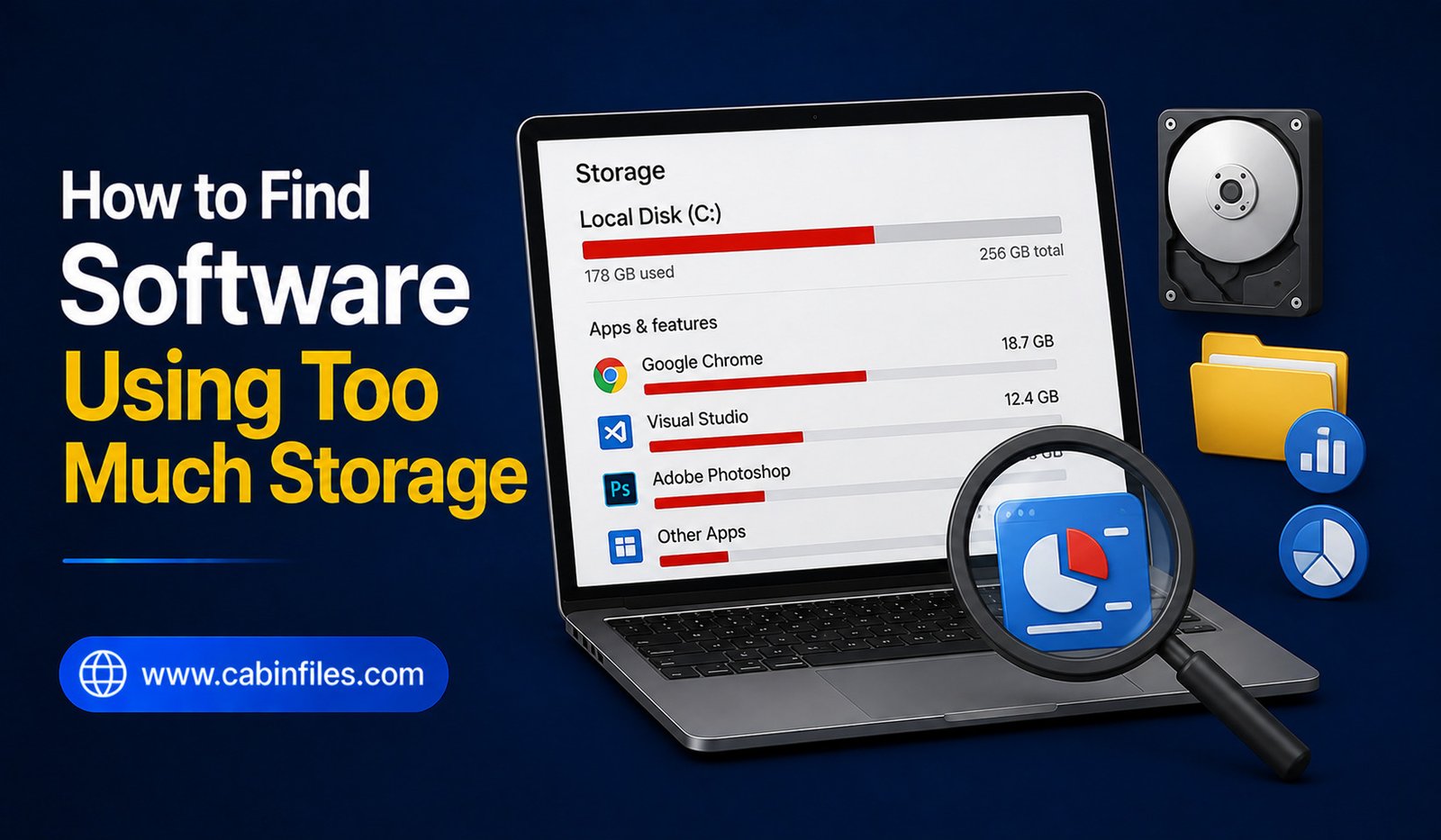
Running out of storage space on your Windows PC can be frustrating, especially when you are not sure what is consuming your drive. Large videos and photos are obvious culprits, but installed software, game files, old installers, caches, updates, and application data can also take up a surprising amount of space.
If your computer is showing a low-storage warning, you do not necessarily need to delete random files. A better approach is to find which software and related files are using the most storage and then decide what can safely be removed.
This guide explains how to find software using too much storage on Windows, how to check application sizes, identify hidden storage usage, and free up space without accidentally deleting important files.
Why Software Can Use So Much Storage
A program’s listed installation size does not always represent everything it uses.
An application may create additional files after installation, including caches, temporary data, downloaded content, logs, updates, plugins, and user-generated files.
Games are a common example. A basic launcher may be relatively small, while installed games can occupy tens or hundreds of gigabytes.
Creative applications can also generate large media caches and preview files. Development tools may download SDKs, libraries, virtual environments, and build files.
Therefore, checking only the original installer size may not give you a complete picture.
Check Storage Usage in Windows Settings
The easiest place to start is Windows’ built-in storage settings.
Open Settings and go to System > Storage. Windows provides an overview of how your storage is being used.
Depending on your Windows version and configuration, you may see categories such as installed apps, temporary files, documents, pictures, videos, and other data.
Select the category related to installed applications to examine software using significant amounts of storage.
This is a useful first step because it gives you information without requiring third-party software.
Sort Installed Apps by Size
Windows allows you to view installed applications and, where size information is available, sort them by size.
This can quickly reveal large programs you may have forgotten about.
You might discover an old game, editing application, development environment, or utility that occupies considerably more space than expected.
Do not uninstall something simply because it is large. Check whether you still use it first.
A 50 GB application that you use every day may be more valuable than a 2 GB application that you have not opened in years.
Check Games Separately
Games can consume enormous amounts of storage.
Modern games can require large installations, and additional downloadable content, texture packs, updates, and cached files can increase their footprint.
If you use platforms such as Steam, Epic Games Store, or other game launchers, check their built-in storage or library-management features.
These tools can often show which games are installed and how much space they occupy.
Uninstalling games you no longer play can be one of the quickest ways to recover significant storage.
Look at Application Data
Installed applications can store additional files outside their main installation directory.
Windows applications may use locations such as the user’s AppData folders for settings, caches, logs, temporary files, and other data.
However, do not delete folders from AppData randomly.
Some folders contain important application settings or data. Others may be shared by multiple components.
If you discover a large application-data folder, identify which application created it before deciding whether anything can be removed.
Whenever possible, use the application’s own cache-cleaning or storage-management option.
Check the Downloads Folder
Your software may not be the only source of storage consumption.
The Downloads folder can contain old installers, ZIP archives, ISO files, updates, and duplicate software packages.
For example, you may have downloaded several versions of the same application over time.
Sort the Downloads folder by size and review the largest files.
If an installer is no longer needed and the software can easily be downloaded again from its official source, you may be able to remove it.
If an older installer is difficult to replace, consider moving it to an external storage device instead.
Find Large Software Archives
Software collections can become surprisingly large when they contain ZIP, RAR, 7Z, ISO, or other archive files.
These archives may contain applications, drivers, development tools, or older versions of programs.
Use File Explorer’s search and sorting options to locate large archives.
Before deleting them, determine whether you still need their contents.
An archive may be the only copy of an older application or project, so avoid treating every large compressed file as unnecessary.
Use Disk Analysis Tools
Windows’ built-in storage information is useful, but specialized disk-analysis applications can provide a more detailed picture.
Tools such as WinDirStat can scan a drive and display how storage is distributed across folders and files.
Visual storage maps can make unusually large directories easier to identify.
For example, you might discover that a software cache, old installation folder, virtual machine, or game directory is consuming much more space than expected.
These tools are particularly helpful when Windows’ normal storage categories do not explain where your missing space has gone.
Check Temporary Files
Windows and applications create temporary files during normal operation.
Some are automatically removed, while others can remain for longer periods.
Windows provides storage-cleanup options for removing certain temporary files.
Before deleting anything, review the categories carefully.
Do not assume every temporary-looking folder can be safely deleted manually. Some applications may currently be using files that appear temporary.
Using Windows’ built-in cleanup options is generally safer than manually removing unknown files from system directories.
Look for Multiple Versions of Software
Keeping several versions of the same application can consume additional storage.
This is sometimes intentional. Developers, designers, and other professionals may need multiple versions for compatibility.
However, ordinary users may have old versions installed without realizing it.
Check your installed applications list and look for duplicate or older versions.
If you no longer need them, uninstall the unnecessary versions using Windows’ normal uninstall process.
Do not manually delete old program folders unless you know exactly what they contain.
Check Development Tools
Development environments can consume significant storage.
Software development tools may install SDKs, package caches, build artifacts, emulators, virtual environments, container images, and dependencies.
If you use development software, check its own storage-management settings.
Removing an unused SDK or package cache can sometimes recover substantial space.
However, make sure you understand what a development component is used for before deleting it. Removing a required SDK or dependency can cause projects to stop building correctly.
Check Virtual Machines
Virtual machines can consume large amounts of storage because an entire virtual operating system may be stored inside one or more virtual disk files.
If you have experimented with different operating systems, check whether you still have unused virtual machines.
A virtual machine that is no longer needed can sometimes occupy many gigabytes.
Before deleting one, make sure it does not contain important files or projects.
If you are unsure, back it up or export it before removing it.
Check Cloud-Synced Files
Cloud-storage applications can also use local disk space.
Depending on your synchronization settings, files stored in services such as OneDrive or other cloud platforms may also be downloaded to your computer.
If a cloud folder is consuming significant storage, check whether the service provides an option to keep selected files online-only.
This can reduce local storage usage without permanently deleting the files from your cloud account.
Be careful when deleting synchronized files because changes can potentially affect other synced devices.
Don’t Delete Program Files Manually
One of the most important rules of storage cleanup is to avoid manually deleting application folders simply because they are large.
A program may have dependencies, services, shared components, or configuration information stored elsewhere.
If you no longer need the application, uninstall it properly through Windows.
After uninstalling, you can check whether obvious leftover data remains.
This is safer than deleting the application’s folder first.
Decide What Can Safely Be Removed
Finding large software files is only half the job. You still need to determine whether removing them is appropriate.
Ask yourself whether you use the application, whether the files can be downloaded again, whether they contain personal data, and whether another program depends on them.
Large does not automatically mean unnecessary.
A better cleanup strategy is to remove software and files based on usefulness rather than size alone.
Keep Some Free Storage Available
A nearly full drive can create additional problems.
Windows and applications need available space for temporary files, updates, caches, and normal operations.
Instead of waiting until the drive reaches almost zero free space, try to maintain a reasonable amount of available storage.
Regularly reviewing large applications and unused software can prevent emergency cleanup sessions later.
Create a Software Storage Routine
Once you have cleaned your PC, keeping it organized becomes easier.
Review installed applications periodically. Remove programs you no longer use, clear unnecessary caches through supported application settings, and clean your Downloads folder.
Keep important installers in a dedicated archive if you genuinely need them.
For very large collections, consider using a secondary drive for games, archives, virtual machines, or other data that does not need to occupy your primary system drive.
Final Thoughts
Learning how to find software using too much storage starts with Windows’ built-in storage tools. Check installed applications, sort them by size, investigate large games and software-related data, and review your Downloads folder for old installers and archives.
If Windows does not clearly explain where the storage is going, a disk-analysis tool can help identify unusually large folders and files.
Most importantly, avoid deleting large files simply because they look unfamiliar. Uninstall applications through the proper process, use software-specific cleanup options when available, and investigate unknown files before removing them.
With occasional storage checks and a simple organization system, you can keep your Windows PC from becoming overloaded with unused software and unnecessary files.