
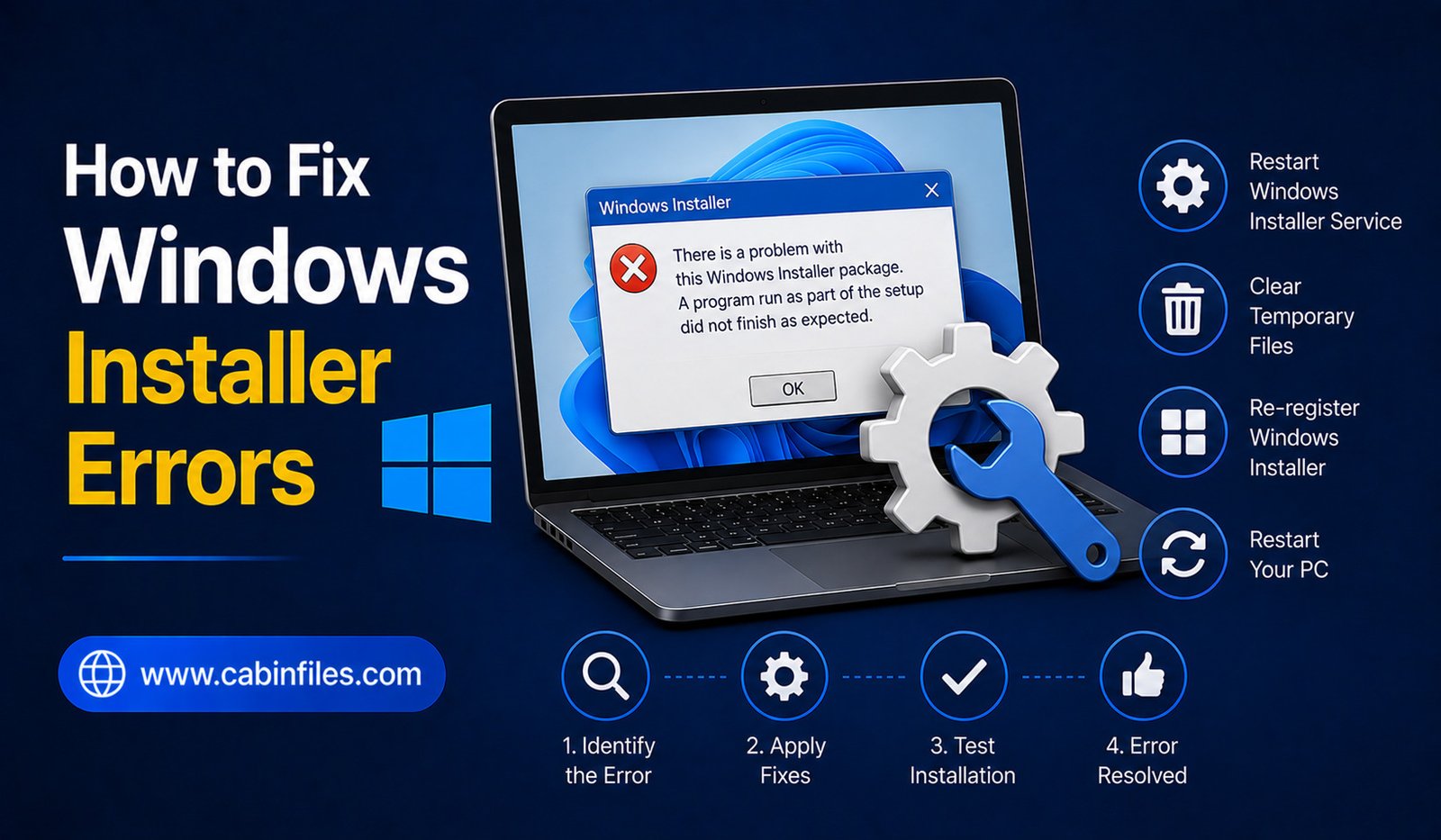
Windows Installer errors can appear when you are trying to install, update, repair, or sometimes remove a software application. Instead of completing the installation, Windows may display an error code, stop unexpectedly, or show a message saying that the installation could not be completed.
These problems can be caused by many things, including corrupted installation files, insufficient permissions, another installation running in the background, damaged Windows Installer components, security software, insufficient storage, or compatibility problems.
The good news is that many Windows Installer errors can be resolved without reinstalling Windows. The key is to identify the likely cause and work through troubleshooting steps from the simplest to the more advanced.
What Is Windows Installer?
Windows Installer is a Windows component used by many desktop applications to install, modify, repair, and remove software.
Installers commonly use the .msi file format, although many applications use an .exe setup program that may rely on Windows Installer behind the scenes.
When something goes wrong during the installation process, Windows may display an error code or a general message indicating that the installation failed.
Understanding the difference between the installer file and Windows Installer itself is useful because the problem may come from either side.
Restart Windows First
Before changing system settings, restart your computer.
A previous installation may still be running in the background, or Windows may have pending changes that require a restart.
After restarting, try the installation again.
If the problem disappears, it may have been caused by a temporary process or incomplete system operation.
If the same error returns, continue with the following steps.
Check the Installer File
A damaged installer is one of the simplest explanations for a failed installation.
If you downloaded an .exe or .msi file from the internet, the download may have been interrupted or corrupted.
Delete the problematic installer and download a fresh copy from the software developer’s official website or another trusted source.
Avoid downloading installers from unknown file-sharing websites. Modified installation packages can introduce security risks as well as installation problems.
If the developer provides a checksum or file-verification method, you can use it to confirm that the downloaded file matches the expected version.
Make Sure You Have Enough Storage
Software installations often require more free space than the final application size suggests.
The installer may need temporary storage while extracting files, copying components, or creating backups.
Check the available space on the drive where Windows and the application are being installed.
If storage is nearly full, remove unnecessary files or move appropriate personal data to another storage location.
Do not delete random files from Windows system folders simply to create space.
Run the Installer With Appropriate Permissions
Some applications require administrator privileges during installation.
If the installer supports it, right-click the setup file and choose Run as administrator.
Windows may display a User Account Control prompt. Confirm it only if you trust the software and downloaded it from a legitimate source.
Administrator privileges can resolve permission-related installation problems, but they will not fix a damaged installer or incompatible application.
Avoid running unknown installers with elevated privileges.
Close Other Installations
Windows may have trouble when another software installation or update is already running.
Close any other setup programs and wait for Windows Update or other software updates to finish.
Then restart the computer and try the installation again.
If an installation appears stuck, do not immediately terminate random Windows processes. Give the system time to complete its operation unless you have clear evidence that it has become unresponsive.
Check Windows Update
An outdated or partially updated Windows installation can sometimes cause software compatibility problems.
Open Windows Update and check whether updates are available.
Install appropriate updates and restart the computer if Windows requests it.
If the installation problem began immediately after a Windows update, check the software developer’s support information for compatibility issues.
Check Windows Installer Service
The Windows Installer service plays an important role in many MSI-based installations.
If the service is disabled or not functioning correctly, software installations may fail.
You can open the Windows Services management tool and locate Windows Installer.
Check its current status and configuration.
Do not randomly change the startup settings of Windows services. If the service is already functioning normally, changing it may not solve the problem.
For persistent service-related issues, use Microsoft’s official troubleshooting guidance rather than changing multiple services at once.
Check the Error Code
If Windows displays an error code, write it down.
Specific codes can provide much more useful information than a general message such as “Installation failed.”
Search for the exact code together with the software name on the developer’s official support website.
For example, an installer error may indicate a permissions issue, a missing component, a previous installation, or a problem accessing a particular file.
Avoid applying a fix designed for a different error simply because the symptoms appear similar.
Remove a Failed Previous Installation Carefully
Sometimes an application partially installs and then fails. When you try again, the installer may detect the previous installation and refuse to continue.
First, check Windows’ installed-apps list to see whether the program appears there.
If it does, use the normal uninstall process.
If the software’s installation is damaged and cannot be removed normally, check the developer’s support documentation for an official cleanup or removal tool.
Avoid manually deleting registry entries unless the developer specifically instructs you to do so.
Check File and Folder Permissions
Installers need permission to access certain folders and create files.
If you are installing software into a custom directory, make sure you have appropriate access to that location.
Some applications may also fail when installed on external drives, network locations, or unusual folder paths.
For troubleshooting, using the application’s recommended installation location can help eliminate unnecessary variables.
Temporarily Investigate Security Software
Antivirus and security software can sometimes interfere with installation programs when they detect suspicious behavior.
If an installer is blocked, check your security software’s notifications or protection history to understand why.
Do not immediately disable security protection.
First confirm that the installer came from a legitimate source. If the software is trustworthy and the detection appears incorrect, consult the security software’s documentation for a safe way to handle false positives.
Creating permanent security exclusions for unknown software is not recommended.
Check Software Compatibility
Not every application supports every Windows version.
Older software may depend on components that modern Windows no longer includes by default. Newer applications may require a particular Windows version or hardware configuration.
Check the developer’s system requirements before troubleshooting the installer itself.
If the software is incompatible with your current Windows version, repeatedly running the installer may not solve the problem.
Try the Application’s Repair Option
Some applications provide repair functionality through Windows or their own installer.
A repair process can replace missing or corrupted components without requiring a complete reinstall.
If Windows shows a repair option for the application, consider trying it before removing the program.
For applications with important settings or projects, back up your data before performing major repair or reinstall operations.
Avoid Random Registry Fixes
The Windows Registry is often mentioned in guides for solving installer problems.
However, manually deleting registry entries can create additional problems if you remove the wrong information.
A registry change should only be made when you understand exactly what it does and have a reliable recovery option.
For ordinary Windows Installer problems, built-in Windows tools and official developer instructions should be your first choices.
Use Microsoft’s Troubleshooting Resources
If a Windows Installer problem continues, Microsoft’s support documentation can provide guidance for Windows components and installation-related issues.
This is particularly useful when the problem affects multiple applications rather than one specific program.
If only one application refuses to install, the software developer’s support resources may be more relevant because the issue could be specific to that application’s installer.
What If Every Program Fails to Install?
If multiple unrelated applications suddenly fail to install, the problem may be related to Windows rather than a particular installer.
Possible causes include damaged system components, permission problems, security software, storage issues, or changes to Windows configuration.
At this point, avoid repeatedly downloading different installers.
Instead, focus on diagnosing the Windows environment. Check system updates, available storage, security notifications, and Windows system health.
If essential Windows functions are also failing, consider using Windows recovery or professional technical support.
When Should You Use System Recovery?
System recovery should not be the first response to a single failed software installation.
However, if installer errors appeared after a major system change and multiple Windows functions are affected, recovery options may become appropriate.
Before using a major recovery feature, back up important personal files and understand what the recovery process will change.
Do not use system reset or recovery simply because one application has an installation problem.
Final Thoughts
Learning how to fix Windows Installer errors starts with simple troubleshooting. Restart Windows, verify the installer, check available storage, confirm compatibility, and make sure you are using a legitimate installation package.
If the problem continues, examine the exact error code, check Windows Installer-related services, investigate security software alerts, and look for official support information from Microsoft or the software developer.
Avoid risky shortcuts such as downloading random DLL files, disabling security protection permanently, or deleting registry entries without understanding their purpose.
Most Windows Installer problems can be narrowed down by identifying whether the issue comes from the installer file, Windows itself, permissions, compatibility, or another application already running. Once the cause is clear, the appropriate fix is usually much easier to find.