
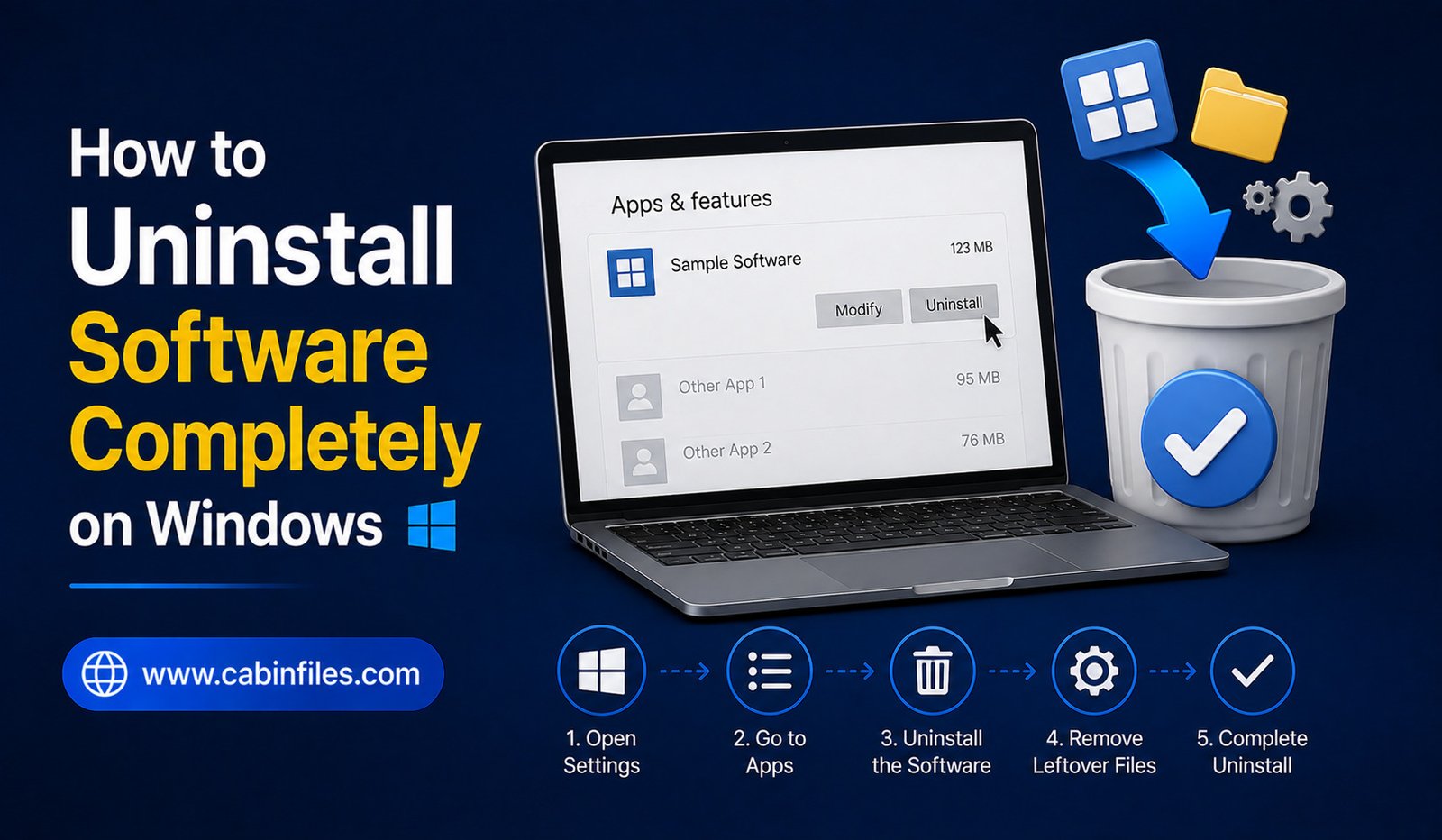
Installing software on Windows is usually straightforward, but removing it completely can sometimes be less obvious. Simply deleting a program’s shortcut or removing its main folder does not necessarily uninstall everything associated with the application.
Software can create files in different locations, store settings, add startup entries, create services, or leave behind personal data and temporary files after removal. Fortunately, Windows provides several safe ways to uninstall applications properly.
If you want to learn how to uninstall software completely on Windows, the safest approach is to start with the application’s official uninstall process and only look for leftover files afterward. This guide explains the process step by step while helping you avoid common mistakes that can damage your system.
What Does Completely Uninstalling Software Mean?
A normal software uninstall removes the main application and the components registered with Windows.
However, some applications may leave behind user settings, cached data, logs, temporary files, or folders created after installation.
Completely cleaning up software therefore involves two stages: properly uninstalling the application and checking for unnecessary leftovers.
This does not mean deleting every file that mentions the application’s name. Some leftover files may contain personal settings or data that you may want to preserve.
The goal should be to remove unnecessary software components without accidentally deleting important system or personal files.
Why You Should Not Just Delete the Program Folder
One of the most common mistakes is opening the installation folder and deleting it manually.
This may remove some application files, but Windows may still consider the program installed. It can also leave behind services, uninstall information, configuration files, and other components.
Some applications also make changes outside their main installation directory.
For these reasons, use the application’s normal uninstall process whenever possible.
Uninstall Software Through Windows Settings
Modern versions of Windows provide an easy way to remove applications through Settings.
Open Settings and go to the section for installed apps. You can search for the application you want to remove and select its uninstall option.
Windows may then launch the application’s own uninstaller.
Follow the instructions displayed on screen and allow the process to finish.
Afterward, restart the computer if the software specifically requests it.
This is generally the best starting point because Windows can use the application’s registered uninstall information rather than simply deleting files.
Uninstall Programs Through Control Panel
Some traditional desktop applications are easier to manage through the classic Control Panel.
Open Control Panel and navigate to the section for installed programs. Locate the application you want to remove and select the uninstall option.
This method is particularly useful for older Windows applications that may not appear in exactly the same way as newer apps.
Follow the application’s uninstall wizard carefully.
If the program asks whether you want to keep settings or personal data, make the choice based on whether you may need those files later.
Use the Software’s Built-In Uninstaller
Some applications provide their own uninstall utility.
This may be available through the Start menu, the application’s installation folder, or the application’s settings.
A dedicated uninstaller may know exactly which components were installed and which services or supporting files need to be removed.
When available, this can be preferable to manually deleting the application directory.
For security software, development tools, hardware utilities, and other complex applications, the developer may provide specific removal instructions. Follow those instructions rather than experimenting with system files.
What Happens After Uninstallation?
After the uninstaller finishes, the main application should normally be removed.
However, you may still find folders containing settings, logs, cached files, saved profiles, or other user data.
Common locations can include your Documents folder, AppData directories, or folders created specifically by the application.
Whether you should delete these files depends on your situation.
If you plan to reinstall the application later, keeping the settings may be useful. If you are removing the program permanently and do not need its personal data, you can consider removing unnecessary leftovers after verifying what they contain.
Check the AppData Folder Carefully
Windows applications often store user-specific data under the AppData directories.
These locations can contain configuration files, caches, logs, saved preferences, and other application data.
However, AppData is not a place where you should randomly delete folders.
Some applications share components or store information that other programs may use. Deleting the wrong folder can cause unexpected problems.
If you are checking AppData after an uninstall, search for the exact application or developer name and confirm that the folder belongs to the program you removed.
When uncertain, leave the file alone rather than deleting it.
Remove Leftover Shortcuts
After uninstalling a program, check your Desktop and Start menu for shortcuts that may no longer work.
A shortcut is not the same thing as the application. Removing a shortcut does not uninstall software, and uninstalling software can sometimes leave a shortcut behind.
If the application is already removed and the shortcut no longer points to a useful program, you can delete the shortcut.
Do not assume that a shortcut’s presence means the program is still installed.
Check the Downloads Folder
If you downloaded the application’s installer yourself, the installer may still be sitting in your Downloads folder.
For example, you might have:
Application_Setup.exe
or
Application.zip
These files are not necessarily part of the installed application.
If you have already uninstalled the software and do not plan to reinstall it, you can decide whether the installer is still worth keeping.
If the software is difficult to download again or you may need the same version later, storing the installer in an organized archive can be useful.
Be Careful With the Windows Registry
You may find online guides recommending that users manually delete registry entries after uninstalling software.
This should be approached with caution.
The Windows Registry contains important system and application configuration information. Removing the wrong entry can create problems that are much more serious than a few leftover files.
For ordinary software removal, manually editing the registry is usually unnecessary.
If an application has a specific official cleanup utility, use that instead. For difficult removal problems, follow documentation from the software developer or use a reputable uninstaller designed for that purpose.
What About Services and Startup Entries?
Some applications install background services or startup components.
These may remain if an uninstaller fails or if the application was removed incorrectly.
Do not disable or delete unfamiliar Windows services simply because their names look related to old software.
First determine exactly what the service does and whether it belongs to the application you removed.
Complex software, including security tools and hardware utilities, may have several background components. The developer’s official removal instructions are usually the safest reference.
Restart Windows After Uninstalling
Restarting Windows is not always required, but it can be useful after removing software that uses background processes or system components.
A restart allows Windows to close processes that may still be running and complete certain pending changes.
If the uninstaller specifically asks you to restart, follow the instruction.
After restarting, check whether the application still appears among installed programs and whether any expected components remain.
What If a Program Will Not Uninstall?
Sometimes an application refuses to uninstall.
This can happen because the uninstaller is missing, files are corrupted, another process is using the application, or the installation has become damaged.
First, restart Windows and try again.
If that does not work, check the software developer’s support documentation for an official removal tool or repair procedure.
Avoid downloading random “forced uninstall” utilities from unknown websites. Some can introduce unwanted software or make aggressive changes to your system.
Use Third-Party Uninstallers Carefully
Third-party uninstall utilities can sometimes help identify leftover application files and registry entries.
However, more aggressive cleanup is not always better.
If you use such a tool, choose a reputable application and review what it proposes to remove before confirming the operation.
Do not automatically delete every item suggested by a cleanup program. Some files or registry entries may be shared or unrelated.
For everyday software removal, Windows’ built-in uninstall features are usually the safest starting point.
How to Know If Software Is Really Gone
After uninstalling an application, check the installed-apps list to confirm that it no longer appears.
Then look for obvious leftovers such as the application’s main folder, unused shortcuts, and its installer in Downloads.
If you find remaining files, determine what they are before deleting them.
Remember that a few configuration or cache files do not necessarily mean the uninstall failed. Some applications intentionally leave user data behind so that settings can be restored if the program is installed again.
Keep Your PC Organized After Uninstallation
Regularly reviewing installed applications can prevent unnecessary software from accumulating.
Remove applications you no longer use, but avoid uninstalling programs simply because you do not recognize their names. Some components may belong to drivers, hardware, development tools, or other applications.
Before uninstalling unfamiliar software, identify what it does and whether another program depends on it.
A clean computer is useful, but unnecessary system changes can create more problems than they solve.
Final Thoughts
Learning how to uninstall software completely on Windows starts with using the proper uninstall process rather than manually deleting application folders.
Windows Settings, Control Panel, or the software’s own uninstaller should normally be your first choice. After removal, you can carefully check for leftover personal data, shortcuts, installers, or application folders.
Avoid randomly deleting Registry entries, system folders, or unfamiliar services. If an application is difficult to remove, use the developer’s official cleanup instructions whenever possible.
The safest approach is simple: uninstall first, investigate leftovers second, and delete only what you can confidently identify. This keeps your Windows installation cleaner without creating unnecessary system problems.