
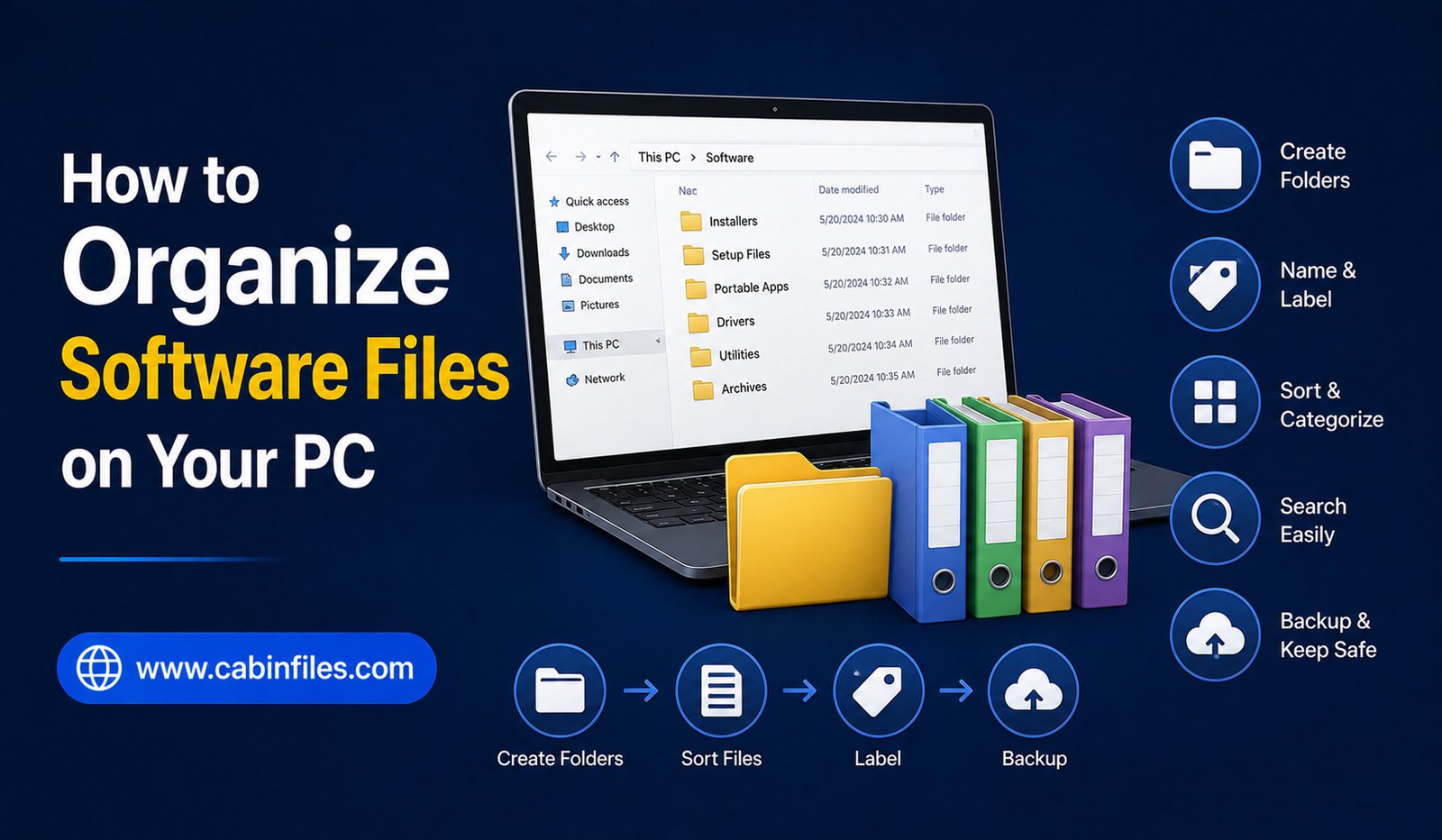
A computer can quickly become cluttered with software installers, downloaded ZIP archives, application folders, updates, setup files, and old programs. When these files are scattered across the Desktop, Downloads folder, Documents, and different drives, finding what you need can become frustrating.
Good software file organization does not require a complicated system. A few consistent habits can make it easier to find installers, remove unnecessary files, recover older software, and keep your PC running with less digital clutter.
Whether you regularly download applications or simply want to clean up years of accumulated files, learning how to organize software files on your PC can save time and prevent accidental deletions.
Why Should You Organize Software Files?
Software files can accumulate for many reasons. You might download an installer and forget about it after installing the program. ZIP archives may remain in the Downloads folder, while extracted software folders sit somewhere else on the drive.
Over time, these files can make it difficult to determine which programs are installed, which installers are still useful, and which files can safely be removed.
An organized system makes these distinctions easier.
It can also help when you need to reinstall a program. Instead of searching through hundreds of downloads, you can quickly locate the installer or identify where the software was stored.
Organization is especially valuable if you regularly work with portable applications, software development tools, utilities, drivers, or older versions of programs.
Start With the Downloads Folder
The Downloads folder is one of the most common places for software clutter.
Whenever you download an installer, ZIP archive, PDF guide, or update package, it may automatically be saved there. If you never review the folder, files can accumulate for months or years.
Start by opening Downloads and sorting files by type, size, or date.
Look for old installers, duplicate downloads, outdated ZIP archives, and files you no longer need.
Do not delete everything simply because it is old. Some installers may still be useful, particularly for software that is difficult to download again. Review each file before removing it.
Create a Dedicated Software Folder
If you regularly keep software installers or portable applications, creating a dedicated folder can make management much easier.
For example, you could create:
Software
Inside it, you might create folders such as:
Installers
Portable Apps
Utilities
Drivers
Older Versions
The exact structure is up to you. The important part is consistency.
Avoid creating dozens of unnecessary subfolders. A simple structure that you actually maintain is better than an elaborate system that becomes confusing.
Separate Installers From Installed Programs
One of the most important distinctions is between software installers and installed applications.
An installer is a file used to install a program. It may have an extension such as .exe or .msi on Windows.
The installed application is usually stored elsewhere by the operating system or by the application itself.
You generally do not need to move installed program folders simply to make your files look organized. Windows and application installers often expect programs to remain in their designated locations.
Instead, organize the installer files that you choose to keep.
This prevents accidental changes to application directories that could cause programs to stop working.
Keep ZIP Archives Organized
Software is often distributed as ZIP archives, especially when developers provide portable versions or collections of files.
Instead of leaving ZIP files mixed with documents and images in Downloads, move useful archives into a dedicated software archive folder.
You could organize them by software category or application name.
For example:
Software Archive
→ Utilities
→ Browsers
→ Development
→ Graphics
→ Portable Apps
If you already extracted an archive and confirmed that the software works, decide whether the original ZIP is still worth keeping.
Use Meaningful File Names
A clear filename makes software easier to identify later.
Instead of leaving a file with a name such as:
setup_final_new2.exe
you could use a more descriptive naming approach that includes the application and version.
For example:
ApplicationName_2026_Installer.exe
A consistent naming system is particularly useful when you keep multiple versions of the same application.
Avoid renaming files if doing so could interfere with an application’s installation or update process. For standalone installers and archives, descriptive names are generally easier to manage.
Organize Software by Purpose
Another useful approach is grouping software according to what you use it for.
For example, you could have folders for:
Productivity: Office tools, PDF utilities, note-taking applications, and file-management software.
Media: Image editors, audio tools, video utilities, and media players.
Development: Code editors, SDKs, testing tools, and development utilities.
Security: Trusted security-related utilities and recovery tools.
System Tools: Hardware utilities, diagnostics, backup software, and maintenance applications.
This approach can make large software collections easier to browse.
Do Not Move Installed Program Folders Randomly
A common mistake is manually moving folders from locations such as Program Files simply because they appear disorganized.
Installed applications can depend on specific file paths, system settings, registry entries, permissions, services, or supporting components.
Moving an application folder manually can therefore cause problems.
If you want to move an installed application, use Windows’ supported settings or the application’s own installation and configuration options whenever available.
For software that needs to remain portable, use a separate portable-app folder instead.
Keep Only Software You Actually Need
Digital clutter can accumulate just as easily as physical clutter.
Review your software collection occasionally and ask whether you still use each program.
If you no longer need an application, uninstall it through the operating system’s normal uninstall process rather than simply deleting its folder.
After uninstalling, you can review leftover installers or archives and decide whether they should also be removed.
Be careful with software that you may need for opening older projects or files. An application that seems unused today could still be useful for accessing an older project later.
Store Older Installers Separately
If you want to keep older versions of software, do not mix them with current installers.
Create an archive folder such as:
Software Archive
You can then organize older versions by application.
For example:
Software Archive > Video Editor > 2024
Software Archive > Video Editor > 2025
Software Archive > Video Editor > 2026
This approach can be helpful when working with projects that depend on a particular application version.
However, old software may contain security vulnerabilities. Keep archived installers for legitimate compatibility or recovery purposes rather than using outdated software for everyday internet-connected work.
Use an External Drive for Large Collections
If your software archive contains many large installers, development environments, virtual machine images, or other large packages, storing everything on your main system drive may not be necessary.
An external SSD or hard drive can provide additional storage.
You can create a clearly labeled software archive and maintain a consistent folder structure on the external drive.
However, an external drive should not be the only copy of important data. Drives can fail, be lost, or become corrupted.
Consider Cloud Storage for Important Files
Cloud storage can be useful for smaller installers, configuration files, documentation, and other software-related resources you want to access from multiple devices.
However, uploading every large software file may not be practical because of storage limits and upload times.
Cloud storage is also not automatically a complete backup strategy. Important files should have appropriate backup copies.
For software installers that are freely available from official sources, you may not need to keep a large local collection if downloading them again is easy.
Create a Simple Naming and Folder System
The best organization system is one you can maintain consistently.
For example, you could use a structure like:
Software
→ Current Installers
→ Portable Apps
→ Drivers
→ Utilities
→ Archive
→ Documentation
You can then use application names and versions within those folders.
The goal is to make it possible to answer three questions quickly: What is this file? Which version is it? Do I still need it?
If your organization system answers those questions clearly, it is probably working.
Back Up Important Software Files
If you keep software installers because they are difficult to find or download again, consider backing them up.
Important application configuration files and license information may also need separate protection, depending on the software.
For business or professional applications, keep documentation and legitimate license information in a secure location.
Remember that backing up an installer does not necessarily preserve the application’s settings or user data. Those may need to be backed up separately.
Review Your Software Folder Regularly
You do not need to reorganize your entire PC every week.
A periodic review can be enough.
Check your Downloads folder, software archive, Desktop, and external storage. Remove unnecessary duplicates, identify outdated files, and move useful installers into their appropriate locations.
Regular small cleanups are easier than waiting until hundreds or thousands of files become mixed together.
Final Thoughts
Learning how to organize software files on your PC is mainly about creating a simple system and using it consistently.
Keep installers separate from installed applications, organize useful ZIP archives, use meaningful filenames, store older versions separately, and avoid manually moving program folders that Windows or the software itself manages.
You also do not need to keep every installer you download. If a program can easily be downloaded again from its official source, keeping multiple old copies may simply create unnecessary clutter.
A clean software archive should make it easier not harder to find what you need. With a dedicated folder structure, regular cleanup, sensible naming, and reliable backups, you can keep your PC’s software files organized even as your collection grows.