
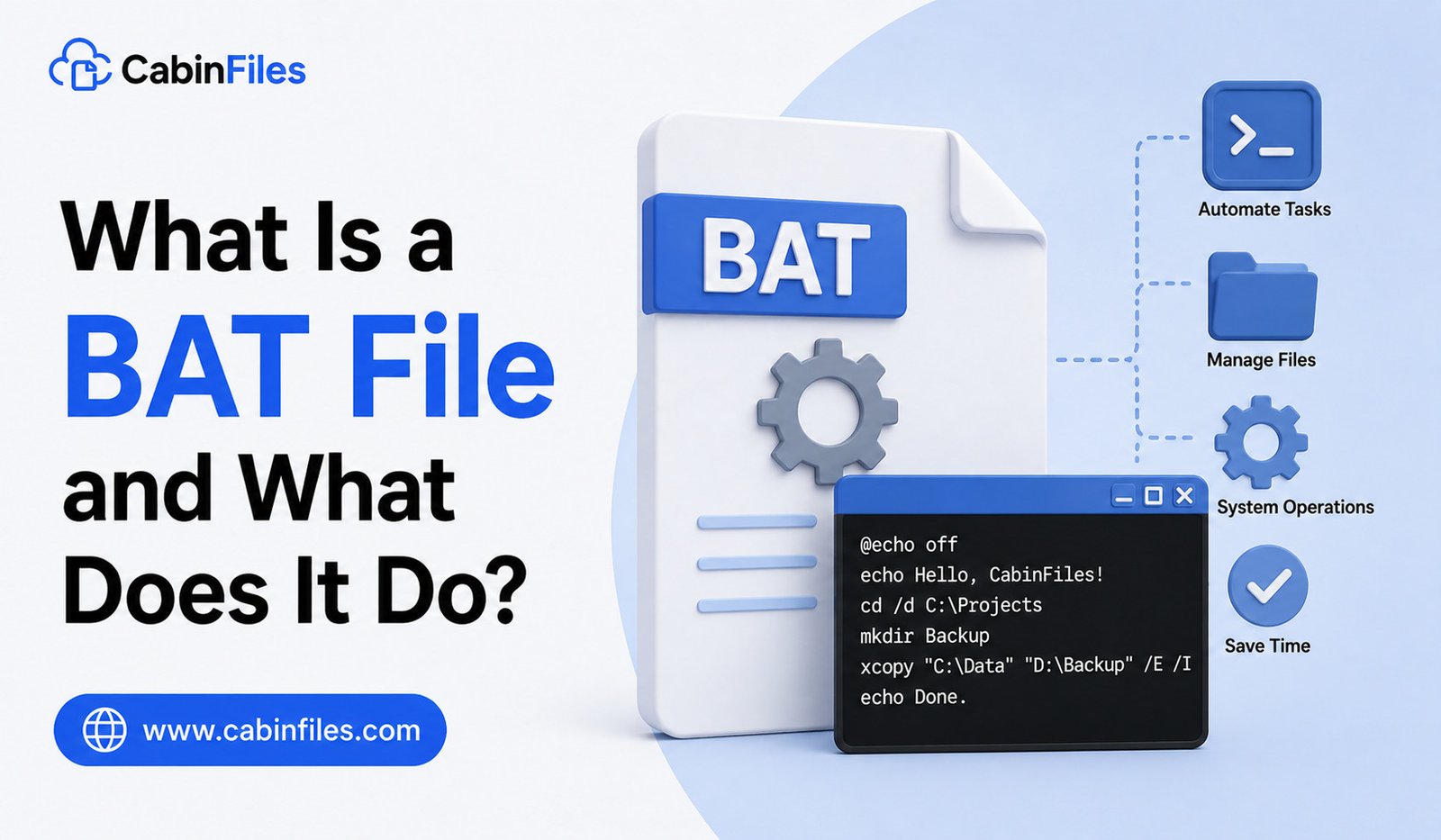
If you have explored files on a Windows computer, you may have come across files ending in .bat. Unlike common document or image files, a BAT file contains a series of commands that Windows can execute automatically. These files have been around for decades and remain useful for automating repetitive tasks, launching programs, managing files, and performing system operations.
But what exactly is a BAT file, how does it work, and when should you use one? This guide explains what a BAT file does, how BAT files work, how to create and open them, common uses, and important safety precautions.
What Is a BAT File?
A BAT file, short for batch file, is a plain-text file containing one or more commands that can be executed by Windows Command Prompt.
BAT files use the .bat file extension. When you run one, Windows processes the commands inside the file in sequence.
For example, a very simple BAT file could contain:
@echo off
echo Hello, welcome!
pause
When executed, the file opens a Command Prompt window, displays the message, and waits for the user to press a key.
The main idea behind a BAT file is simple: instead of manually typing several commands into Command Prompt, you can save those commands in one file and run them together.
What Does a BAT File Do?
A BAT file can perform many different tasks depending on the commands included in it.
It can:
- Launch applications
- Copy, move, or delete files
- Rename files and folders
- Create directories
- Run system commands
- Automate repetitive tasks
- Start multiple programs
- Set environment variables
- Run scripts or utilities
- Perform basic maintenance operations
For example, someone who regularly backs up files could create a batch file that copies selected folders to another location. Running the BAT file would then perform the task without requiring the user to enter every command manually.
How Does a BAT File Work?
BAT files work through the Windows command-line environment, primarily Command Prompt and the Windows command interpreter.
When you double-click a BAT file, Windows reads the commands inside it and executes them in order.
Consider this example:
@echo off
mkdir Backup
copy report.txt Backup
echo Backup completed.
pause
The commands tell Windows to create a folder called Backup, copy report.txt into it, display a completion message, and wait for user input.
The exact result depends on the commands and files involved.
Because commands are executed sequentially, the order of instructions can be important.
BAT Files Are Plain-Text Files
One useful feature of BAT files is that they are generally plain-text files. You do not need a specialized programming environment to create or edit one.
You can use Notepad or another text editor to write batch commands.
For example:
@echo off
echo Starting application…
start notepad.exe
You could save this as:
start-notepad.bat
When you run the file, Windows launches Notepad.
This simplicity is one reason BAT files have remained popular among Windows users and system administrators.
Common Uses of BAT Files
BAT files are especially useful when the same command-line operations need to be performed repeatedly.
1. Automating File Management
A BAT file can automate basic file operations such as copying, moving, renaming, and organizing files.
For example, a business user might create a script that moves daily reports into a particular folder.
Instead of performing the same operations manually every day, the user can run the batch file.
2. Launching Multiple Programs
A BAT file can start several applications using a single command.
For example, someone beginning their workday could use a batch file to open a browser, text editor, communication application, and other tools.
This can save time when the same programs are opened regularly.
3. Creating Backups
Batch scripts can be used for simple backup operations.
A BAT file can copy important files from one folder to another location. More advanced scripts can include conditions, logging, and additional commands.
However, important data should not rely on an untested script as its only backup method.
4. Running Maintenance Commands
System administrators and experienced Windows users can use BAT files to automate maintenance tasks.
For example, a batch file may run several diagnostic or cleanup commands in sequence.
This can be particularly useful when managing multiple computers or troubleshooting recurring issues.
5. Setting Up Development Environments
Developers sometimes use BAT files to prepare their working environment.
A batch file could change directories, set environment variables, start development tools, or execute build commands.
This allows a developer to perform several setup operations with one action.
How to Create a BAT File
Creating a basic BAT file is relatively easy.
Open Notepad and type the commands you want Windows to execute.
For example:
@echo off
echo My first batch file
pause
Then choose File > Save As.
When saving the file, make sure the filename ends with .bat, such as:
myfirstscript.bat
If Notepad saves it as myfirstscript.bat.txt, Windows will treat it as a text file rather than a batch file. Selecting All Files in the Save as type option can help prevent this issue.
How to Open or Run a BAT File
There is an important difference between opening and running a BAT file.
If you double-click a BAT file, Windows generally attempts to execute its commands.
If you want to inspect the commands without running them, right-click the file and choose an option such as Edit or open it using a text editor.
This is particularly important when the BAT file came from another person or an unfamiliar website.
Never assume a batch file is safe simply because it is a small text file. The commands inside it determine what it can do.
Are BAT Files Safe?
BAT files can be completely legitimate, but they can also be abused.
Because a batch file can execute Windows commands, a malicious BAT file could potentially delete files, modify settings, download or launch other software, or perform other unwanted actions depending on the user’s permissions and the commands involved.
For this reason, do not run an unfamiliar BAT file without checking its contents and source.
If someone sends you a BAT file unexpectedly, be especially cautious. Even if the filename looks harmless, inspect the commands before executing it.
Security software can provide additional protection, but users should still avoid running unknown scripts.
BAT File vs EXE File
BAT and EXE files are very different.
An EXE file is a Windows executable program, generally containing compiled application code.
A BAT file is a text-based script containing commands that Windows executes through its command interpreter.
A BAT file can therefore be easier to create and modify, while an EXE is typically used to distribute a compiled application.
Both can perform actions on a computer, but they work in different ways.
BAT File vs CMD File
You may also encounter files ending in .cmd.
BAT and CMD files are both command scripts used by Windows, and they can look very similar. Many commands work in both formats.
Historically, .bat files are associated with older DOS and Windows batch scripting, while .cmd files were introduced with Windows NT and are commonly associated with newer Windows command environments.
For many everyday scripting tasks, the difference is not important to casual users.
Can You Edit a BAT File?
Yes. Since BAT files are plain text, you can edit them with Notepad or another text editor.
However, you should understand what each command does before changing it.
A small mistake could cause a script to copy files to the wrong location, delete data, launch unwanted programs, or fail to complete its intended task.
If the BAT file is important, create a backup before editing it.
Why Are BAT Files Still Used?
Despite being an old technology, BAT files remain useful because they are simple and widely supported across Windows systems.
For basic automation, users do not necessarily need a complicated programming language or third-party application. A short batch script can accomplish many routine command-line tasks.
Modern Windows users also have access to more powerful scripting technologies, including PowerShell, which is generally better suited to complex automation and administration.
Still, BAT files remain convenient for straightforward tasks and legacy workflows.
Final Thoughts
A BAT file is a Windows batch script containing a sequence of commands that can be executed automatically. It can help users automate repetitive tasks, manage files, launch programs, perform maintenance operations, and simplify command-line workflows.
Because BAT files can execute commands on your computer, they should be treated carefully. Running a script from an unknown source can be risky, so always check where a BAT file came from and inspect its contents when necessary.
For simple Windows automation, however, BAT files remain a practical and surprisingly powerful tool.